
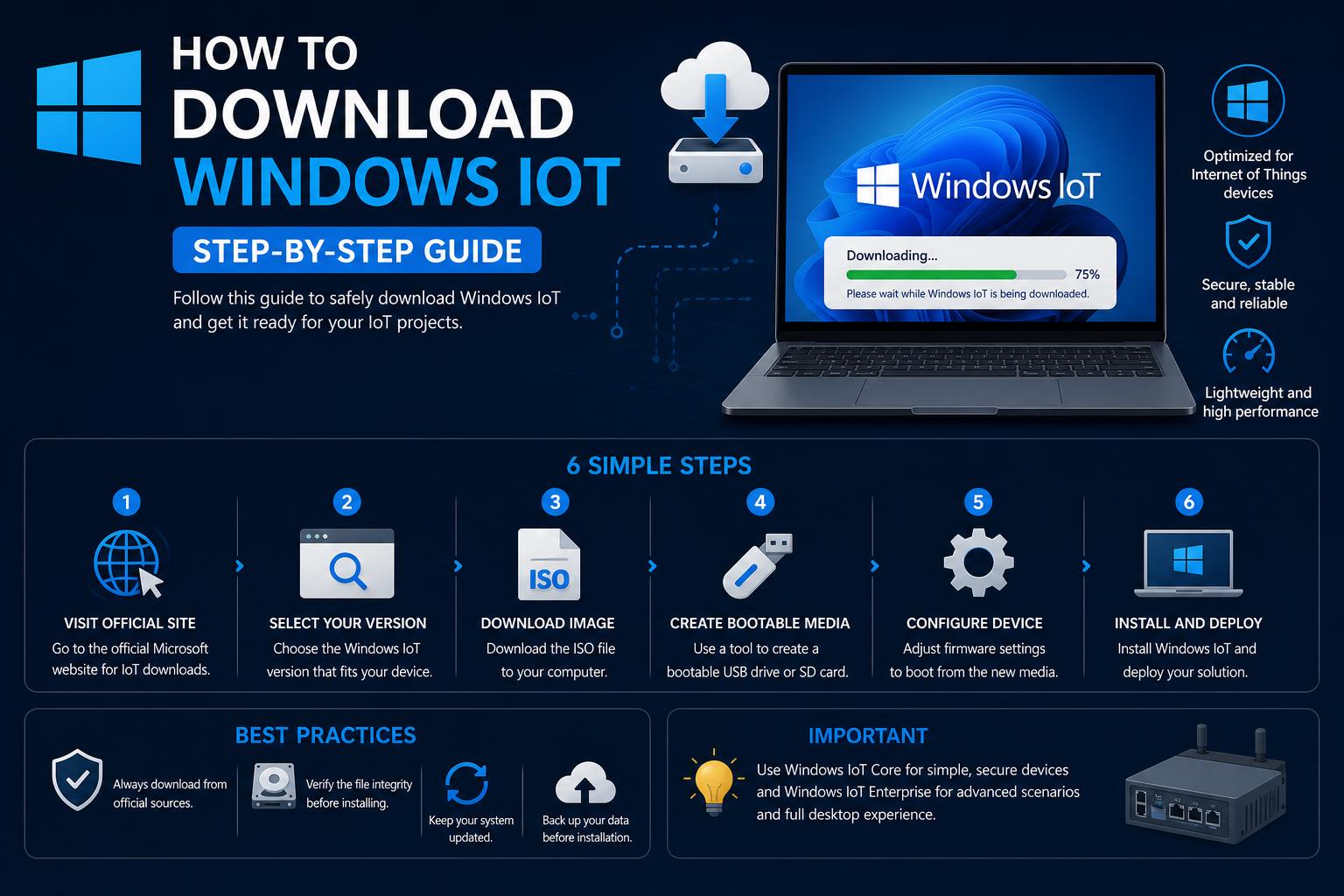
- Official channels are essential for safe Windows IoT downloads and proper licensing.
- Different editions and architectures shape how Windows IoT can be used on various devices.
- Installation involves direct ISO downloads, prepping bootable drives, and following strict setup protocols.
Looking to give Windows IoT a spin on your devices or embedded systems, or perhaps you need a robust, secure, and long-lasting OS for commercial and industrial hardware? Windows IoT, both in its Enterprise and Core variants, serves a critical role for businesses and makers demanding streamlined, reliable functionality. The process of downloading and installing can seem a bit daunting at first–especially when you face licensing checks, multiple editions, and technical installation steps. This guide breaks down every aspect in plain English, with all official resources and insider tips you won’t easily find in fragmented internet threads.
If you want your ATM, kiosk, or industrial device to run for years without a glitch, Windows IoT’s specialized versions could be just what you need. But with Microsoft offering downloadable ISOs, strict licensing routes, and a few manual installation hoops, knowing exactly where (and how) to start is crucial. Let’s walk through what Windows IoT actually is, which edition you need, how to download ISOs safely, and exactly how to perform a successful installation from beginning to end.
Understanding Windows IoT Editions and Their Uses
It’s easy to get lost in Microsoft’s naming conventions, so let’s clarify:
- Windows IoT Enterprise LTSC (Long-term Servicing Channel): This is the go-to for fixed-function, special-purpose devices in professional settings. Think banking, manufacturing, healthcare, retail, hospitality, and more. Its focus is a long 10-year support cycle and the ability to lock down systems for maximum reliability and security.
- Windows 10 IoT Core: A lightweight, minimal version, suitable for smaller devices without the need for a full desktop environment. This is ideal if you want to power simple, single-purpose IoT devices but don’t need all the enterprise bells and whistles. For detailed steps, check out the official Microsoft download center’s Windows 10 IoT Core release.
Both IoT Enterprise and Core versions deliver enhanced security, manageability and stability—but your choice depends on your device needs, licensing, and hardware specs.
Key Requirements Before Downloading
Before even thinking about hitting the download button, there are a few absolute musts to check off:
- Hardware compatibility. Windows 11 IoT Enterprise LTSC supports x64 and ARM64 platforms, but always check Microsoft’s up-to-date requirements for your exact scenario. Outdated or unsupported hardware can short-circuit your install plans quickly.
- Licensing. For production use (not just evaluation), you need a valid license and usually an account tied to Microsoft Volume Licensing Service Center (VLSC) or an authorized distributor. The ISOs themselves are protected—if you lack a valid license, you may hit roadblocks mid-installation or during activation.
- Backups. Because installing IoT Enterprise (especially in ‘clean install’ mode) wipes disks, back up everything important before you start the process.
How to Download Windows IoT Enterprise LTSC (90-Day Evaluation)
If you want to try out the newest IoT Enterprise, Microsoft offers a 90-day evaluation ISO directly from their Evaluation Center. This is the safest method for testing without a license key, ideal for labs, prototypes, or trial deployments.
- Go to Microsoft’s official download page at Windows 11 IoT Enterprise LTSC Evaluation.
- Register for access (you’ll need a Microsoft account). After registration, you get access to the ISO file download.
- Read all usage and installation guidelines provided on the page. These highlight what this version is intended for and warnings on not using it as an upgrade over a production OS.
- Start the download. File sizes can be large, often several GBs, so ensure your internet connection is reliable. Time to download varies based on your bandwidth and location.
Important: This evaluation is meant for new deployments. Don’t try to upgrade an existing Windows installation with this ISO; always format the drive and do a clean install.
Permanent and Production Usage: Accessing via Volume Licensing
For ongoing use—especially in commercial environments—you need a legitimate, fully licensed copy. Microsoft provides the official ISOs for Windows 10 IoT Enterprise LTSC through authenticated channels.
- Head to the Microsoft Volume Licensing Service Center (VLSC).
- Log in with a Microsoft account assigned to your company or institution’s volume license agreement.
- Go to the “Downloads and Keys” section, and select “Product Downloads.”
- Find ‘Windows 10 IoT Enterprise LTSC 2019’ (or your required edition) from the list and pick your language.
- Click download, then grab the ISO when prompted.
This route is more involved but is the mandatory route for legal, long-term, and supportable installations in businesses or distributed solutions. If you don’t have access, contact your company’s IT admin, reseller, or official Microsoft distributor listed in their IoT partner network.
Creating a Bootable USB Drive with Windows IoT ISO
Once you’ve got your ISO, you can’t install directly from it on most embedded devices—you’ll need a properly formatted and bootable USB flash drive.
- Plug your USB drive into your technician PC (minimum 8GB recommended).
- Open an Administrative Command Prompt and launch
diskpart(the tool for handling partitioning). - Enter
list diskto see available drives. Pick out your USB by its size—double-check to avoid wiping the wrong drive! - Select your disk with
select disk [your drive number]. - Run
clean(wipes that drive), then:create partition primaryselect partition 1activeformat fs=fat32 quickassignexit - Copy all the Windows IoT ISO contents to the root of the USB drive. A simple drag-and-drop with File Explorer does the trick–no need for special tools for manual installs.
Tip: FAT32 is required for UEFI/modern devices; for large install ISOs, some tools (like Rufus) can help split files to handle this limit.
Installing Windows IoT Enterprise from USB
Now for the big moment—installation onto the target IoT device.
- Insert your prepared USB into the powered-off IoT device (the “reference device”).
- Power on and hit the required key combo to access the boot menu (varies by device, check vendor docs if unsure).
- Select your USB drive as the boot option.
- Proceed through the Windows Setup process. When prompted for installation type, always pick ‘Custom: Install Windows only’ for a clean deployment.
- Delete existing partitions for a totally fresh start, then target unallocated space for the new install.
- Step through OOBE (Out-of-Box Experience) screens: choose your region, language, keyboard, etc.
Notes on Product Keys and Activation: The Evaluation version generally doesn’t require a product key during setup, but the production version will. If you’re unsure about your activation path, now is the time to double-check with your licensing source.
If you don’t activate (or you let the evaluation period expire), your desktop background will turn black, persistent notifications will display, and your device will automatically shut down every hour. So don’t skip this part!
Post-Installation Steps: Audit Mode, Customization, and Finalization
Windows IoT is often customized before rollout. After initial setup, you can enter a special mode called Audit Mode:
- On the first OOBE screen (before setup completion), hit CTRL+SHIFT+F3. Your device will reboot directly into Audit Mode, opening a System Preparation Tool window.
- You can now install extra drivers, security tools, or business software before “sealing” the image with Sysprep.
- Note: Every reboot until you sysprep will reopen the System Preparation Tool automatically.
- Once all customizations are finished, use Sysprep to return to normal setup workflows.
For a more hands-on walkthrough, Microsoft’s IoT Enterprise Image Creation guide is packed with lab-style details and sample commands.
Downloading and Installing Windows 10 IoT Core
If you want the smallest possible Windows flavor for ultra-lightweight projects (think Raspberry Pi, specialized gateways, etc.), Windows 10 IoT Core is your target. Here’s the short version:
- Microsoft’s official download center is where you’ll get the latest ISOs. The latest release as of 2024 weighs in at about 2.3 GB.
- Installation involves preparing a USB (as above) and then flashing your device—often using vendor-specific tools or using utilities like Rufus.
Remember, Core differs massively from Enterprise: No desktop shell, very limited UI, and intended for development or single-purpose systems.
Verifying Download Authenticity and Integrity
Whenever you handle OS images, especially for critical infrastructure: Always verify the integrity of what you downloaded!
- Use PowerShell’s Get-FileHash cmdlet to compute the hash (SHA256) of your downloaded ISO:
Get-FileHash C:\Path\To\YourISO.iso - Compare the resulting hash value to the published reference (find these on Microsoft’s docs or next to the ISO download, often in a .pdf list).
- If your hash matches, you’re good to go. If not—don’t use the file! It may be corrupted or tampered with.
For extra info on this process, Microsoft’s command reference for Get-FileHash will steer you right.
Troubleshooting, Licensing Questions, and Community Wisdom
Not all issues are covered in the manuals—sometimes you run into quirky hardware, complex network policies, or questions about activation (especially with IoT LTSC vs. Enterprise versions). Community-driven platforms like Microsoft Learn Q&A offer practical, step-by-step account stories and clarifications.
Key takeaways:
- Your best bet for unlicensed installs is the Evaluation ISO; for permanent use, licensing via VLSC or a Microsoft distributor is crucial.
- If uncertain, consult your IT team or official support channels—public forum advice is useful for guidance but never a replacement for legal compliance.
- Some community discussions, such as Reddit threads, explore gray-area tools and methods for activating or customizing Windows IoT ISOs. Stick to official or widely-accepted practices to avoid legal or functional risk.
It’s crucial to follow correct procedures to keep devices secure and functional. Pick the right edition, verify your sources, and adhere to proper setup and validation steps to maintain a reliable and supported deployment.