
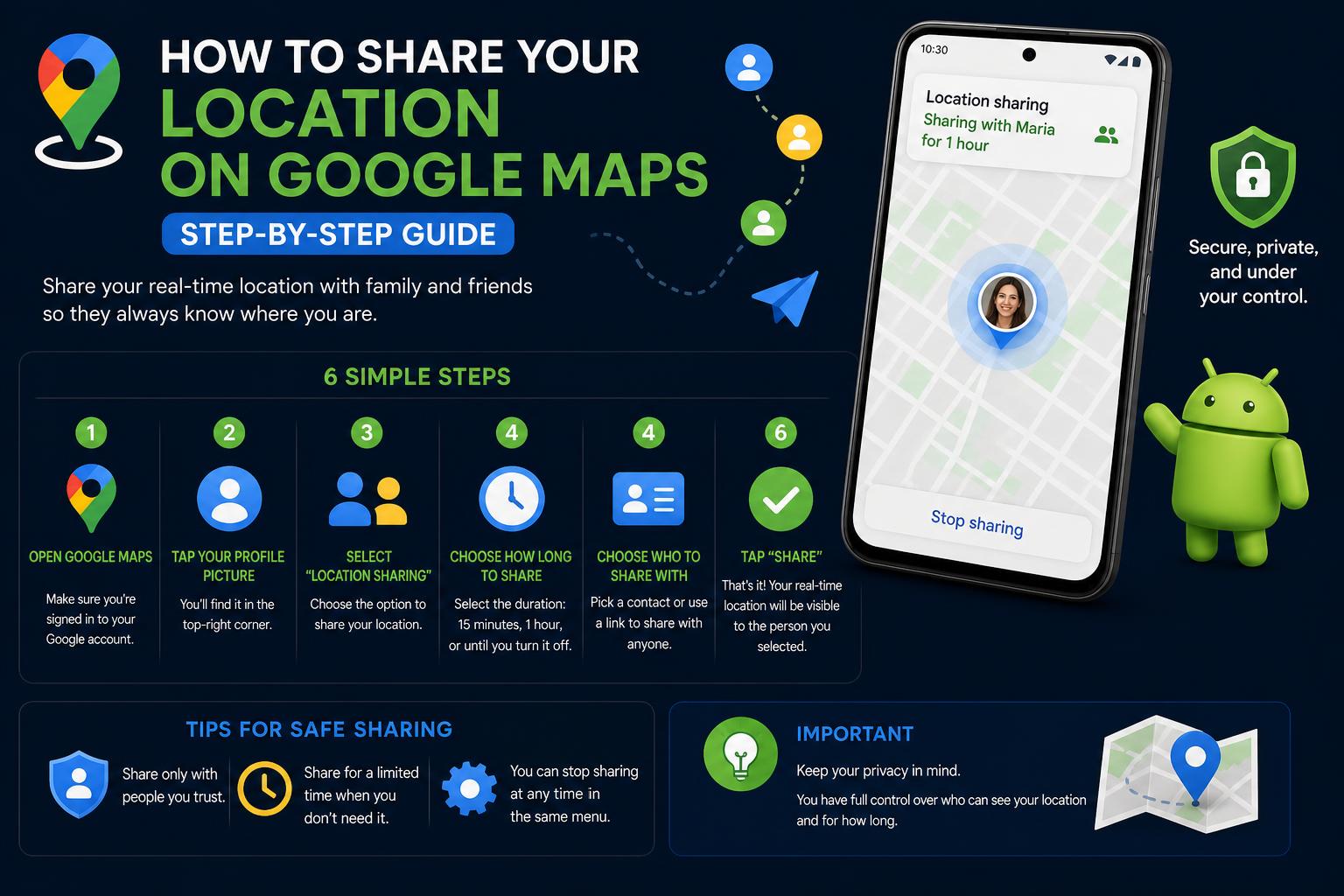
- Google Maps lets you flexibly share your real-time location and specific spots with trusted contacts on Android, iOS, or desktop.
- The app reveals more than just your position—it shares your name, photo, device battery, and movement details, but you control who sees this info and for how long.
- You can adjust or revoke location sharing at any time, download offline maps for travel, and troubleshoot problems for a seamless experience.
Sharing your location through Google Maps has become an everyday necessity, whether you’re meeting friends at a concert, checking in on loved ones, or simply trying to coordinate your arrival time. The process is both simple and versatile, available on a range of devices and customizable to suit your privacy and sharing preferences. Yet, despite its apparent ease, many users still find themselves confused by the variety of options and the details Google reveals when you share your location.
In this complete guide, you’ll discover exactly how to share your real-time location in Google Maps, the different methods available based on your recipient’s account, what information you’ll be sharing about yourself, and all the important settings you need to stay in control. We’ll also cover advanced tips like sharing a dropped pin, using offline maps for situations with no internet, and troubleshooting common issues, so you can confidently manage location sharing no matter where you are.
Location sharing helps streamline meet-ups, keeps your close contacts informed about your whereabouts, and enhances personal safety through trusted contacts. Google Maps makes this feature accessible on almost every platform (Android, iOS, and desktop), broadening its appeal from casual social plans to crucial daily routines and travel scenarios. Plus, the flexibility to choose whom you share your location with and how long they can access it puts you in full control, turning Google Maps into not just a navigation tool, but a real-time connection service.
How Location Sharing Works in Google Maps
Google Maps lets users share their live location data in real-time, offering several granular controls over who views this information and for what period. Notably, this feature works even if Google’s Timeline is off, reflecting a commitment to keeping sharing and privacy distinct.
The core steps require a mobile device (Android or iOS), as real-time location sharing is initiated from these platforms. You can, however, review and adjust some sharing preferences via a desktop computer, providing flexibility for how you manage your account. Learn more at Google Support.
When you opt to share your location via Google Maps, you’re not just sharing your spot on the map. The recipient can also view your:
- Your name and profile photo: This ensures the recipient knows who is sharing the location.
- Your device’s recent location, even if you’re not currently using Google Maps or other Google apps.
- Device battery level, including whether it’s charging. This detail can offer peace of mind to those who are concerned your phone might run out of juice.
- Estimated arrival and departure times if you allow notifications (for instance, when navigating or sharing route progress).
Google Maps may also display a point of interest or a specific address, especially in dense urban environments, although sometimes the location might be pinned to a nearby landmark due to GPS limitations. It also factors in your mode of travel (driving, walking), and recipients may be able to set up notifications about your movements if you grant permission.
Depending on whether your contact has a Google account, there are two principal ways to share your location:
1. Sharing with Contacts Who Have a Google Account
- Open the Google Maps app on your mobile device.
- Tap your profile picture or initial, then select Location sharing.
- Tap Share location, set the sharing duration, and choose the contacts (from your Google contacts) with whom to share.
- Decide if you want to allow notifications about your location, such as arrival alerts.
Recipients will see your real-time location directly within their Google Maps app and receive ongoing updates as specified.
2. Sharing with People Without a Google Account
- Initiate the sharing flow as above until you reach the “Share via link” option.
- Select to generate a unique URL for your live location.
- You can send this link via text message, email, or through other messaging apps.
- Recipients don’t need to sign in to Google; clicking the link opens your live position in a browser window.
To make the process crystal clear, here are the detailed instructions for both Android and iOS devices.
For Android Users
- Launch Google Maps.
- Tap your profile image or initial at the top right.
- Select Location sharing.
- Tap “New share” or the “Share location” button.
- Choose how long you wish to share—preset times or indefinitely until you manually stop sharing.
- Select the contact(s) or app(s) to use; follow prompts to send your location or the generated link.
For iPhone Users
- Open the Google Maps app.
- Tap your profile picture at the top right, then choose Location Sharing.
- Pick how long to share: choose a preset time or opt to share until you turn it off.
- Choose recipients: select from Google contacts or tap “More options” for other apps.
- Send your location using the desired method.
Remember: If you’re sharing with someone who doesn’t have a Google account, copy and send the sharing link directly via text message, email, or a messaging app.
Sharing a Dropped Pin for a Specific Location
Sometimes, you might want to share a specific spot (like a picnic area or a café) rather than your real-time moving location. Here’s how to do it:
- Open Google Maps and tap the map at your desired location (or search for an address/landmark).
- Press and hold to drop a pin at the exact point; a red icon will mark the spot.
- When the location panel appears, tap Share.
- Choose how you want to share: SMS, email, or any app that supports sharing links.
- Your