
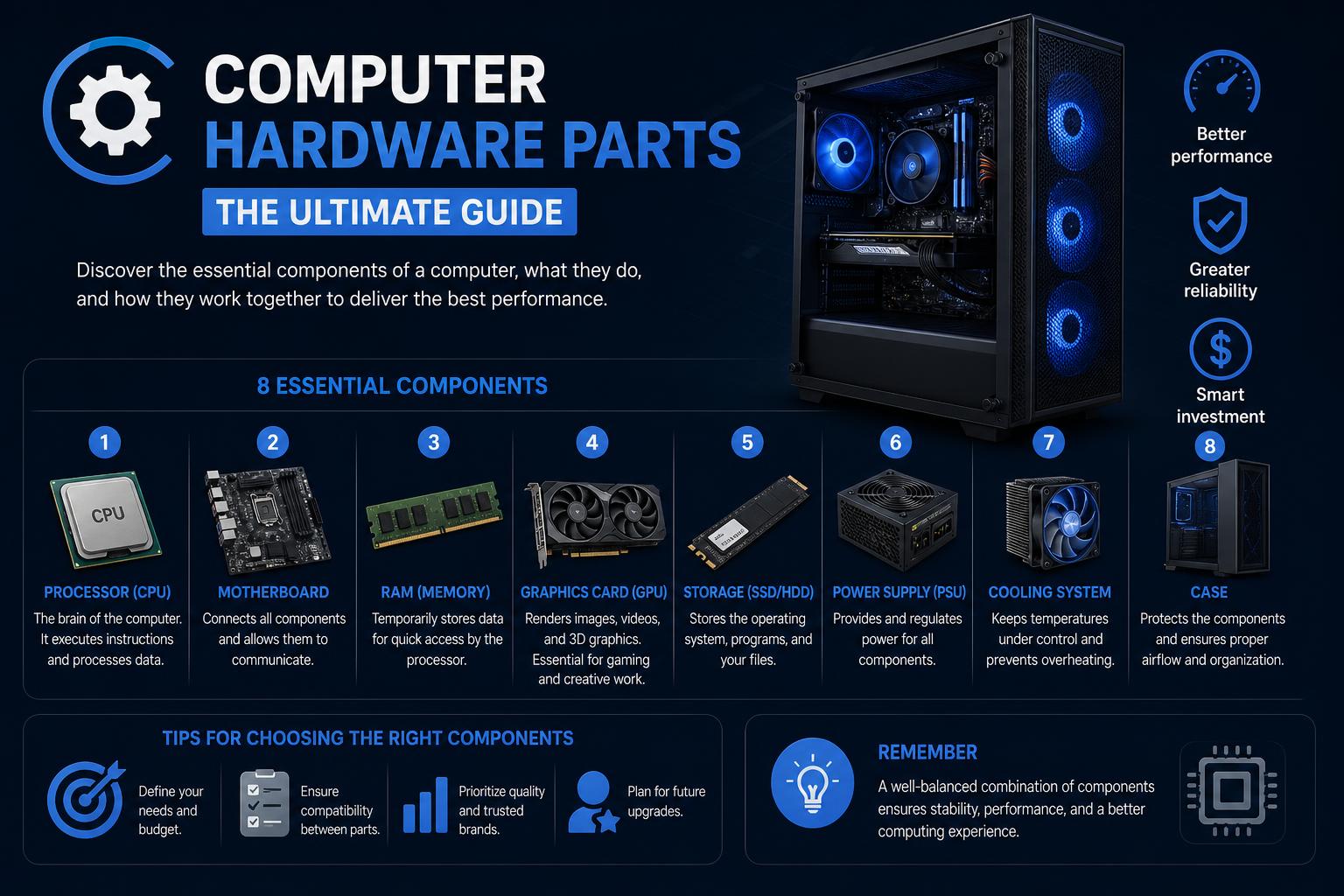
- A thorough breakdown of internal and external computer hardware parts
- Clear clarification between hardware and software roles
- Detailed insights into upgrading, compatibility, and troubleshooting
- Coverage of networking essentials and modern hardware trends
Computer hardware forms the bedrock of our digital world—whether you’re a casual user, aspiring PC builder, or IT professional, there’s a lot to uncover behind the screens we use daily. The right combination of hardware parts under the hood fuels everything from basic web browsing to high-end gaming, graphic design, or scientific modeling. So, how does it all fit together, and what should you know if you want a deeper, more hands-on understanding?
This guide is designed to walk you through the essentials and beyond. We’ll look at what makes up a computer system, explore critical differences between hardware and software, and break down both upgrade considerations and the technology trends shaping tomorrow’s PCs. Ready for a real-world look at what makes your computer tick? Let’s get started.
The Physical Foundations: What Is Computer Hardware?
At its core, computer hardware comprises all the tangible components that you can see and touch. If you’ve ever glimpsed inside a tower case or handled a laptop, those circuit boards, wires, slots, and silicone chips are all hardware parts, as are peripherals like keyboards, monitors, and printers.
From the 1940s’ room-sized machines to the ultra-compact smartphones and cloud data hubs today, hardware is the medium through which computer programs—the software—can work their magic. Every click, calculation, streamed movie, or printed document relies on the seamless operation of these parts.
Main Computer Hardware Components
You can’t build or upgrade a computer without knowing the vital roles played by its essential components. Each part brings a unique function and contributes to overall system performance, reliability, and upgradability. Let’s break down the essentials.
1. The Motherboard
The motherboard is the main circuit board and the central nervous system of your computer. Everything—CPU, RAM, storage, connectors for external parts—plugs into it. Modern boards have specialized chipsets, support high-speed RAM, contain expansion slots (PCIe for graphics cards and storage), and enable connections for all peripherals. The quality and compatibility of your motherboard control future upgrades and overall reliability.
- ATX motherboards offer the most expansion for gaming or productivity rigs.
- Micro-ATX and Mini-ITX save space for more compact builds.
- Look for modern standards like PCIe 5.0, DDR5 support, and robust VRMs for power stability.
2. Central Processing Unit (CPU)
This is the brain of your computer, performing calculations, running programs, and managing input/output operations. Modern CPUs feature multiple cores, high clock speeds, and integrated graphics or AI accelerators in some cases. Your system’s responsiveness—from boot time to complex processing jobs—is directly tied to your CPU.
For high performance, options like the Intel Core i9 or AMD Ryzen 9 7950X3D are popular among gamers and professionals, while mainstream builds often go for i5/i7 or Ryzen 5/7 models.
3. RAM (Random Access Memory)
RAM is the fast, volatile memory that holds the data and programs your CPU is currently using. It’s essential for multitasking, gaming, video editing, and heavy workloads. Increasing RAM and opting for the latest DDR5 memory with higher speeds (like 6000 MHz+) can significantly boost performance and multitasking abilities.
- 8GB is the minimum for basic machines; 16GB is standard for gaming; 32GB or more is recommended for content creators and professionals.
- SRAM vs. DRAM: SRAM is fast and used in cache, DRAM is more common as main memory.
4. Storage Drives: SSDs, HDDs, and Optical Drives
Your files—operating system, documents, applications, media—need reliable, persistent storage. Today’s PCs often combine fast SSDs (Solid-State Drives) with traditional HDDs for capacity.
- SSDs (especially NVMe) offer rapid boot times, quick data transfers, and faster app launches.
- HDDs provide cost-effective, high-capacity options for backups or archives.
- Optical drives like CD/DVD/Blu-ray are less common, but sometimes necessary for legacy media or data transfer.
A typical setup involves installing the OS and critical programs on an SSD, with HDDs serving for bulk storage. External USB drives—including portable SSDs and thumb drives—are ideal for backups and data sharing.
5. Graphics Card (GPU)
While integrated graphics are sufficient for basic tasks, dedicated graphics cards (GPUs) significantly enhance system performance for gaming, creative work, and scientific computing. They manage rendering of images, videos, 3D models, and AI workloads. Choosing high-end GPUs from AMD or NVIDIA is essential for demanding applications.
6. Power Supply Unit (PSU)
Your PSU is more than just an outlet connection. It converts AC power from your wall into the voltages needed by your components. Reliability and wattage capacity are crucial—look for 80 PLUS Gold or Platinum certified units, and ensure it has enough power connectors. Modular PSUs help with cable management and airflow, simplifying future upgrades.
7. Cooling Solutions
Modern hardware generates significant heat! Air coolers and liquid cooling systems are vital for maintaining optimal temperatures, prolonging component life, and enabling overclocking. Adequate airflow, tidy cable routing, and quality fans enhance overall system stability.
8. Computer Case
The case protects components, organizes internal airflow, and can reflect your personal style. Full towers are suited for extensive builds, mid-towers are versatile, and compact cases fit limited spaces or stealth setups. Proper cable management ensures both aesthetics and airflow efficiency.
9. Internal Cartridges, Hard Disk Packs
Some enterprise or specialized systems utilize removable drives or multi-drive packs for easy maintenance or high-volume storage. Although less common in consumer PCs, knowing about these can be useful in professional contexts.
10. Networking Components
Networking hardware: routers, switches, modems, and network interface cards (NICs) facilitate connection, communication, and resource sharing across devices. Modern boards often feature Wi-Fi 7 and USB 4.0 for faster wireless and wired connections.
11. Expansion Cards and Ports
More functionality can be added via expansion cards inserted into motherboard slots. This enables additional graphics, improved audio, network interfaces, or specialized I/O. Modern ports like USB-C, Thunderbolt, and HDMI/DisplayPort standards support high-speed, multi-device connections.
12. Input/Output Devices
- Input devices: keyboards, mice, touchscreens, scanners, microphones, and legacy options like light pens facilitate interaction and data entry.
- Output devices: monitors, printers, speakers, and plotters deliver visual and audio feedback, document output, and multimedia experiences.
Internal, External, and Networking Hardware at a Glance
Internal Hardware Components
These parts operate inside the computer case and are essential for core functionality:
- CPU: executes instructions.
- RAM: provides fast, temporary memory for active processes.
- Motherboard: connects all components and manages data flow.
- HDD/SSD: stores the OS, files, and software.
- Expansion cards and power units: support additional functionalities and power distribution.
External Hardware/Peripherals
External components enhance usability and expand capabilities:
- Keyboards, mice, touch interfaces.
- Monitors, projectors.
- Printers, scanners, cameras.
- External drives (USB, SSDs, card readers).
- Speakers and sound systems.
Networking Hardware Essentials
- Routers connect multiple devices to internet and local networks.
- Switches manage internal data transfer.
- Modems link to internet lines.
- Ethernet and Wi-Fi adapters enable wired and wireless connectivity.
Hardware vs. Software: Key Differences and Collaboration
Hardware constitutes the physical equipment of a computer—tangible and measurable, requiring physical upgrades or replacements. Software comprises the instructions and programs that run on the hardware, enabling its functionality. Both are indispensable and depend on each other to operate effectively.
- Hardware can degrade or become obsolete over time, while software updates can enhance capabilities without changing physical parts.
- For example, typing on a keyboard (hardware) sends signals to the CPU, which processes data interpreted by the software, such as a word processor, and the output appears on a monitor (hardware).
Comparison Table: Hardware vs. Software
| Category | Hardware | Software |
|---|---|---|
| Definition | Physical components | Programs/instructions |
| Examples | CPU, RAM, Hard Drive | Operating System, Word Processor |
| Purpose | Executes and stores data | Processes and manages data |
| Dependence | Works independently but needs software to function | |
| Upgradability | Swap/add components | |
| Cost | Higher initial expense | |
| Installation | Physical setup required |
Upgrading and Optimizing Your Computer Hardware
Extending your system’s lifespan, enhancing performance, or adding new features can be achieved through upgrades. Adding more RAM, replacing a hard drive with a faster SSD, upgrading your GPU, or switching to an efficient, modular PSU are common options to boost your PC’s capabilities. How do you choose the right options?
- Compatibility is essential: Ensure CPUs match the motherboard socket, RAM is supported, and power supplies can handle the load.
- Modern motherboards support features like Wi-Fi 7, PCIe 5.0, and high-speed M.2 slots for storage.
- Good cooling and airflow are vital when pushing hardware limits.
Tools such as Newegg’s Custom PC Builder are helpful to verify component compatibility and prevent mismatched parts.
What Is Intel DRM Fabric? A Deep Dive into Linux GPU Interconnects & New Topologies
Maintaining, Troubleshooting, and Extending Hardware Life
Even reliable hardware can encounter issues. Here are some quick troubleshooting tips:
- If your system won’t start, check power connections, peripheral setup, and ensure components are securely seated.
- For unexpected restarts, inspect fans, cooling systems, and thermal paste for issues like dust or failure.
- Symptoms like missing files or noises may indicate drive failure; backing up data and replacing drives proactively is advisable.
- Peripherals not functioning? Troubleshoot cables, ports, or connections.
Modern Hardware Trends & The Future of Computer Parts
The hardware industry evolves rapidly. Emerging trends include AI-accelerated processors and GPUs, DDR5 memory adoption, PCIe Gen5 storage, and energy-efficient smaller form factors. Cloud computing shifts many workloads away from local hardware, but behind the scenes, high-density servers and advances like quantum computing promise continued innovation. Industry leaders like IBM are pioneering these fields. New standards such as Gen5 SSDs and Wi-Fi 7 are setting the stage for future-proofing devices.
Staying current involves following tech news, reading reviews, and evaluating new features against your needs, not just marketing hype. Whether building from scratch, upgrading components, or understanding your device better, a solid grasp of hardware enhances your tech experience.
The integration of internal components, external peripherals, and networking systems forms the backbone of any digital setup. Balancing performance, budget, and upgradeability is key, and understanding the differences between hardware and software lets you troubleshoot problems, plan future upgrades, and build that powerful PC you’ve been dreaming of. Staying informed about emerging trends and keeping up with maintenance and troubleshooting tasks will ensure your digital life runs smoothly for years to come.