
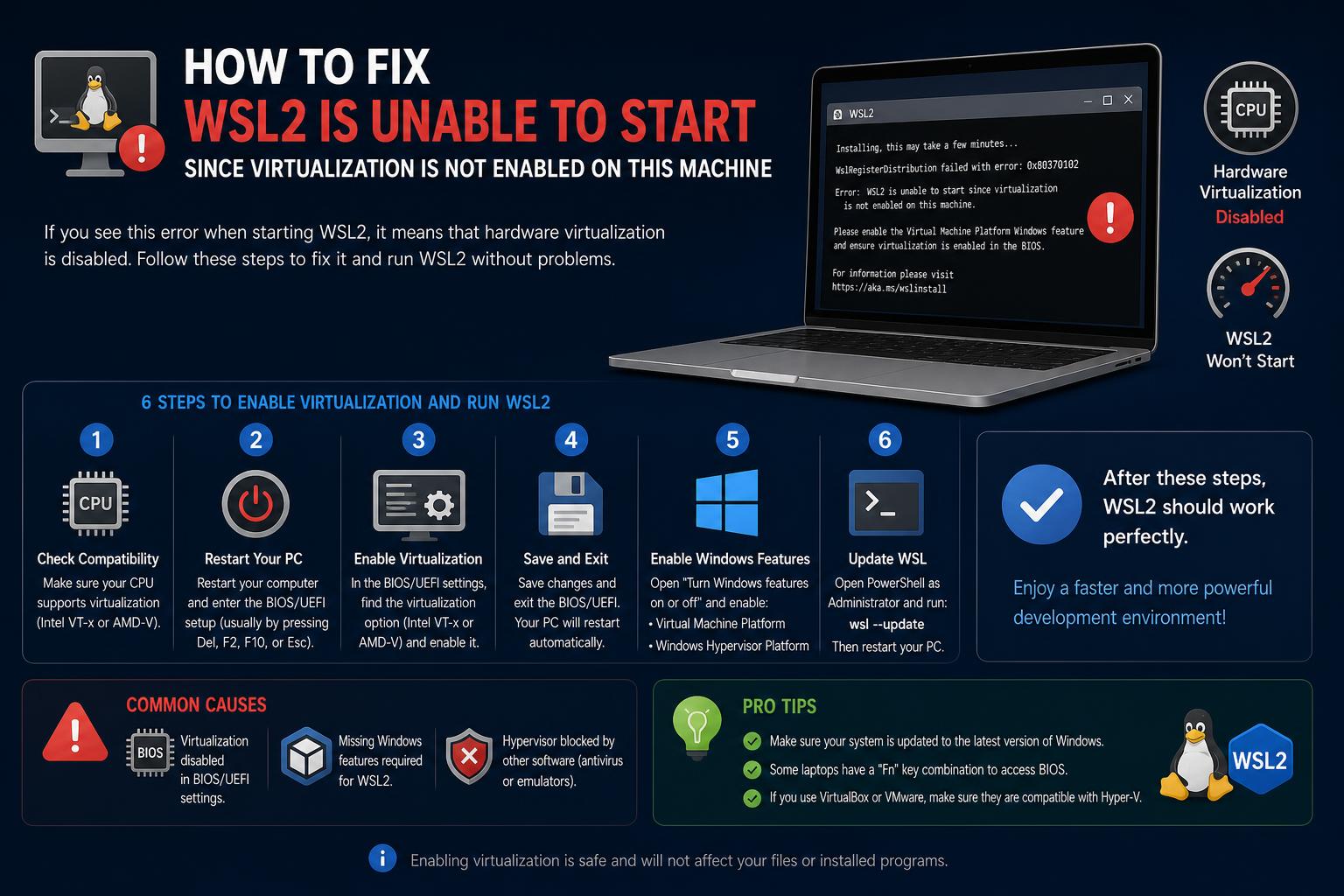
- WSL2 requires both BIOS/UEFI virtualization and Windows features like Virtual Machine Platform enabled.
- Most failures come from disabled hardware virtualization, conflicted Windows features, or VM host limitations.
- Following correct reset and update procedures reliably resolves the majority of WSL2 initialization issues.
If you’ve landed on this guide, you’re probably facing the dreaded ‘WSL2 is unable to start since virtualization is not enabled on this machine’ message or a variation of it. Whether you’re a developer trying to get Docker running, or just exploring the world of Linux on Windows with the Windows Subsystem for Linux (WSL), hitting a wall with virtualization can be incredibly frustrating. Don’t worry – you’re not the only one. In fact, this is one of those problems that drives waves of people to forums, issue trackers, and blogs searching for answers. In this deep-dive, we’re going to dissect every aspect of the issue: why it happens, all the angles you need to check, hiccups you might encounter on physical and virtual machines, and ultimately, how to get WSL2 (and usually Docker) happily running under Windows 10 or 11.
The reality is that virtualization is more than just flipping a BIOS switch nowadays. With Windows piling features on top (like Hyper-V, Virtual Machine Platform, and more) and the interplay with security settings, system firmware, and other hypervisor tools, things can get tangled fast. So, grab a coffee, and let’s break down each part of the problem and solution, making sure no crucial troubleshooting steps get left out. By the end, you’ll have a toolkit for not only fixing WSL2 virtualization errors but also understanding why these settings mess up in the first place.
Understanding the Root Cause: Why Does This Error Happen?
Let’s start by demystifying the main error message: ‘WSL2 is not supported with your current machine configuration. Please enable the Virtual Machine Platform optional component and ensure virtualization is enabled in the BIOS.’ This error throws users into a loop, especially when you’re sure you already enabled virtualization in your BIOS. Here’s what’s actually going on beneath the surface.
- WSL2 requires hardware virtualization (Intel VT-x/AMD-V) to create a lightweight virtual machine that runs the Linux kernel natively. If your CPU doesn’t support it, or if it’s turned off in the BIOS/UEFI, WSL2 simply cannot launch.
- On top of BIOS settings, Windows features such as ‘Virtual Machine Platform’ (VMP), ‘Hyper-V’, and (sometimes) ‘Windows Hypervisor Platform’ all need to be enabled and working in harmony. If even one of these features is disabled, improperly installed, corrupted, or clashing with other software (hello, VMware/VirtualBox/third-party tools), WSL2 will refuse to start a Linux distribution.
- Security configurations, like Memory Integrity or third-party antivirus/firewalls, may block or interfere with virtualization features, resulting in unexpected failures during WSL2 initialization.
- Running Windows inside another virtual machine environment (like on XCP-ng, VMware, or Azure)? WSL2 will only work if ‘nested virtualization’ is supported and exposed to your guest OS. Regular VMs without nest virtualization support cannot use WSL2 at all.
- Sometimes, feature corruption at the Windows OS level – often triggered by failed updates, partial upgrades, or legacy settings carrying over from previous installations – may cause WSL and virtual machine features to get stuck in an inconsistent state.
Quick Overview: Key Dependencies for WSL2
Before jumping into complex troubleshooting, let’s clarify what’s essential for WSL2 to work:
- CPU must support virtualization instructions (VT-x/SVM/AMD-V)
- Virtualization enabled in BIOS/UEFI
- Windows build must be 1903 or newer (18362+), ideally fully updated
- Relevant Windows Features activated (‘Virtual Machine Platform’, ‘Windows Subsystem for Linux’, sometimes ‘Hyper-V’)
- No conflicting third-party virtualization or security software
- If inside a VM, nested virtualization must be configured and supported in your hypervisor
Step-by-Step Troubleshooting and Resolution Guide
1. Check and Enable Virtualization in the BIOS/UEFI
The foundation. No amount of fiddling in Windows will help if hardware virtualization is off at the firmware level.
- On your physical PC, restart and enter BIOS/UEFI settings (usually by pressing Del, F2, F10, ESC, or similar during boot).
- Look for options labeled ‘Intel Virtualization Technology’, ‘VT-x’, ‘Intel VT’, ‘AMD-V’, or ‘SVM Mode’. Enable them if they’re disabled.
- Save changes and reboot. (Some systems also have options like ‘Intel VT-d’ or ‘IOMMU’ – not always needed for WSL2, but usually harmless to enable).
- Back in Windows, launch Task Manager → Performance → CPU and confirm ‘Virtualization: Enabled’. Older chips (pre-Intel Nehalem/AMD Opteron) will not work.
- If inside a virtual machine (VMware, XCP-ng, Azure, etc): the host hypervisor must support and expose nested virtualization to your guest. This usually involves an explicit setting in your VM configuration.
[relacionado url=”https://www.ikkaro.net/wsl-on-windows-11/”]
2. Update Windows Thoroughly
Many virtualization and subsystem bugs, especially on Windows 11, have been fixed in more recent cumulative updates.
- Go to Settings → Windows Update, click ‘Check for updates’, and apply every available update. Restart as prompted and recheck for new updates.
- Outdated builds may lack necessary driver fixes and breaking WSL2 support.
3. Prune and Reset Hypervisor Features
One of the best-documented recovery sequences, echoed by Karan Singh’s in-depth guide and various Microsoft support threads, is to fully disable, reboot, and re-enable all relevant Windows virtualization features. Here’s how:
- Open Control Panel → Programs → Turn Windows features on or off.
- Turn OFF: ‘Virtual Machine Platform’, ‘Hyper-V’, and any other hypervisor-related features.
- Apply changes, restart when prompted.
- Optional, but recommended: Open PowerShell as administrator and uninstall WSL:
wsl --uninstall
- Restart your computer again (do a full reboot, not just ‘sleep’ or ‘logout’).
The idea is to ‘flush out’ any lingering partial installs or corrupted feature configurations.
4. (Re)enable Required Windows Features
- Return to ‘Turn Windows features on or off’.
- Enable: ‘Windows Subsystem for Linux’
- Apply, reboot.
- Go back and also enable ‘Virtual Machine Platform’. For advanced users, you can do this via PowerShell too:
dism.exe /online /enable-feature /featurename:VirtualMachinePlatform /all /norestart
Then restart again.
5. Double-Check Nested Virtualization (VM-only)
If you’re running Windows inside a virtual machine (on, say, VMware Workstation, XCP-ng/XenServer, or Hyper-V), you must enable nested virtualization in the host:
- For Hyper-V: Run in admin PowerShell (on the host):
Set-VMProcessor -VMName "YourVMName" -ExposeVirtualizationExtensions $true
- On XCP-ng, VMware, VirtualBox, and others: expose hardware virtualization via VM settings. If you can’t find these options, consult your hypervisor’s documentation.
- Some public clouds (Azure, etc) may restrict nested virtualization by default.
6. Check for Security/Enterprise Policy Roadblocks
- Some organizations enforce Group Policy, Windows Defender, or Endpoint Protection settings that block modification of firewall rules, disable hypervisor features, or restrict local admin actions. In particular, settings that block ‘Inbound Connections’ on the firewall or disallow local rule merging can block WSL2 networking or fail its startup logic. For more on security configurations, you can also check out the guide to IT certifications.
- You can audit firewall profile settings in PowerShell:
Get-NetFirewallProfile -PolicyStore ActiveStore
If AllowLocalFirewallRules or AllowInboundRules are set to False, you’ll have trouble. WSL2 may work more reliably if you enable DNS Tunneling within your WSL config (/etc/wsl.conf).
7. Re-Install WSL and Distributions
- Open PowerShell as administrator.
- Run wsl –install to install WSL (Ubuntu is the default distro now, but you can see more with: wsl –list –online).
- After install, check status with: wsl -l -v. You should see something like:
  NAME      STATE   VERSION
* Ubuntu   Running 2
If VERSION is ‘1’, try upgrading:wsl --set-version Ubuntu 2
- If you get stuck with error codes, scroll down to the troubleshooting section for error-specific resolutions.
Common Error Codes and Their Meaning
Sometimes, the error messages that WSL2 spits out can be cryptic. Here’s a quick cheat-sheet, based on the official Microsoft guide and common forum reports:
- 0x80370102: ‘The virtual machine could not be started because a required feature is not installed.‘ — Solution: Make sure ‘Virtual Machine Platform’ is enabled, virtualization is enabled in BIOS, and any third-party hypervisors are up to date or disabled.
- 0x8007019e: ‘The Windows Subsystem for Linux optional component is not enabled.‘ — Solution: Enable WSL as a Windows feature.
- 0x80070003/0x80370102 (on install): Virtualization not enabled in BIOS.
- Wsl/Service/RegisterDistro/CreateVm/HCS_E_HYPERV_NOT_INSTALLED: Hyper-V or VMP is missing/broken. Re-enable those features, restart, and re-try.
- Wsl/Service/CreateInstance/CreateVm/0x80370102: See above for 0x80370102.
Dealing with Docker: Special Considerations
Docker Desktop for Windows relies entirely on WSL2 (unless you’re using the legacy Hyper-V backend). Many users stumble upon error messages stating ‘WSL2 is not supported with your current machine configuration’ when attempting to run Docker. In almost all cases, if WSL2 fails to start, Docker will also be non-functional.
- Review all the steps above – ensuring virtualization is on, WSL and related features are installed, and conflicting hypervisors are either updated or disabled.
- Some users have reported needing to uncheck Compress and Encrypt settings (file system properties on the Linux distro’s LocalState folder – this is especially needed if you’re getting ‘Virtual hard disk files must be uncompressed and unencrypted and must not be sparse‘ errors).
- If Docker refuses to detect WSL2 even after a clean install, check Windows logs and consider fully removing and re-installing both Docker Desktop and your WSL distributions.
Docker Desktop and Networking Modes
- Mirrored networking mode may introduce additional networking issues incompatible with some VPNs and firewall setups. You might need to adjust your WSL configuration file (
wsl.conf) or revert to NAT networking mode if containers can’t be accessed externally. - Certain enterprise VPNs (Bitdefender, OpenVPN, McAfee Safe Connect, etc.) have confirmed quirks breaking WSL networking. Contact your IT admin for possible workarounds or try updating or removing the VPN client to test.
Virtual Machine, Cloud, and Nested Virtualization: Pitfalls and Workarounds
If you’re running Windows 10 or 11 on a virtual machine hosted on hypervisors like XCP-ng, VMware, or on cloud platforms like Azure, WSL2 will only run if nested virtualization is properly supported and exposed within your guest session. Common problems and solutions:
- XCP-ng, VMware, or VirtualBox: Check for a checkbox labeled ‘Expose hardware virtualization to the guest OS’ or similar. Without this, WSL2 will not start at all.
- Azure VMs: Most stock images do NOT support nested virtualization by default. Trusted Launch and other security hardening settings may block this feature outright.
- If your virtual machine’s BIOS does not provide virtualization options, this usually means your hypervisor does not (or cannot) pass these extensions into the VM, and you are out of luck (unless you switch the VM host or provider).
Advanced Fixes: Dealing with System Corruption, Hidden Conflicts, and Feature Sticking Points
When Features Won’t Enable or Get Stuck (‘Reverting Changes’)
Experiencing that dreaded ‘We couldn’t complete the features, undoing changes…’ after attempting to enable ‘Virtual Machine Platform’ or ‘Windows Subsystem for Linux’? This is a sign of a corrupted Windows component store, conflicting drivers, or lingering security hardening. Here’s what to try after basic restarts:
- Run System File Checker and DISM restore:
sfc /scannow
dism /online /cleanup-image /restorehealth
- Ensure core isolation/Memory Integrity is disabled: Go to Settings → Windows Security → Device Security → Core Isolation Details. Turn off ‘Memory Integrity’ (it can block certain driver loads for virtualization).
- Temporarily remove third-party antivirus/firewall tools that may inject low-level kernel hooks.
- Still stuck? Some users have needed to do an in-place repair upgrade of Windows, or create a new Windows profile and re-enable features from a clean state.
Fixing WSL Distro Upgrade or Import Errors
When converting a WSL1 instance to WSL2 or importing images, you might get errors tied to file attributes:
- If you see errors about compressed, encrypted, or sparse files, right-click your WSL Linux distribution folder (usually in %LocalAppData%\Packages\), drill down into ‘LocalState’, right-click, choose Properties → Advanced, and uncheck both ‘Compress contents to save disk space’ and ‘Encrypt contents’.
- Apply changes to the current folder only. Now, try your operation again.
Dealing With ‘Ghost’ Network Adapters
Old or phantom (ghost) network adapters can confuse WSL2 and Docker’s networking stack:
- Open Device Manager → View → Show hidden devices → Network adapters. Uninstall/disconnect any ‘ghosted’ or redundant adapters.
- A reboot will rebuild clean virtual network interfaces for WSL2.
WSL2, Networking, and VPNs: Avoiding and Fixing Connectivity Pitfalls
One recurring pain point is network connectivity inside WSL2 – particularly when using VPNs, firewalls, or mirrored/net NAT networking. Here’s what to look for:
- If connecting to your corporate VPN breaks WSL2 network access, check if the VPN client modifies routes in a way that conflicts with WSL’s NAT network. Try switching to DNS tunneling or mirrored networking mode in your wsl.conf (see official WSL troubleshooting docs).
- If ping requires admin rights or fails on older Windows builds, you may need to run Bash as administrator or update to a newer build.
- If DNS fails only when on VPN, manually override or re-create /etc/resolv.conf to hard-code your DNS servers.
- Firewall settings: ensure ‘Blocks all incoming connections, including those in the list of allowed apps’ is NOT enabled in Windows Firewall.
File System and Path Issues With WSL2
- Win32 executables not found: If you get “command not found” running notepad.exe, powershell.exe, etc, check your $PATH inside the Linux shell for /mnt/c/Windows or /mnt/c/Windows/System32. If they’re missing, profile files (/etc/profile, /etc/wsl.conf) may be redefining PATH – edit as needed.
- If your SSH keys are too permissive (‘Permissions 0777’), adjust your /etc/wsl.conf to include:
enabled = true
options = metadata,uid=1000,gid=1000,umask=0022
This ensures correct metadata and permissions.
Known Incompatibilities: Legacy CPUs, Third-Party Tools, and Enterprise Setups
- CPUs lacking Second Level Address Translation (SLAT) — often pre-2010 models — cannot run WSL2, even if VMP enables successfully.
- Third-party hypervisor software (VMware, VirtualBox) may conflict with Hyper-V features needed by WSL2, especially if outdated.
- Enterprise IT environments may have restrictive policies that entirely block WSL2 or hypervisor features for security reasons.
- Upgrading major Windows versions or applying system restores may quietly disable WSL or related features. Always confirm after OS events.
Updating and Upgrading: Keeping WSL and Components Healthy
- To upgrade WSL kernel: wsl –update
- To upgrade your actual Linux distribution: sudo apt update && sudo apt upgrade
- Always restart WSL after updates: wsl –shutdown
Error-Specific Recovery Procedures
Some problems have very direct remedies. Here are a few:
- Legacy console errors (0x80040306): Right-click the title bar of cmd.exe, go to Properties, and make sure ‘Use legacy console’ is unchecked.
- Update-only-applies-to-machines-with-WSL errors: You must enable the Windows Subsystem for Linux feature before applying kernel updates.
- “This update only applies to machines with the Windows Subsystem for Linux”: Ensure WSL is enabled, reboot, then retry the .msi installer.
Collecting Logs and Getting More Help
- Still stuck after all else? Collect logs before seeking more support. See official troubleshooting for methods.
- For rare kernel crash/hang, you may need to trigger a memory dump (beware: this will crash your machine!).
- Most problems already have open issues on the Microsoft WSL GitHub repository; search and upvote/comment on theirs before creating new tickets.
- For up-to-date issues, also review the WSL release notes.
WSL 2 Feature Summary
- Runs a genuine Linux kernel in a lightweight utility VM, leveraging Windows virtualization.
- Excellent performance, broad compatibility vs. WSL1 (the translation layer model).
- Essential for modern development workflows: Docker, Node.js, Go, C++ – all rely on WSL2 for near-native behavior.
- Requires up-to-date hardware, Windows builds, and properly configured virtualization layers.
- Networking, file system, and interop have improved but still depend on the right configuration and avoiding enterprise blocks.
Best Practices for Stable WSL2 Operation
- Regularly check for and apply Windows updates.
- Double-check BIOS virtualization settings when upgrading firmware or after hardware changes.
- Confirm no conflicting hypervisors or old virtual network adapters are present.
- Routinely update the WSL kernel and Linux distributions.
- When in doubt, follow a ‘disable, reboot, re-enable’ cycle for virtualization features before deeper troubleshooting.
- Back up WSL distros you care about using wsl –export to avoid data loss during resets.
Virtually every WSL2 virtualization error can be traced to a handful of root causes: missing or disabled BIOS virtualization, outdated system software, corrupted or overlapping Windows features, or environmental quirks on virtualized platforms. Methodically working through these checks, and not skimming past any ‘basic’ steps, is the key to breaking out of infinite error loops and finally unlocking the smooth Linux-on-Windows experience WSL2 was built for. Clear a block, try again – and remember, this is a rite of passage for nearly every developer on Windows in the past few years.