
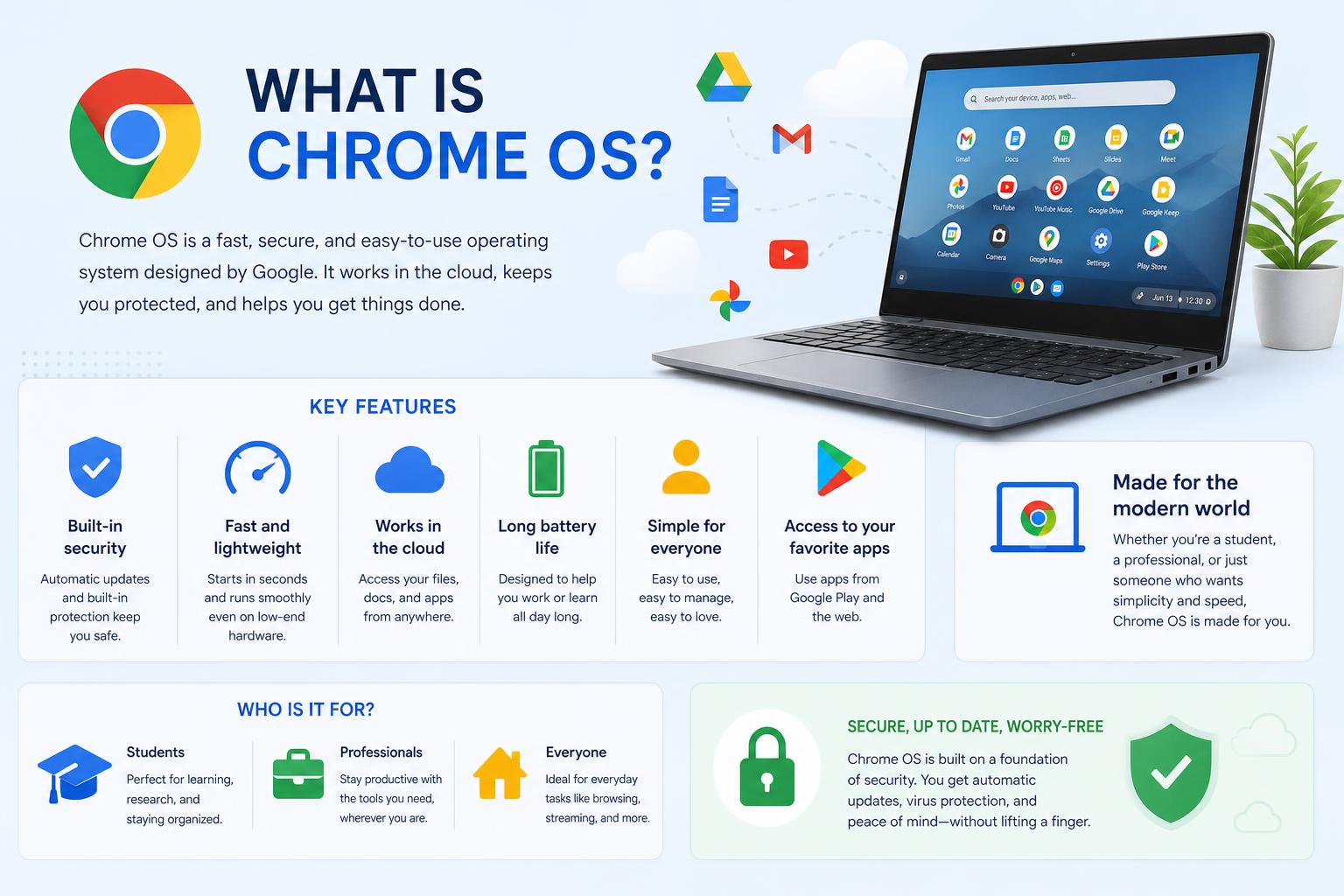
- ChromeOS has evolved into a powerful, flexible, and cloud-first operating system, blending seamless integration with Google services, strong security, AI features, and compatibility with Android and Linux apps.
- The platform supports a broad ecosystem of devices, from affordable Chromebooks to cutting-edge Chromebook Plus models, while offering comprehensive management and deployment tools for businesses and education.
- Recent updates include Gemini AI integration, improvements in offline and peripheral support, as well as a roadmap for merging ChromeOS with Android in future releases, positioning ChromeOS at the forefront of modern desktop OS innovation.
ChromeOS isn’t just another operating system – it’s Google’s answer to the evolving needs of digital life, pushing the envelope not only for students and light users but increasingly for professionals and power users. Introduced in 2011 as a simple, fast, and web-centric OS, ChromeOS has ballooned into a feature-rich, AI-powered platform at the center of Google’s device strategy, offering rock-solid security, sophisticated device management, and an ever-broader ecosystem from clamshell laptops to all-in-ones and now even Flex solutions that can breathe new life into old PCs and Macs.
If you’re curious about ChromeOS in 2025 and beyond, buckle up: this guide leaves no stone unturned. We’ll dive deep into its capabilities, hardware options, security architecture, business applications, ongoing transformation with Android and AI, and the vibrant ecosystem that surrounds it. Whether you’re considering a Chromebook for personal use or deploying thousands of Chrome devices in your organization, this is the only resource you’ll need.
What is ChromeOS and Where Did It Come From?
ChromeOS is Google’s web-first operating system built primarily on Linux and tightly woven into the fabric of Google’s services and cloud infrastructure. Launched in 2011, it was, at first, a radical reinterpretation of what a desktop OS could be: an environment where nearly everything you do is through a web browser, data lives in the cloud, and most local complexities (updates, antivirus, clutter) are managed invisibly behind the scenes.
Originally, ChromeOS felt more like a ‘browser with a keyboard’ than a real computer OS; apps and offline work were extremely limited. However, that’s ancient history. Over the years, ChromeOS gained support for Android apps, Linux environments (turning Chromebooks into developer machines), cloud file access, more robust window management, and, most recently, an avalanche of AI features and hardware-powered platform enhancements (hello, NPU-powered Chromebooks and Gemini integration).
Key Milestones in ChromeOS Evolution
- 2011: First Chromebooks appear running ChromeOS with basic browser-centric interfaces.
- 2014-2016: Android app support arrives. Now you can run Google Play apps alongside web apps – a game changer.
- 2018-2020: Linux (Crostini) comes to ChromeOS, unlocking development toolchains, and advanced application support.
- 2022-2024: Chromebook Plus tier introduced – more power, AI features, bigger screens, and local processing for heavy tasks. Flex launches for PCs and Macs, expanding ChromeOS reach.
- 2025-2026+: Google formally announces the planned merger of ChromeOS and Android, hinting at a single cohesive platform in the near future, with “Aluminium OS” as a placeholder codename internally.
The ChromeOS Family: Chromebooks, Chromeboxes, Flex and Beyond
Wondering what devices run ChromeOS? It’s a pretty big family these days!
- Chromebooks: The laptops that started it all. They run ChromeOS out of the box, designed for speed, simplicity, and security. Models range from super-budget student laptops to premium machines like the Chromebook Plus Spin and Pixelbook Go.
- Chromeboxes: Tiny desktop PCs running ChromeOS. Perfect for kiosks, digital signage, offices, and anyone who prefers a traditional monitor-and-keyboard setup.
- Chromebases & Chromebits: All-in-ones with ChromeOS built-in for classrooms, meeting rooms and home users and HDMI dongles that turn any screen into a Chrome desktop. While less common now, they’re still seen in specific markets.
- ChromeOS Flex: The newest family member – a version of ChromeOS (minus a few features) that can be installed on a wide range of Windows PCs and Macs, recycling old hardware for a clean cloud-first experience.
For those with old or obsolete hardware, ChromeOS Flex offers almost the full Chrome experience, although with certain limitations (such as no direct support for Android apps and fewer security guarantees). For a complete list of officially supported devices and a step-by-step guide to installing Flex, the official ChromeOS Flex project page will be your best resource.
ChromeOS in Daily Life: Interface, App Ecosystem, and User Experience
ChromeOS is designed with simplicity at its core—but that does not mean it is a simplified operating system. Here is how it works in the real world, whether in a classroom, living room, or corporate building.
Windows, Virtual Desktops, and Customization
- The Launcher and Shelf: Instead of a traditional desktop where you pin shortcuts, ChromeOS uses the Shelf (like a dock) and the Launcher (similar to the Windows Start menu) to neatly access apps, files, and web searches. You can group icons and customize their order.
- Virtual desktops (“Desks”): Quickly switch between workspaces to organize projects and contexts. Keyboard or trackpad gestures make this easy, although there is no dedicated overview button like in Windows or macOS.
- Snap Layouts and Resizing: ChromeOS supports window snapping and resizing for multitasking, similar to Windows, although with less granularity. Android apps, when resizable, can also be adjusted, though multi-window mode can sometimes behave unpredictably.
- Wallpapers, Dark/Light Modes, and Night Light: Customization is a strong point. Themes, automatic changes based on time or ambient light, and Night Light compete with macOS and Windows in comfort and style.
[relacionado url=”https://www.ikkaro.net/what-is-simulink/”]
Keyboard Shortcuts and Special Keys
- Launcher Key / Quick Insert Key: On recent models, a Quick Insert key provides access to AI-powered features (such as Help Me Write), recent files, emojis, and more—and it can be remapped for advanced configurations.
- Gemini AI and Google Assistant Integration: With one tap, open your AI assistant for quick questions, content creation, or search. Full voice control is still under development, but text and contextual suggestions are robust.
- Classic Shortcuts: Ctrl+C/V/Z, window switching, and screenshots are all available. Dedicated functions for showing windows, full-screen mode, and screen recording make sharing and teaching easier.
A small warning: ChromeOS discourages pinning app icons directly to the desktop (home screen), so if you are coming from Windows or macOS, you will need to learn a few new habits.
Touch, Stylus, and Accessibility
- Touch support: ChromeOS is “touch-friendly”—not as smooth as an iPad, but constantly improving, with on-screen gestures for navigation, tab swiping, and more. Some features still favor trackpads, but Google improves this with every update.
- Stylus and handwriting: Chromebooks support pressure-sensitive styluses certified by the Universal Stylus Initiative, and handwriting-to-text conversion is on par with Windows in many apps—such as taking notes in Google Keep from the lock screen or digital sketching with Infinite Painter.
- Inclusion and accessibility: ChromeVox, high-contrast modes, automatic clicks, and robust zoom features meet strict accessibility requirements, with support for users with disabilities and community help for parents, teachers, or users with specific needs.
App Compatibility: Web, Android, Linux, and More
ChromeOS was once seen (unfairly) as “just a browser,” but it is now one of the most versatile platforms on the market:
- Web Apps and PWAs: All modern web services, including complete office suites (Google Docs, Office Web), email, and creative tools, work natively. PWAs improve the experience even further with offline support and local notifications.
- Android Apps: You can access millions of apps through Google Play, many optimized for large screens. From creative tools to games, if it works on a phone, it will probably work on ChromeOS too, although window integration can sometimes have quirks.
- Linux Apps: The Crostini project enables full Linux environments in containers, making it easy to install editors, IDEs, and development tools. There is no need to dual-boot or enable Developer Mode.
AI Features and Gemini Integration
The latest major step forward in ChromeOS is its adoption of artificial intelligence:
- Gemini AI: The generative assistant is now integrated into all Chromebooks, and on Chromebook Plus models it gains additional capabilities through local NPU processing. Use it to answer questions, summarize documents (Help Me Read), generate content, translate, and more. Further feature expansion is expected.
- AI-powered features: These include intelligent wallpapers, productivity assistance, automatic cloud-file organization, activity summaries, and AI photo editing (blur, Magic Eraser, etc.)—especially on devices with local NPU chips.
- Future outlook: With the upcoming merger of ChromeOS and Android, deeper AI integration and more features that combine desktop and mobile are expected.
Working with Files, Storage, and Peripherals
File management in ChromeOS has matured significantly, making it easier to work with local storage, cloud storage, and external devices.
- The Files App: Manages downloads, screenshots, and local files. Integration with Google Drive, recent files, and Play Files for Android apps bridges the local and cloud worlds. Although it still does not support tabs for multiple folders, it is fast and easy to use.
- External storage: USB drives, external disks, SD cards, and SMB network shares are supported. Just plug them in—ChromeOS recognizes most devices quickly. Recommendation: eject before removing to avoid errors.
- Printers: Works with most IPP, Wi-Fi, and network printers. Some older models require manual configuration or may not be compatible. You can manage print jobs and monitor them from system settings.
- Bluetooth and Casting: Full support for Bluetooth peripherals—mice, headphones, speakers. It also supports casting to TVs and smart displays via Chromecast or Miracast for screen sharing or streaming.
Offline Power: What Happens Without Internet?
In the past, losing your internet connection was a problem on ChromeOS, but not so much anymore. More and more online applications offer offline capabilities, Google Docs and Gmail sync for offline use, and Play Store apps such as Netflix and Spotify let you download content for travel or areas without connectivity.
ChromeOS carefully manages local storage (usually with smaller drives than a PC), but you still have plenty of options for working and entertainment without internet. Just do not expect to sync large photo and video libraries locally unless you buy a Chromebook Plus with more SSD space.
Special Features: Screenshots, Recordings, and Quick Actions
- Screenshots: A dedicated key or quick shortcut opens the capture tool, letting you select areas, capture windows, or record screens (video with narration). Quick options for annotation or upload make these features ideal for online teachers.
- Quick Insert Key: On recent hardware, this key opens an intelligent panel for inserting emojis, links, AI-generated content (not just snippets, but full guides or summaries), and calculators. It is very useful for productivity and highlights Google’s AI ambitions.
ChromeOS Flex: Reviving Old Hardware
Have an unused laptop or desktop? ChromeOS Flex can give it a new lease on life. It is a somewhat simpler version of ChromeOS (without Android apps and with more limited hardware support), but it covers the basics: fast booting, automatic updates, Google sign-in, and security—though more limited—much like a real Chromebook.
Installation is simple: use the ChromeOS recovery tool to create a bootable USB drive, start your old computer, and follow the steps. From a security standpoint, Flex is not as complete as certified devices because it lacks Google’s security chip, TPM support, and verified boot, which may affect some organizational policies.
- Flex works best on officially certified devices—check Google’s list before installing.
- Supports automatic enrollment, multi-user sign-in, and centralized management for administrators.
- Some hardware features (fingerprint reader, optical drives, Thunderbolt) may not work or may not be officially supported.
Security and Updates: ChromeOS Essentials
Security is one of ChromeOS’s greatest strengths—Google has built the platform to minimize malware, phishing, and user errors.
- Verified Boot: Chromebooks and official Chrome devices include security chips and boot verification, ensuring that hardware and system software have not been tampered with. (On Flex, this is not always present, but UEFI Secure Boot covers the basics.)
- Sandboxed apps: Each app, web page, and process runs in its own container, preventing malicious activity from spreading.
- Automatic updates: ChromeOS updates in the background, patching vulnerabilities in the system, browser, and drivers without user intervention.
- TPM and encryption: User data is encrypted at rest, and many Chromebooks use hardware-backed keys for added security and PIN authentication. On Flex, TPM support depends on the hardware, so check your device specifications.
Enterprise management tools add another layer of security: administrators can remotely wipe, enroll, or configure devices, enforce updates, and restrict which apps users can install.
User Privacy
Signing in to a Chromebook is tied to your Google account, so your settings follow you everywhere. But this also means Google can associate more of your activity data unless you configure restrictions or use Guest Mode. Biometric authentication (fingerprint), PIN, and Smart Unlock (phone pairing) are available, although two-factor authentication is still recommended for sensitive accounts.
- Lost your device? You can remotely wipe it, restore from backup, or remove your Google account with a few clicks.
- Parental controls for families and children: App restrictions, browser activity, and screen time are managed through Family Link, with monitoring across all linked ChromeOS and Android devices.
Device Integration: Phones, Peripherals, and More
ChromeOS is not limited to web browsing—Google has developed deep integration with Android phones, cloud storage, and a wide variety of peripherals.
- Phone Hub: Link your Android phone to access recent photos, notifications, and messages directly on the Chromebook. Instant Wi-Fi tethering works seamlessly, although iOS is not currently supported.
- External monitors: Connect DisplayPort, HDMI, DVI, or VGA displays for multi-screen work. USB-C is increasingly becoming the standard for power and video.
- Compatible peripherals: Most USB and Bluetooth devices work without issues, and the “Works with Chromebook” certification makes purchasing compatible accessories easier.
- Printing and scanning: Supports many modern printers, prioritizing wireless printing. Job management and configuration have improved compared with earlier versions of the operating system.
Advanced Features for Business, Education, Developers, and Parents
ChromeOS, born in the education world, has matured for enterprise environments, advanced creative workflows, and professional development.
- Chrome Enterprise: For organizations, it enables centralized fleet management, policy enforcement, Active Directory or Google Workspace integration, app deployment, and mass automatic enrollment.
- Education tools: Classroom management, secure exams, and robust parental controls have made Chromebooks a preferred choice in U.S. schools and in several other countries.
- Developer tools: Linux support, full IDEs, Docker, and command-line tools are readily available without sacrificing security or requiring dual-boot.
- Parental controls and multi-user support: Google Family Link enables real-time supervision, restrictions, and management, while Guest Mode ensures quick access without compromising your data.
AI, Automation, and the Future: Chromebooks in the Gemini Era
In 2025, the way we interact with technology is changing rapidly, and Google wants ChromeOS to lead this AI revolution. Here are the main highlights:
- Gemini AI: This generative assistant is available on all Chromebooks, with tools for writing, summaries, translation, and image generation, accessible through dedicated keys and quick actions. Plus models have local NPU power for tasks such as background removal and live translation.
- Local and offline processing: Gemini is beginning to move some processing onto the device for greater privacy and speed on high-end hardware. More offline features are expected in the near future.
- Android and ChromeOS merger: Google’s vision is a single operating system with a unified code base spanning tablets, laptops, desktops, and phones, under the codename “Aluminium OS.” Integration should become smoother and more powerful.
ChromeOS for Gamers: From Casual Play to Cloud Gaming
It is not only for work or study: ChromeOS is also carving out a place in the gaming world.
- Android games: From puzzle games to more graphically demanding titles, available through Google Play, although desktop performance can vary.
- GeForce Now and Steam: Play in the cloud using streaming services and, on some Plus models, even access a Steam beta adapted to Chromebook hardware requirements.
- Controllers and accessories: Many are supported via USB or Bluetooth, with broader compatibility continuing to improve for a more integrated experience.
Software and Release Channels: How Updating Works
One of ChromeOS’s strong points is its automatic updates and support policy, which inspires confidence while also generating some controversy.
- Automatic updates: Chromebooks released after 2019 receive 10 years of support, while others receive 8 years or more.
- Release channels: Stable, Beta, Dev, and Canary, for different levels of stability and early access to new features.
- Long-Term Support (LTS): For businesses and organizations that prefer stability and less frequent updates.
- Easy recovery: Create recovery media, perform a Powerwash, and boot from USB in disaster-recovery situations.
The Hardware Landscape: Your Chromebook, Your Way
ChromeOS runs on a wide range of hardware, from the most affordable options to premium high-performance devices.
- Chromebook Plus: The latest models require 128GB+ SSDs, 8GB RAM, and modern Intel or AMD processors, with HD displays and USB-C ports, enabling advanced features and Gemini.
- Classic Chromebooks: Affordable, ultra-lightweight, and versatile, ideal for education and general use.
- Chromeboxes and Chromebases: For desktops, digital signage, and permanent installations.
- Flex and alternative distributions: ChromeOS Flex for older hardware and alternative ChromiumOS projects, each with its own details and limitations.
Choose the Right Device
Consider what you need: simple browsing, intensive web apps, development, video editing, or gaming. Chromebook Plus models now offer convincing performance and creative capabilities. Want to give old hardware a new life? ChromeOS Flex may be your solution. Check Google’s certified-device list to avoid surprises with peripherals or performance.
ChromeOS in Real Life: Productivity, Video, Photo, and More
- Photo editing: Google Photos and the gallery offer basic and AI-powered features such as Magic Eraser and automatic blur. Advanced apps such as Photoshop and Lightroom are available on the web, with easy Google Lens integration.
- Video creation: Online editors such as Kapwing or ClipChamp, and Android apps such as LumaFusion, work well for casual users; professional editing still requires more robust platforms for now.
- Entertainment: MP3 playback, streaming with YouTube Music, Play Movies & TV, and ebooks with Play Books provide a complete experience, supported by Android apps in many cases.
Offline Compatibility and Cloud Sync
Since its launch, ChromeOS has prioritized the cloud, but offline mode is now robust:
- Google Drive, Gmail, and Docs work offline with sync protection.
- The “Available offline” option in files and apps lets you keep content stored locally when needed.
- PWA apps and Play Store apps, such as Netflix, also offer offline downloads for essential use.
Enterprise and Management Features: Why Is ChromeOS Ideal for Organizations?
For IT teams, managing ChromeOS infrastructure is efficient and secure.
- Google Admin Console: The centralized management platform lets administrators remotely configure encryption, policies, applications, and real-time monitoring.
- Automatic enrollment: Devices automatically join at startup, simplifying large-scale deployments (not on Flex, although alternative options are available).
- Remote control and Guest Mode: Remote configuration, restart, or wipe capabilities ensure compliance and data protection.
- “Grab and go” programs: Setups where employees or students pick up a preconfigured device and return it when finished, without complications.
Unique Enterprise Security
ChromeOS architecture, with its read-only system, partitions, and cloud backup, protects against nearly every type of malware and internal threat. TPM, secure boot, and cloud updates reinforce protection, provided the hardware supports these features.
Industry Solutions: From Education to Healthcare and Retail
- In education: It is the most popular operating system in U.S. K-12 schools because of its low cost, ease of management, and robust policies.
- Healthcare, Finance, and Retail: Security, centralized management, and compliance make it easier to use in sectors handling sensitive data, with cloud-based updates and control.
- For videoconferencing and digital signage: Chromebox for meetings, Chromebases, and digital signage demonstrate the platform’s flexibility across different use cases.
Updates and Lifecycle: What Should You Expect?
Worried about support? Google is transparent about support and update timelines.
- Automatic Update Policy: Devices released after 2019 are guaranteed 10 years of support; others receive 8 years or more.
- Long-term control: Administrators can check end-of-support dates to plan upgrades and migrations.
- Easy recovery: Creating recovery media, performing a Powerwash, or booting from USB makes it possible to troubleshoot failures or reset the device at any time.
The Future of ChromeOS: Merging with Android and Beyond
ChromeOS is not standing still. The biggest transformation in its history is already underway:
- Official Android merger: Google announced that by 2026 ChromeOS will unify its code base with Android under the codename “Aluminium OS.” This will enable a cohesive system across tablets, laptops, desktops, and phones.
- A unified, integrated experience: The goal is for a single operating system to work across all devices, with optimized software and support for both local and cloud AI.
- More on-device AI: Features such as Gemini, Live Translate, and creation tools will increasingly work offline and run faster, while respecting privacy and improving the overall experience.
ChromeOS as a Platform for Everyone in 2025 and Beyond
After years of growth, ChromeOS has established itself as a powerful, secure, and innovation-packed system. Thanks to its cloud-based architecture, security-first approach, and AI-powered capabilities, it is no longer just an alternative—it is a leader among modern operating systems. Ideal for students, businesses, developers, educators, and everyday users looking for ease of use and functionality, ChromeOS is ready to meet the challenges of the future.