
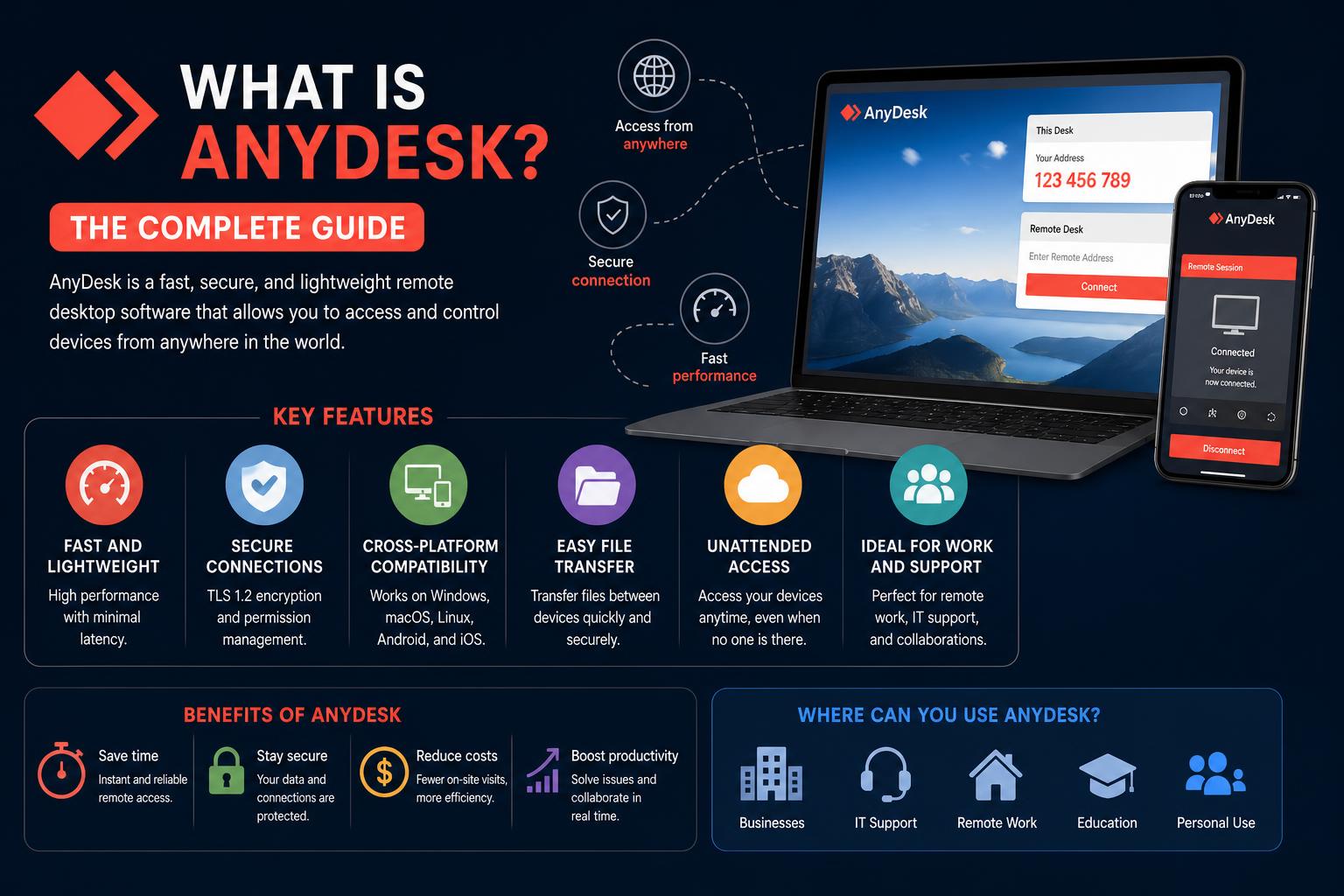
- AnyDesk enables fast, secure, cross-platform remote access for individuals and businesses.
- Its features include remote control, file transfer, session recording, and collaborative tools.
- Security is a priority, but best practices and careful configuration are essential.
- Paid plans unlock advanced management, reporting, and compliance for organizations.
If you’ve ever needed to help someone with their computer, work remotely, or provide tech support from afar, chances are you’ve stumbled across the name AnyDesk. In today’s world where flexibility and remote connectivity are more vital than ever, tools that let us access computers from anywhere have truly changed the way we work and solve technical issues.
But what, exactly, is AnyDesk, and is it the right choice for your needs? Whether you’re an IT professional, a small business owner, or just someone looking to help a family member from miles away, understanding AnyDesk—how it works, its features, pros, cons, pricing, and security—can help you make a smarter decision. Let’s dig deep so you’re armed with everything you need to know!
What Is AnyDesk?
AnyDesk is a remote desktop and remote access application that allows users to connect to computers and other devices over the internet. It’s engineered to be fast, secure, and available on nearly every common operating system—making it a go-to solution for everyone from individual users to global enterprises. Conocer What is AnyDesk puede brindarte una mejor idea de su funcionamiento y ventajas. With it, you can operate another computer as though you were sitting right in front of it, letting you fix issues, transfer files, run programs, or collaborate in real time.
Officially, AnyDesk positions itself as a top-tier “remote desktop application” designed for both individuals and organizations. It’s not just for IT support—remote workforces, educators, and anyone needing access to distant devices can benefit. To get started, all you need is to download the AnyDesk app on both your device and the remote device you want to control. Each installation is assigned a unique AnyDesk ID or alias, which acts as an address you use to set up connections. From there, connecting is just a matter of entering the remote device’s ID, requesting access, and having the other side approve the connection.
How AnyDesk Works: The Basics
The process behind AnyDesk is conceptual but impressively intuitive. Here’s an overview of how a typical remote session unfolds:
- Step 1: Launch the AnyDesk client on both devices. Both the local (controlling) and remote (target) computers or devices must have AnyDesk installed. You can use it as a portable app or install it for ongoing use.
- Step 2: Identify the target device. Each device gets a unique AnyDesk ID or can be set up with a custom alias to make it easier to remember. That’s how you locate and connect to the device you want to control.
- Step 3: Request a session. The user that wants to connect enters the target’s AnyDesk ID or alias into the app, which then sends a session request to that device.
- Step 4: Approve (or deny) the connection. The person at the remote device receives a prompt to accept or reject the connection. They can also decide whether to grant permissions like screen viewing, keyboard/mouse control, file transfer, etc.
- Step 5: The session starts. Once approved, the connecting user can interact with the remote device according to the granted permissions. This is how support agents, collaborators, or employees work as though they’re physically present.
For unattended access, the workflow is slightly different. For IT teams or users who need to manage computers when nobody’s at the far end, AnyDesk can be configured for credential-based access. Administrators set up access rights so trusted users can connect at any time—handy for server maintenance or out-of-hours troubleshooting. También puedes aprender a solucionar problemas de Windows 11 usando comandos en cómo reparar Windows 11 con comandos en línea de comandos.
Main Uses for AnyDesk
Why would you use AnyDesk in the first place? It’s much more than a tech support tool. Businesses and individuals choose AnyDesk for:
- IT Support & Troubleshooting: IT professionals and helpdesk agents can connect to user devices to resolve issues without physically being there. Problems with printers, software, or malware? AnyDesk lets you take the wheel from anywhere.
- Remote Work: Employees working from home or on-the-go connect to their office desktops and run even resource-heavy programs, all while keeping files secure at the primary workstation.
- Server Administration: System administrators can maintain remote servers, install updates, or run configurations outside of normal work hours—no need for physical access.
- Remote Training: Trainers or team leads can share their screens, demonstrate processes, and give hands-on guidance to distributed learners, making onboarding and upskilling vastly easier.
- Collaboration: Groups can share sessions for whiteboarding, brainstorming, or working on projects that require real-time interaction and editing.
Key Features of AnyDesk
What sets AnyDesk apart from the crowd? Beyond simple remote control, it’s loaded with features that cater to both casual users and enterprise IT:
- Remote Desktop Control: Seamlessly take control of another device as if you were physically present.
- File Transfer: Secure and quick movement of files between devices. Need to send installation files or retrieve logs? It’s a snap.
- Session Recording: Keep audit-ready records of all your remote sessions. This is especially important for compliance in business settings.
- Clipboard Sharing: Copy text, images, or files and paste directly into your remote or local device.
- Cross-Platform Compatibility: Use AnyDesk on Windows, macOS, Linux, Android, iOS, and more. It even works well from desktop to mobile, mobile to mobile, or mobile to desktop.
- Unattended Access: Configure devices for always-on remote access with robust credentials and security policies.
- Whiteboard & Text Chat: Collaborate within your sessions with chat messages and a virtual whiteboard for visually explaining concepts.
- Remote Printing: Print documents from a remote device straight to your local printer. This handy feature keeps work moving, no matter where you are.
- Permission Controls: Set exactly what users can and cannot do, from limiting mouse control to blocking file transfers.
- VPN Connectivity: Built-in VPN allows a private, secure network tunnel between local and remote clients, for those scenarios where extra privacy is needed.
- Address Book: Save and organize your frequently accessed clients and contacts for easy connection.
For a complete feature list, check the official AnyDesk Features Page.
AnyDesk Security: Is It Safe?
Security is absolutely non-negotiable for remote access software, and AnyDesk takes several measures to keep your information protected. Sessions are safeguarded with end-to-end 256-bit AES encryption and TLS 1.2 protocol, making unauthorized access extremely difficult. Features like two-factor authentication (2FA), single sign-on (SSO), and customizable permission/access profiles provide further layers of safety.
But, like any powerful tool, security depends on how you use it. Scammers sometimes try to trick users into granting access by pretending to be support personnel. Once you accept a session, a remote user can see and do as much as you allow. The lesson here: Only grant access to devices to people or organizations you trust, and configure your AnyDesk client thoughtfully by making use of all available password and access controls. Para comprender mejor los aspectos de seguridad, también puedes consultar la documentación oficial de AnyDesk.
In early 2024, AnyDesk experienced a reported security breach, where some user credentials were stolen and surfaced on the dark web. The company responded promptly, patched vulnerabilities, and communicated transparently, highlighting the importance of diligent configuration and monitoring your licenses, especially in a corporate environment.
AnyDesk for Business vs Personal Use
There’s a significant difference between how individuals and businesses use AnyDesk, especially when it comes to licensing, feature set, and accountability.
- Personal Use: AnyDesk is 100% free for personal, non-commercial purposes. If you occasionally need to help a friend or access your home PC while away, the free plan is generous, with core features like screen sharing, file transfer, chat, and whiteboard all unlocked.
- Business Use: The moment you need to manage regular unattended access, support clients, or handle multiple endpoints and users, a paid plan becomes essential. Business subscriptions provide advanced administration, device management, role-based access, reporting, and audit compliance—all crucial for IT teams or MSPs.
The distinction is important because organizations require stricter security, performance, and compliance controls. Relying solely on a free or basic tier for commercial purposes can expose your organization to risks and gaps. For details about how to repair Windows issues, visit .
AnyDesk Pricing: What’s the Cost?
Starting for free is an advantage, but expanding your usage involves costs. Here’s a breakdown of current plans based on latest pricing data:
- Solo: Approximately $28.90/month (billed annually). Designed for a single professional supporting a few devices.
- Standard: Around $49.90/month (billed annually). Suitable for small teams, offering more devices and controls.
- Advanced: About $111.90/month (billed annually). For larger teams needing complex management and workflows.
- Ultimate: Custom pricing, generally for large enterprises with extensive support needs.
Pricing has increased significantly over recent years, so organizations should plan accordingly as they scale. Licenses are billed annually, with higher tiers granting support, priority features, and additional management options.
Managing AnyDesk: The my.anydesk II Console
The enterprise-level management of multiple devices and users is simplified via the my.anydesk II portal. This web interface offers centralized oversight ideal for IT administrators:
- Device Management: Organize endpoints, assign aliases, or revert clients to free status if necessary.
- User Accounts & Permissions: Create user groups, assign roles, and manage onboarding/offboarding seamlessly.
- Session Monitoring: Observe active sessions, terminate connections, and review detailed logs.
- License Management: Control which users or devices hold licenses, reducing security risks after breaches.
- Custom Client Generator: Deploy tailored versions of AnyDesk with your organization’s branding and policies across OS platforms.
AnyDesk in Action: Practical Scenarios
What do actual users do with AnyDesk daily? Several typical applications include:
- Remote IT Support: An IT technician resolves technical issues on client devices rapidly from afar.
- Work-From-Home Setup: Employees access office resources securely from personal devices, even running demanding applications without data leaving the corporate environment.
- Training & Education: Trainers share screens and control to facilitate remote learning, providing real-time assistance.
- Server Maintenance: Admins manage servers remotely outside working hours, ensuring uptime and stability.
- Collaborative Design: Teams work together by annotating and whiteboarding directly on shared desktops during brainstorming sessions.
Strengths and Limitations of AnyDesk
AnyDesk offers many advantages but también algunas limitaciones.
- Strengths:
- Excellent cross-platform support: Works uniformly across Windows, Mac, Linux, Android, iOS, etc.
- High performance and low latency: Smooth experience even on sluggish connections.
- Strong security measures: Industry-standard encryption protocols protect data during sessions.
- Rich feature set: Includes recording, whiteboard, clipboard sharing, and more.
- Free for personal use: Most competitors restrict personal usage, but AnyDesk offers more flexibility.
- Limitaciones:
- Cost escalates with team size: Larger organizations will face increasingly expensive plans.
- Security relies on proper configuration: Misconfigured permissions can pose risks.
- Potential bugs or performance issues: Especially after updates.
- Complex licensing terms: Some users find the cancellation process less transparent.
- Free plan restrictions: Not suitable for commercial or large-scale use, and offers limited management tools.
Regular review of your needs and the evolving features of AnyDesk is advisable to ensure it remains the best option for your organization.
When You Might Need an Alternative
While AnyDesk is a robust solution, some organizations may find it less suitable depending on their specific requirements. If your team:
- Requires centralized permission management across numerous devices
- Manages large, distributed networks with many endpoints
- Needs comprehensive session auditing and compliance features
- Wants integrated support ticketing or endpoint monitoring
- Prefers scalable, predictable licensing costs
exploring alternatives like TeamViewer or Splashtop might be advantageous. Estas plataformas ofrecen capacidades de gestión de endpoints y integración más avanzadas, ideales para entornos empresariales.
Frequently Asked Questions About AnyDesk
- Is AnyDesk really free? Yes, for personal use. Commercial, educational, or team-based use requires a paid license.
- Can hackers use AnyDesk? Any legitimate remote access tool can be misused if access is granted unwisely. Always verify the identity of session requesters.
- Can AnyDesk spy on users? No third party or developer can remotely access your system without explicit permission and acceptance.
- Does it support all operating systems? Yes. Download from the official page.
- What makes it stand out? Its simplicity, speed, cross-platform support, and security features make it popular among diverse users.
Ultimately, AnyDesk provides a flexible, high-performance remote access solution suitable for individual users and organizations alike. Proper configuration, security awareness, and choosing the right plan are key to maximizing its benefits for your specific needs.