
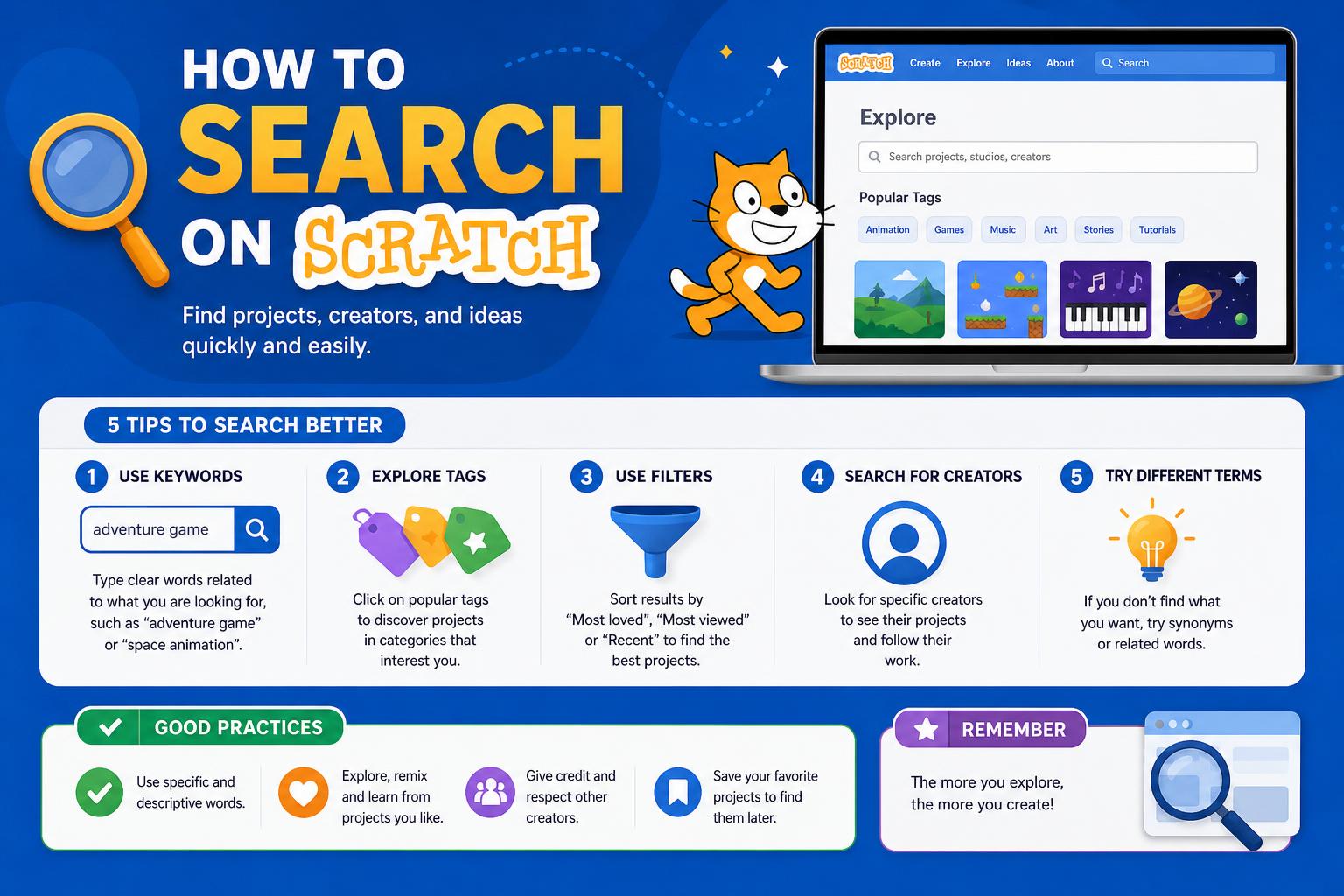
- The built-in Scratch search bar is often unreliable, but there are effective workarounds using external tools.
- Google's site search (site:scratch.mit.edu) is the most effective way to find projects, studios, or users when the native search fails.
- Manual strategies, smart project labeling, and community tips ensure you can always locate the Scratch content you need.
Trying to find something specific on Scratch and feeling a little lost? You’re not the only one! Finding projects, users, or even particular code blocks on Scratch isn’t always as straightforward as we’d hope. With the search bar’s performance often wavering, many in the community are searching for new and creative ways to dig up the content they’re after. Whether it’s a bug causing issues, a missing feature, or just not knowing the right tricks, we’re here to give you the most detailed, up-to-date guide on how to search on Scratch, using a blend of built-in tools and clever workarounds.
If you’re a parent, educator, or curious creator trying to explore Scratch, this article will walk you through how to search for projects, studios, and users, and even how to find those elusive scripts inside a project. We’ll also give you solutions for when the Scratch search engine isn’t working, plus some neat SEO hacks that the community relies on to keep finding great content. Let’s unravel all the best ways to search on Scratch today!
Understanding Scratch’s Search Limitations
The search feature in Scratch is a source of ongoing discussion and critique within its community. Many users note that the search bar occasionally fails to deliver relevant results, and in some cases, it might not work at all due to bugs or system hiccups. When the search engine is down, it affects not only the direct search bar but also the ‘Explore’ page which is powered by the same backend.
Forum posts from the official Scratch Discuss site confirm that, at times, Scratch’s internal search can completely break, impacting all users and visibility of projects. Team members are aware but repairs can sometimes take a while.
But don’t let these issues discourage you. There are robust workarounds and alternative strategies—many sourced directly from power users and Scratch community moderators—to help you uncover what you’re looking for.
Searching for Projects on Scratch
The primary goal for most Scratch users is discovering inspiring or helpful projects. Here’s how to search, even when the search bar isn’t being friendly:
- Direct Search Bar Usage: Typically, you’ll find the search bar at the top of the Scratch website. Entering a project name, keyword, or topic should display a list of matching projects. But, as noted in several forum posts, this function may not always work—issues with loading or returning empty results are common, especially during site updates or outages.
- Alternative: Google Site Search: When the built-in search is problematic, use Google to fill the gap. Type site:scratch.mit.edu (your keywords) into Google, Bing, or your preferred search engine. This restricts your search to only show results from the Scratch website and often provides faster, more accurate results than the built-in tool.
For example, if you’re seeking Scratch games, enter site:scratch.mit.edu games in Google and you’ll see a long list of game projects, studios, and user profiles related to your query.
Searching for Scratch Studios
Studios are collaborative spaces where users can group similar projects, making them a goldmine for themed content or learning resources. You can search for studios just like you would for projects, but targeting the results toward the /studios/ section of the site can be effective.
- Use site:scratch.mit.edu/studios (keyword) in your search engine. For example, searching for animation studios could look like: site:scratch.mit.edu/studios animation.
Direct navigation: Sometimes, browsing through the main scratch.mit.edu/explore/studios page yields inspiration, but filtering options remain limited if the search function is down.
How to Search for Users on Scratch
Maybe you saw a project and want to see more from that creator? Or you’re looking to connect with someone by username? There are a couple of clever ways to do this:
- Manual URL Construction: If you know the username, simply enter this address in your browser: https://scratch.mit.edu/users/insertusernamehere/ (replace ‘insertusernamehere’ with the actual username). This takes you directly to their profile, bypassing search entirely.
- Following Project Links: If you find one of their projects, click on the username shown on the project page to reach their user profile.
- Google Username Search: Type site:scratch.mit.edu (username) into Google. You’ll usually see both project and profile links related to that user.
Sometime searching by usernames in the Scratch search bar yields a list of projects, studios, or comments associated with that user. However, direct profile access via typed URLs remains the quickest and most reliable method, especially during search outages.
Searching for Code Blocks and Scripts Within Projects
Finding a particular script, block, or segment of code in a massive Scratch project can be a tough nut to crack since there’s no built-in search feature for blocks right now. Discussions in the Scratch forums confirm that, unlike text-based languages, Scratch projects don’t offer a way to search visually or by text within the code editor itself.
However, here are some community-endorsed tips:
- Manual Scanning: Open the desired project and flip through sprites and code areas to locate the blocks or scripts you’re interested in. Group similar blocks together for easier visibility.
- Consistent Naming and Commenting: Encourage project creators (or do it yourself) to name sprites and use comment blocks to label scripts for easier manual searching.
- Suggesting Features: Many users have urged the Scratch Team to include a script search bar. For now, keeping your own projects well-labeled is your best bet.
Dealing with Broken Scratch Search
Perhaps the most common frustration voiced in the Scratch community is when the search engine outright stops working. Users report this often impacts the entire site, including the Explore page. The Scratch Team is aware and works on fixing it, but in the meantime, people still need to find projects, users, and studios.
The overwhelming recommendation from the forums and experienced users is to use Google (or similar engines) with the site: search operator, as previously described. This workaround is fast, reliable, and gives you access to all indexed Scratch pages, regardless of internal search bugs. It also supports regular searching for projects, studios, tips, or guides—whatever you want to discover on Scratch.
Here’s how to customize your search:
- site:scratch.mit.edu projects (keyword) – to focus on project pages
- site:scratch.mit.edu studios (keyword) – to look for collaborative studios
- site:scratch.mit.edu users (username) – for profiles and user content
If you’re after something super specific, play around with different keywords, or combine tags and usernames. For example, site:scratch.mit.edu games username will show you game-related pages connected to that user.
Helpful Tips from Advanced Users
From numerous discussions, the Scratch community has come up with several pro user methods for managing search difficulties:
- Keep a bookmark folder: Save the direct links of your favorite users, studios, or projects for quick access later.
- Share project links to forums: If you’re troubleshooting or want others to find your project, share its link in the Scratch forums or trusted communities for more exposure.
- Utilize the Explore feature: While not search-driven, the Explore page curates popular, trending, or staff-picked projects and can be a great starting point to discover new things, especially when search is buggy.
Community Q&A on Search Workarounds
Forum discussions reveal recurring questions from users seeking alternative search methods. Here are some summarized responses drawn from top-ranked threads:
- Q: The search bar isn’t working; is there another way to find projects?
A: Absolutely—studio curation for solutions or copying your search query into Google works reliably. Site-specific Google searches are the community favorite. - Q: Can I search for code blocks?
A: Not directly. You’ll need to manually check sprites and scripts within a project or rely on clear comments and script organization. - Q: Is it possible to find users by searching for their projects?
A: Yes! Search for their username or known project and then click through to their user profile from any project they’ve created. Alternatively, type their profile URL directly in your browser.
Possible Improvements and Community Requests
Many users have suggested enhancements that would benefit the Scratch search experience:
- Block/script search within the editor: The wish for a code search bar is common—being able to find a specific script, broadcast, or variable would dramatically improve coding efficiency and debugging. While Scratch avoids full text-based coding, filtered block searching by name or comment could be a balanced addition.
- Search bar reliability and filtering: Expanding search to support advanced filtering (by date, popularity, category, etc.) would help users home in on the resources they need faster.
For now, workarounds remain key, but keeping project naming and organization clean (good comments, logical naming) helps everyone locate and reuse creative work—even without official search features.