
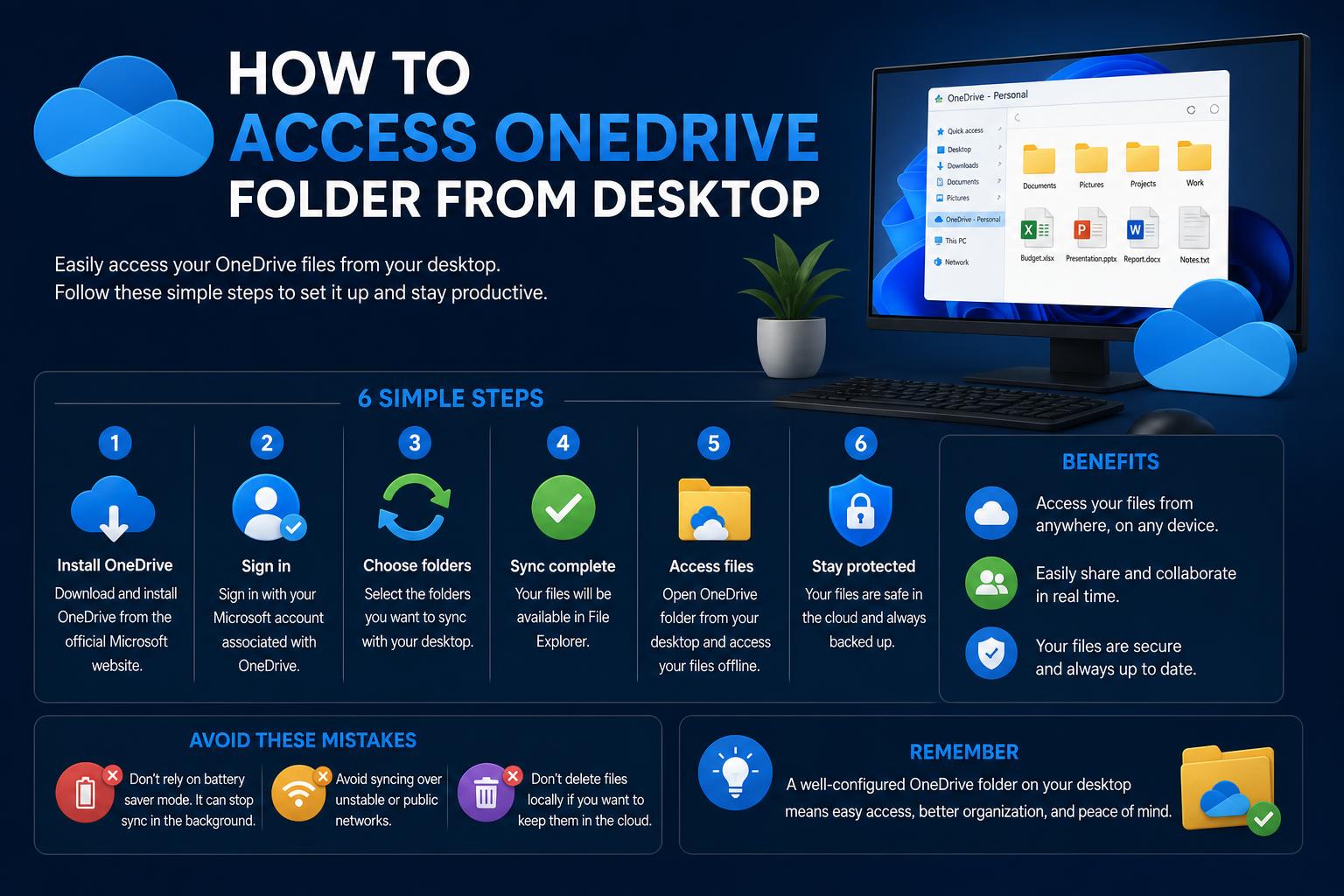
- OneDrive folders appear in Windows File Explorer or macOS Finder after the desktop client is connected to the correct Microsoft account.
- Files On-Demand provides access to cloud content without downloading everything, while selected folders can remain permanently available offline.
- Shared folders can be added to My files and synchronized, but individually shared files may still require browser access.
- Checking the mobile source, OneDrive website, and desktop client helps identify where a synchronization problem occurred.
Accessing a OneDrive folder from your desktop lets you work with cloud files almost as if they were stored in an ordinary folder on your computer. After the official Microsoft OneDrive service is configured, its folders appear in Windows File Explorer or macOS Finder, where you can open, edit, move, rename, and organize files without repeatedly visiting a website. Changes are synchronized between your computer and the cloud automatically, provided OneDrive is running and an internet connection is available.
The exact process depends on whether you use Windows or a Mac, whether the folder belongs to you or was shared by somebody else, and whether you want its contents downloaded to the computer. You can display cloud files on the desktop without downloading everything at once, keep selected documents available offline, and even add shared folders to your regular OneDrive file structure. This guide covers those options as well as common situations in which files fail to appear.
How desktop access to OneDrive works
OneDrive uses a synchronization application to connect a folder on your computer with the corresponding storage area in your Microsoft account. The local OneDrive folder is not an independent copy that you can change without consequences. If you add, edit, rename, move, or delete an item inside it, that action is normally reflected in OneDrive online. Changes made through the website, a phone, another computer, or by collaborators are synchronized in the opposite direction.
On Windows, the folder is integrated into File Explorer. On macOS, it is available through Finder. Personal files are generally shown under a location named OneDrive – Personal, while a work or education account normally appears as OneDrive – OrganizationName. If you have access to several organizational accounts, each may have its own location. OneDrive supports multiple work or school accounts on one computer, but ordinarily only one personal OneDrive account can be connected at a time.
This desktop integration also allows you to work while disconnected from the internet, as long as the files you need have already been downloaded. Offline changes remain on the computer and are uploaded when connectivity returns. Files that exist only in the cloud, however, must be downloaded before they can be opened without a connection.
Access a OneDrive folder in Windows File Explorer
Windows 10 and Windows 11 commonly include the OneDrive application, although it may not yet be signed in. Open the Start menu or Windows search, type OneDrive, and launch the application. If it is missing, download the current desktop client from the official OneDrive download page.
- Open OneDrive and enter the email address associated with your personal, work, or school Microsoft account.
- Complete your password and any multi-factor authentication requested by your organization.
- Review the proposed OneDrive folder location. Select Next to keep it or choose the option to change the location before synchronization begins.
- Continue through the explanation of Files On-Demand and complete the setup.
- Select the option to open your OneDrive folder, or open File Explorer and choose OneDrive from its left navigation panel.
The initial setup is the best time to choose a different folder location. Changing it afterward may require unlinking and configuring the account again. Unless there is a practical reason to move it, such as limited space on the system drive, the default location is usually the least troublesome choice.
Once setup is complete, a cloud-shaped OneDrive icon should appear in the Windows notification area near the clock. You may need to open the hidden-icons menu to see it. The icon provides quick access to synchronization status, settings, account options, and the online version of your files. If it is crossed out or reports that you are not signed in, desktop files will not update until the account is reconnected.
In File Explorer, expand the OneDrive entry and browse it like any other directory. You can also drag files into the folder, save documents there from desktop applications, create subfolders, or pin frequently used locations to Quick access. A file placed in this directory is uploaded to your OneDrive account rather than remaining exclusively local.
Use Files On-Demand and choose what stays offline
Files On-Demand displays your OneDrive structure in File Explorer without requiring every item to consume disk space. This is particularly useful when cloud storage contains more data than the computer can comfortably hold. Status icons indicate whether an item is online-only, downloaded locally, or permanently available offline.
- Cloud icon: The item is online-only. It is visible on the computer but must be downloaded when opened.
- Green check mark: The item has been downloaded and is currently available without internet access, although Windows may free its local space later if needed.
- Solid green circle with a check: The item has been marked to remain on the device and should stay available offline.
- Synchronization arrows: OneDrive is uploading, downloading, or processing changes.
To keep a folder offline, right-click it and select Always keep on this device. OneDrive will download its contents, so make sure sufficient storage is available. To recover disk space, right-click an item and choose Free up space. The local data is removed after synchronization, but the item remains visible and stored online.
You can also restrict which folders are shown on the computer. Open the OneDrive cloud icon, enter its settings, select the account or synchronization section, and use the folder-selection control. Unselected folders remain safely stored online but disappear from that computer’s OneDrive directory. This differs from freeing up space: Files On-Demand retains a visible placeholder, whereas deselecting a folder removes it from the local view entirely.
Access OneDrive through Finder on a Mac
Mac users can obtain the desktop client from Microsoft’s OneDrive download page or, where appropriate, through the Mac App Store. After installation, press Command and Space to open Spotlight, search for OneDrive, and launch it. Enter the Microsoft personal, work, or school account you want to connect.
- Sign in and complete any organizational authentication requirements.
- On the screen displaying the proposed OneDrive folder, keep the default location or select Change Location.
- If you change it, choose the desired directory, confirm that location, and continue.
- Select the folders that should synchronize to the Mac when that option is presented.
- Finish setup and select Open my OneDrive folder.
Your files should now appear in Finder, normally in its sidebar under Locations or Favorites. A OneDrive cloud icon also appears in the macOS menu bar and provides synchronization details, settings, and account controls. Personal and organizational accounts are labeled separately when more than one is connected.
If Finder does not display synchronization badges or contextual OneDrive commands, check the system’s extension settings. On older macOS versions, this may be located under System Preferences and Extensions; newer releases place relevant controls within System Settings. Enable the OneDrive Finder integration or File Provider extension when the option is available. This permits Finder to show file states and OneDrive-specific actions.
Files On-Demand is also available on supported versions of macOS. The wording and symbols can vary with the operating system release, but the principle is the same: you can browse online files without storing every byte locally and download important folders for offline use.
A folder that another person shares with you may initially appear only in the Shared area of OneDrive on the web. To make it convenient in File Explorer or Finder, add a shortcut to your own file area. The folder must actually have been shared with your account, and suitable permissions may be required.
- Sign in to OneDrive through a browser and open Shared from the left-hand navigation.
- Locate the shared folder. Open its three-dot menu, or open the folder if necessary.
- Select Add shortcut to My files.
- Return to My files and verify that the shared folder is present.
- Allow the desktop client to synchronize. The folder should then appear inside your OneDrive location in File Explorer or Finder, often with a shortcut or link symbol.
Once the shortcut appears on the desktop, you can generally open and work with its contents as you would with other synchronized material. Depending on the permission granted by the owner, you may be able to copy, edit, move, rename, or delete items. Actions inside a collaborative folder can affect what other participants see, so deleting or reorganizing content should not be treated as a purely local operation.
Some organizational environments also offer a Sync button after you open the shared folder in the browser. Selecting it can connect the location through the OneDrive synchronization client, and organizational libraries may appear with a building icon in File Explorer. The shortcut method is often easier because it places the folder in My files and allows it to follow the normal OneDrive structure.
There is an important distinction between folders and individual files. A shared folder can be synchronized or added as a shortcut, but a separately shared individual file may not support the same desktop shortcut workflow. If someone shared only a file and you cannot add it to File Explorer, ask the owner to place it inside a folder and share that folder instead. Otherwise, open the file from OneDrive’s Shared section in a browser.
Back up Desktop, Documents, and other important folders
OneDrive can protect standard Windows folders such as Desktop, Documents, and Pictures by redirecting or backing them up to the cloud. Depending on the available settings and account type, additional categories may be offered. This makes familiar local folders available across devices and helps protect their contents if the computer is lost or damaged.
Open the OneDrive icon, go to settings, and find the backup or folder-management option. Choose the folders you want OneDrive to protect and confirm the operation. Files may then move into the OneDrive-managed folder structure and begin uploading. This can explain why a Windows 11 user suddenly sees a path such as OneDrive\Desktop instead of a purely local Desktop path. The backup location may therefore become the active path used by Windows.
Do not casually delete the OneDrive copy because you expected a separate local duplicate. When folder backup is active, that OneDrive location may be the active Desktop or Documents folder used by Windows. Deleting synchronized items can remove them from the visible desktop and from other connected devices. If you do not want this feature, use OneDrive’s backup-management controls to stop it properly, review where Windows will restore the folder, and confirm that important data exists locally before removing anything.
You do not have to install the desktop client to reach your files. Browser access is available by signing in through the OneDrive website or opening OneDrive from the app launcher in Microsoft 365. In an organizational environment, you may first sign in to a company or university portal, open Outlook on the web, select the app launcher, and then choose OneDrive or All apps.
The browser interface offers a file-management experience similar to File Explorer. My files contains your own folders and shortcuts, Shared lists content other people have shared, and shared libraries may contain material associated with Microsoft Teams or SharePoint. You can upload files, create folders, drag items into the browser, and use clickable path segments to move between parent directories.
The web version is also useful for sharing. Select one or more files or folders, choose Share, configure the permitted audience and editing rights, enter recipients, and send the invitation. In some interfaces, a selection circle appears when you hover over an item, allowing several entries to be selected together. A share icon beside an item may provide the same options.
What to do when a OneDrive folder or file does not appear
Before changing settings at random, determine where the missing item exists. Select the OneDrive cloud icon on the computer and use View online, or sign in directly through a browser. If the item appears online but not on the desktop, the problem is probably on the computer. If it is absent online as well, it may never have completed its upload from the original device.
Check uploads from a phone or tablet
Mobile uploads can remain pending because of a weak connection, disabled mobile-data access, battery-saving restrictions, or an application that has not recently refreshed. Open the OneDrive mobile app and confirm that the file has finished uploading. A document stuck at a high percentage is not yet available to other devices, even if it appears inside the phone’s local interface.
Refresh the mobile view, leave the application open briefly, and verify Wi-Fi or cellular permissions. If the file then appears on OneDrive’s website, the cloud copy is ready and attention can shift to the desktop client. The website is the most useful checkpoint because it separates an upload problem from a download or synchronization problem.
Restart or pause desktop synchronization
If the online copy exists, select the OneDrive cloud icon and inspect recent activity for an error. You can pause synchronization for a short period and then resume it, which may restart a stalled queue. If that does not help, quit OneDrive and reopen it, or restart the computer. A basic restart is mundane, but it often clears a frozen process or temporary network problem.
Confirm that the device is online and that the relevant folder was not excluded through the folder-selection settings. Check available disk space if you are trying to download content, and remember that an online-only item needs connectivity the first time it is opened. Also verify that you signed in with the correct account, especially if you use both personal and organizational Microsoft identities.
Review status icons and account state
A crossed-out, gray, or unusually transparent cloud icon can indicate that the client is signed out, paused, or unable to connect. Open it and follow the displayed prompt. Authentication can expire after a password change or an organization’s security update, in which case signing in again may restore synchronization.
If the account remains stuck, unlinking and reconnecting it is a later troubleshooting option. Make sure online files are visible through the browser and allow pending local changes to upload first. Reinstalling the OneDrive client is a more disruptive final step, not the first action to take. Removing or resetting synchronization software without checking unsynchronized files can put local work at risk.
Consider conflicts with other cloud applications
Running Dropbox, Google Drive, OneDrive, and similar tools together is normally possible, but confusion can arise when several services protect the same folders or when a file is moved between their managed directories. Avoid configuring two cloud clients to control the same Desktop or Documents location unless their documentation explicitly supports it.
People who regularly manage several storage providers may prefer a tool that presents multiple services in one place. For example, CloudMounter provides cloud-drive mounting options and advertises support for desktop platforms, including Windows and macOS. Such third-party software is optional rather than necessary for normal OneDrive use, and its security, licensing, offline behavior, and compatibility should be reviewed before connecting business accounts.
Practical synchronization and safety tips
- Keep critical folders offline: Mark essential work as always available before traveling or working somewhere with unreliable internet access.
- Check the website before troubleshooting deeply: It quickly reveals whether a missing file reached Microsoft’s servers.
- Watch deletion behavior: Removing a synchronized item can remove it online and from other devices, although recovery may be possible from the OneDrive recycle bin.
- Use clear account names: Personal and organizational folders can look similar, so confirm the destination before saving confidential material.
- Let synchronization finish: Do not shut down immediately after moving a large collection into OneDrive; check that processing has completed.
Desktop access ultimately depends on three connected pieces: the correct Microsoft account, a functioning OneDrive client, and a folder that is included in synchronization. Configure the client once, use File Explorer or Finder for everyday work, add shared folders to My files when collaboration is required, and rely on Files On-Demand to balance accessibility with disk usage. When something goes missing, verify the mobile source, the online copy, and the desktop client in that order rather than assuming the file has disappeared.