
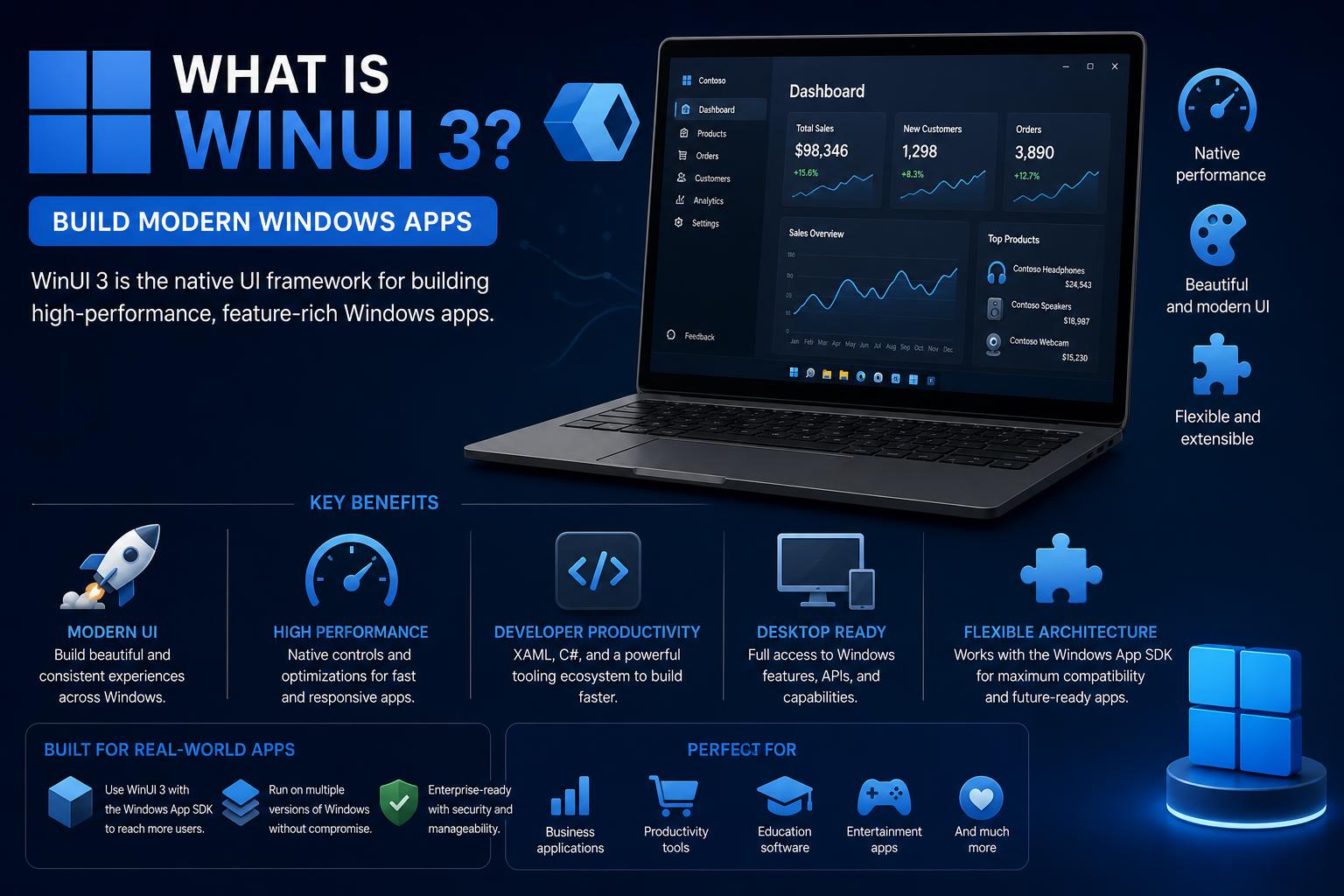
- WinUI 3 is Microsoft's flagship UI framework for modern desktop apps, delivering Fluent Design visuals and high performance.
- It supports C# and C++ development, decoupling UI updates from OS releases while leveraging the Windows App SDK.
- WinUI 3 supersedes UWP and enhances Win32 app development, but lacks direct backward compatibility and a visual designer.
- It represents the future of Windows development, with an open-source model and growing adoption in real Microsoft apps.
Curious about the evolution of desktop app development on Windows or seeking clarity on the purpose and capabilities of WinUI 3? You’re certainly not alone. With constant changes in Microsoft’s developer ecosystem, from UWP to WinUI, .NET to Windows App SDK, it’s easy to get lost in the sea of tech buzzwords and shifting frameworks.
This guide is packed with a natural, conversational breakdown of everything you need to know about WinUI 3. We’ll journey through its origins, highlight its strengths, clarify its position among other Microsoft frameworks, discuss its strengths and pain points based on real developer experiences, and cover how to get started using it—all by weaving together the expertise and official documentation from the web’s top resources.
What Exactly is WinUI 3?
WinUI 3 is Microsoft’s state-of-the-art framework for building modern Windows desktop applications, delivering a rich, sleek user experience that embodies the Fluent Design System and supports both high-performance rendering and flexible development in C# or C++. It ships as a core component of the Windows App SDK and represents the culmination of more than a decade of UI development at Microsoft, targeting devices running Windows 10 (version 1809) and above, including Windows 11.
Why does WinUI 3 matter? Unlike older frameworks that are deeply embedded in the underlying operating system, WinUI 3 is purposely decoupled. This means Microsoft can update or add new features faster, independent of Windows releases, offering developers and users a more modern, ever-evolving application experience.
The Evolution: How Did We Get Here?
Diving into WinUI 3’s background helps clear up some common confusion—especially as Microsoft’s terminology has created its share of head-scratching. Here’s a look at the timeline:
- WinRT XAML (2011–2015): Introduced with Windows 8, this was a C++-driven UI system inside the operating system, aiming to power new ‘Metro-style’ apps and later universal Windows applications (UWP) that ran across PCs and phones. UIs were described using XAML and could be coded in C++, C#, or Visual Basic.
- WinUI 2 (2018–2021): A library of modern controls for UWP apps, shipped as a separate NuGet package. This let Microsoft roll out new user interface elements to UWP apps without needing a full OS update, marking the start of decoupled UI innovation. Its source was released under the MIT License, opening the door for community contributions.
- WinUI 3 (2021–present): The game-changer: full decoupling of the UI framework, supporting not only UWP-style containerized apps but also traditional desktop applications (Win32), regardless of the underlying user model (.NET or C++).
The shift to WinUI 3, distributed via the Windows App SDK, means developers can now target standard Win32 desktop scenarios, harnessing modern controls, touch, pen, and high-DPI support—unified under Microsoft’s Fluent Design.
Key Features and Architectural Advantages
WinUI 3 isn’t just another UI library—it’s a full production-grade framework for building next-gen Windows desktop applications. Here’s what sets it apart:
- Modern Look & Feel: WinUI 3 brings Fluent Design and the fresh look of Windows 11 right into your apps, complete with polished controls and system-driven visual consistency. Apps can mimic the appearance and behavior of built-in Windows experiences.
- Flexible App Models: Supporting both .NET (C#) and native (C++) development, WinUI 3 gives you the freedom to build with the tools and languages you love. XAML remains the markup language for UIs, so if you’re coming from WPF or UWP, you’ll find much of your knowledge transferable.
- Device & Architecture Support: Applications built with WinUI 3 can run on x86, x64, and ARM64 hardware, making it ready for today’s wide variety of Windows devices.
- Separation from the OS: By decoupling from Windows, WinUI 3 can receive faster feature updates, bug fixes, and performance improvements. You’re no longer held hostage by OS upgrade cycles.
- Open Source and Community Driven: WinUI 3 (and its predecessor, WinUI 2) have source code available on GitHub under the MIT License. Microsoft has recently made significant efforts to make the development process truly open, allowing for community feedback and (increasingly) for code contributions.
WinUI 3 vs. the Competition
Understanding where WinUI 3 fits among other Microsoft and third-party frameworks is crucial. Let’s compare and contrast:
- WinForms / WPF: Both are longstanding desktop UI frameworks in the .NET universe. WPF introduced XAML and data binding in the mid-2000s. While powerful and still in use, they lag behind WinUI 3 in terms of modern UI, touch support, and responsiveness. WPF is also going into maintenance mode, and most new investments by Microsoft are funneled into WinUI.
- UWP (Universal Windows Platform): UWP brought a sandboxed app model, strong store integration, and a tailored API set for Windows 10 era devices, relying on WinUI 2 for controls. Its containerization and compatibility constraints limited its widespread adoption. WinUI 3, by expanding to desktop (Win32) support, aims to resolve these issues.
- .NET MAUI: A cross-platform app UI framework (and successor to Xamarin.Forms) for building apps that run on Windows, Android, iOS, and macOS. .NET MAUI uses WinUI 3 for its Windows rendering layer, making the two complementary rather than competitors.
- Uno Platform: This framework implements the WinUI API for non-Windows environments, letting apps built with WinUI run on Android, iOS, macOS, Linux, and the web. It’s a bridge for greater code reuse beyond Windows.
- Other frameworks (Avalonia, Qt, Electron, etc.): Each has its niche. Avalonia is a desktop-centric, cross-platform UI. Electron addresses web-based apps using Node.js, while Qt caters primarily to C++ cross-platform GUIs. None provides as native or “Windows-like” an experience as WinUI 3 for modern Windows apps.
The Windows App SDK: More than Just WinUI 3
While WinUI 3 is a core pillar, the Windows App SDK is an essential part of the ecosystem. It encompasses a suite of libraries and APIs that grant access to modern system features (notifications, windowing, Windows AI, and more) making it possible to build rich desktop apps on a unified foundation.
By coupling WinUI 3 with the Windows App SDK, developers can access modern system features while maintaining a unified development foundation:
- Create apps that straddle both the present and future Windows environments.
- Use the same design language as Windows itself, ensuring UI consistency.
- Distribute their apps either with MSIX packages or as unpackaged binaries.
- Tap into modern system features while still enjoying full access to Win32 APIs for powerful integrations.
How WinUI 3 Works: The Programming Model
WinUI 3 apps are structured around XAML for UI markup and C# or C++ for application logic. Let’s break it down:
- XAML: This is where you define your visual layout, controls, data binding, styles, and templates—think of it as the “blueprint” of your user interface.
- C# and C++: Both are first-class citizens. Backend logic, event handling, and business operations can be implemented in either language. Notably, C++/WinRT is leveraged for C++ apps in WinUI 3, providing a modern, standard-compliant C++ projection over the Windows Runtime (WinRT).
- MVVM Pattern: Model-View-ViewModel (MVVM) is the dominant design pattern encouraged by WinUI 3, bringing over the strengths of WPF and UWP development for a clean separation of UI and logic, making apps easier to test and maintain.
- High-DPI and Input Support: WinUI 3 embraces the needs of contemporary hardware: touchscreens, pens, keyboard and mouse input, and true scaling for high-resolution displays.
Distribution, Backward Compatibility, and Incremental Adoption
How you package and distribute a WinUI 3 app is flexible. You can:
- Deliver traditional desktop (Win32) apps using the Windows App SDK, either as MSIX packages (which bundle everything your app needs) or without packaging, letting users run your apps directly.
- Run on supported versions of Windows 10 (1809/Build 17763 onwards) and Windows 11, giving you access to a huge base of users.
- Adopt WinUI 3 incrementally in existing Win32 applications using XAML Islands, embedding parts of the WinUI experience inside older applications.
One important caveat for desktop deployment: WinUI 3 relies on the Windows App Runtime, which must be present on the target machine. While this adds a deployment consideration (particularly for ‘unpackaged’ distribution), it provides the benefit of faster updates and less dependence on core OS changes.
The Developer Experience: Tools, Workflow, and Day-to-Day Coding
Creating WinUI 3 applications is possible using Visual Studio or command-line tools. Here are the main options:
- Visual Studio: By installing the appropriate workload and project templates, you can quickly scaffold new WinUI 3 projects.
- winapp CLI: This cross-platform tool provides commands to initialize, build, and run WinUI 3 projects from any terminal or in CI/CD environments, expanding beyond Visual Studio and making way for code editor agnosticism and tight integration in automated pipelines.
- WinUI 3 Gallery: An interactive sample browser app, available via the Microsoft Store, is published open-source to demonstrate the full range of controls and styles WinUI 3 offers. It’s a must-see for both inspiration and technical reference.
Be aware: As of now, no visual designer (like the one for WPF) exists for WinUI 3 within Visual Studio. This means developers work directly with XAML markup without a drag-and-drop UI preview tool. While some may find this frustrating, experienced XAML developers often prefer coding UI by hand for greater control and flexibility.
Performance, Strengths, and Ongoing Challenges
WinUI 3 receives both praise and criticism from the developer community.
- Pros:
- Sleek, modern look aligned with Windows 11.
- Rich set of controls and responsive UI out-of-the-box.
- Flexible and future-focused development across desktop and UWP container models.
- Open-source codebase fostering an evolving ecosystem and transparency.
- Broad hardware support including ARM64 devices.
- Faster delivery of new features via decoupled updates.
- Cons:
- Lack of a visual XAML designer in Visual Studio impacts dev velocity for some teams.
- Some developers report performance issues, especially with WinRT interop affecting component efficiency.
- Bugs and feature gaps exist, as the framework continues to mature.
- Historical shifts in Microsoft’s UI strategy have made developers a bit wary of investing long-term until the direction is clearer and more stable.
- Requires installation of the Windows App Runtime for unpackaged deployment, adding a setup step for end users.
Nonetheless, WinUI 3’s maturity is accelerating, with significant optimizations in memory management and regular additions of new controls and performance improvements. Several parts of Windows itself, including segments of the File Explorer and Microsoft PowerToys, are now built using WinUI 3—demonstrating Microsoft’s deep commitment.
Community, Open Source, and Real-World Usage
WinUI 3’s open-source journey is ongoing. After publishing WinUI 2 under MIT, Microsoft continues working towards a transparent and collaborative model for WinUI 3 development. As of late 2026, active development is moving to GitHub, with plans to gradually open direct contributions to external developers.
Several real-world Windows applications, including popular tools and utilities, now embed or are transitioning to WinUI 3—both as a sign of its growing adoption and as reassurance that the technology continues to be a priority for Microsoft.
Common Questions and Developer Insights
Many questions are raised in the community regarding WinUI 3 adoption:
- Can WinUI 3 apps target Xbox or Hololens? The near-term focus is desktop. Support for other Windows device families (like Xbox and Hololens) may come further down the line, but isn’t the top priority today.
- Is WinUI 3 backward-compatible with UWP XAML or third-party UWP libraries? No, this is a new framework, and direct compatibility with previous UWP/XAML libraries is limited. Porting requires adjustments, especially as namespaces have changed and some APIs aren’t supported.
- Should existing WPF apps switch? WPF remains supported, but future-facing projects will benefit from WinUI 3’s modern capabilities. However, for legacy support especially on older Windows versions (7/8.1), WPF still makes sense.
- Is there a smooth upgrade path? For UWP projects, migration is possible but not always seamless, particularly if you rely heavily on unsupported features or libraries. Microsoft continues to improve migration tools and documentation.
- What about cross-platform ambitions? For true cross-device (including mobile and web) strategies, consider the Uno Platform or .NET MAUI—with WinUI 3 serving as your interface layer on Windows.
How to Get Started with WinUI 3
If you’re ready to dive in, here are the first steps:
- Check prerequisites: You’ll need Windows 10 (1809/Build 17763 or later), Visual Studio (fairly recent version), and the WinUI 3 workload/project templates installed.
- Create a new project: Use Visual Studio or the winapp CLI to scaffold your solution. Choose between packaged (MSIX) for easy store distribution, or unpackaged for legacy scenarios.
- Explore the WinUI 3 Gallery: Jump into the to see all the controls in action and grab sample code.
- Visit official docs and repository: Stay up to date and seek support through and the .
- Engage with the community: Join developer forums, GitHub discussions, and attend the community calls to interact directly with the WinUI team and other users.
Pro tip: Be prepared for ongoing changes and improvements. Many developers are excited about the pace of updates and the opportunity to contribute ideas and fixes directly to the framework.
Looking Forward: The Future for Windows Desktop Development
With Microsoft investing in WinUI 3 as its preferred UI platform for modern desktop apps and integrating it into strategic projects throughout Windows 11, there’s no question this is where the energy and innovation now lie. While adoption of WinUI 3 involves some initial trade-offs—such as fewer third-party libraries and missing visual designer support—the framework now serves as the primary vehicle for new feature investments, bug fixes, and the long-term evolution of Windows app development.
As developer tooling, ecosystem maturity, and cross-platform bridging continue to improve through projects like .NET MAUI and Uno Platform, WinUI 3 stands poised as the heart of next-generation Windows applications, balancing continuity for .NET legacy projects and future-proofing for new applications. For teams and individuals seeking to build fast, visually consistent experiences that truly integrate with Windows 10 and 11, mastering WinUI 3 is quickly becoming not just an option, but the best way forward.