
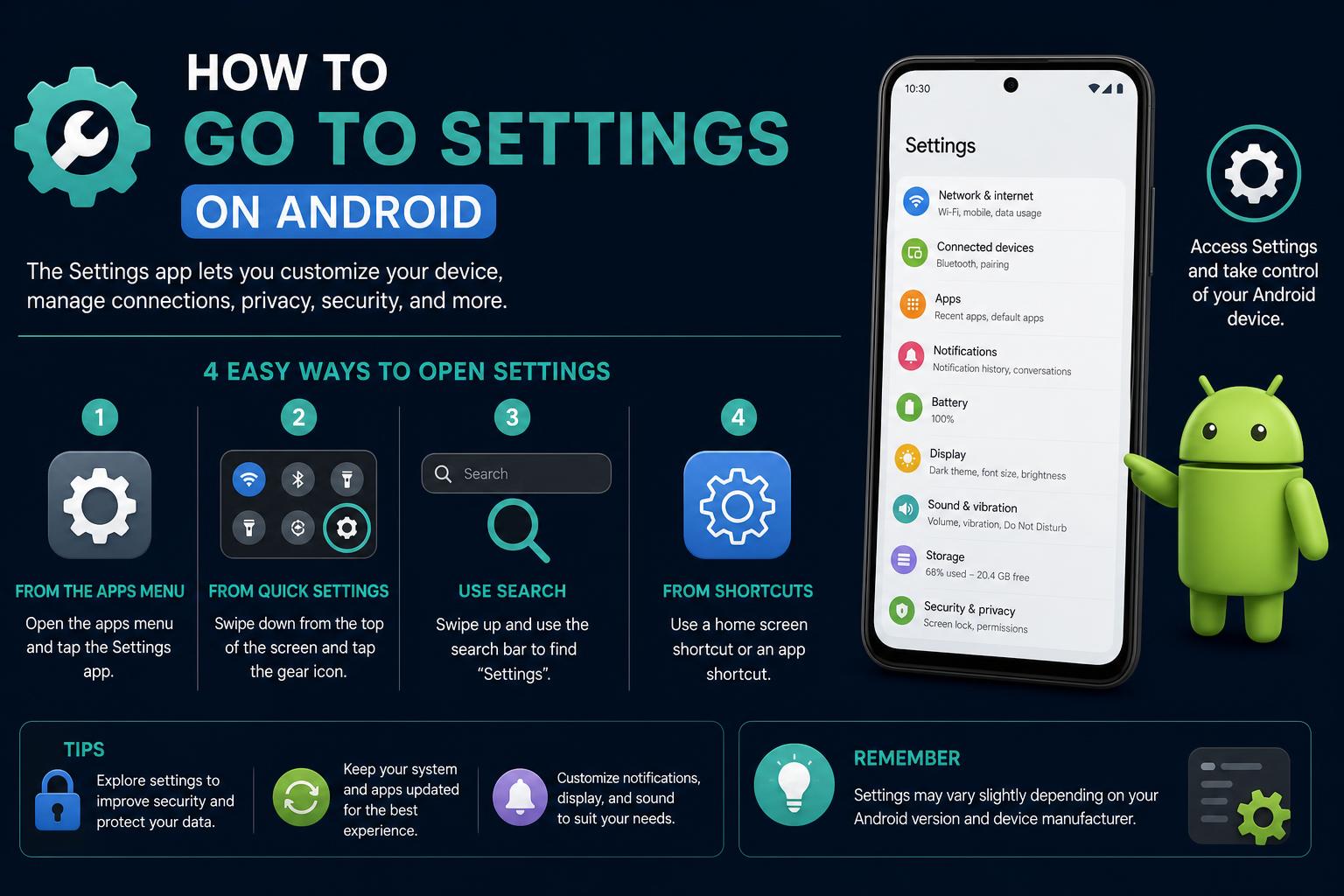
- Android provides multiple methods and shortcuts for accessing system settings efficiently.
- Quick Settings and in-depth Settings menus help users manage sound, notifications, apps, and more.
- Customizing Quick Settings and utilizing trusted third-party apps can streamline device management.
For anyone new to Android, finding the Settings menu and navigating its dozens of options can seem daunting. You don’t need to be a tech wizard to customize your device, but mastering the Settings app can transform your Android phone into a device that works just right for you. With so many phones, brands, and even Android versions, learning the most universal, fastest ways to access and manage your phone’s settings can be a real game changer.
In this detailed guide, you’ll discover not just the traditional steps for opening Settings, but also tips, hidden shortcuts, and advanced features like Quick Settings, app-specific options, and troubleshooting advice for situations where your menu is hard to access. Whether you want to fine-tune notifications, change the ringtone, or manage system updates, this article walks you through all the essential knowledge you need—so your phone feels truly yours.
The Different Ways to Access Android Settings
Android gives users multiple methods to access system settings, making it easy to control and customize their phones. The two main routes are through the standard Settings app and using Quick Settings, each serving particular purposes depending on whether you need in-depth adjustments or quick toggles.
1. Accessing the Settings App from the Home Screen
Most Android devices place the Settings app directly on the Home screen or within the App Drawer. It is usually represented by a gear (cogwheel) icon.
- Swipe up from the bottom of your Home screen to reveal the complete list of apps.
- Scroll until you find Settings (the gear icon) and tap it.
On many devices, simply pulling down the notification shade and tapping the small gear icon at the corner of the quick settings area will also launch the Settings app.
2. Using Quick Settings for Fast Access
Quick Settings is a powerful tool, giving you immediate access to your most-used toggles from anywhere on your device.
- Swipe down from the very top of your screen to reveal the first row of Quick Settings tiles (like Wi-Fi, Bluetooth, and more).
- Swipe down again to expand the full list of Quick Settings tiles.
- Tap the gear icon (usually at the bottom or top-right) to access the full Settings menu.
Any icon within Quick Settings can be toggled on or off by tapping. If you want to adjust advanced settings, tap and hold the icon for a second until the relevant setting screen opens.
Customizing Quick Settings Tiles
Personalizing Quick Settings boosts your efficiency and lets you access your favorite toggles instantly. By default, Android chooses the most common settings, but you can rearrange or add others to suit your needs.
- From the Home screen, swipe down twice to fully reveal Quick Settings.
- Look for the Edit button (usually a pencil or the word Edit). Tap it to enter customization mode.
- To add a tile, scroll through the available options at the bottom. Drag and drop your preferred tiles into the active Quick Settings area.
- To remove a tile, drag it out of the active section or tap a ‘remove’ option.
- To rearrange tiles, drag and drop them into your preferred order.
You can even resize tiles on some Android versions, so minimalistic users can show just the icons, while others may opt to display label names for quick identification. If multiple settings are active, Android might hide some tiles to save space, showing a small dot as an indicator that some icons are hidden.
Tip: Certain apps may offer to add their own tiles to Quick Settings for direct control or quick launches. You can approve or remove these at any time through the Edit option.
Understanding Key System Settings
Knowing what’s available in Settings can help you get the most out of your phone. Here’s a breakdown of some of the most frequently used areas:
Sound and Vibration Controls
You can manage not just overall volume, but also fine-tune different cues and alerts your phone produces.
- Ringtone Volume: Adjusts call alert sound.
- Media Volume: Controls music, video, and game sounds.
- Notifications: Manages alerts from texts, app notifications, etc.
- System: Covers system sounds like touch feedback, screen locking, and more.
Just tap ‘Sounds and vibration’ within the Settings app to locate all these options. Android lets you tailor each volume independently by sliding your finger right to increase, left to decrease. Test different ringtones or alert sounds and turn off features like keypress or screen lock sounds for a quieter experience.
Changing Date and Time
Android automatically determines the correct time based on location or network, but you can override this if needed.
- In Settings, scroll down to General management or search for ‘Date and time.’
- Automatic date and time can be switched off if you want to set these manually.
- Tap ‘Set time’ or ‘Set date’ to manually adjust, then choose the correct value from the pop-up or calendar display.
You can also manually set time zones, useful when traveling or if your phone fails to update itself automatically. If in doubt, keeping the Automatic setting enabled reduces the risk of missed appointments or time confusion.
Managing Apps and App-Specific Settings
To access settings specific to an app, there are several ways depending on your Android version and manufacturer. On many devices, you can:
- Open the Recent Apps view (usually by tapping the square or using the swipe gesture).
- Tap and hold on the app icon at the top of the preview. Depending on your device, you may see a pop-up menu with options, sometimes including ‘App info.’ Selecting this opens the settings for that app.
Note: On certain Samsung devices like the Galaxy S22+, holding down on the open app may default to split-screen instead of opening settings. In such cases, the expected method is to find the app in your main App Drawer, long-press the icon, and then select ‘App info’ to access its specific settings.
This workflow can be different depending on your brand’s version of Android, so experimenting with long presses or looking for the three-dot menu can help you find more shortcuts.
Exploring Advanced Insights with Third-party Apps
While built-in Android features provide core customization, there are third-party apps designed to simplify or enhance your settings experience. For example, My Device Settings (see the official page) provides comprehensive information about your device and creates shortcuts for quickly opening specific parts of system settings in just one tap.
- Device Information: Offers detailed insights about your phone’s model, Android version, hardware specs, storage status, battery health, and more.
- Check-up Tools: Lets you run health diagnostics, check for security patches, inspect Wi-Fi security, and more, each with shortcuts to the corresponding system screen.
- Battery Alerts: Get notified at chosen battery levels or when the device overheats.
- Shortcuts: Open Wi-Fi, Bluetooth, NFC, display, sound, privacy, and other settings directly, as well as pin favorite options to your home screen.
- Advanced Insights: Includes storage analyzers, battery drain charts, performance analytics, security checks, detailed network diagnostics, and more, with export options for reporting.
- Wi-Fi Tools and Widgets: Scan networks, view history, manage connected devices, and check IP/data details, all combined with handy widgets for monitoring battery and device stats.
Note that such third-party apps often offer free and premium (Pro) options, and their ability to directly change settings is limited by Android security; they mainly open the relevant system panels for you.
If you’re struggling to open Settings or encounter issues such as the settings app crashing, certain toggles missing, or options grayed out, you’re not alone. Here are some common remedies:
- Restart your device: Many glitches resolve with a simple restart.
- Check for system updates: Outdated software can cause instability. In Settings, go to System > Advanced > System Update.
- Free up storage: Low storage can affect app performance. Clean up via the Storage section in Settings or use apps like My Device Settings for analysis.
- Safe Mode: If Settings opens in safe mode but not in normal use, a third-party app may be the culprit. Remove recent installs to test.
- Reset App Preferences: If nothing helps, in Apps & notifications > Advanced > Reset app preferences. This will not erase your data but may reset disabled apps or notifications.
For phone-specific advice (like Samsung, Motorola, Pixel), always consult the manufacturer’s official resources. Samsung, for example, has dedicated guides, including a search feature inside Settings to locate options quickly on their Galaxy series.
Understanding User Reviews and Official Sources
User reviews of ‘settings’ apps highlight the importance of accuracy, reliability, and avoiding untrustworthy features. In some cases, apps that promise simplified settings access are poorly designed, consisting of little more than shortcuts to the actual system menu. Some may even present aggressive advertisements or misleading alerts about viruses, which can erode trust. Always review an app’s permissions and authenticity before installing.
Relying on the Android built-in settings or trusted third-party apps like My Device Settings ensures you maintain full control over your privacy and device customization.
Tips for Mastering Android Settings
- Explore, don’t fear: Android settings are structured logically. Use the search bar at the top of the Settings app if you’re lost.
- Pin important shortcuts: For frequently used settings, use widgets or third-party tools to place shortcuts on your home screen.
- Regularly update your phone: New features arrive with system updates, often making the settings menu easier to navigate.
- Back up before changing system-level options: Particularly if you’re adjusting advanced or experimental features.
Learning to navigate your Android device’s settings brings customization and control to your fingertips. By understanding how to efficiently open the Settings menu, use Quick Settings, adjust key features like sound, notifications, and time, and leverage trustworthy apps for extra insights, you can make your device work better for you. Whether you’re after subtle tweaks for comfort or diving deep into system controls, these tips and detailed instructions will equip you to get the most out of your Android experience, offering both everyday convenience and advanced power-user tricks.