
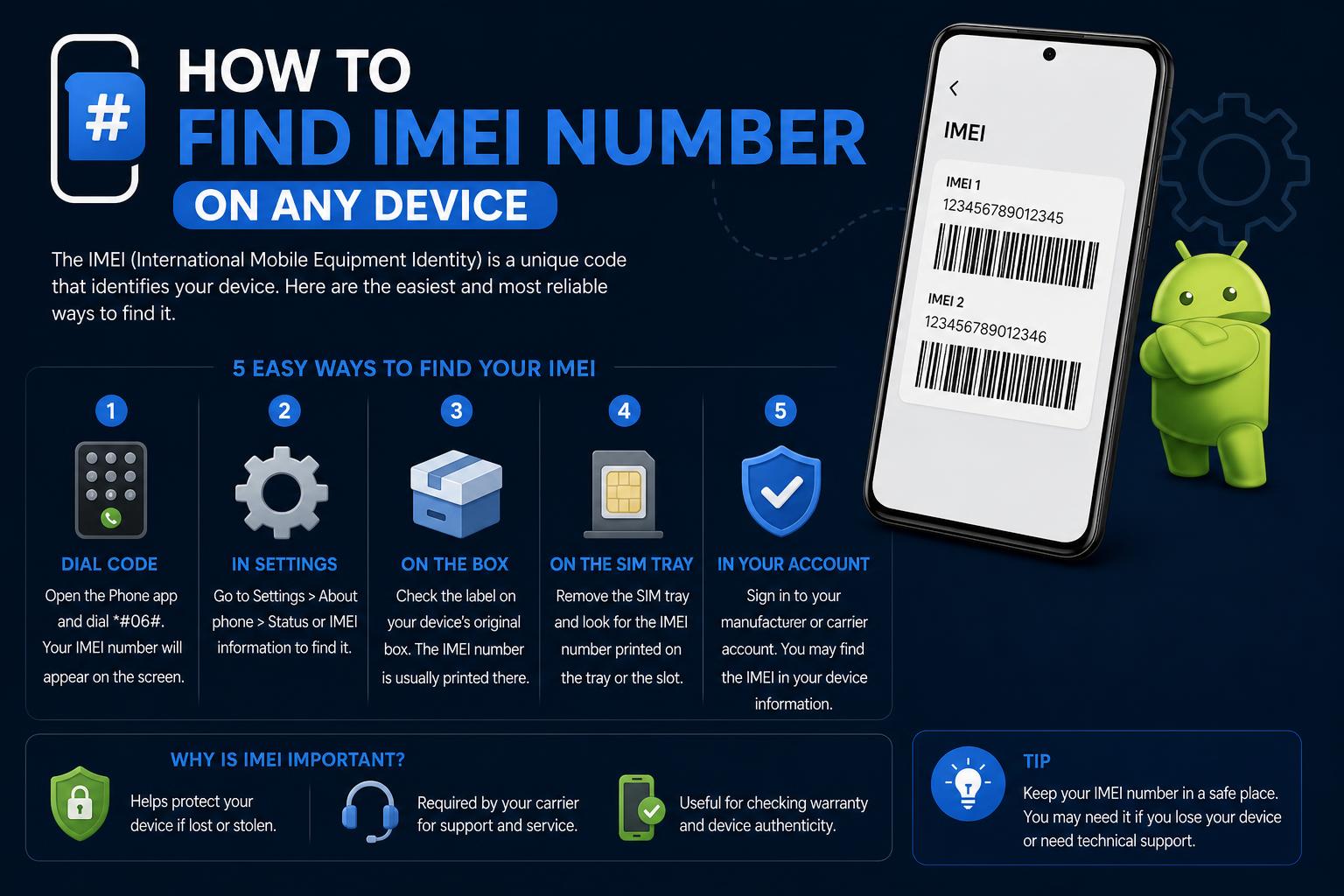
- Your IMEI number is a unique device identifier required for support, unlocking, and security.
- You can find it from device settings, hardware markings, original packaging, or via your Apple/Google account.
- It's crucial to protect your IMEI and know where to locate it in case of loss or theft.
Have you ever needed your phone’s IMEI number but weren’t sure where to find it? Whether you’re trying to unlock your phone, report it lost, or just want to keep a record for safety, knowing how to locate your IMEI (International Mobile Equipment Identity) is super important. IMEI numbers are unique to every device and act as their identification card across mobile networks worldwide. While it might sound technical, tracking down your IMEI is actually quite straightforward on both iOS and Android devices.
This guide will break things down in a way that anyone can follow. We’ll show you the various ways to find your IMEI number—through your device’s settings, hardware, original packaging, or even using your Google or Apple account. From iPhones and iPads to Android smartphones and tablets, we’ll cover every method so you’re never left searching again. Plus, you’ll pick up some useful tips that the big brand sites often forget to mention!
What Is an IMEI Number and Why Does It Matter?
The International Mobile Equipment Identity (IMEI) number is a 15-digit code that uniquely identifies your mobile device. This number isn’t just a boring string of digits—it’s crucial for:
- Unlocking your phone for use on other carriers
- Blocking a stolen phone from accessing networks
- Tracking your phone’s warranty and device information
- Activating mobile services like eSIM or cellular plans
Think of the IMEI number as your phone’s digital passport—no two devices share the same code, making it an essential tool in the mobile world.
Finding Your IMEI on iPhone, iPad, and iPod Touch
Apple devices make it pretty easy to track down your IMEI, serial number, and other important identifiers. Let’s walk through the most reliable options!
Option 1: Using the Settings App
- Launch your device’s Settings app. This is usually found on your home screen.
- Scroll down and tap General.
- Next, hit About.
- Look for fields labeled IMEI, MEID, EID, or ICCID. Some scroll may be necessary depending on your model. Touch and hold the IMEI or serial number to copy it—perfect if you need it for an Apple support form!
This method is reliable for most iPhones, iPads, and iPods. Even if your device doesn’t have cellular capability, you’ll still spot the serial number here for support queries.
Option 2: Finding the IMEI on Physical Hardware
If you can’t access the Settings app—maybe your screen is broken—no worries. Many Apple devices display the IMEI or serial number in these locations:
- SIM Card Tray: On many iPhones (3G, 3GS, 4, 4s) you’ll find the IMEI/MEID engraved on the SIM tray itself.
- Back of the Device: Some older models and original iPads have the IMEI and serial number engraved directly on the device’s back panel, usually towards the lower end.
- Original Packaging: If you still have your phone’s box, check the barcode label. You’ll usually spot the IMEI, MEID, and serial number listed there.
Tip: For the original iPhone, the serial number and IMEI are engraved on the back.
Option 3: Using the Activation Screen
- Power your iPhone or iPad on.
- Hold the power button until the Apple logo appears. The “Hello” screen will show.
- Tap the Info button (“i” in a circle) in the lower right—this displays the IMEI, MEID, and serial number even before setup is complete.
This is particularly helpful if your device has been wiped and you can’t access settings just yet.
Option 4: Via Your Apple Account or Computer
- Apple Account Dashboard: Visit account.apple.com, sign in, and navigate to Devices. Select your device and your IMEI/MEID information is revealed.
- Via Mac or PC: Connect your device using a compatible cable. Open Finder (on macOS Catalina or later), Apple Devices app, or iTunes (on older Macs and PCs). Select your device and click on the model name under “General”; you’ll find the serial, IMEI, and other network identifiers. For iPhones, click on “Phone Number” to see extra details. Copy the numbers using the appropriate menu (Edit > Copy Serial Number/IMEI).
This works even if your device’s screen is dead—as long as your computer recognizes it.
Option 5: Using Another Signed-In Apple Device
- On any Apple device signed in to your Apple ID, go to Settings.
- Tap your Apple ID name at the top.
- Scroll down to see your list of registered devices.
- Select the one in question for a quick IMEI/MEID or serial number look-up.
Locating the IMEI Number on Android Devices
Android phones and tablets have their own variety of routes to locate your IMEI, but the processes are quite similar across brands (Samsung, Google Pixel, OnePlus, etc). Here’s how you can get that crucial number in no time.
Option 1: Through Device Settings
- Open your Settings app (usually a gear icon).
- Scroll to About Phone or About Device. This can sometimes be under “System” or “General Management” depending on the brand.
- Look for IMEI or Status—you may also see IMEI1 and IMEI2 for dual-SIM devices.
Pro tip: If you see more than one IMEI, each one corresponds to a SIM slot. Save both if unsure which slot you’re using!
Option 2: Using a Dial Code
This neat shortcut works on most Android and some iOS devices:
- Open your device’s phone dialer
- Enter *#06#
- Your screen will instantly display your IMEI number(s), without initiating a call
No need to confirm or press “call”—it’s automatic and works in seconds!
Option 3: Checking Hardware & Packaging
- Under the Battery: On removable-battery models, shut off your phone, take off the back cover and battery, and the IMEI should be emblazoned on a silver sticker inside the compartment.
- On the SIM Tray: Some modern Androids engrave the IMEI on the SIM tray—use a magnifying glass if it’s tiny!
- Original Box: Manufacturers nearly always print IMEI and serial info on the retail packaging’s barcode.
Option 4: Via Google Account (Find My Device)
If your Android phone is signed in with a Google account, and you’re logged in on a computer:
- Navigate to Find My Device.
- Pick your device from the dashboard.
- Your IMEI may be displayed, especially for devices launched in recent years supported by Google’s full feature set.
Mastering Android Device Manager: Complete Guide to Finding, Locking & Securing Your Devices
Other Devices: Tablets, Dongles, and More
Not just phones have IMEI numbers; tablets with cellular support, mobile hotspots and some USB dongles do, too. For iPads with mobile data, the IMEI is located:
- In Settings > General > About.
- Printed on the back (Wi-Fi + Cellular only).
- On the SIM tray and original packaging.
For iPod touch, check the back of the device for the serial number, as it doesn’t have an IMEI.
What You Can Do With an IMEI Number
Okay, you’ve found your IMEI—what now? Here’s why keeping it handy makes sense:
- Device Unlocking: Carriers will almost always require your IMEI when requesting to unlock your phone for use on other networks.
- Reporting Lost or Stolen Phones: Law enforcement and carriers can use your IMEI to blacklist your device, making it unusable on many networks worldwide.
- Warranty and Device Support: Manufacturers request your IMEI or serial for repairs, returns, and support cases.
- Compatibility Checks: Providers like Bell offer online tools to verify your phone will work on their network using your IMEI.
- IMEI Tracker and Database Checks: You can use your IMEI to check if your device is reported as stolen or to verify its authenticity on various free online services.
Quick FAQ: IMEI Troubleshooting and Security
While just knowing your IMEI won’t let someone hack your phone, sharing it publicly is risky. Only give it to trusted sources like your carrier or device manufacturer.
They’re often shown together, but they serve different functions. The serial number is the manufacturer’s internal identifier, while the IMEI is recognized network-wide.
Try checking the SIM tray or device back, or look for the original box. You can also log in to your Apple or Google account dashboard.
Safeguarding Your IMEI Number
When you buy a new device, always take a minute to make a copy of your IMEI/serial. Store it in your email, cloud notes, or just scribble it in your phone’s user manual. It’s much easier to have it when needed than to hope you’ll find the box or pop out a SIM tray when something goes wrong.
Never share your IMEI on social media or public forums. If you’re selling or recycling your phone, make sure you wipe your device fully and remove it from your Apple or Google account to protect your information.
Learning where to find and how to use your IMEI is a practical skill for any mobile user. Whether you’re an iPhone devotee or Android aficionado, these steps will keep you informed and secure in any scenario involving your device’s identity.