
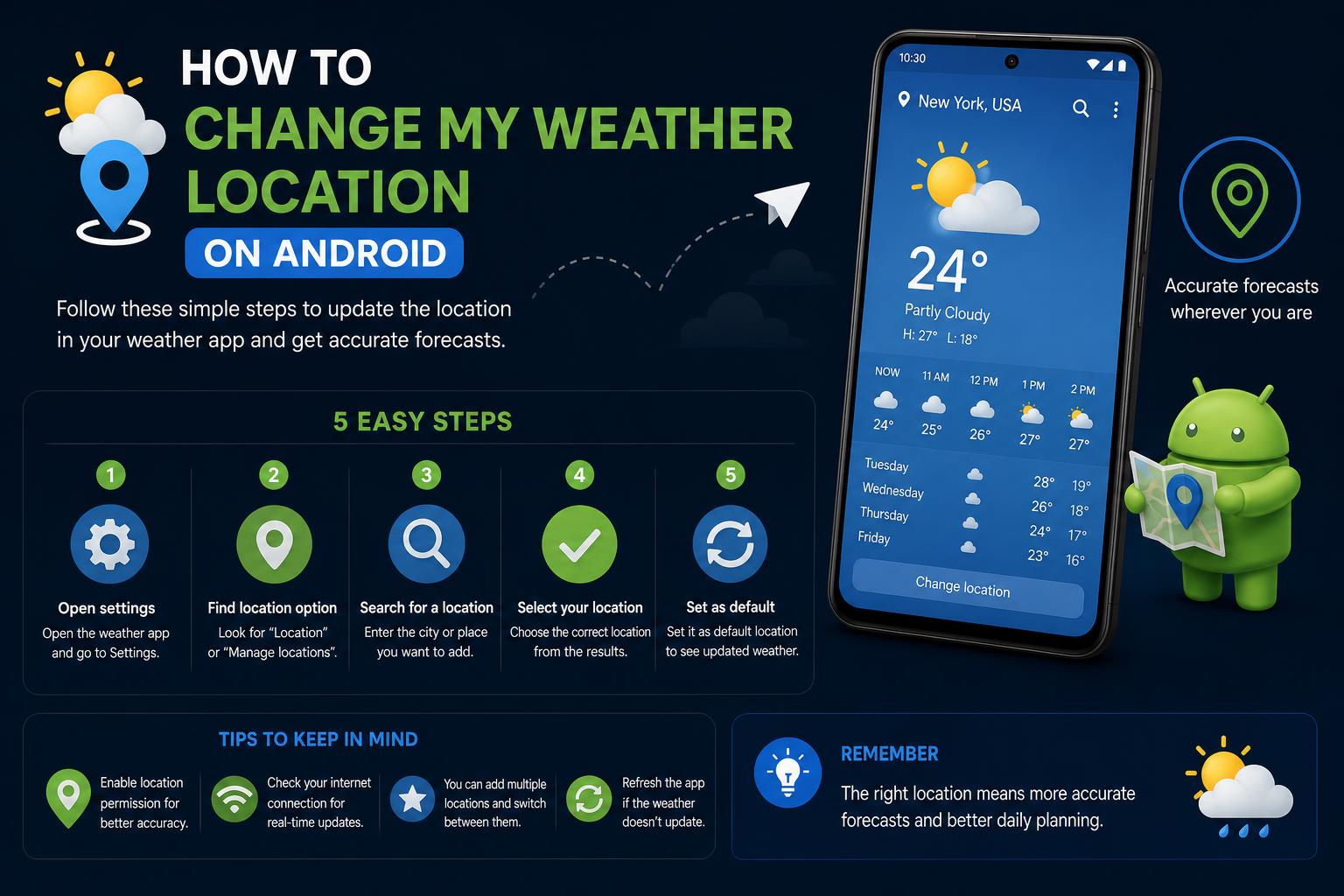
- Weather apps and widgets offer both current and manually set locations across iOS, Android, and third-party apps.
- Troubleshooting issues like incorrect city display often requires updates, clearing data, or adjusting location permissions.
- Most apps allow storing multiple locations and managing defaults for personalized forecasts.
Ever found your weather app showing the wrong city, or simply want to see the forecast for a different location? Setting your weather app to the correct location can be confusing, especially with so many different devices and apps out there. Whether you’re on an iPhone, Android, or using a popular service like The Weather Channel, knowing how to update your weather location makes all the difference in staying prepared for the day ahead.
Let’s break down everything you need to know about changing your weather location, fixing common widget mistakes, and making sure your forecast is exactly where you need it. No matter your device or app, you’ll find easy-to-follow steps and tips in this guide. Say goodbye to weather for the wrong city and get your favorite app working just the way you like it!
Why Your Weather Location Matters
Weather apps are designed to deliver personalized forecasts based on your current location. When these settings are off, you might end up with inaccurate predictions, which can be frustrating if you travel frequently or move between cities. Having the right location ensures you’re getting precise weather updates, severe weather alerts, and other localized info that’s crucial for daily planning.
Changing Weather Location on iPhone
The built-in Weather app on iPhone makes it simple to add, remove, or set default locations. Here’s what you need to do:
- Open the Weather app on your iPhone.
- Tap the three-bars icon in the bottom right or use the ‘+’ symbol (depending on your iOS version).
- Use the search field to type the name of the city or area you need.
- From the search results, select the location you want to add.
- To keep this location in your list, tap ‘Add’ or the ‘+’ button.
- Set your default by dragging your preferred city to the top of the list or tapping on it, depending on your iOS version.
If you want the weather to be based on a specific place, turn off “Location Services” for the Weather app in your iPhone’s settings and choose your preferred city manually.
Changing Weather Widgets Location on Android Devices
Most Android phones provide a home screen weather widget that uses location services or lets you set a city manually. The process can vary between brands, but here’s how it works on some popular devices:
Samsung Galaxy Phones
- Ensure your device and app are up-to-date for the best experience.
- Open Settings > Software update.
- Choose Download and install to get the latest version.
- Once updated, go to your Home screen where the weather widget appears.
- Tap on the widget, then select Manage locations or edit the city directly on the widget settings.
- Search for the new location, select it, and set as default if needed.
Some Samsung widgets allow you to disable “Use current location” and manually set any city you like. Also, always keep the weather-widget app updated to avoid glitches.
Other Android Devices (e.g., HTC)
- Open the weather widget and look for the option to toggle between the current location or manually enter a city.
- Go to Settings > Google services. Toggle the location option.
- Within general settings, ensure Google Location is switched on (if you want to use GPS) or off (if you prefer manual input).
- If the widget shows the wrong place, try removing it from the Home screen and adding it back.
- Clear widget data via Settings > Apps > Weather > Clear data. This is particularly useful if it’s stuck on an old location.
- Restart your device to ensure changes take effect.
- Re-add the weather widget and set up your location anew.
- If GPS issues persist, consider using an app like GPS Status & Toolbox to refresh your phone’s GPS data.
Resetting app data and GPS settings often resolves stubborn location bugs, making sure your weather updates are back on track.
Using The Weather Channel App
The Weather Channel app is a popular choice, both as a standalone app and through smart TV integration. Managing locations in their systems is straightforward:
- Launch The Weather Channel app.
- Go to the My Weather tab.
- Select Change Location — usually found in the corner or menu.
- Tap Add Location and enter the city name or ZIP code.
- Pick the right location, name it if you like (for example, “Grandma’s House”), and Save Location.
- You’ll see all saved places listed. Set any as the Default Location and it’ll show by default when you open the app or widget.
Handy tip: The Weather Channel app lets you store multiple cities, making it perfect if you check weather for different places regularly. Set your home, work, or travel destinations to get forecasts at a glance.
Common Problems and Solutions for Weather Location Issues
Sometimes, no matter what you try, the widget or app just won’t update to your new city. Here are some common hiccups and how to fix them:
- Widget Stuck or Showing Wrong City: Try removing the widget from your home screen and adding it back. Clear cache or app data in your device’s settings.
- GPS Errors: If your phone isn’t picking up your location and keeps showing somewhere else, make sure location services are enabled. For detailed fixes on Android, you may need to reset GPS data using helper apps (like GPS Status & Toolbox).
- Old App Versions: Outdated weather apps can malfunction or offer limited options for setting locations. Update your apps via Google Play or the App Store for new features, improved sensitivity, and bug fixes.
- Privacy Settings: On both iOS and Android, privacy settings may block apps from accessing your current location. Check app permissions in your device’s settings and give the weather app access to “Location” if you want automatic updates based on where you travel.
Tip if you don’t want to use GPS: Most apps allow manual setting of one or several default locations. Disable “use current location” and pick your favorite city so you always see the right forecast—no GPS needed!
Changing Weather Location on Lock Screen Widgets
With newer phone software, lock screen widgets make it easier than ever to see the weather at a glance. However, many users find that they’re stuck with the current GPS location instead of a city of their choice. Here’s what you can do:
- Head into your main weather app and add the city you want.
- In widget settings, select your desired location as “default” if the option is available.
- On iPhones, go to Settings > Privacy > Location Services and either allow or disallow location access for the weather app. Disabling it prompts the widget to show your manually set city.
- For Android, press and hold the widget, tap Widget Settings, then switch from “current location” to a static city.
If your widget stubbornly insists on using your GPS, check the manufacturer’s support site for specialized articles or participate in their communities for tips—many users share workarounds and custom solutions.
Troubleshooting Tips from Manufacturer Support
Many phone brands and software versions offer support articles and user forums for tough cases. For example:
- Google Assistant Help threads reveal common concerns about changing weather locations and may suggest updated steps based on recent versions.
- Apple Support often updates its guides, so always check Apple’s own instructions for new iOS updates.
Because device makers tweak these settings regularly, it’s smart to double-check their latest guides or reach out on their official forums if you get stuck.
Advanced Tips: Geofencing, Automation, and Multiple Locations
For power users, many weather apps offer advanced features:
- Geofencing: Some apps can update your location based on entering predefined zones. For example, the widget could switch between “home” and “work” as you move.
- Automations: Use your phone’s automation (like Apple Shortcuts or Android Routines) to refresh weather data when you arrive at certain locations.
- Multiple Location Saving: Store favorite cities and toggle between them on demand.
Look for these features in your app’s advanced settings or search for third-party weather widgets in your app store if you want more control.
Useful Resources and Official Guides
- Apple Support: Check the Weather in Other Locations on iPhone
- Samsung: Set Weather Widget Location on Galaxy Phones
- The Weather Channel: Change or Update My Location
- HTC Support: Weather Widget Issues
Whether you’re using Apple, Android, or third-party apps, getting your weather location right is just a few taps away. With the right steps, you can enjoy up-to-date forecasts wherever you are—or wherever you care about. Explore your phone’s weather options, play with the settings, and you’ll never be caught off-guard by rain, snow, or sun again—knowing your weather app is set up exactly to your preferences.