
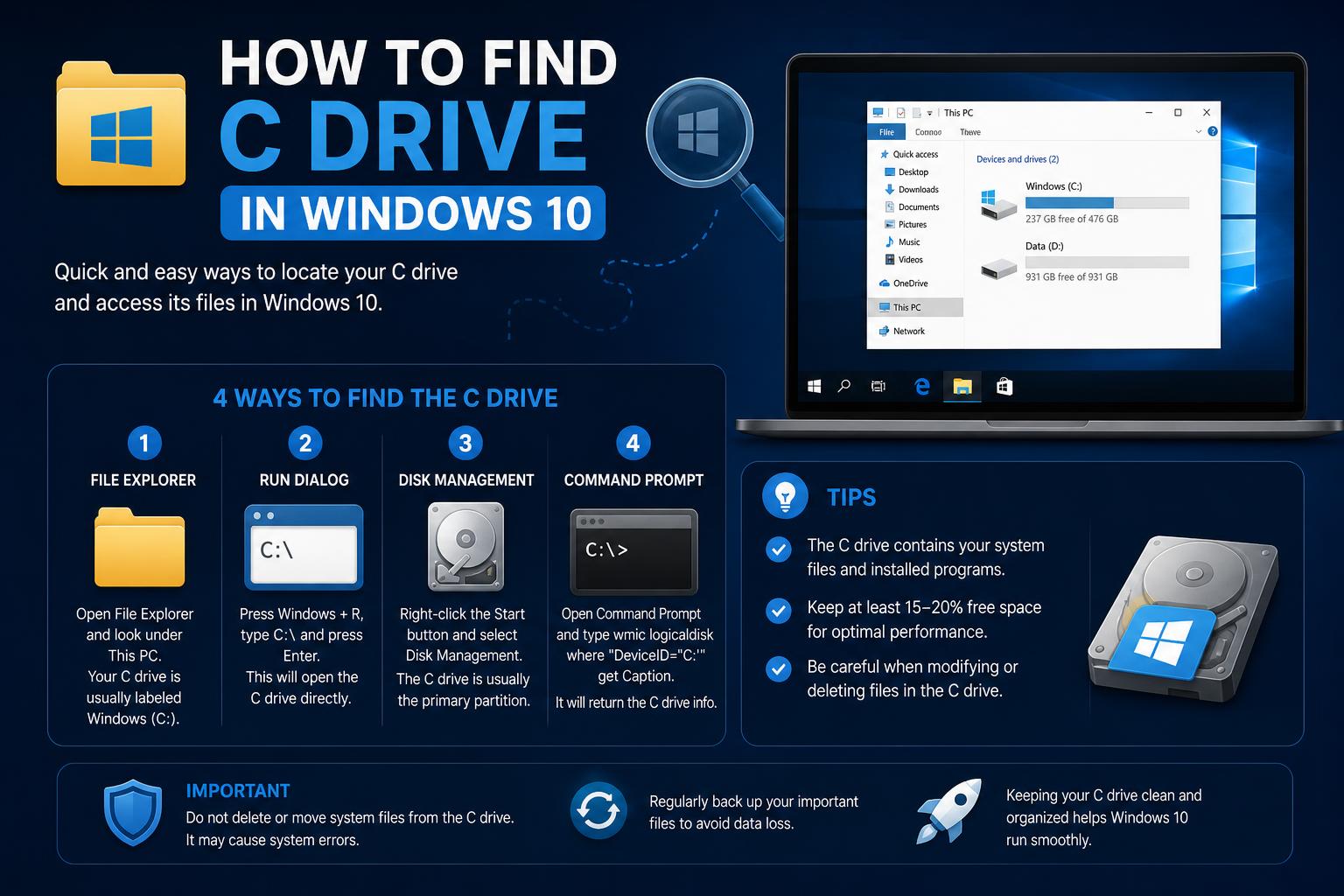
- The C drive is the default disk partition where Windows 10 and most applications are installed.
- It's not a physical component but a designation given to your primary storage device during Windows setup.
- Routine maintenance, like disk cleanup and uninstalling unused programs, keeps your C drive running efficiently.
Many Windows 10 users occasionally find themselves wondering where exactly the C drive is located on their device, what it actually represents, and how they can access or manage its contents. Whether you’re a new laptop owner confused by your antivirus software, or someone building a computer for the first time, understanding the C drive is crucial for smooth operation and maintenance of your system.
Despite C drive being a fundamental concept in Windows, online information can be scarce, especially when filtered by practical, written guides. Often, users turn to forums, social discussion networks, or short video clips, but may not get the comprehensive, step-by-step advice they truly need. This guide aims to fill that gap, providing clear, accessible information for anyone who’s ever wondered about the mysteries of the C drive in Windows 10.
What Is the C Drive in Windows 10?
On Windows operating systems, the C drive is typically designated as the primary disk partition where your operating system, programs, and personal files are stored. You’ll often see it referred to as the “Local Disk (C:)” in file browsers or installation wizards. The letter ‘C’ is a convention inherited from the early days of DOS and Windows, where ‘A’ and ‘B’ were reserved for floppy drives. Today, most computers only use ‘C’ for their main storage unless additional drives are installed.
Why Is the C Drive So Important?
The C drive holds the core of your Windows operating system — all major system files, the Program Files directories, and the Users folder (where your documents, music, pictures, and downloads reside). Ensuring you know how to access, maintain, and manage the C drive is essential to keep your PC running optimally, resolve software issues, or install new applications.
How to Access a OneDrive Folder from Your Desktop on Windows and Mac
How to Find the C Drive on Your Windows 10 Computer
Despite its fundamental role, some users can feel uncertain about how to actually access the C drive, especially if they’re using a new laptop, have minimal technical experience, or are presented with warnings from antivirus programs about system clutter. Here’s how to quickly locate and open your C drive in Windows 10:
- Using File Explorer: Click on the folder icon in your taskbar, or press the Windows key + E on your keyboard. In the left sidebar, click on This PC or Computer. The list of drives will appear. The C drive is labeled as Local Disk (C:).
- Through the Start Menu Search: Click the Start menu or press the Windows key and type C:\ then press Enter. File Explorer will open, showing the contents of your C drive immediately.
- Command Prompt: For advanced users, open Command Prompt by searching “cmd” in the Start menu. Type cd C:\ and press Enter. Now you’re in the C drive directory.
Understanding Where the C Drive “Resides” Physically
Some users, particularly those building a PC from scratch, might wonder whether the C drive is a specific piece of hardware or is included with the CPU, motherboard, or another component. To clarify: The C drive is not a physical part itself, but a label given to your main storage device, which could be a traditional hard drive (HDD) or a solid-state drive (SSD). This device is usually installed inside your computer tower (or laptop shell) and is connected to the motherboard via SATA or NVMe interfaces.
When setting up Windows, the system asks which drive or partition you wish to install the operating system on. By default, the first available internal drive gets assigned the letter ‘C’, and that becomes the system drive. No component comes ‘pre-installed’ as a C drive; it’s the result of Windows installation assigning that letter to your main storage.
What If You Can’t See the C Drive?
There are scenarios where the C drive might appear missing or inaccessible. Here’s how to troubleshoot:
- User permissions issue: If you’re on a company or family PC, your user account may not have appropriate permissions to see or modify contents in some folders within the C drive.
- Drive not appearing: Rarely, a Windows update or hardware change could make your system unable to see the C drive. In such cases, try restarting your PC. If the drive still doesn’t appear, boot into the BIOS/UEFI to see if the drive is recognized by the hardware. If it is, but Windows can’t see it, you might need to repair your Windows installation.
Comprehensive Guide to Fix Windows 10 Stop Code Errors and Blue Screen Issues
What Does Your Antivirus Say About the C Drive?
Many users, like the one who posted on Microsoft Q&A, are prompted by their antivirus software (for example, AVAST) that their system has “junk files” or “broken registry items” on their C drive. These messages can be alarming, but what do they mean?
The antivirus tool scans your main system drive (the C drive) for files and settings that may be unnecessary, such as old temporary files, remnants of uninstalled programs, or outdated registry entries. These typically build up over time and can be safely cleaned up. However, many antivirus programs, especially free versions, will present these findings and recommend you purchase a premium version for automated fixes. Use caution and don’t feel pressured to buy add-ons unless you truly need what they offer.
What Are Common Files and Folders on the C Drive?
When you open your C drive, you’ll notice several folders and files. Here are the key areas:
- Windows – Contains all the files for the Windows operating system itself.
- Program Files and Program Files (x86) – Directories for your installed software. 64-bit programs go in Program Files, while 32-bit programs use Program Files (x86).
- Users – User-specific files, including Documents, Pictures, Downloads, etc.
- temp or Temp – Temporary files created by Windows or running programs.
Most users will spend their time in the Users folder for personal documents or Program Files for installing new software. It’s usually safer not to modify or delete files outside your user folder unless you are certain about their purpose, as system files are required for smooth operation.
Should You Clean Up Your C Drive Often?
Over time, the C drive can fill up with unnecessary files, leftover system updates, or broken registry entries, which may slightly slow down your PC. Tools like the Windows built-in Disk Cleanup (accessed by right-clicking the C drive in File Explorer and choosing Properties → Disk Cleanup) can help remove temporary files and system cache safely. Advanced users might also use third-party programs, but always make sure you’re aware of what gets deleted and back up important data beforehand.
Tips for Managing the Space on Your C Drive
- Regularly empty the Recycle Bin.
- Uninstall programs you no longer use by going to Settings > Apps > Installed Apps.
- Store large personal files (like videos or backups) on a separate drive if possible.
- Run Disk Cleanup monthly or after major updates.
Questions from New PC Builders: Is the C Drive a Physical Device?
On communities like Reddit’s r/buildapc forum, new builders sometimes ask if the C drive is part of the CPU, motherboard, or another internal component. The answer is: the C drive refers to your hard drive or SSD – a distinct piece of hardware physically installed into your PC case and connected to the motherboard. It usually has a rectangular, flat shape, with SATA connectors (for HDDs/SSDs) or an M.2 connector (for modern NVMe SSDs). During system setup, Windows assigns the ‘C’ letter to the first main storage device it recognizes.
If you’re building a PC and want to ensure you have a “C drive:” you must purchase either a hard disk drive or a solid state drive to store your operating system and files. Once Windows is installed on this device, it automatically becomes the C drive, unless you specify otherwise.
Can the C Drive Be Renamed or Changed?
Technically, the C drive’s designation is set by the operating system during installation and is used by many programs as a reference point for file locations. While it is possible to change the drive letter in Windows’ Disk Management utility, doing so to the system drive is strongly discouraged as it can result in serious software errors or even prevent Windows from booting. Leave your C drive as the C drive unless you have advanced knowledge and a specific, critical reason to alter it.
When Are Multiple Drives or Partitions Used?
Some users may notice partitions labeled as D, E, or even with volume labels like “Data” “Backup,” etc. These typically represent:
- Additional physical drives (HDD, SSD)
- Recovery partitions created by the PC manufacturer
- Manual partitions created to separate system files from personal files
The C drive, however, remains the core partition where Windows 10 expects system files to reside.
Having a clear understanding of your C drive in Windows 10 can make everyday tasks like saving documents, installing software, and cleaning up unnecessary files much simpler. While antivirus warnings about system “junk” can be confusing, most space management tasks are easy and safe to perform using built-in Windows tools. For first-time PC builders, remember: the C drive label is assigned to the main storage drive where Windows is installed, not a specific component purchased separately. Understanding how the C drive works helps you approach your next file search or system clean-up with greater confidence.