
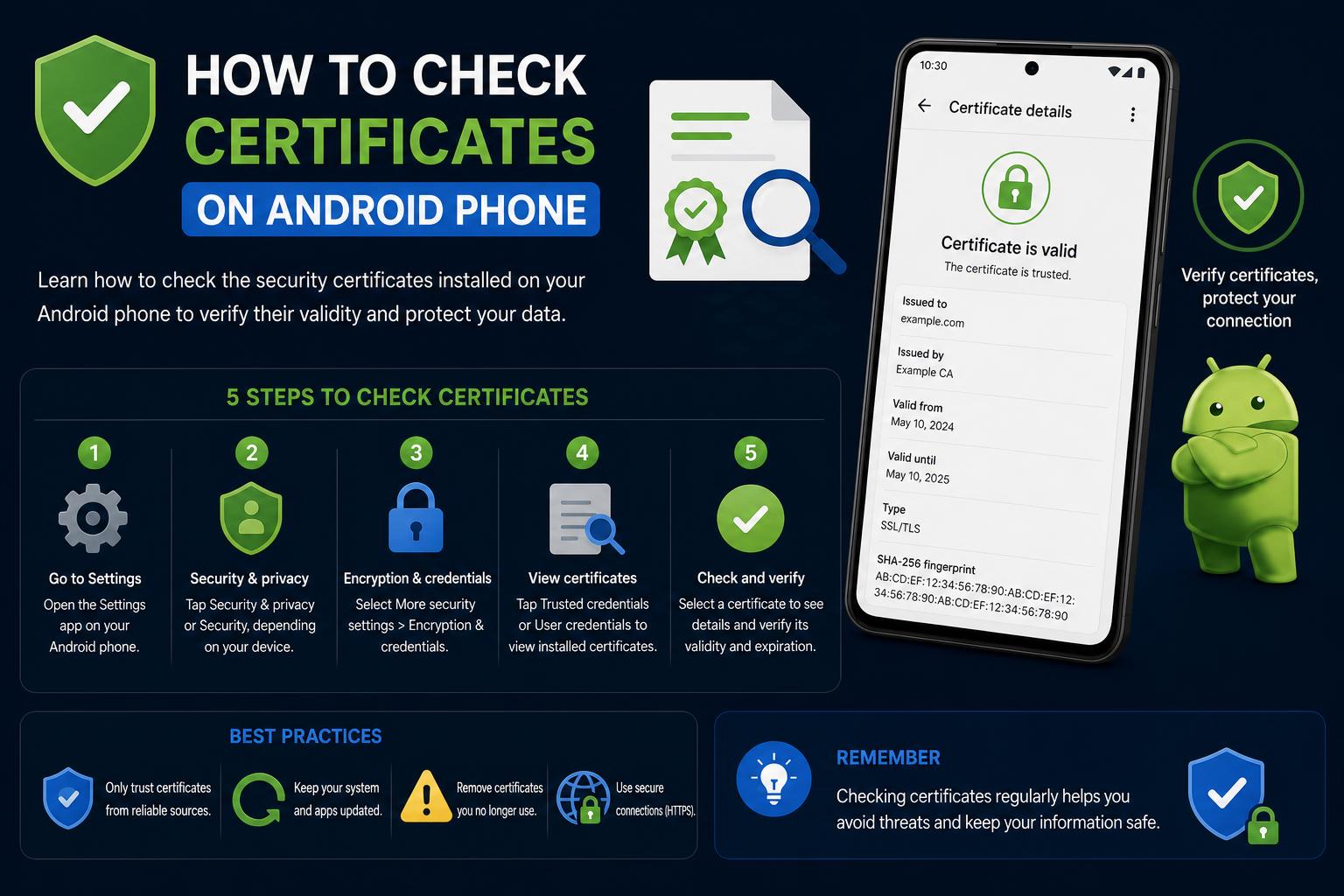
- The Android OS uses both system and user certificate stores to separate pre-installed and manually added certificates.
- Viewing, installing, and removing certificates depends on the Android version but is accessible through security settings for most devices.
- Proper certificate management—regular updates, secure installation, and careful removal—is essential for device and data security.
Modern smartphones carry a significant amount of personal and business data, making security a top priority for every Android user. One crucial layer of this security is implemented through digital certificates, which provide authentication, encryption, and trustworthy communication between devices and services. However, many users and even administrators remain unsure of how to inspect, manage, and understand these certificates on their Android devices. If you’re scratching your head about how to check, install, or manage certificates on your Android phone, you’re not alone—and you’re in the right place.
Whether you want to ensure your data privacy, connect to enterprise Wi-Fi, or troubleshoot an app’s security warning, understanding how Android handles certificates is essential. In this article, we’ll break down what digital certificates are, why they matter, and provide detailed steps—using clear language peppered with expert insights—on checking certificates for different Android versions, installation/removal processes, storing locations, and best security practices for both individual users and IT administrators.
What Are Digital Certificates and Why Do They Matter on Android?
A digital certificate is fundamentally a digital document or password file that is used to authenticate the identity of devices, users, apps, or servers across a network. These certificates underpin the public key infrastructure (PKI) and are essential for secure data transmission, confirming that the parties you interact with are who they claim to be.
Certificate Authorities (CAs) such as DigiCert, GlobalSign, and Let’s Encrypt issue these certificates, verifying the identity of certificate owners and digitally signing the certificates to affirm their legitimacy. On Android, these digital certificates help guarantee that your private data, such as emails, credentials, and financial transactions, remains encrypted and protected from eavesdroppers and hackers.
Where Are Certificates Stored on Android Devices?
Android segregates certificates into different storage locations depending on their type and intended use:
- System CA Store: Located at
/system/etc/security/cacerts, this store houses the pre-installed root certificates that come with the Android operating system, trusted by default by the OS and its apps. - User CA Store: Stored at
/data/misc/user/0/cacerts-added, this directory contains certificates manually added by the user or through apps. These could be enterprise, educational, or specialized certificates. - Work Profile Store: Devices enrolled in Android Enterprise or managed by an organization keep a separate store for certificates used in work profiles, providing a clean separation from personal certificates.
Recognizing these storage locations is crucial for understanding why some certificates appear in your settings, while others do not, especially on managed devices.
Types of Certificates Commonly Used on Android
Android supports a broad range of certificate types, each serving specific purposes. Key types include:
- SSL/TLS Certificates: Used for encrypting web traffic and ensuring a secure connection for your browser and apps.
- Device Certificates: Authenticate devices on enterprise networks, enabling features like secure Wi-Fi and VPN access.
- User Certificates: Deployed by IT admins to individual users to secure resources such as emails or cloud apps.
- Root and Intermediate Certificates: Form the backbone of PKI by validating other certificates.
- Code Signing Certificates: Used by developers to confirm the authenticity and integrity of apps.
- Application Certificates: Help verify that installed apps haven’t been tampered with post-development.
How Android Validates and Uses Certificates
The lifecycle of a certificate on Android goes through the phases of issuance, distribution, and validation:
- Issuance: A user, device, or app requests a certificate from a CA; the CA checks the requester’s identity and signs the certificate with its private key.
- Distribution: The certificate is delivered to the device by various means: manual download, email, USB, or over-the-air enterprise management tools (commonly called Enterprise Mobility Management platforms, or EMMs).
- Validation: Android checks a certificate’s authenticity by comparing its CA signature to trusted root certificates in the system CA store. If the root is trusted, the certificate is valid for its intended function.
How to View Installed Certificates on Your Android Phone
There are several ways to access the list of certificates installed on your device. The exact navigation may differ depending on your device brand, Android version, or any customizations by the manufacturer. Here’s a breakdown based on the most common Android versions:
- Android 11 and Newer:
- Open Settings.
- Tap Security or Security & privacy.
- Choose Encryption & credentials.
- Select Trusted credentials. You’ll see two tabs: System (preloaded with the OS) and User (manually added).
- Tap any certificate for more details about its issuer and purpose.
- Android 7-10:
- Navigate to Settings.
- Go to Lock screen and security.
- Tap Other security settings.
- Select Trusted credentials or User credentials.
- The displayed list shows installed certificates (though details may be limited for user certificates).
- Android 6 and Below:
- Here, certificate viewing is more limited. You may need to trigger access to a digital certificate (like visiting a secure website or using a government app) to see available certificates, as the OS doesn’t always provide a direct list in settings.
Pro tip: Paths and names can vary between device manufacturers. On Samsung devices, it might appear under Biometrics and security → Other security settings → View security certificates.
Installing New Certificates on Android Devices
There are various reasons you might want to install a custom certificate, such as connecting to a secure corporate Wi-Fi or setting up a VPN. Here’s a step-by-step guide for most devices:
- Obtain the certificate file (usually with a
.crt,.cer, or.p12extension) from your IT admin, workplace, or relevant authority. - Save the file to your device’s storage or cloud account for easy access.
- Open the Settings app.
- Go to Security & privacy (some devices may simply call this Security).
- Choose Encryption & credentials or More security settings.
- Select Install a certificate (sometimes labeled as Install from device storage or Wi-Fi certificate on Google Pixel devices).
- Navigate to the location where you saved the certificate and select the file. You may be prompted to enter a PIN or password to proceed.
- Name the certificate for reference and confirm installation with OK.
Important: Android may request you set up a screen lock (PIN, password, or pattern) before you can install certificates for added security.
Removing or Disabling Certificates on Android
Removing custom or user-installed certificates is fundamental for keeping your device secure, especially if a certificate has become outdated or is suspected of compromising privacy. The process is straightforward on most recent versions of Android:
- Open Settings and go to Security & privacy.
- Select Encryption & credentials.
- Under Credential storage, tap Clear credentials to remove all of them, or select User credentials to delete specific certificates. Confirm when prompted.
Note: Removing system certificates generally isn’t allowed, since they’re essential for critical operating system functions. If you delete a certificate needed for a particular Wi-Fi connection or VPN, you’ll need to reinstall it to restore connectivity.
Best Practices for Managing Certificates on Android
Certificate management isn’t just about adding and removing files: it’s a core part of keeping data secure for both everyday users and system administrators. Here are some key recommendations:
- Always verify certificates before installing them, making sure they come from trusted CAs and haven’t been tampered with.
- Enable certificate-based encryption for all sensitive communications, such as emails, financial transactions, and enterprise VPN sessions.
- Automate certificate deployment and renewal using EMM solutions or device policies wherever possible, especially in enterprise environments, to avoid expired or misplaced certificates.
- Be careful with BYOD (Bring Your Own Device) setups: keep clear boundaries between personal and work certificates to avoid exposing private data on either side.
- Watch out for possible configuration errors: misconfigured certificates can cause connection issues, security risks, or constant authentication prompts.
- Keep your system updated: certificate handling can change between Android versions (for example, the “Do not validate” option for enterprise Wi-Fi was removed in Android 11), so always check current documentation or guidance from your support team.
Updating Certificates and Managing Expirations
All certificates have an expiration date. If your VPN, Wi-Fi, or app access suddenly stops working, one possible cause is that the certificate has expired:
- On enterprise devices: Use EMM solutions to automatically update certificates across all devices, minimizing access disruptions.
- Manual method: Go to Settings → Security & privacy → View security certificates. Select the expiring certificate and tap Replace (this isn’t available on all devices). Install the new certificate when prompted.
If you have doubts about a certificate’s validity, visit the issuing authority’s official website or, for users in Spain, check the Tax Agency’s help guide or review status pages like the one from FNMT.
Certificate Management for Advanced Network Configurations
If you need to connect to more sophisticated networks (WPA/WPA2/WPA3-Enterprise), digital certificates play a crucial role in authentication, especially in work or educational settings:
- Check whether your network administrator provided all the necessary information; missing data can prevent correct setup.
- The process of importing certificates is usually similar to a standard installation, but always follow your institution’s specific instructions to ensure compatibility.
- Keep in mind that recent Android versions may enforce stricter security policies, such as removing lax validation options.
For Developers: Installing SSL Certificates in Android Apps
Developers may need to include SSL certificates in their apps to secure connections for payments, data storage, or corporate use. The recommended process includes:
- Acquire the correct SSL certificate from a trusted CA, gathering the full chain of trust (server, intermediate, and root).
- Store the certificates in the appropriate format, typically Base64-encoded X.509.
- Import the certificates into the app’s Keystore using tools like
keytooland libraries such as Bouncy Castle. - Configure the network stack (for example, HttpClient) to load the custom Keystore, ensuring all traffic is encrypted and validated.
Several recommendations and examples are available in the IEEE guide.
Tips for Troubleshooting Certificate Issues
Having trouble connecting to Wi-Fi, VPN, or browsing the web due to certificate-related errors? Check this list:
- Check the certificate names, expiration dates, and purposes; Android sometimes offers limited information, so reach out to the issuing authorities if you have questions.
- Remove and reinstall problematic certificates if needed.
- Make sure your device’s date and time are correct, since SSL certificates depend on accurate clocks.
- If you’re using enterprise solutions, contact technical support to resolve configuration errors or incorrect policies.
Understanding how digital certificates work on Android is essential both for users seeking greater privacy and administrators aiming for maximum security. Knowing how to review, install, update, and manage certificates helps protect your device and data against constantly evolving threats. Digital trust, the foundation of modern mobile life, is strengthened through proper management, keeping your Android secure and worry-free, whether you’re browsing, developing, or protecting your organization’s infrastructure.