
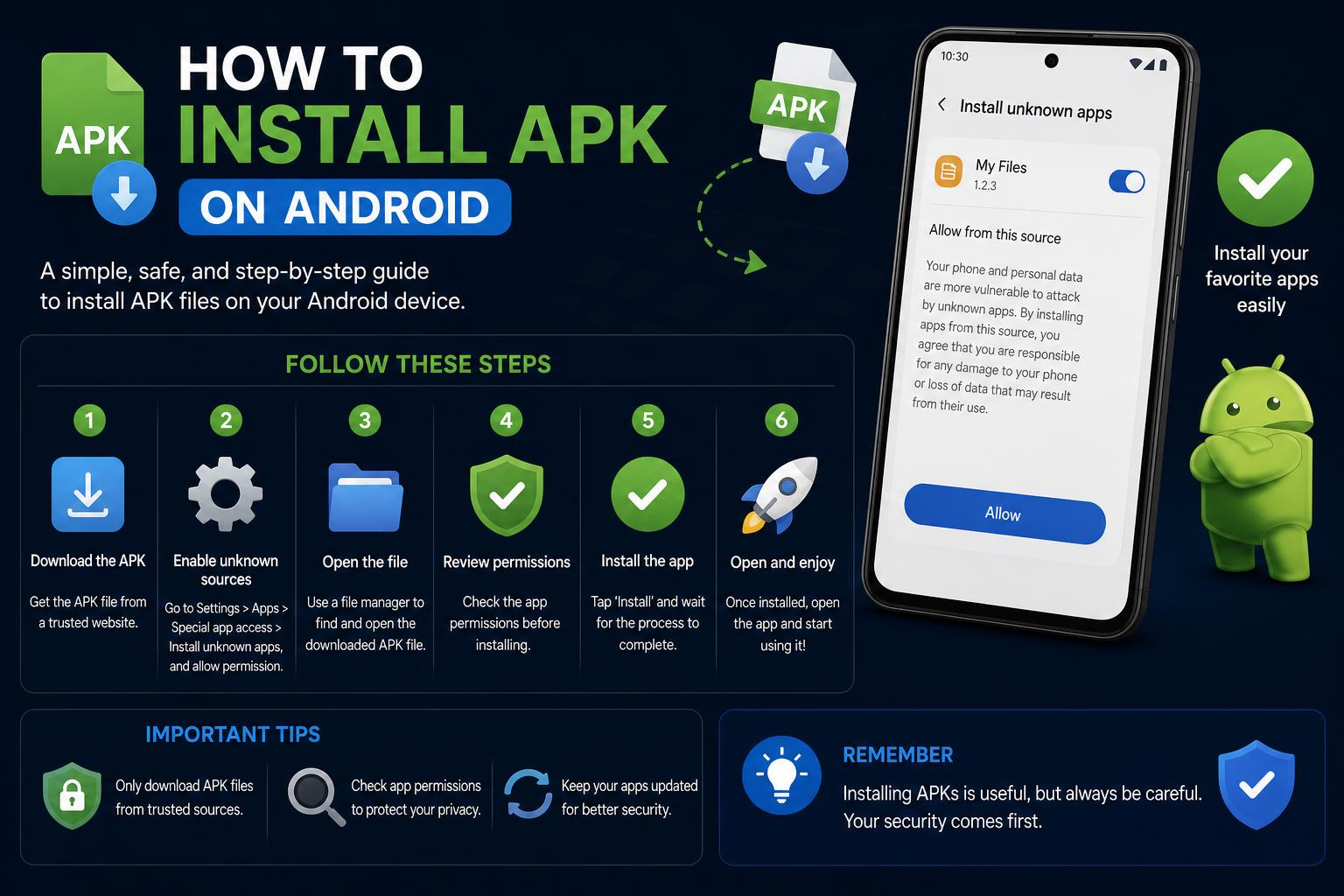
- APK files allow you to install Android apps outside the Play Store, but come with important security risks.
- Enabling unknown sources or specific install permissions is required, and the procedure depends on your device's Android version.
- Always source APKs from reputable websites or official project pages to ensure safety and compatibility.
Are you curious about how to install APK files on your Android phone? Maybe you haven’t found the apps you want in the Google Play Store, or you’re trying to use the latest version of an app before it’s officially available. Whatever your reason, installing APKs opens up a world of possibilities… but it also comes with important caveats regarding security, compatibility, and settings. This article will guide you through—step by step—everything you need to know about APK installation on Android, whether you’re a total beginner or looking to sideload like a pro.
Understanding how to manually install APK files can seem intimidating, especially if you’ve never done it before. The web is full of partial instructions, outdated advice, or overly technical explanations, but we’ll break it all down for you clearly and safely. From acquiring a trusted APK file to enabling the necessary settings and dealing with device-specific security prompts, this guide will help you avoid common pitfalls and answer the most frequent questions about sideloading apps on Android devices.
What is an APK and Why Would You Install One?
APK stands for Android Package Kit; it’s essentially the file format that Android uses to distribute and install apps. Whenever you download an app from the Play Store, you’re really getting an APK (although the Play Store handles all the messy details for you). Manually installing an APK—often called “sideloading”—means you get the app directly from a developer, a third-party site, or your computer, rather than via the Play Store.
Some common reasons to sideload APKs include:
- Access to app versions not yet available on the Play Store (early releases or region-locked apps)
- Downloading apps no longer supported on the Play Store
- Installing custom or unofficial apps built by independent developers or communities
- Using apps on devices without Google Play services or in situations where the Play Store isn’t accessible
Understanding the risks and best practices before moving forward is essential when dealing with APK files and sideloading.
Is It Safe to Install APKs? What are the Risks?
Security is a big factor to consider with APKs. While sideloading unlocks new possibilities, it can also expose your device to potential risks.
- Malware or viruses: APK files from untrusted sources may contain malicious software.
- Device instability: Unsupported or modified apps can cause crashes or incompatibility issues.
- Data privacy concerns: Unofficial apps may attempt to access your personal data.
Always download APKs from official project sites or trusted sources, such as APKMirror or respected developer websites. If you’re installing a specific app like ExpressVPN, make sure you only use their official download page to avoid tampered files.
Getting an APK File: Your Options Explained
You can acquire an APK file by:
- Downloading it directly onto your Android device via a browser (fastest and simplest)
- Downloading on your computer and transferring it to your phone using USB, Bluetooth, or a cloud storage service (like Google Drive or Dropbox)
If you’re new to this, using Google Drive is especially user-friendly: Upload the APK to Drive from your PC, then access and download it via the Drive app on your phone.
Quick FAQ: “Should I download APKs to my PC or phone?”
Both methods work. Direct download on your phone is quickest, but using your computer can be safer (you can run antivirus scans on the APK before moving it to your device). If you go the PC route, you have three main ways to get the file onto your phone:
- USB Cable: Connect your phone to your PC, set it to File Transfer mode, and drag the APK into your device’s Downloads or another folder.
- Bluetooth: Pair your devices and send the file; not the fastest, but effective for small files.
- Cloud Storage: Upload via PC, then download through a cloud app on your phone.
How to Enable APK Installations on Android Devices
Out of the box, Android devices block installations from unknown sources for security reasons. You’ll need to enable this manually before you can install any APK. The process has changed over Android versions, so check your Android version (found under Settings > About phone > Android version) and follow the relevant steps.
For Android 8.0 (Oreo) and Newer
Android 8.0 introduced “Install unknown apps” permissions per app. Here’s how to activate them:
- Open Settings on your device
- Go to Apps
- Tap Special app access or Special access
- Select Install unknown apps
- Find the app (like Chrome or your file manager) you’ll use to open the APK, then toggle on “Allow from this source”
If you’re on a Samsung device:
- Go to Settings > Apps
- Tap the menu (three dots at the top right)
- Select Special access > Install unknown apps
- Choose your APK source app, then toggle on the permission
For Android 7.0 (Nougat) and Older
Older Android versions use a system-wide switch:
- Open Settings
- Find Security
- Toggle on “Unknown sources” under Device administration
- Accept any security warnings (these are important – always remember to disable this once you’ve finished installing your APK!)
Installing the APK File on Your Android Device
Once you’ve transferred the APK or downloaded it directly to your phone, you’re ready for installation:
- Open your file manager app or Downloads app (the APK will typically be in your Downloads folder)
- Tap on the APK file to begin installation
- You may see a warning that this file type can harm your device—proceed only if you trust the source
- If this is your first time using that app (such as your file manager or a browser) to install APKs, you’ll be required to grant permission (as explained above)
- Tap Install
- Wait for the process to finish. Android will either confirm the installation or let you know if any compatibility issues exist (for example, if the app is not designed for your device or Android version)
If you run into issues: Double-check that you’ve enabled the proper permissions, that your device’s security settings aren’t blocking the installation, and that the APK file is compatible with your Android version.
After the Installation: Best Practices for Security
Once you have installed your APK successfully, it’s advisable to disable the “Install unknown apps” permission for the source app you used. This helps maintain your device’s security and prevents accidental installations from untrusted sources.
You can do this by returning to Settings > Apps > Special app access > Install unknown apps, selecting the app (like Chrome or your file manager), and toggling the permission off.
What about Chromebooks?
Installing APKs on Chromebooks is possible but can be complicated and risky. Devices released before 2021 or those without official Google Play support often require enabling Developer Mode or ADB debugging, which can compromise security and wipe local data. It’s generally not recommended unless you are an advanced user. For VPN apps like ExpressVPN, setting up the VPN at the router level is a safer alternative—this method covers all connected devices without complex configurations. More details can be found at the .
Common Problems and Troubleshooting
What if the app doesn’t install? Several issues might be causing this:
- Incompatibility with your Android version: Check app requirements and your device’s Android version in Settings > About Phone.
- Corrupted APK file: Try re-downloading from a reputable source.
- Insufficient storage or permissions: Ensure enough space and correct permissions are granted.
- Security restrictions: Some devices may block sideloading entirely, especially enterprise-managed ones.
If you’re unsure, consult the app’s support or look for advice in communities like Reddit, tailored to your device and the specific APK.
Frequently Asked Questions
- Is sideloading legal? In general, yes, but always respect copyright and licensing agreements; avoid using APKs to distribute paid apps illegally.
- Can I install APKs on tablets? Yes, the process is identical on Android tablets.
- Do I need to root my phone? No, sideloading APKs does not require rooting your device.
- Should I keep “Unknown sources” enabled? No, it’s best to disable it once you’ve installed your APK to protect your device.
Download Links and Official Sources
Always prefer downloading APKs directly from official sources or trusted developer sites.
- – Known for safety checks and large library
- APKPure – User-reviewed, widely used repository
Never download APKs from untrusted or suspicious sites that might host tampered files.
Practical Example: Sideloading Apps on a “Dumbphone” or Basic Android Device
If you’re using an unconventional device, such as a basic Android-powered “dumbphone,” the sideloading process remains similar but may require extra steps:
- Preparation: Find out the supported transfer method (micro SD card, USB, Bluetooth)
- Move the APK from your PC to the device or download directly via the browser
- Use the device’s file manager (if available) to locate and install the APK
- If there isn’t a built-in file manager, consider installing a third-party app to manage files
- If issues arise, seek help from communities like Reddit’s r/dumbphones
Beyond the Basics: Advanced Tips
- Always review permissions requested by sideloaded APKs before opening them; if any seem suspicious, uninstall the app immediately.
- Keep your Android OS up to date to mitigate vulnerabilities against malicious APKs.
- Scan APK files with antivirus software on your PC before transferring or installing, especially if sourced from untrusted sites.
- Delete APK installer files after installation to reduce storage clutter and security risks.
Mastering APK installation on Android gives you more control over your device and access to the latest features and apps. Remember to always choose trusted sources, carefully review permissions, and maintain security practices post-installation. Following these steps will allow you to sideload apps safely, explore new tools, and enhance your Android experience—regardless of your expertise level.
How to Use Termux on Android: The Complete Beginner’s to Advanced Guide