
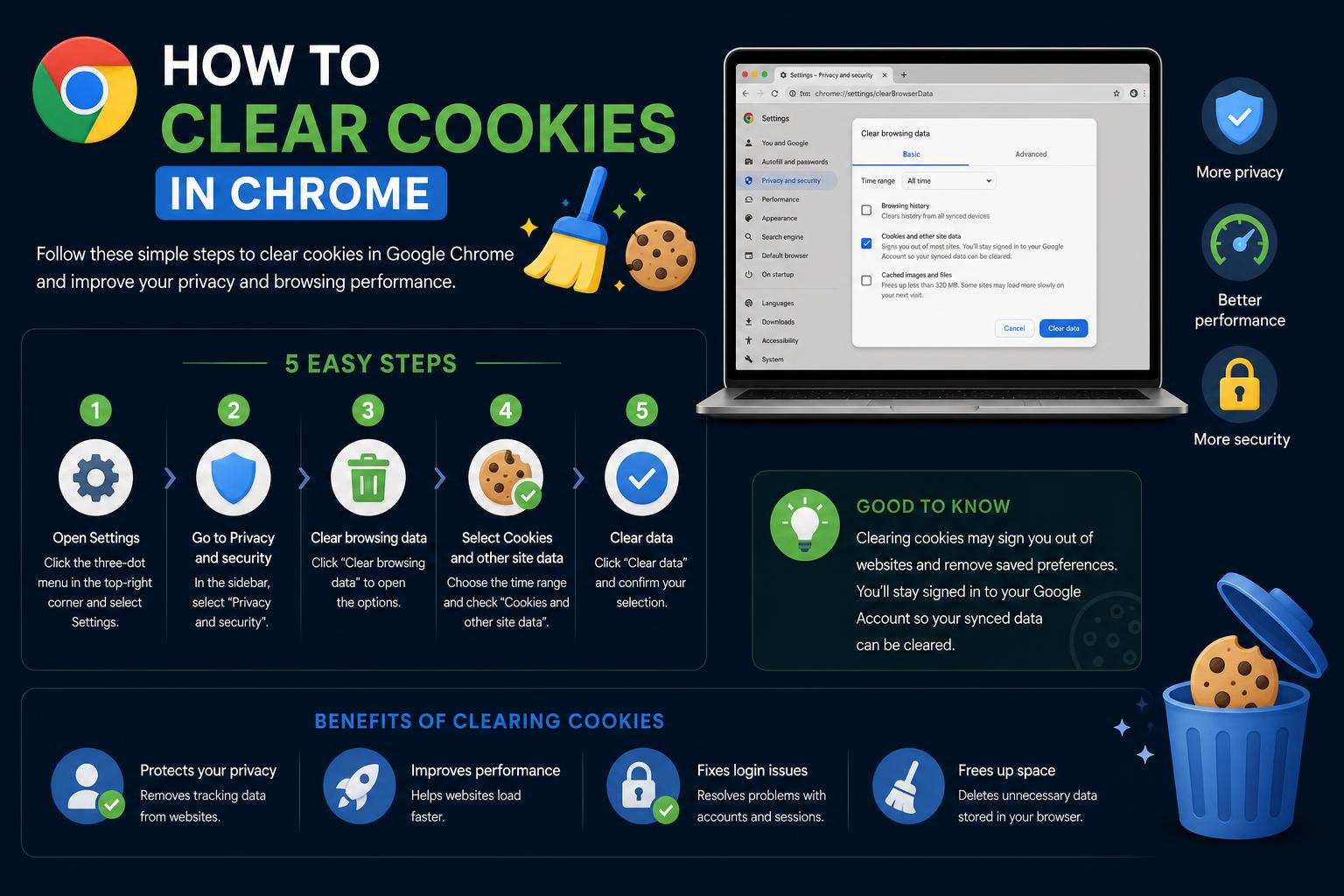
- Cookies store login, preferences, and personalized data, while cache saves site files for faster loading.
- Clearing cookies and cache can fix website errors, free up space, and improve privacy.
- You can delete all, specific, or third-party cookies, and manage detailed cookie settings in Chrome.
Every so often, you may notice Chrome behaving oddly—pages won’t load, sites look out of whack, or you start seeing annoying errors when browsing. If you’re scratching your head, wondering why, it could be your browser’s cookies or cache acting up. Cleaning up cookies in Chrome can solve plenty of mysterious web issues, protect your privacy, and give your browser a fresh start whenever things seem off. Here, let’s dig into what cookies and cache are, why you might want to clear them, and how you can get it done step-by-step—plus, discover a few handy tricks to make the process even smoother!
Web browsing might seem straightforward, but what happens behind the scenes in your browser can actually shape your online experience. Cookies and cached files help sites remember you and load faster, but sometimes that helpfulness backfires. Old data can cause conflicts with new site updates, clog up storage, and even open privacy risks. So, let’s break down exactly how to take charge of your browser’s stored info and keep your digital life running smoothly.
What Are Cookies and Cache in Chrome?
Whenever you visit a website, Chrome stores specific files locally on your device. These include:
- Cookies: These are small files that sites save on your computer. They hold information like your login status, site preferences, and sometimes even tracking data for personalized content and ads.
- Cache: This is a collection of images, scripts, and other page components that Chrome remembers to help websites load faster the next time you visit. By reusing resources from the cache, your browser saves time and bandwidth.
While cookies and cache speed up your browsing, they also have a downside if left unmanaged: they can cause websites to display outdated information or malfunctions, consume storage space, or reveal private data if others access your device.
Types of Cookies: First-Party vs. Third-Party
Understanding the difference between cookies can help you manage privacy and site functionality:
- First-party cookies: These come directly from the site you’re visiting (like when you sign in or change settings).
- Third-party cookies: Generated by other websites whose content is embedded on the page—think ads, images, or analytics services. These are mostly used for tracking and advertising across different sites.
Chrome lets you block or allow third-party cookies by default or customize the sites that can set them. Blocking these can boost your privacy, but you might also notice some sites break or lose certain features.
Why Clear Cookies and Cache?
You might wonder why you’d ever want to remove this helpful data. There are a few compelling reasons to clean up cookies and cache:
- Fixes website loading and formatting errors, especially after sites are updated.
- Makes sure you’re seeing the newest version of a site rather than old, cached versions.
- Frees up storage space taken up by years of browsing.
- Improves privacy and data security, especially on shared devices (no residual login sessions or site data for others to see).
Clearing cookies and cache can be your first troubleshooting step for any odd browser behavior, especially if a site looks broken or won’t load at all.
What Happens After You Clear Cookies and Cache?
It’s good to know what to expect after cleaning up:
- You’ll be logged out of most websites. Any saved logins, like for your email or favorite shop, will be forgotten until you sign in again.
- Some sites may load slower at first, because cached images and files have to be re-downloaded.
- Your local browser preferences for sites may reset—like themes, language, or display settings.
- If you use Chrome sync, you’ll still remain signed into your Google account across devices—unless you sign out completely.
Don’t worry if your favorite manga site or online course portal looks a bit different after a clean-up; everything should stabilize as you log back in and navigate as usual.
Step-by-Step: How to Clear Cookies in Chrome
Ready to wipe the slate clean? There are several easy ways to clear cookies and cache in Chrome—here’s how:
Using the Chrome Settings Menu
- Open Google Chrome on your computer.
- Click the three dots in the top right corner to open the menu.
- Go to Settings, then choose Privacy and security.
- Select Clear browsing data.
- A pop-up window appears. Here, pick your preferred time range—from the last hour to all time.
- Check the boxes for Cookies and other site data and Cached images and files. Feel free to check others if you want to remove more.
- Hit Clear data, and you’re done!
Tip: Want to jump straight to this screen? Just type “delete browsing data” in Chrome’s address bar and select the special prompt (called an ‘Action chip’) if available.
Keyboard Shortcut for Chrome (and Most Browsers!)
If you love shortcuts, there’s a handy trick that works across Chrome, Microsoft Edge, Mozilla Firefox, and Internet Explorer:
- While in your browser, press Ctrl + Shift + Delete all at once.
This opens the clear browsing data window. Choose what you want to delete—cookies, cached images, and more.
It’s a good habit to restart your browser after clearing cookies and cache, just to be sure the process finishes cleanly.
Clearing Cookies for a Specific Site
Sometimes, you don’t want to go nuclear—you just want to remove data from one annoying site. Chrome lets you target individual websites for cookie deletion, which is perfect for troubleshooting or privacy:
- Open Chrome and go to Settings > Privacy and security > Cookies and other site data.
- Scroll down and select See all site data and permissions.
- Find (or search for) the website in question.
- Click the bin icon or Remove to erase its stored data.
Alternatively, you can click the little padlock in the address bar of the tab you want to reset, then select ‘Cookies’, and delete them for that site.
Managing Third-Party Cookies in Chrome
Allow or Block Third-Party Cookies Globally
- Open Chrome’s Settings and click Privacy and security.
- Choose Third-party cookies.
- Select your preferred default:
- Allow third-party cookies
- Block third-party cookies (this is the best option for privacy, but can disrupt some site features).
Allow Third-Party Cookies For Specific Sites Only
- Still in Third-party cookies settings, look for the Sites that can always use third-party cookies section.
- Select Add and type out the website address (e.g., [*.]example.com will catch all its subdomains).
- Click Add to save the exception.
You can add, edit, or remove exceptions freely as your browsing needs change.
Temporarily Allow Third-Party Cookies for Current Site
If you visit a site and notice broken features (especially in Incognito mode, where third-party cookies are blocked by default), you can allow them briefly:
- Look for a cookie icon or message in the address bar (usually says ‘third-party cookies blocked’).
- Click and enable third-party cookies.
- Reload the page to restore full functionality.
This setting will only last as long as your browsing session or for up to 90 days on regular tabs.
Advanced Cookie Management
Dealing With Embedded Content and Related Sites
Sites often embed content from elsewhere—like Google Docs inside your school portal. Sometimes, these features need access to their own cookies to work right (for example, to identify you or save changes).
- When prompted by Chrome, you can allow or don’t allow embedded content to use their stored data.
- If you accept, the connection typically lasts 30 days or until you revoke it.
This gives you control over what cross-site features can do with your info, so be thoughtful about giving permission to embedded content on unfamiliar sites.
When Clearing Cookies and Cache Matters Most
Here’s when you should definitely consider cleaning up stored browsing data:
- Web pages load strangely or won’t appear at all, even though your connection is fine.
- After major website updates, redesigns, or account changes.
- If you’re troubleshooting login or loading issues for banking, shopping, or other sensitive accounts.
- When privacy is a priority, such as when sharing a device or logging out of shared computers.
Still having problems after a clean-up? If clearing cookies and cache doesn’t solve your problems, try using Chrome’s built-in troubleshooting guides or head over to Chrome’s support resources at support.google.com/chrome.
Best Practices for a Smoother Browsing Experience
- Make a habit of clearing cookies and cache regularly, especially if you’re a heavy user.
- Use Incognito mode for sessions where you don’t want data stored at all.
- Review your cookie preferences and exceptions every so often, especially if your privacy needs change.
And if you’re an advanced user or just feel curious, dive deeper into privacy settings by exploring Chrome’s full documentation here: Delete, allow, and manage cookies in Chrome.
Keeping Chrome healthy doesn’t have to be complicated. Understanding how cookies and cache operate, why they sometimes need a reset, and how to manage them efficiently can dramatically improve your daily browsing. Whether you’re resolving odd site issues, speeding up your browser, or just improving your privacy, regular clean-ups put you in the driver’s seat of your own online experience.