
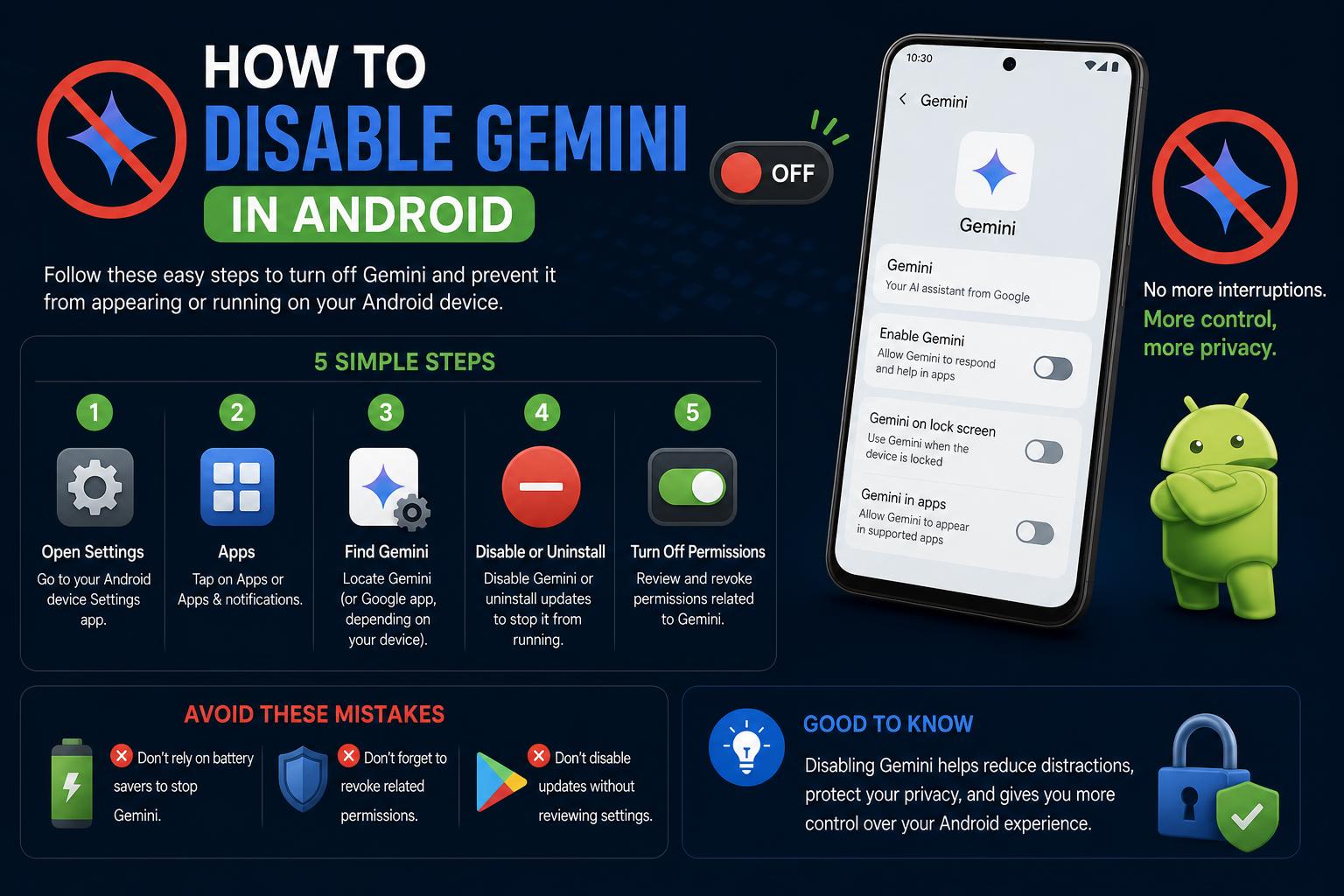
- Google Gemini is deeply embedded in Android with lasting privacy implications
- Complete removal is not fully possible, but you can take strong privacy steps
- Turning off Gemini requires multiple settings changes across your device
Google’s Gemini AI assistant has quickly moved in to replace the classic Google Assistant on Android, often without users’ explicit approval. If you’ve noticed unfamiliar AI features popping up on your phone, you’re not alone—and you’ve probably found that “turning off” Gemini is far from straightforward. As privacy concerns mount and Gemini becomes more deeply integrated, understanding what it really does, what data it can access, and your privacy options has never been more important.
This detailed article walks you through how to limit (and in some cases, disable) Gemini on your Android device, explains what the assistant can actually access, and covers why it’s such a contentious issue for anyone who values privacy and control over their digital life. You’ll find all the practical steps, contextual background, and up-to-date tips based on what’s currently working—and what’s likely to change as Gemini becomes the new default assistant on all Android devices in the near future.
What Is Google Gemini AI on Android?
Gemini is Google’s latest artificial intelligence-powered assistant that’s replacing the beloved Google Assistant across Android devices. Rather than just answering questions or setting reminders, Gemini offers far more advanced features—including direct access to your Gmail, files in Google Drive, Calendar events, messages, and even performing actions on your behalf.
The deep integration allows Gemini to access a wide range of sensitive personal data by default. Over the course of 2024 and into 2025, Google has begun enabling Gemini out of the box and shifting users over—sometimes with little notification or easy opt-out. The transition has been so aggressive that by the end of 2025, Gemini will be the sole default assistant on all Android phones, and its privacy features (or lack thereof) impact everyone who uses Google services.
Why People Want to Turn off Gemini (And Why It’s So Difficult)
Users worldwide have expressed unease as Gemini quietly takes over, especially given Google’s history of data collection and privacy controversies. Some users have found themselves logged into Gemini after routine updates, even if they’d previously disabled Google Assistant. Official support forums are filled with frustrated posts from users like:
“Now I don’t know how to disable or get rid of it, does anyone know what to do?”
The main challenges with disabling Gemini include:
- There’s no single “Disable Gemini” switch: The assistant is tied to multiple system features, voice activation triggers, and default assistant app settings.
- Uninstalling the Gemini app doesn’t fully remove its background role: It can still be initialized as the default AI assistant in many scenarios, unless you explicitly update your device settings.
- Gemini remains connected to key Google apps unless each permission is revoked individually.
- Recent July 2025 updates have made user data sharing harder to restrict: Gemini connections to apps like Messages, Phone, and WhatsApp now persist even with activity tracking turned off.
The Biggest Privacy Risks of Having Gemini Enabled
Gemini is not just a helpful assistant—it’s a funnel for your most private data, potentially used for AI training and review by humans, sometimes even after you’ve tried to opt out. Here’s what you need to know:
- Your Gemini prompts and conversations can be stored for up to 3 years—unless you turn off specific tracking settings, after which data may still be retained for up to 72 hours.
- Data collected includes emails, calendar events, voice recordings, files, contact with third-party services (WhatsApp, Spotify, etc), and more.
- When you use features like “Gemini Deep Research,” you’re authorizing it to analyze your Gmail, Drive, and Google Chat content for summaries and recommendations.
- Even if you disable activity tracking, Google still processes anonymized data to improve its AI models—meaning a portion of your interactions almost always leaves your control.
- Human reviewers may access your conversations for quality assurance—ostensibly after disconnecting your identity, but risks remain.
- Integration with other apps means data may be shared according to those apps’ privacy policies, not just Google’s—for example, messages sent with WhatsApp through Gemini become subject to WhatsApp’s retention and analytics.
Keep in mind: Lawsuits have already been filed against Google for enabling Gemini by default and allegedly obscuring the controls to disable it, arguing this could violate privacy regulations such as the California Consumer Privacy Act.
Step-by-Step: How to Turn Off or Limit Gemini on Android
While Google doesn’t provide a single “off” button, you can take a series of steps to minimize Gemini’s presence and its access to your data. Some controls are specific to certain Android models, so you may need to adapt as necessary—or consult your device manufacturer’s support resources for model-specific details.
1. Change How Gemini Is Activated (Voice and Button Triggers)
Gemini is designed to launch with a long-press of the power or home button (depending on your device), or by saying “Hey Google”. If you want to keep the app installed but prevent accidental activation:
- Open Settings on your Android device.
- Go to System → Gestures → Press & hold power button (names may differ slightly by model).
- Select the desired action for the long-press. You can choose a different assistant app, or sometimes None to prevent any assistant from launching.
- If you cannot locate the setting, use the search function in the Settings app. Try searching for “power button,” “gesture,” or “digital assistant” to locate the relevant menu.
If you want to stop voice activation (“Hey Google”) from launching Gemini:
- Access Google Assistant settings (now controlling Gemini on most devices)
- Disable voice activation or “Hey Google” detection as per on-screen instructions
2. Remove Gemini as the Default Assistant App
If you wish to stop Gemini from being triggered by device shortcuts and make it harder for the AI assistant to activate at all, you can re-assign your default digital assistant app.
- Go to Settings
- Tap Apps → Default apps → Digital assistant app
- Select another app as your default (such as Google Assistant if still available), or pick None (if the option is available)
- Note: On some devices, “Google” may still refer to both Gemini and Google Assistant
Keep in mind that removing the Gemini app will NOT automatically stop Gemini from being your default assistant—you must change the settings as shown above.
3. Turn Off Gemini on Your Lock Screen
If Geminis wakes up when your phone is locked—potentially allowing access from the lock screen—you can adjust additional settings:
- Look for settings to disable assistant access on lock screen (location varies by device/OS version)
- Deactivate Gemini in lock screen settings to prevent unauthorized use while your device is locked.
4. Uninstall the Gemini App (If Possible)
Depending on your device and Android version, you may be able to uninstall the Gemini app entirely.
- Long-press the Gemini app icon and select Uninstall (or drag to the “Uninstall” area).
- If the option is unavailable, Gemini is likely a system app that cannot be fully removed—try disabling it instead.
Crucially, uninstalling the app doesn’t fully remove the assistant’s background capabilities unless you also change your default digital assistant app as described above.
5. Limit Gemini’s Access to Google Apps and Third-Party Services
By default, Gemini can perform actions and retrieve data from your Gmail, Calendar, Drive, Maps, and even third-party apps like WhatsApp and Spotify. To restrict this:
- Open the Gemini app
- Tap your profile icon (top-right corner)
- Navigate to Apps
- Toggle off any or all app integrations to prevent Gemini from accessing or performing actions in these services
If you’ve previously enabled Deep Research, ensure it cannot scan your Gmail, Drive, or Chat:
- Look for a “Sources” or similar menu in the Gemini app or on Gemini’s official site (currently, some features are only available on desktop)
- Deselect any sources (Gmail, Drive, Chat) you do not want Gemini to access
6. Turn Off Gemini Apps Activity (Activity Tracking)
Gemini stores your prompts and interactions to your Google Account to improve AI models, but you can disable this feature:
- Open the Gemini app
- Tap your profile icon
- Go to Gemini Apps Activity
- Select Turn off and follow the prompts to confirm. Choose Turn off and delete activity to remove previous records.
According to Google, turning off Gemini Apps Activity means:
- Your Gemini conversations stop being saved to your account for long-term storage (up to 3 years previously)
- Data is only stored “for up to 72 hours” to process requests
- Google may still process anonymized data for service improvement
Read more in the official Google Gemini Help
7. Control Whether Audio & Live Recordings Are Used
Gemini can process voice commands and audio chats, which may be stored or reviewed by Google or its human reviewers. You can disable this option under Gemini/Assistant privacy settings—look for:
- “Help improve Google services”
- Toggle off audio recording or voice processing settings
8. Change Auto-Delete Settings for Gemini Data
For extra privacy protection, use Google’s auto-delete feature for activity data:
- Go to your Google My Activity page
- Select Gemini or Assistant data
- Adjust auto-delete frequency (every 3, 18, or 36 months)
This limits the personal history Gemini can build about you over time.
What Gemini Can Access: A Closer Look
Even with reduced tracking and integration, Gemini’s broad access includes:
- Email access: Fetch and summarize Gmail contents, including private and sensitive messages regarding finances, jobs, or relationships.
- Calendar management: Create, edit, or delete events and extract summary data—e.g. health appointments, meeting times, and more.
- Cloud file handling: Browse, summarize, or pull key content from Google Drive or Docs, potentially exposing personal IDs, reports, or work materials.
- Location sharing: Use stored addresses in Google Maps to infer your home or work locations and movement patterns.
- Productivity and utility apps: Gemini can access or modify data in Google Keep, Tasks, reminders, and others—potentially uncovering routines or habits.
- Call and message services: Send messages or initiate calls via Phone, SMS, WhatsApp, or other compatible platforms.
Even with precautions, the broad range of data accessible by Gemini emphasizes the importance of understanding its capabilities and managing permissions carefully to protect your privacy.