
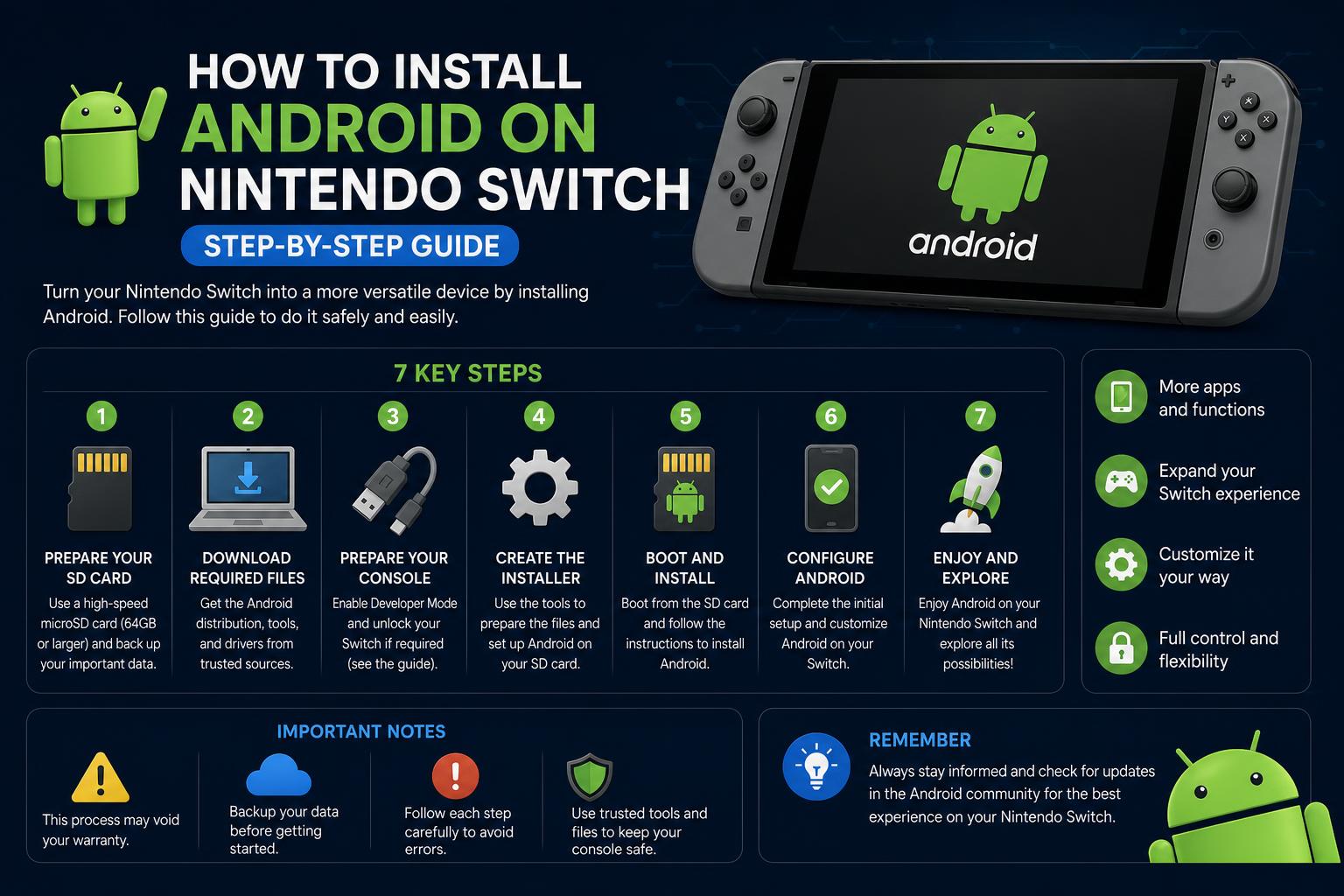
- Android transforms the Nintendo Switch into a powerful tablet with emulation, streaming, and extensive app support.
- The process involves using Hekate, partitioning your SD card, and flashing a custom LineageOS build from Switchroot.
- Joy-Con pairing data must be extracted for full Android controller functionality.
- Dual-booting allows seamless switching between Switch OS and Android, maximizing the device's versatility.
If you own a Nintendo Switch and have been considering giving it a new lease on life, installing Android on your Nintendo Switch might be just the project you’re looking for. Over the past few years, the Switch modding community has made it possible to run Android on this hybrid console, transforming it into a versatile Android tablet that can run apps, emulators, and even play games from services like Xbox Game Pass. Wondering how hard it is or if it’s worth doing? This guide will walk you through every aspect of the process, the risks, and all the advantages—so grab your microSD card and let’s dive in!
Installing Android on the Nintendo Switch isn’t just a cool trick; for many, it’s the answer for repurposing banned, older, or underused consoles. Whether you want better retro gaming capabilities, experience the flexibility of Android apps, or stream media from your favorite services, this solution can significantly broaden your Switch’s potential. However, the process involves some technical steps, from booting into specialized bootloaders like Hekate to setting up partitions and flashing custom Android builds. This article will break down all the steps, prerequisites, considerations, and pro tips based on the most up-to-date information available from community, official, and enthusiast sources.
What is Android on Nintendo Switch and Why Would You Want It?
The Nintendo Switch hardware, with its Nvidia Tegra X1 chip, is surprisingly well-suited to run Android. Using Android transforms your Switch into a tablet, opening up a world of possibilities:
- Run popular Android applications like streaming video (Netflix, Kodi, Stremio), emulators for classic consoles (Gamecube, PS2, PSP, Dreamcast, and more), and almost everything available on Google Play if you choose to install Google Apps for Android.
- Stream games from your PC using Moonlight or similar apps, or play via Xbox Game Pass’s cloud service.
- Repurpose banned or old Switch units that are otherwise gathering dust due to lack of access to Nintendo’s online services.
- Create a dual-boot device, switching between the Nintendo Switch OS (Horizon) and Android as your needs change.
Android on Switch is powered by open source projects like Switchroot, with builds based on LineageOS (an open-source Android distribution), and strong community development keeps things up to date—even supporting builds as recent as Android 15.
Supported Models: Can You Install Android On Your Switch?
The installation is only possible on certain Switch devices. Officially, Android (via Switchroot/LineageOS) works on the original v1 Switch consoles, specifically those unpatched units that are vulnerable to the Tegra bootrom exploit.
- Supported: Unpatched v1 Switch (made before late 2018), “ipatched” v1 units (with a hardware mod, more complicated), and some later units if you have special access to hardware exploits.
- Not Supported (yet): The Nintendo Switch Lite and Switch OLED models are not supported for full Android installation as of writing.
If you aren’t sure about your hardware, check online lists or guides that help you identify whether your Switch is unpatched and compatible with Android installation.
Advantages and Limitations of Android on Switch
Why bother setting up Android?
- Extensive app & game library: Install and use the full suite of Android apps (with or without Google Play Store). Emulate console classics, play native Android titles, and run productivity apps or web browsers.
- Media Consumption: Turn your Switch into a portable media center. Watch movies or TV shows, stream YouTube, or even cast content from your phone.
- Easy switching: You can dual-boot between Android and Horizon OS (the Switch standard operating system), retaining access to Nintendo games while also using Android.
- Hardware compatibility: Joy-Con controllers, the touchscreen, Wi-Fi, gyro sensors, and even docked mode for playing on a TV are supported with some quirks.
Key limitations to keep in mind:
- No cell modem support: The Switch lacks mobile data radios, so you’re limited to Wi-Fi for connectivity.
- Limited Bluetooth support: Joy-Cons require proper pairing data extraction; not all controllers may work wirelessly out of the box.
- Performance isn’t perfect: Most emulators run exceptionally well (especially for PS1/PSP/2D consoles), but Gamecube/Wii performance varies. Some Android games run without issues, while others may stutter.
- Battery usage: Android tends to use more battery than the stock OS, especially during gaming or emulation.
Preparations and Requirements
Before jumping into installation, here’s what you need:
- Compatible Nintendo Switch console (see section above)
- A microSD card: At least 16GB recommended (8GB bare minimum, but more is better)
- Data-transfer capable USB-A to USB-C cable (for connecting Switch to PC). USB C-to-C cables are not recommended due to stability issues, but some releases are working on improved support.
- A PC or Mac (for extracting, copying, and flashing files to the SD card)
- The latest LineageOS/Switchroot Android build: Download from the . Choose between the Android TV version (console-like interface, good for docked use) or the tablet version (standard Android).
- Google Apps package (MindTheGapps or similar) (optional, if you want Google Play Store access)
- Hekate bootloader: This powerful tool enables partitioning, flashing, and maintenance for Switch modding. The Switch Hacks Guide provides a comprehensive intro: https://switch.hacks.guide/
- RCM jig or paperclip: Needed to short the right Joy-Con rail pins for entering RCM (recovery) mode.
Before doing anything, backup your SD card’s contents. The process will wipe your data, so if you have important files, save them to a safe location first!
Step-by-Step: How to Install Android on Nintendo Switch
1. Back Up Your Data and Prepare the microSD Card
Copy all necessary files off your SD card. If you’re using emuMMC or custom firmware (CFW), make a backup of your Nintendo and emummc folders.
2. Download Required Files
- Get the LineageOS/Switchroot build corresponding to your preference (Android version, Tablet/TV flavor)
- Download the recommended GApps package if you want the Play Store
- Grab the latest Hekate release from the project page
3. Format and Partition the SD Card With Hekate
- Insert the SD card into your Switch and boot into Hekate (using RCM jig/paperclip and payload injection via PC—see the for details)
- In Hekate’s Nyx menu, use ‘Tools’ > ‘Partition SD Card’. Follow the on-screen instructions to create an Android partition—in general, at least 8-16GB (or more if you plan to install a lot of games/apps)
- If you wish to dual-boot with the Switch OS (Horizon or CFW), assign a partition for emuMMC as well
- Once partitioning is complete, Hekate may offer to backup and restore existing data from your old partition (up to a limited size, usually around 1GB)—otherwise, manually copy your data back later
After this, copy the downloaded build files to your SD card as instructed in the Android install package. Typically, you’ll need to place the build’s .7z archive contents at the SD card’s root (on the FAT32 partition).
4. Dump Your Joy-Con Bluetooth Pairing Data
For your Joy-Cons to work with Android, dump the pairing data from your Switch. In Hekate, with both Joy-Cons attached, head to Nyx Options > Dump Joy-Con BT. You’ll see a message indicating both controllers have been found. If this doesn’t work, boot into the Nintendo OS, pair both Joy-Cons, and try again.
5. Flashing Android to the SD Card
- In Hekate, go to ‘Tools’ > ‘Partition SD Card’ and choose ‘Flash Android’. Hekate will seek out the image and flash it to your allocated partition.
- Once flashed, reboot to recovery (TWRP will launch).
- Inside TWRP (hold Vol+ on boot if you need to get back into recovery), use the menus to perform a Factory Reset and then select Format Data. This initializes your partitions for Android—don’t worry, it won’t affect the rest of your SD card contents.
- Navigate to ‘Apply Update’, choose ‘Select from SWITCH SD’, and find the main LineageOS zip file you copied earlier. Wait for the process to finish.
- If installing GApps, repeat the flashing process for the GApps zip.
6. First Boot and Initial Setup
Once the flash is successful, reboot the system when prompted. Your Switch should now boot into a standard Android setup screen.
- Go through the initial Android setup process. Connect to Wi-Fi and sign into your Google account if desired.
- Test Joy-Con functionality. If pairing didn’t stick, power cycle the Switch—a second reboot often helps Android pick up the pairing data.
- Check for OTA updates in the LineageOS settings, as builds are regularly updated.
Using Android on Switch: Tips and Quirks
Switching Operating Systems
– To return to Hekate (for re-flashing, configuration, or going back to Switch OS): Hold Volume Down during a reboot.
– To access Android recovery (TWRP): Hold Volume Up during boot.
– To boot into standard Switch OS: Fully power off, then boot as normal via Horizon.
Controller Tips
– Mouse mode can be activated with the Screenshot button—helpful for navigating Android but disables some gamepad inputs.
– Some Bluetooth and wired controllers (Xbox, PS4 etc.) may pair, but the experience can vary.
Performance Notes
– Most Android games, emulators (RetroArch, Dolphin, PPSSPP), and general apps run well. Gamecube/Wii emulation is decent, but don’t expect flawless performance. The Switch’s hardware is several years old compared to flagship Android devices.
– Docked mode works, but switching display to TV requires button presses on the right Joy-Con.
– Battery life can be lower than stock OS, especially with high-performance apps or emulators.
App Recommendations
– Many users prefer ES-DE or similar frontends for retro gaming launches.
– Streaming services (Netflix, YouTube, Stremio, Kodi) work as expected.
– Google Play Store via GApps unlocks more apps, but isn’t strictly necessary for core functionality.
– For game streaming, Moonlight is a top pick for playing PC games over your home network.
Upgrading or Reverting: What if You Change Your Mind?
The flexibility of this setup allows you to revert or upgrade easily. If you want to return to the full Nintendo OS or update to another Android version, remember to backup your Android data first. Most recent builds support OTA updates directly from Android. If you prefer a manual process, flashing via TWRP remains available. When you’re done, you can wipe the Android partitions and reformat your SD card to restore the original Nintendo environment.
Safety, Risks, and Community Resources
It’s important to remember: any modification to hardware or firmware could void warranties or carry the risk of bricking your device, though the Switch, especially older models, are very well-documented for modding. There is always some risk when using unofficial software.
New users are encouraged to read through the Switch Hacks Guide and the Switchroot Wiki for extra troubleshooting, community updates, and any model-specific concerns. The Switchroot Discord server is also highly recommended for real-time assistance and updates from active developers and testers.
Over the years, the Android-on-Switch scene has matured rapidly. Frequent updates, extensive documentation, and strong community support make installing Android more accessible than ever. Whether your intent is to bring new life to a banned or idle device, enjoy flexibility in app usage, or expand your gaming library, Android on Switch is a rewarding project for any tinkerer or retro gaming enthusiast. You’ll quickly find that your console becomes a powerful multitasking handheld—delivering Android’s strengths on Nintendo’s already remarkable hardware.
Android 17’s Linux Terminal: Complete Guide to New Features, Customizations, and Power User Updates