
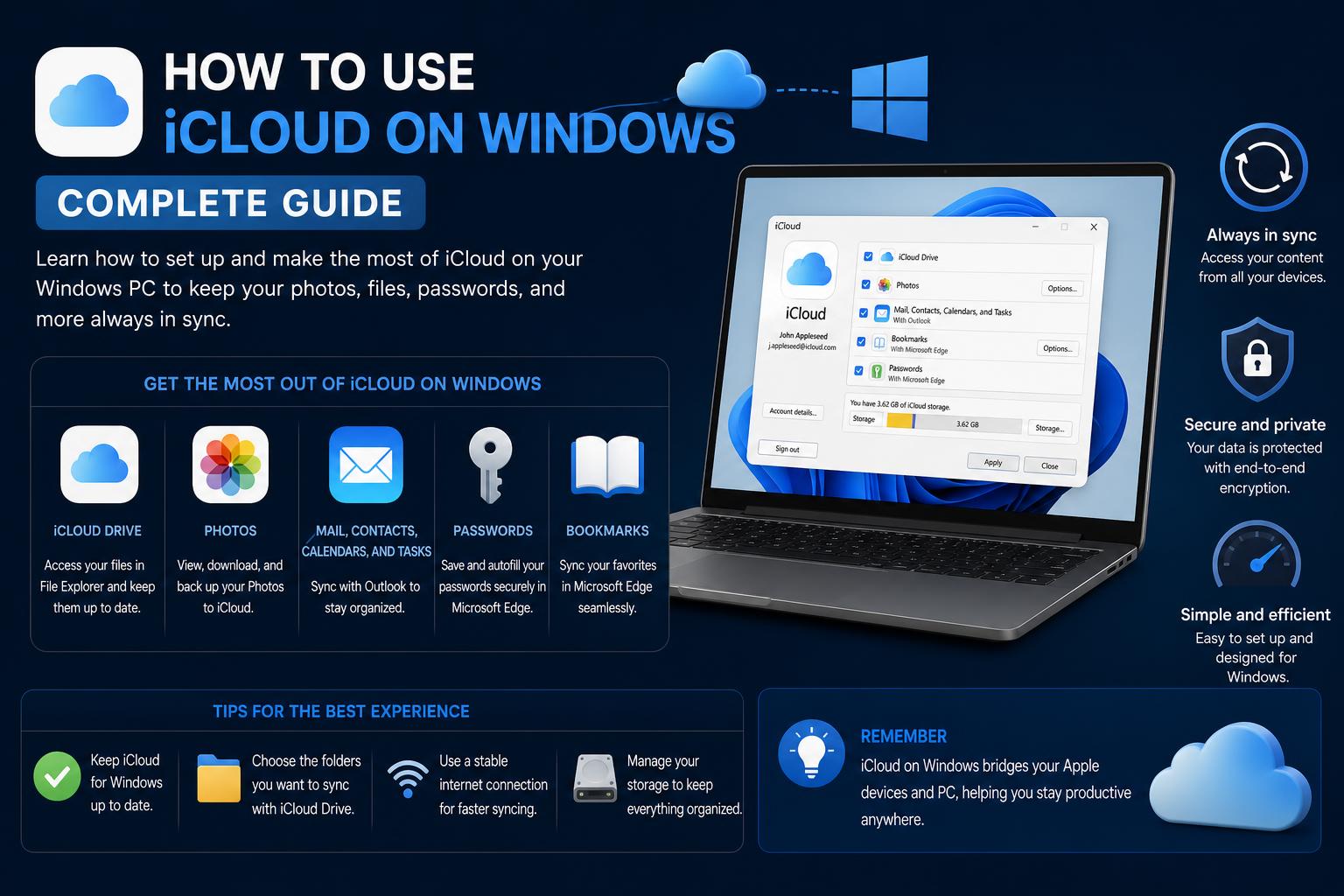
- Seamless integration of iCloud services on Windows PCs and compatibility with Windows 10/11
- Access to key features like iCloud Drive, Photos, Passwords, and Outlook sync directly from File Explorer
- Troubleshooting tips and enhanced security with features like FIDO keys and Advanced Data Protection
Getting your Apple ecosystem to play nicely with a Windows PC used to be a headache—especially when it came to keeping your files, photos, and passwords in sync across devices. Luckily, with the newer iterations of iCloud for Windows and ongoing improvements from both Apple and Microsoft, the experience is smoother and more robust than ever.
Whether you’re a Windows user with an iPhone, or you just need to access iCloud files from your PC at school, work, or home, Apple has provided tools that make this process simple and familiar. While there are a few quirks you’ll want to know about (especially regarding file deletion and folder management), staying productive across platforms is now totally achievable—often with just a few clicks.
What Is iCloud for Windows and Why Use It?
iCloud for Windows is Apple’s official application designed to bring the core features of their cloud service to PCs running Windows 10 or 11. This tool bridges the gap between your Apple ID, iCloud Drive, Photos, Mail, Contacts, and even password management, making it feel almost like you’re working on a Mac, even while sitting at a Windows machine.
With iCloud for Windows, users gain:
- Direct access to iCloud Drive, Photos, Mail, Contacts, Calendars, and more from either Windows File Explorer or Microsoft Outlook (for Mail, Contacts, and Calendars).
- The ability to sync Safari bookmarks with Chrome, Firefox, or Edge browsers on your PC.
- Integrated iCloud Keychain password management across platforms.
- Support for advanced photo and video formats (Apple ProRes, ProRAW) for photographers and pros.
Your iCloud content stays up to date on all your devices, ensuring you’re never stuck without access to important information—no matter which operating system you’re using.
Getting Started: System Requirements and Setup
Before you dive in, ensure your Windows PC is ready for iCloud. According to Apple Support and Computerworld the minimum requirements are:
- Windows 10 (build 18362.145) or Windows 11 (64-bit)
- Outlook 2019 or later for syncing Mail, Contacts, and Calendars
- Latest versions of Chrome, Firefox, or Edge for bookmark and password syncing
- You must have already set up an Apple ID and enabled iCloud on an iPhone, iPad, or Mac
Official downloads of iCloud for Windows are available on the Microsoft Store.
Step-by-Step: How to Download and Install iCloud for Windows
The installation process is straightforward, even for newcomers:
- Open the Microsoft Store and search for “iCloud” or visit the official download link.
- Click “Get” to download and install the app.
- Launch iCloud for Windows and sign in with your Apple ID. You’ll need the credentials that you use on your Apple devices.
- Choose the features you wish to synchronize: Photos, iCloud Drive, Mail, Contacts, Calendars, Passwords, and Bookmarks. Each one can be toggled separately; select those that matter most for your workflow.
- For more advanced preferences (like custom sync folders), use the “Options” or “Advanced” button during setup—especially recommended for laptops where local storage is at a premium.
After installation, iCloud for Windows will add new directories directly into File Explorer, typically labeled “iCloud Drive” and “iCloud Photos”.
The iCloud-Windows Workflow: File Explorer, Photos App, and More
Once set up, the integration with Windows feels natural. Here’s what you can do right away:
- Access iCloud Drive and Photos directly from File Explorer: Just like using OneDrive, your Apple-synced files appear as if they were local folders, making drag-and-drop file management a breeze.
- Upload or download files between your PC and iCloud, keeping documents, images, and other data consistent across devices.
- Use iCloud Photos within the Windows Photos app: You’ll find a dedicated “iCloud Photos” section, making it easy to browse your iPhone or iPad photos on your desktop, print them, or edit using apps like Clipchamp or Microsoft Designer.
- Sync bookmarks and passwords: If you prefer Chrome or Edge on Windows, your Safari data can travel with you, thanks to iCloud’s browser extensions.
Key Features You Get with iCloud for Windows
Apple’s cloud offering is more than just storage—iCloud for Windows unlocks features built for real productivity and security across devices.
iCloud Drive and Files On-Demand
Files On-Demand technology, akin to what’s used by Microsoft’s OneDrive, means that iCloud Drive files show up in File Explorer but are only downloaded when you need them. This helps save space on your computer while keeping all your content accessible. You can open, move, or copy files, and everything is synchronized across your Apple devices and Windows PC.
iCloud Photos
All your snapshots and videos, whether captured on an iPhone or iPad, instantaneously appear in File Explorer and the Windows Photos app under iCloud Photos. You can manage albums, print photos, or even use editing tools like Copilot Look to enhance or identify items in your photos.
Mail, Contacts, and Outlook Integration
If you use Microsoft Outlook, iCloud for Windows syncs Mail, Contacts, Calendars, and even Tasks straight into your usual workflow. Just select these options during setup; requires Outlook 2019 or newer.
Password Management with iCloud Keychain
Keeping track of complex passwords is easier with iCloud Keychain now available on Windows. The iCloud Passwords app lets you manage your credentials—check, update, delete, or create new logins—across all your Apple and Windows devices. It can even generate two-factor authentication codes and strong passwords that auto-sync everywhere you’re signed in.
Collaborative and Sharing Features
iCloud Drive enables file sharing and collaboration: You can share folders or files from inside File Explorer, allowing others to view or edit as needed. Collaborative edits show up instantly, whether done on a Mac, iPad, iPhone, or PC.
Advanced Security: FIDO Keys, Lockdown Mode, and Encryption
Security is a major selling point. With recent updates, you can add a FIDO2 hardware key to your Apple ID for two-factor authentication, making it extraordinarily hard for cyber attackers to compromise your account—even if they have your password. Lockdown Mode and Advanced Data Protection features also provide additional layers of encrypted security (though configuration may require an Apple device first).
Storage Plans and Managing Space
Every Apple ID starts with 5GB of free iCloud storage. For those with more demanding needs—backups, high-res photos, large video files—paid iCloud+ subscriptions are available:
- 50GB for $0.99/month
- Additional plans with more storage at higher prices
It’s important to note that deleting files via iCloud for Windows also deletes them from all connected Apple devices. This has confused many new users; confirmation prompts appear, but it’s easy to click past them. Fortunately, iCloud supports a “recently deleted” folder to help retrieve items when needed.
Common Issues and Tips for a Better Experience
Even a well-polished system sometimes brings frustrations, especially when mixing different platforms. Here are some known issues and expert tips drawn from forum discussions and reviews:
- Syncing Delays or Failures: Occasionally, files and folders may not sync or update as expected, particularly with large batches of photos. Restarting the iCloud app or your PC often helps; checking your internet connection is essential.
- Folder Control Limitations: Some users have noted (as seen on Reddit) frustration over not being able to easily choose which folders to sync locally. Advanced settings in the setup process allow some customization; otherwise, consider using an external drive to avoid loading your main device with gigabytes of media.
- File Deletion and Confusion: Deleting a file in Windows removes it everywhere. If you mistakenly remove something, recover it from the Recently Deleted section using either your Apple device or iCloud.com.
- Password Sync Requires Extra Steps: For password management, you need the iCloud Passwords extension for browsers like Chrome or Edge, with specific version requirements (Chrome 100+, Edge 100+).
- Managed Apple IDs Not Supported: If your Apple ID is tied to a workplace or organization (a managed ID), you can’t use iCloud for Windows. This limitation is standard for enterprise security.
Accessing iCloud Online—No App Required
If you can’t (or prefer not to) install iCloud for Windows, most features are accessible via browser. Just head to iCloud.com, log in with your Apple ID, and you’ll find web-based access to:
- Photos, iCloud Drive, Mail, Contacts, Calendar
- iWork online productivity apps
- Recently Deleted section for file recovery
This makes it possible to access your data securely even from public or borrowed PCs, provided you have your Apple ID credentials.
Recent Improvements and The State of iCloud for Windows in 2024
iCloud for Windows has seen meaningful updates recently, most notably a revamped user interface and increased stability and sync speed. The app now resembles its macOS and web counterparts closely, and supports features like Dark Mode, enhanced Outlook integration, and advanced media format handling, all rolled out with updates through early 2024. These improvements make the experience much more user-friendly and reliable for newcomers and long-time Apple fans alike.
Additionally, Apple’s focus on security, with tools like hardware security keys and Advanced Data Protection, empowers users to better protect sensitive documents and personal data across both Apple and Microsoft platforms.
Navigating the intersection of Apple and Windows worlds doesn’t have to be frustrating. With updated iCloud for Windows tools and cloud-based access, syncing photos, files, passwords, and more is as easy as using native Windows features. For the best experience, review the setup options carefully, pay attention when deleting files, and explore advanced security settings to ensure your data remains private. Whether you use Apple devices daily, or just sometimes need to access content from Windows, iCloud keeps cross-platform productivity within reach and hassle-free.