
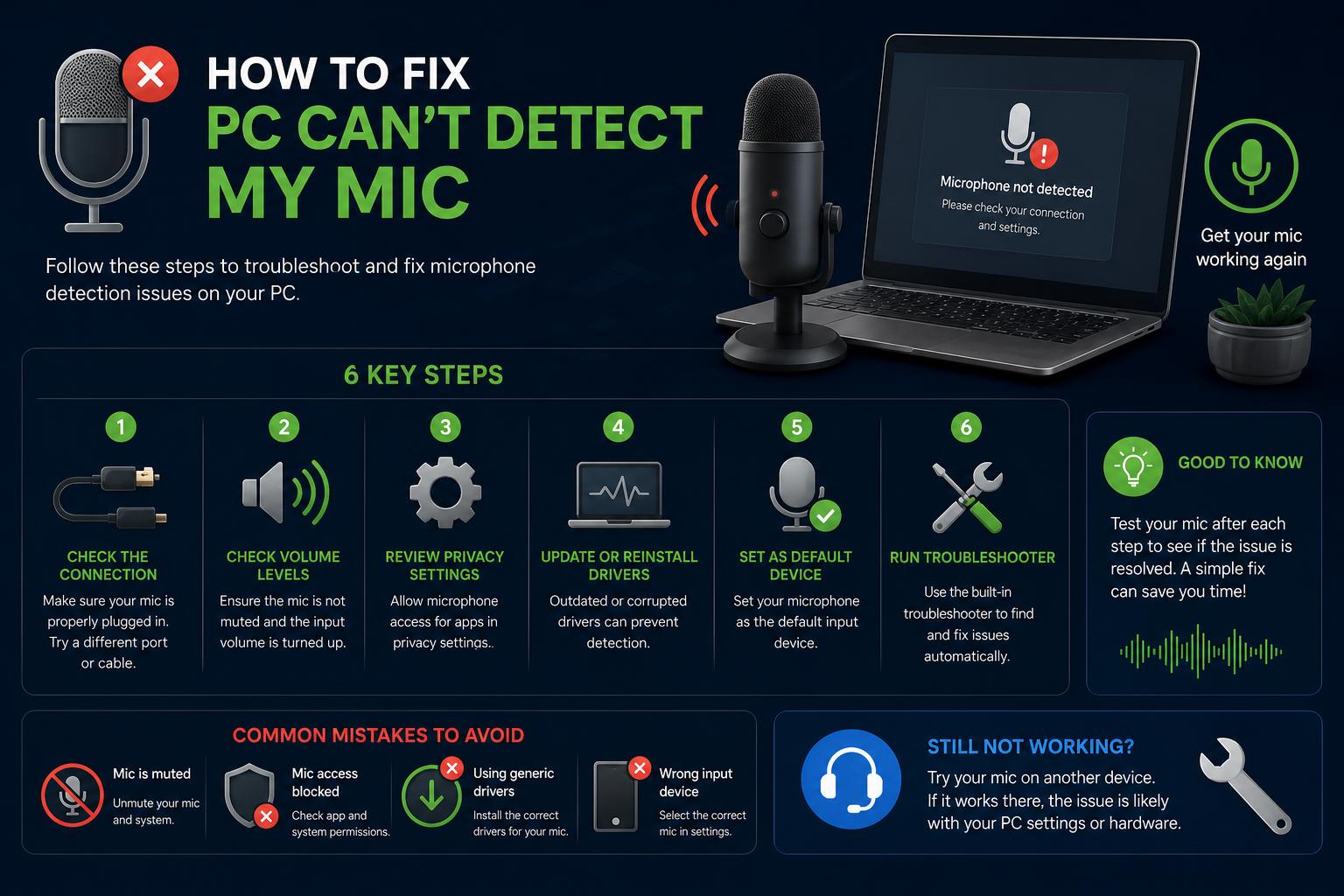
- The most common reasons for undetected mics involve drivers, settings, or physical connections.
- Troubleshooting includes checking connections, using Windows tools, updating drivers, and managing permissions.
- Bluetooh and wireless devices introduce specific issues with pairing and driver compatibility.
- Manufacturer support pages and dedicated forums offer device-specific fixes for unique cases.
It can be incredibly frustrating when you need to join a call, record audio, or play some games, but your PC simply won’t recognize your microphone. Countless users run into this headache every year—whether it’s a headset, a fancy USB mic, or a built-in laptop microphone, sometimes Windows just doesn’t want to play ball. Don’t worry: there are well-proven and practical ways to chase down the problem and fix it for good.
This complete guide will walk you through every tested strategy to solve the ‘PC can’t detect my MIC’ issue, from checking connections to tweaking advanced Windows settings, and will even cover what to do if your microphone used to work but suddenly vanished from your input device list. No more hunting forums and stacking up browser tabs—we’ve got everything you need right here.
Why Your Computer Might Not Detect Your Microphone
When your microphone goes missing from your PC’s list of input devices, the cause can range from physical connection issues to obscure driver problems or privacy settings mishaps. Sometimes the issue appears out of nowhere, even for setups that worked smoothly in the past. Common situations include:
- Physical Problems: Damaged cables, faulty USB ports, or even a defective headset can make the microphone seem invisible to your PC.
- Bluetooth and Wireless Issues: Wireless and Bluetooth mics/headsets occasionally have trouble pairing properly, especially after updates.
- Driver Errors: Outdated or corrupted drivers can make a perfectly fine microphone unusable.
- Settings and Permissions: Incorrect Windows sound settings or privacy restrictions can block access to audio devices—sometimes after updates or tweaks.
How to Start Troubleshooting: First Steps
Before diving into deeper software settings, always check the simple stuff first. It may sound obvious, but so many users get tripped up by a disconnected cable or an unseated USB plug! Here’s your quick-start checklist:
- Check physical connections: If you’re using a wired microphone or headset, disconnect and firmly re-plug your device. Try a different port if you have one available.
- Test the mic on another device: Plug your mic or headset into your phone, another PC, or tablet. If it works elsewhere, the fault is likely with your computer settings—not the mic itself.
- For Bluetooth devices: Disconnect and re-pair your wireless headset if you’re running into issues. Make sure your Bluetooth is turned on and operating properly. Try to “forget” the device and reconnect if initial attempts fail.
Windows Sound Settings: Making Sure Your Mic is Recognized
One of the most common reasons microphones don’t work on Windows is that the audio input device just hasn’t been properly enabled or selected. To ensure your PC can detect your microphone, follow these steps:
- Right-click the volume icon in the System Tray (bottom right of your screen).
- Select “Sound Settings”. In older versions, you’ll see “Recording Devices.” On newer Windows, click on “Manage sound devices” or “Choose your input device”.
- Look for your microphone in the list. If it’s there, select it and set it as the Default device.
- If it’s not listed, click “Set up microphone” or follow the “Troubleshoot” wizard if presented.
TIP: If your microphone suddenly disappeared and won’t show up, it’s possible that a recent update or power setting could be the culprit.
Run the Built-In Windows Sound Troubleshooter
Windows has a handy built-in troubleshooter for audio recording issues. Access it like this:
- Go to Start > Settings > Update & Security > Troubleshoot.
- Select Recording Audio and run the troubleshooter. Follow any automatic prompts.
This process can detect and sometimes automatically fix configuration or driver problems affecting mics.
Advanced Fixes: Drivers, Fast Startup, and More
Sometimes those simple steps won’t solve the issue. Here are advanced, proven methods based on expert forum solutions and user experiences:
Update and Reinstall Drivers
- Open Device Manager by right-clicking the Start button.
- Expand “Audio inputs and outputs”. Find and right-click your microphone (or headset mic).
- Choose Update Driver > Search automatically. If no updates are found, try Uninstall Device, then restart your PC to force Windows to reinstall the default drivers.
- Visit your computer or motherboard manufacturer’s official support page to manually download and install the latest drivers for audio, chipset, and other core components.
Reconfigure Input Devices in Windows
- Type “Microphone” in your Start Menu search bar. Select Set up a microphone and follow the wizard steps. This will reset your microphone preferences.
- If you recently plugged in a new audio device but Windows didn’t ask what it was, you can reset the device prompt. Some manufacturers (like HP and Dell) offer utilities on their support forums to force this dialog to reappear.
Disable Fast Startup and Reset Power Options
- Some users have found that disabling Fast Startup resolves audio hardware conflicts:
- Go to Settings > System > Power & Sleep > Additional Power Settings.
- Select Choose what the power buttons do. Click Change settings that are currently unavailable. Uncheck “Turn on fast startup”. Click Save and restart.
You may also want to briefly disable then re-enable hibernation (using the “cmd: powercfg /hibernate off” and “powercfg /hibernate on” in Command Prompt) to refresh power states.
System Restore and Update Rollbacks
If your microphone worked perfectly until “something” changed recently—be it a Windows update, a new driver, or mysterious system tweak—you have options:
- Open System Restore and roll back to a point before the problem started.
- Go to Settings > Update & Security > Windows Update and click View update history. Uninstall any recent updates you suspect might have triggered the issue.
- If a major feature update caused the problem, you can “roll back” the Windows version for up to 10 days after installing it through Settings > Recovery.
- Download the official Hide Updates tool from Microsoft to prevent the problematic update from reinstalling itself.
Test with a New User Account
Corrupted user accounts can occasionally block microphone access, especially USB and headset mics. Creating and testing with a fresh local admin account can quickly reveal if your main account is the issue. If the problem goes away in the new account, move your files and migrate settings as needed.
Checking Permissions and Privacy Settings
Recent Windows versions come with tighter privacy defaults that sometimes block apps and the system from using your mic:
- Navigate to Settings > Privacy > Microphone.
- Make sure ‘Allow apps to access your microphone’ is enabled. Scroll to check which apps have permission and toggle as necessary.
Third-party security and privacy tools can sometimes override these settings. Double check if you’re using any ‘system cleaner’ or privacy suites that may restrict microphone access.
Extra Tips for Bluetooth and Wireless Microphones
Wireless headsets bring their own troubleshooting quirks, as seen in user experiences:
- Unpair (“forget”) and re-pair the device from Settings > Devices > Bluetooth & other devices.
- Check the headset microphone is selected, not just the playback device. Some Bluetooth headsets show up with two entries in the audio settings—one for stereo playback, one for communications/mic.
- Ensure your Bluetooth drivers are updated—visit your laptop or motherboard manufacturer’s support page if in doubt.
Some Bluetooth mics don’t support mic input over wireless on some Windows builds; testing with a cable can rule this out.
Device- and Brand-Specific Support
If you’re using a brand-specific solution—like HP, Dell, or a third-party audio card—visit the official manufacturer’s support forums for tailored advice and tools. For example, HP, Dell, and other makers host troubleshooting threads and sometimes diagnostic tools specifically for microphone detection fixes:
- Check for BIOS or firmware updates.
- Search for posts about your model on official forums like HP Support Community or Dell Community.
How to Test and Calibrate Your Microphone After Fixing
Once your mic appears in the settings again, make sure it works by recording a test clip or making a test call:
- Open Sound Settings and watch the input level for activity while speaking.
- Use tools like Windows Sound Recorder or a web-based mic test to verify clarity.
- Revisit app-level mic settings in programs like Zoom, Discord, or Teams, and select the correct device.
If you still have issues, double-check you haven’t muted the mic (some headsets have manual mute buttons!) and try updating the relevant app.
Troubleshooting a microphone that won’t show up in Windows can be an annoying multi-step ordeal, but by patiently following these proven steps—from checking hardware, updating drivers, running the right troubleshooters, to reviewing privacy settings—you’re much more likely to resolve it without any guesswork. Most detection issues are solvable at home without the need for a trip to tech support, and in many cases, a combination of a driver refresh and correctly enabling the microphone in Windows sound settings gets the job done. Whether your issue is with a traditional wired mic, a fancy headset, or a wireless setup, these best practices have helped thousands of users get back to recording and chatting in no time.