
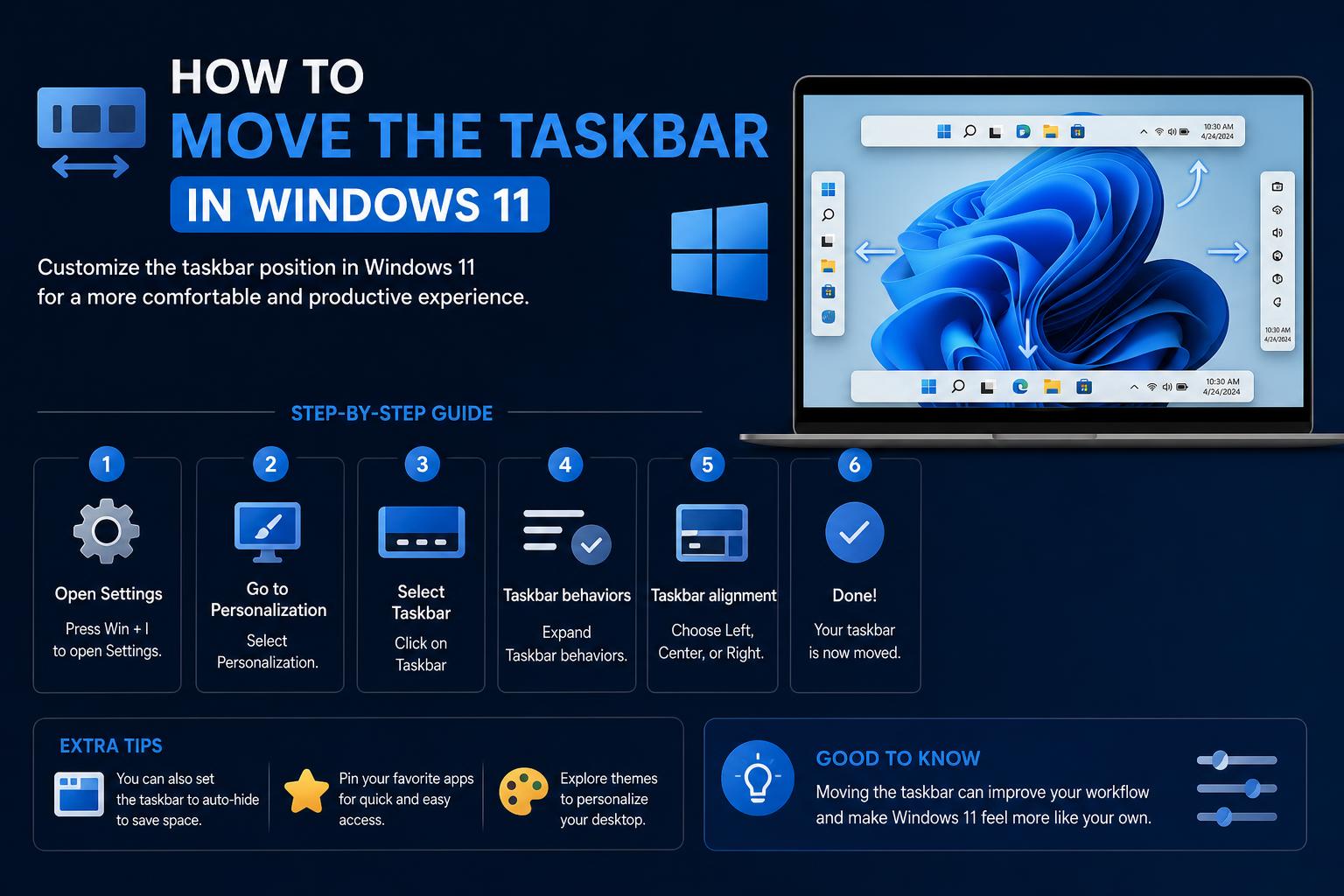
- Windows 11 natively allows taskbar icons to be aligned left or center, but the taskbar itself normally remains at the bottom.
- The widely shared Registry positioning method is deprecated and may fail or produce layout problems on newer builds.
- Maintained third-party customization tools can offer additional placement options, although Windows updates may affect them.
- Feedback Hub is the official channel for requesting native top or vertical taskbar support.
Moving the taskbar in Windows 11 is not as straightforward as it was in earlier versions of the operating system. Windows 11 normally keeps the taskbar attached to the bottom edge of the display, and its built-in personalization options focus primarily on whether the icons appear in the center or toward the left. That difference is important because changing icon alignment does not move the taskbar itself.
There have been Registry modifications, third-party customization tools, Insider experiments, and plenty of video demonstrations promising to put the taskbar at the top or along either side of the screen. Some of those methods only work on particular Windows 11 releases, while others can produce visual defects or stop working after an update. This guide explains the available choices, their limitations, and how to decide which approach is appropriate for your PC.
Can the Windows 11 taskbar be moved?
On the standard stable versions of Windows 11 covered by the traditional Microsoft support guidance, there is no supported setting for moving the entire taskbar to the top, left, or right edge. Microsoft redesigned the taskbar for Windows 11 and removed the drag-and-drop positioning behavior available in Windows 10 and earlier releases.
The native setting labeled Taskbar alignment can be misleading. It only changes where the Start button, Search, Task View, and pinned application icons sit within the bottom taskbar. Selecting Left places the icons near the lower-left corner but leaves the bar itself at the bottom. Selecting Center restores the default Windows 11 arrangement.
This restriction applies broadly rather than to a particular computer manufacturer. Dell documentation, for example, lists numerous affected product families, including Alienware, Inspiron, Latitude, OptiPlex, Vostro, XPS, Dell Pro, Dell Plus, Dell towers, slim desktops, micro systems, all-in-one computers, rugged devices, mobile workstations, fixed workstations, and G Series machines. The available taskbar controls come from Windows, so buying a different brand or model does not unlock additional placement options.
Microsoft has also published Windows Insider material about making Start and the taskbar more personal. However, an Insider announcement or preview feature does not automatically mean the same capability exists on every stable installation. Features can be tested gradually, restricted to certain builds, altered before release, or removed altogether. Always check your own Taskbar settings before assuming instructions for another build apply to your computer.
[relacionado url=”https://www.ikkaro.net/real-time-internet-speed-on-your-windows-11-taskbar/”]
Change the taskbar icon alignment with Windows Settings
If the real objective is to return the Start button to the familiar lower-left area, Windows already provides a safe solution. This is the officially supported customization and does not require Registry editing or extra software.
- Open Settings from the Start menu or press Windows + I.
- Select Personalization in the sidebar.
- Choose Taskbar.
- Expand Taskbar behaviors.
- Open the Taskbar alignment menu and select Left or Center.
The change should take effect immediately. Left alignment is useful for people accustomed to Windows 10, whereas Center is the normal Windows 11 layout. Neither choice creates a vertical taskbar, places it at the top, or changes its screen edge.
Why dragging the taskbar no longer works
Older Windows releases included an option to unlock the taskbar and drag it from one side of the desktop to another. Windows 11 introduced a substantially rebuilt taskbar rather than simply applying a new appearance to the old component. The new implementation did not initially include arbitrary edge positioning or a native vertical layout.
This is a deliberate product limitation rather than a missing checkbox caused by your hardware, display driver, or computer manufacturer. Restarting the PC, changing the screen resolution, unlocking icons, or reinstalling a graphics driver will not reveal the old positioning menu. If Taskbar behaviors only offers Center and Left, the system is operating as designed for that Windows build.
The old Registry method and why it is deprecated
A widely circulated workaround modifies a binary Registry value under the current user profile. It has been used to request the top, left, right, or bottom position, but Microsoft community guidance now describes it as deprecated. On newer Windows 11 builds it may do nothing, revert automatically, or create a taskbar that is visually present but difficult to use.
Before attempting any Registry change, create a restore point and export the relevant key. The Registry Editor does not provide a friendly validation screen, and changing the wrong byte can affect the desktop shell. This method should be treated as an unsupported experiment, not as a reliable everyday configuration.
The historical procedure is as follows:
- Open Start, search for regedit, and launch Registry Editor.
- Navigate to
HKEY_CURRENT_USER\Software\Microsoft\Windows\CurrentVersion\Explorer\StuckRects3. - Export the
StuckRects3key as a backup. - Double-click the binary value named Settings.
- In the second row, locate the sixth value, which is commonly
03. - Replace that byte with the code associated with the requested position.
- Confirm the edit and restart Windows Explorer from Task Manager.
The codes traditionally associated with the setting are 00 for the left edge, 01 for the top, 02 for the right edge, and 03 for the bottom. The original bottom value is therefore usually 03, while 01 has commonly been used for a top taskbar. The exact position of the byte matters; replacing another value can corrupt the stored layout.
To reload the desktop after the edit, right-click Start and open Task Manager. If necessary, switch to the full or detailed view, open Processes, select Windows Explorer, and choose Restart. The desktop and taskbar may disappear briefly before Explorer loads again. Restarting Explorer applies shell-related changes without requiring a full reboot.
The left and right values are particularly problematic because the Windows 11 taskbar was not designed to present its current controls vertically. Icons, the notification area, clock, overflow menu, and application indicators may render incorrectly or remain arranged as though the bar were horizontal. A Registry value can request a location, but it cannot add a properly engineered vertical interface to a taskbar that lacks one. For related notification controls, see this guide to notification management in Windows 11.
If the result is unusable, return to the same value, restore 03, and restart Explorer again. You can also import the Registry backup created before the modification. If Explorer becomes unstable, signing out or restarting Windows will normally reload the shell with the saved configuration.
Why the Registry workaround may fail on newer releases
Many tutorials and videos were recorded using early Windows 11 builds. Microsoft has replaced or revised parts of the taskbar since then, and internal values that once influenced its position are not guaranteed to remain functional. A demonstration that visibly works in a video may be accurate for that presenter’s build yet ineffective on a fully updated computer.
Feature updates can also reset unsupported modifications. A top taskbar created through a Registry edit could return to the bottom after an update, while a third-party shell modification might need a compatible new release. Checking the Windows build number is therefore essential when comparing your result with an online guide. You can press Windows + R, enter winver, and note the displayed version and OS build.
Be cautious with instructions that claim every current Windows 11 edition supports all four positions merely by changing one byte. The historical codes are real, but their practical effect varies. The absence of an error message does not prove the alternative position is supported. Registry Editor can save a value successfully even when the modern taskbar ignores it.
Using third-party customization software
For users who genuinely need a top or vertical taskbar, a maintained customization utility is generally more practical than relying on the deprecated Registry trick. These applications work by restoring older shell behavior or modifying how Windows Explorer presents Start and the taskbar. That added power also means they can be affected by cumulative and feature updates.
ExplorerPatcher is an open-source project that modifies aspects of the Windows shell and can restore interface behavior inspired by earlier Windows versions. Depending on its release and your Windows build, it may provide taskbar placement and appearance choices unavailable in Settings. Download it only from its official GitHub repository and read the compatibility notes before installation.
StartAllBack is a commercial customization utility offering alternative Start menu and taskbar behavior. It is intended for people who prefer a more traditional Windows interface and want configuration options beyond the native controls. Because it changes central desktop components, confirm that its current version explicitly supports your Windows release before purchasing or installing it.
Third-party utilities should not be stacked casually. Running several programs that all alter Explorer, Start, or the taskbar can cause duplicated menus, crashes, missing icons, or settings that overwrite one another. Choose one maintained tool, create a restore point, and keep its installer or uninstall instructions accessible.
After a major Windows update, temporarily disabling or updating the customization utility may be necessary. If the desktop begins flashing, Explorer repeatedly restarts, or the taskbar vanishes, start by removing the shell modification in Safe Mode or through the tool’s documented recovery method. Unsupported shell changes are best avoided on shared, business-critical, or tightly managed computers.
Top taskbar versus a true vertical taskbar
Putting the bar at the top is technically simpler than creating a vertical taskbar because the layout remains horizontal. Even then, flyouts and menus may appear in unexpected places when the operating system assumes the taskbar is at the bottom. Quick Settings, notification panels, previews, and hidden icon menus should all be tested after changing the position.
A true left- or right-side taskbar has additional requirements. It must rearrange buttons vertically, adapt labels and badges, handle the clock and system tray, support touch targets, and reserve the correct area of the desktop for maximized windows. Simply rotating or relocating a horizontal strip does not produce the polished vertical experience available in older Windows versions.
This distinction explains why some workarounds appear successful in screenshots but feel incomplete in daily use. The bar may move while application buttons overlap, the date is clipped, or pop-up panels still open from the bottom. Judge a method by how the entire interface behaves, not merely by whether the bar changes location.
Multiple monitors and managed computers
Windows 11 can display the taskbar across multiple screens through its native taskbar behavior settings, but this does not normally provide different edge positions for individual monitors. A shell customization may apply globally, inconsistently, or only to the primary display. Test window maximization, auto-hide, notification placement, and scaling on every connected monitor.
Mixed display scaling can make unsupported layouts especially awkward. A vertical taskbar may have one width on a 100 percent display and another on a high-DPI panel, while icons or menus may appear too small or too large. Using matching scaling values may reduce visual inconsistencies, although it cannot correct an incompatible taskbar implementation.
On a workplace or school device, administrative policies may block Registry Editor and unapproved applications. Even when you have access, installing a shell modification can conflict with security or support requirements. Ask the system administrator before changing Explorer-related components on a managed computer.
How to request an official placement option
If native edge placement matters to your workflow, Microsoft recommends submitting feedback rather than depending entirely on unsupported fixes. Press Windows + F to open Feedback Hub, describe the desired taskbar position, and search for an existing request that you can upvote. Clear feedback should explain whether you need a top taskbar, a vertical layout, per-monitor positioning, or all of those capabilities.
The official Microsoft Feedback Hub is the appropriate channel for feature requests. Community support participants can explain the present limitation, but they cannot directly add the feature to Windows. Feedback does not guarantee implementation, though consolidated requests help Microsoft assess demand.
Choosing the most suitable approach
- Use Taskbar alignment if you only want the Start button and pinned icons on the left.
- Avoid the old Registry edit unless you accept that it is deprecated, build-dependent, and potentially unreliable.
- Consider one reputable customization tool if top or vertical placement is essential and you are comfortable maintaining it after updates.
- Use Feedback Hub if you want Microsoft to provide a stable, supported implementation.
For most people, the safest arrangement is to keep the Windows 11 taskbar at the bottom and change its icons to Left when a traditional layout is preferred. Moving the whole bar requires an unsupported Registry experiment or compatible third-party software, and neither option should be confused with a native Windows setting. Verify your exact build, back up the system before modifying Explorer, and remember that a successful position change is only worthwhile if menus, notifications, applications, and multiple displays continue to work properly.