
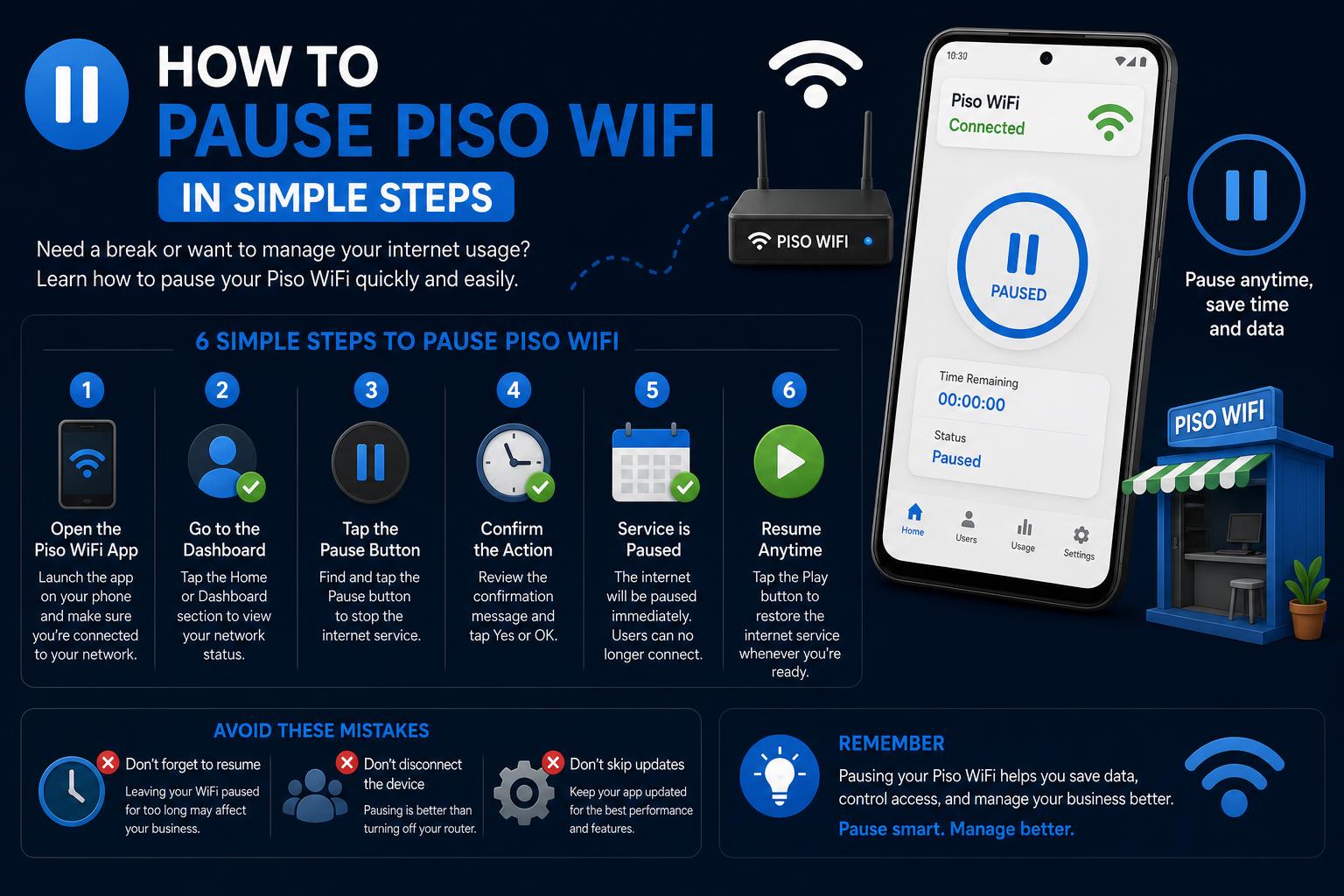
- Piso WiFi pause time allows users to freeze their paid internet sessions without losing remaining minutes, offered by most modern Philippine WiFi vending machines.
- Admins can customize pause settings—including duration and number of pauses—via the device's management portal, with steps varying by platform (such as LPB, AdoPiSoft, and JuanFi).
- Troubleshooting steps address common issues like missing Pause buttons or sessions that won't resume, ensuring a smooth user experience for both customers and operators.
If you’ve ever used Piso WiFi, you’ve probably wondered if you can step away without losing your prepaid minutes. Whether you’re a curious user wanting to stretch your Peso further or the owner of a vending WiFi machine looking to keep customers happy, managing your time online is essential.
Piso WiFi pause time is a session control feature that’s gained popularity across the Philippines, letting users pause their access and resume later without wasting unused time. In this exhaustive guide, you’ll discover exactly what Piso WiFi pause time is, how it works for both users and admins, detailed setup instructions for the most common platforms, troubleshooting fixes when things go wrong, and best practices to get the most out of every paid minute.
Understanding Piso WiFi Pause Time
Piso WiFi pause time is a feature integrated into most modern Filipino coin-operated and voucher-based WiFi vending machines. Its main purpose is to let users temporarily freeze their internet session timer—so if you’ve paid for, say, 60 minutes and need to step away to run an errand, you can pause the countdown and return to use your remaining time later.
When you press “Pause” on the user portal (often at http://10.0.0.1 or variants like 10.10.0.1), your connection is suspended and your remaining minutes are preserved in the system. Once back, you hit “Resume” and continue where you left off. No secret wizardry—just thoughtful session control designed for busy lives.
How Pause Time Works: The Technical Side
Here’s what happens behind the scenes: When a user logs in to a Piso WiFi portal and starts a session, the vending machine records their device’s session ID, IP or MAC address, and the remaining prepaid time in its database. Activating pause sends an instruction to freeze the session timer and cut off active internet data—but holds onto the session state for later resumption, if it’s within the admin’s allowed window.
Admins can limit how long a session can stay paused (usually 30–60 minutes, up to 24 hours), and configure whether there’s a maximum number of pauses per purchase. If you wait too long, your paused session will expire automatically and you’ll need to pay again.
It’s crucial to resume your session from the same device you started with. Because Piso WiFi often identifies your session by device (IP or MAC), switching devices or connecting through a different WiFi adapter may result in session loss. The system matches the stored session ID to your device when resuming—if it doesn’t match, your time is gone.
Piso WiFi Pause Time: For Users
Pausing your time is super simple if enabled by the machine owner. Here’s a typical flow for users:
- Connect to the Piso WiFi network and open your browser. You’ll usually be redirected to the captive portal (commonly at http://10.0.0.1 or http://10.10.0.1). If not, type the IP address manually.
- Select your payment method and start your internet session. You might use coins, a QR code, GCash, Maya, or mobile payments—depending on the vending machine’s options. A visible countdown timer will show your remaining minutes.
- Need a break? Tap the Pause button. If enabled by the admin, you’ll see a Pause Session or Pause Time button. Press it, and your connection and countdown freeze.
- When ready to come back, re-connect to the network and portal on the same device. Tap Resume Session, and your remaining minutes pick up from where you left off—as long as you’re within the pause time window set by the admin.
Note: If you don’t see the pause button, either the admin has disabled the feature or your machine’s firmware doesn’t support it. Users can’t enable Pause Time; it’s up to the owner or administrator.
Admin Guide: Enabling and Managing Pause Time on Piso WiFi
If you run a Piso WiFi hotspot, pause time can be a valuable feature for gaining customer loyalty. Setup steps vary across platforms such as LPB Piso WiFi, AdoPiSoft, and open-source alternatives like JuanFi (built on MikroTik). Here’s how to turn it on and fine-tune the settings.
Universal Steps for All Platforms
- Connect to your Piso WiFi admin network. Generally, use your phone or laptop and join the same WiFi that your customers use.
- Open your preferred browser (Chrome is a solid choice) and go to the admin panel. The most common address is http://10.0.0.1/admin or http://10.10.0.1/admin.
- Login with administrator credentials. Credentials can sometimes be found on a sticker on the vending machine. Default logins: LPB: admin / 123456789, AdoPiSoft (older): admin / admin, (newer): administrator / admin1234.
- Navigate to settings (often “Portal Settings,” “User Portal Settings,” or “System Settings”).
- Look for session controls. Find options for “Enable Pause Time” or “Pause/Resume.”
- Enable pause time and configure limits. Some platforms let you set a maximum duration per pause or limit the number of pauses per session—see below for platform specifics.
- Save changes and reboot if required. (Some changes take effect instantly, others need a restart—follow the on-screen prompts.)
- Test feature by logging into the user portal and checking if the Pause/Resume button appears.
Platform-Specific Setup Paths
| Platform | Admin URL | Menu Path |
|---|---|---|
| LPB Piso WiFi | 10.0.0.1/admin | Portal Settings → Insert Coin Mode → Pause/Resume Time → Enable |
| AdoPiSoft | 10.0.0.1/admin | Settings → User Portal Settings → Session Controls → Allow Pause Time |
| JuanFi (open source) | 10.0.0.1/admin | May vary: look for “Pause Time” or “Session Pause” under portal/session settings. |
Tip: Always check your system documentation or manufacturer’s resources for the latest updates or menu location—firmware upgrades might move options around.
How to Disable Pause Time
If needed, you can turn off pause time just as easily. Follow the same menu path to the session controls and switch the feature from “On” to “Off.” Hit save and reboot if prompted. Once disabled, the portal will no longer display Pause/Resume options for users.
Recommended Pause Time Settings for Admins
Pause settings help balance user convenience with machine availability and security. Here are proven configurations:
| Setting | Recommended Value | Explanation |
|---|---|---|
| Max pause duration (LPB) | 60 minutes (adjustable from 10 min to 24 hours) | Covers most breaks (lunch, errands) but prevents indefinite lock-out of the machine. |
| Pause attempts per session (AdoPiSoft) | 3–5 attempts | Prevents abuse, while maintaining flexibility for users who need occasional breaks. |
| Auto-expiry of paused sessions | 24 hours | Clears out abandoned or forgotten sessions, freeing up hardware for new paying customers. |
Both models (time-based and count-based) can be tailored to suit your business needs. Experiment with settings that make sense for your busiest times, and always keep user experience in mind.
Hands-On: Using Pause Time as a Piso WiFi Customer
If you’re a user on a machine with pause time enabled, here’s what to do:
- Connect your device to the Piso WiFi network as usual.
- Access the captive portal (http://10.0.0.1, http://10.10.0.1, or check the sticker on the machine).
- Pay for access with coins, QR codes, or other available methods.
- Once your session starts, watch the countdown timer on the portal.
- When you want a break, hit the Pause button. A confirmation will show that your session is paused, and the timer halts.
- When you return (on the same device), log back in and hit Resume Session to continue from the remaining time.
Heads up! If you can’t find a Pause button, the feature is not enabled, or not supported by that specific machine.
Troubleshooting Piso WiFi Pause Time
Things don’t always go as planned. Here’s how to fix common hiccups for both users and admins:
| Issue | Cause | Solution |
|---|---|---|
| Pause button not present | Admin disabled feature or browser cache is stale. | Ask admin to enable pause time, clear browser cache, or use incognito/private browsing mode. |
| Session doesn’t resume | Pause limit expired. | Check if max allowed pause period has passed. If expired, pay for a new session. |
| Cannot access portal (10.0.0.1 or 10.10.0.1) | DNS/network misconfigured. | Set device/router DNS to automatic, then restart both devices. |
| Paused time not restored on resume | Firmware bug or version mismatch. | Advise admin to upgrade vending machine firmware to latest stable build. |
| Session gone when switching devices | Session tied to original MAC/IP address. | Always use the same device to pause and resume sessions. |
If portal access is broken overall, resolve those network issues before tackling pause time specifically.
Best Practices for Piso WiFi Owners
- Make customers aware of pause time. Use signs, stickers, or captions near your kiosk. An informed customer will appreciate the flexibility—leading to more return business.
- Set practical pause limits. 30–60 minute pauses provide balance for both users and owners. Don’t forget to configure auto-expiry so your router doesn’t get clogged with forgotten sessions.
- Keep software and firmware updated. Always use the latest firmware for your vending platform (LPB, AdoPiSoft, or JuanFi). Updates often fix pause/resume bugs and network instabilities.
- Monitor for abandoned sessions. If your logs show many sessions left paused indefinitely, consider tightening your auto-expiry settings.
- Market pause time as a feature. Not every operator offers it—so use it as a selling point, especially if your shop is near a busy area with competing hotspots.
The Importance of Hardware and Network Settings
Reliable hardware can make or break your Piso WiFi business. Even with pause time enabled, older or budget routers may result in dropped connections, slow speeds, or session-tracking bugs. If users complain or your kiosk is overloaded during busy hours, consider upgrading to newer router models that support more concurrent users and offer stable dual-band WiFi. Some brands like TP-Link offer robust options for vending operations (find their latest offerings at TP-Link Philippines).
If you need to push your signal further, check out outdoor WiFi extension kits or mesh systems, especially for multi-floor properties or outdoor seating areas. For those still shopping for a backhaul connection, compare local broadband and mobile plans for the best fit—aim for plans that match peak traffic needs.
IP Address: 10.0.0.1 vs 10.10.0.1 in Piso WiFi
Most Piso WiFi vending machines use the private IP address 10.0.0.1 as their captive portal or admin access point, but some platforms (including certain builds and brands like SEOToolzz) use 10.10.0.1 instead:
- 10.0.0.1: The most common default gateway (used by LPB, AdoPiSoft, JuanFi, TP-Link setups).
- 10.10.0.1: Used by some routers and custom builds. The method for pausing sessions is otherwise the same—once on the correct network, visit the local address in your browser.
If you can’t open the portal, check your WiFi connection, turn off mobile data, and make sure you’re using the exact IP address (no extra spaces/typos). If the address still doesn’t load, your network may use a different gateway. Consult your admin panel, check device labels, or ask your machine provider.
Router Setup and Reset: Common Hurdles
If you’re troubleshooting your Piso WiFi hardware, remember:
- Routers have reset buttons to restore factory settings. Use a paperclip or SIM tool to press the button, then reconfigure from scratch. Check for a tiny reset port on the back.
- Default admin credentials are usually printed on the router or in the user manual. For major ISPs like Xfinity/Comcast, credentials are often on the device itself.
- If the default password doesn’t work, reset the device to factory state and log in with default credentials.
- Avoid common upload/download slowdowns by ensuring your device connects to the proper WiFi band (5GHz for better speed if available).
Make sure to always verify the router’s address before typing it into your browser. A simple typo (“10,0,0,1”; “10.10 0.1” with extra spaces) can block portal access.
Security and Safety of Piso WiFi Pause Time
Using pause time is perfectly safe for both users and operators. When you pause, the system just stores your session ID and remaining time locally; nothing sensitive is transmitted outside the local network, and your remaining balance is essentially “put on hold” until the next login or until expiry.
The only risk is losing time if you try to resume on a new device (since most systems track you by device, not by username or password), or if you wait beyond the expiry window set by the admin. Play it safe: always resume on the original device, before the timeout, and you won’t lose any minutes.
Frequently Asked Questions about Piso WiFi Pause Time
- What exactly happens when I pause?
Your countdown timer stops, your internet session is frozen, and you cannot browse until you resume. No time is deducted during the pause. - Which management platforms support pause time?
Pause time is available in leading platforms like LPB Piso WiFi (official site), AdoPiSoft (official site), and most builds of JuanFi (JuanFi project), but always check whether the feature is enabled by the admin. - How do admins turn pause time on or off?
Through their admin portals, using the menu paths described above (see table). Changes are immediate in some platforms; others require a reboot. - How long can a session be paused?
Varies: typically 60 minutes on LPB systems (configurable up to 24 hours); AdoPiSoft uses a limit of 3–5 pauses per session but no strict time limit. Both usually auto-expire all sessions around 24 hours. - Why is there no pause button for me?
The admin has likely disabled the option, or your machine’s firmware is too old. Ask your Piso WiFi operator if they can enable it or update their system. - Can I resume on a new device?
No. Most platforms use device identification to match sessions. Switching phones or computers after pausing usually means your session can’t be recovered. - What if I forget to resume before session expiry?
You lose any unused time. Always check with the operator about their auto-expiry window, and try resuming within the allowed timeframe. - Is the feature supported on all Piso WiFi hardware?
No. Most modern machines have it, but some older setups and basic firmware builds do not support pause time. If you want it, request an upgrade or firmware update from your vendor.
Taking Your Piso WiFi Business Further
Offering pause time is a great way to attract loyal customers and stand out from the competition. However, your success also depends on maintaining solid network performance, keeping firmware up to date, and staying transparent about features. Combining user-friendly controls with robust hardware ensures customers get value for every Peso spent, and makes running a Piso WiFi hotspot smoother for you as an operator.