
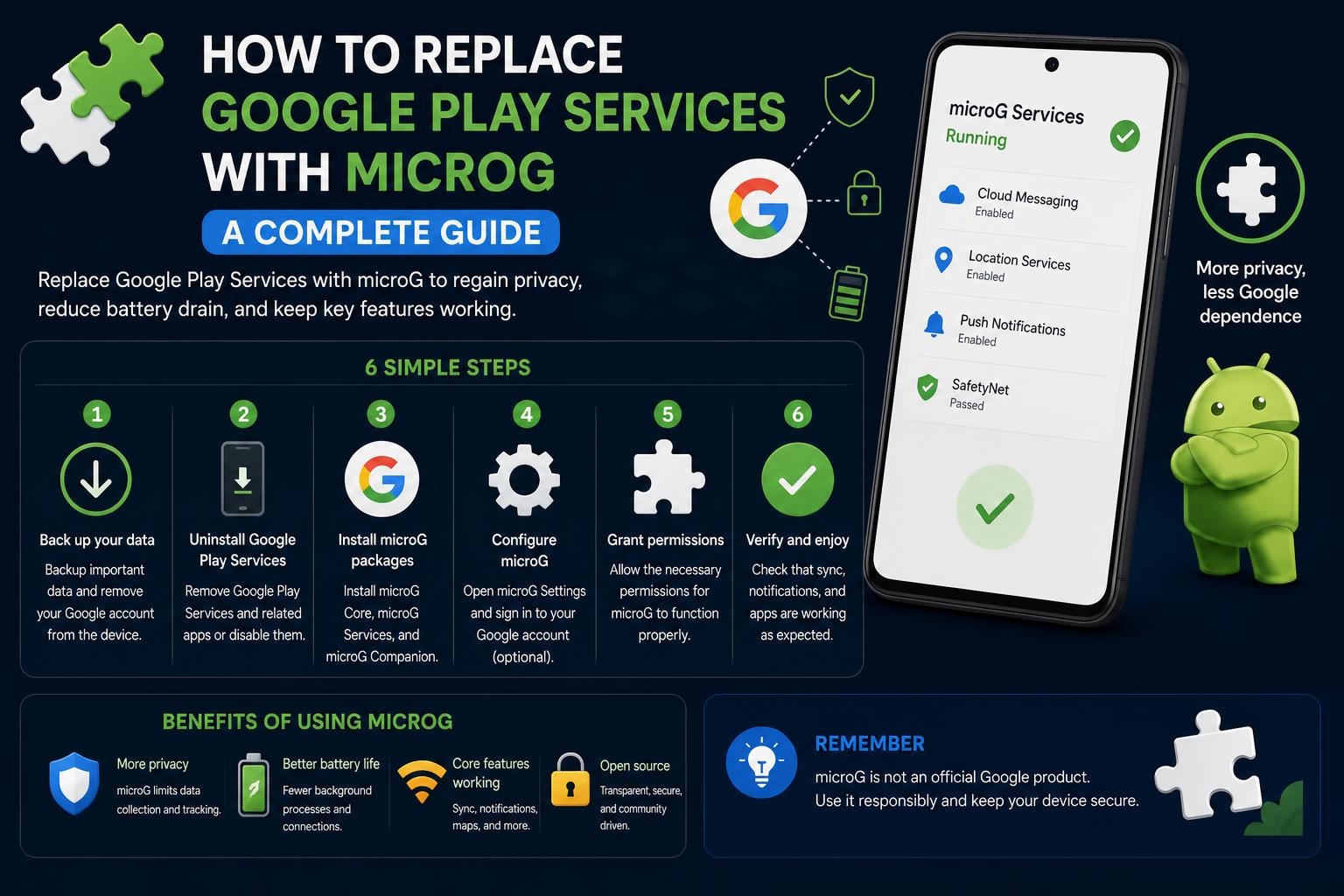
- microG is a free, open-source alternative to Google Play Services, enabling key Android compatibility while improving privacy.
- Successful installation of microG requires specific ROM support for signature spoofing and may involve custom ROMs or Magisk modules.
- Not all Google features are fully replicated; some apps and functionalities will not work or may require alternative setups.
Breaking away from Google’s ecosystem on Android isn’t a trivial process. For privacy-oriented users or those concerned about resource usage, replacing Google Play Services with microG has become an attractive, if nuanced, pathway. Yet, the journey to a de-Googled Android device is rarely as simple as uninstalling an app. It requires whittling through technical steps, compatibility considerations, and an acceptance of a few trade-offs along the way.
This comprehensive guide will walk you through everything you need to know about swapping your device’s Google Play Services for microG—from core concepts, detailed prerequisites, installation options, and troubleshooting, to real-world caveats and alternatives you should be aware of. If your goal is enhanced privacy, reduced battery drain, or simply exploring open-source options, you’re in the right place.
Understanding Google Play Services and Why Replace Them
Google Play Services sits at the heart of almost every mainstream Android device. It operates as a background service providing crucial features such as push notifications, app authentication, geolocation, and APIs needed by a massive array of third-party apps. However, it’s also become notorious for being closed-source, resource-hungry, and a powerful data-collection mechanism.
microG emerges here as a privacy-focused, free alternative that reimplements much of Google Play Services’ functionality. With microG, it’s possible to run many Android apps without a Google account or proprietary Google software, dramatically improving user control.
What is microG?
microG is an open source project that replaces several closed-source Google libraries and apps necessary for running popular Android software. Its modular design strives to mimic enough of Google Play Services so that many dependent apps run normally—without linking your device to Google by default.
The main components of microG include:
- GmsCore (Services Core): The heart of the microG package, delivering essential Google Play Services APIs to apps.
- Services Framework Proxy (GsfProxy): Simulates key framework functionalities such as Cloud to Device Messaging (now Google Cloud Messaging, GCM), vital for push notifications.
- Unified Network Location Provider (UnifiedNlp): Offers geolocation via Wi-Fi and Cell towers, a replacement for Google’s network location provider.
- Maps API (mapsv1 compatibility): Allows basic support for the deprecated Google Maps API, enabling mapping features in some legacy apps.
While microG continues to expand its capabilities, not all Google APIs and proprietary features are supported. Users most often miss out on things like Google Play Games, Drive, or Android Auto—but for many, these omissions are a small price to pay for greater autonomy.
Who Should Consider microG?
If you want more privacy, wish to remove Google’s footprint from your device, or want to increase battery efficiency, microG is made for you. It’s especially popular among those running custom ROMs (such as LineageOS, /e/OS, or CalyxOS) and for devices that do not natively come with Google apps.
However, it’s important to understand microG is not a drop-in, 100% replacement for Google Play Services. Some apps will never work, and others may experience reduced functionality or require alternative installation methods for things like notifications, maps, or syncing.
Key Prerequisites and ROM Compatibility
To install microG successfully, your device’s Android ROM must support ‘signature spoofing.’ This specialized feature lets microG pretend to be Google Play Services, which is required because most apps verify the authenticity of Play Services before interacting with it.
Options for achieving this include:
- Using a custom ROM with built-in support for signature spoofing (such as official microG versions of LineageOS or /e/OS)
- Patching your ROM manually for signature spoofing, often involving Xposed Framework and modules like FakeGApps
- Utilizing Magisk modules to enable signature spoofing and microG installation on devices with root access
Not all ROMs provide signature spoofing natively. You can check documentation for your ROM, or consult the official microG Wiki for updated lists and guidance.
Installation Pathways: From Pre-Installed Devices to DIY Setups
There are three main ways to get microG running on your Android device:
- Buy a preconfigured device: Some manufacturers and foundations sell phones with microG already installed, like devices from Murena (/e/ Foundation) or Calyx Institute’s modded Pixels.
- Install a custom ROM with bundled microG: The easiest approach for experienced users, with official and unofficial flavors available for many devices (e.g., LineageOS for microG, CalyxOS, or OmniROM).
- Manual microG installation on a compatible ROM: This pathway is more technical, but grants more flexibility. It requires a custom ROM with signature spoofing, installation via F-Droid (adding microG’s repository), or a Magisk module if your device is rooted.
Step-by-Step: Manual microG Installation Guide
If you’re opting for a manual install, follow these steps (tailored for experienced users comfortable with custom ROMs and recovery tools):
- Back up your device thoroughly, including app data and system partitions, as things can occasionally go wrong and require a complete restore.
- Ensure signature spoofing is supported/enabled on your ROM. Consult the microG Wiki or relevant forums for instructions per device/ROM.
- Remove existing Google Play Services and related Google apps. This can be done with tools like Titanium Backup.
- Reboot into recovery and flash the appropriate ROM or Magisk module (if needed). If patching, install Xposed and FakeGApps for spoofing.
- Download the latest microG APKs (Services Core, Framework Proxy, etc.) from the official microG downloads page or add the microG F-Droid repository to F-Droid.
- Install the required microG components (Core, Framework Proxy, and optionally FakeStore to replace Play Store dependencies).
- Log into your Google account through microG’s account settings if you wish to use limited Google authentication features.
- Tweak microG’s settings for push notifications (GCM), location services, and permissions as your apps demand.
Note: Each device and ROM combination may require tweaks—always consult ROM/microG documentation and community forums for device-specific advice.
What Works and What Doesn’t with microG?
microG does a respectable job at emulating much of Google Play Services’ behavior, but isn’t a perfect clone. Here’s an overview of what to expect:
- Push notifications via GCM often work well after setup, but may require apps to be reinstalled to trigger registration.
- Many popular apps run fine, including ride-sharing, media players, and various utility apps.
- Alternative app stores are required for downloading apps, since microG doesn’t offer a full Play Store replacement. Trusted options include F-Droid, Aurora Store, and Yalp Store.
- Problems with some Google APIs: Google Play Games, Drive, Cast, Android Auto, and SafetyNet-protected apps (think most banking and payment apps) are not reliably supported, or fail outright.
- Google Maps support is evolving; newer microG versions can run newer Maps APKs, but offline navigation or advanced features may be limited. Open-source alternatives include Organic Maps, OsmAnd, and HERE WeGo (with caveats).
- Contact and calendar sync through Google Account can be patchy. Many users turn to DAVx⁵ and open-source calendar/contact apps, or migrate to providers supporting CalDAV/CardDAV (e.g., Disroot, GMX, Yandex).
- Payment apps and third-party services secured by SafetyNet often fail SafetyNet checks, though some users use workarounds involving DroidGuard Helper or further Magisk modules (stability and legality may vary).
Dealing with Typical Issues and Limitations
Installation and setup rarely go perfectly—here’s how to address some of the most common hiccups:
- If push notifications (GCM) don’t work: Reinstall or update affected apps so they register anew with microG’s GCM.
- If some Google features are missing: Accept that not everything is available through microG. For Calendar and Contacts, use open-source sync solutions.
- App store/in-app purchases: Aurora Store allows installation of both free and paid apps (paid apps require your Google credentials for authentication), but in-app purchases may not function reliably.
- SafetyNet or banking apps: While some techniques exist to spoof device integrity, mileage varies, and these apps might still refuse to work.
- ROM updates and microG: If updating your ROM, especially with Magisk/microG modules, be prepared to redo some installations or workarounds each time.
Tips for a Smoother microG Experience
To maximize compatibility and minimize headaches, keep these strategies in mind:
- Regularly update microG components and your ROM for the latest fixes and compatibility improvements.
- Set up alternative app stores (F-Droid, Aurora Store) for all your app needs.
- Be prepared for some trial and error. Each device and setup responds differently, and community forums are invaluable for troubleshooting unique issues.
- Check microG settings for signature spoofing, GCM registration, and permissions after each major Android update.
Alternatives for Apps and Features Not Supported by microG
When microG reaches its limits, a universe of open-source and privacy-respecting apps and services step in:
- Maps & Navigation: Try Organic Maps or OsmAnd from F-Droid for navigation. For public transit, Transportr is a solid choice.
- Calendars & Contacts: Simple Calendar and Simple Contacts (on F-Droid) along with DAVx⁵ provide robust CalDAV/CardDAV syncing.
- Payments & Loyalty Cards: Catima or Loyalty Card Keychain are great for storing cards, while true payment support is limited due to SafetyNet restrictions.
- Messaging: Some apps like WhatsApp or Messenger may see delays in message delivery; ensure GCM is enabled in microG settings for best results.
Always keep an eye on microG’s official Wiki and community discussions, as support for various APIs and apps continues to evolve rapidly.
The Best Alternatives to Google Play Store in 2024
Migrating from Google Play Services to microG is both empowering and complex. While not a one-size-fits-all solution, microG unlocks a more open, private, and often more efficient Android experience, enabling countless users to reclaim control over their devices. Be patient with quirks, utilize open-source alternatives, and enjoy the lighter, less intrusive environment made possible through innovation and the tireless work of the microG community.