
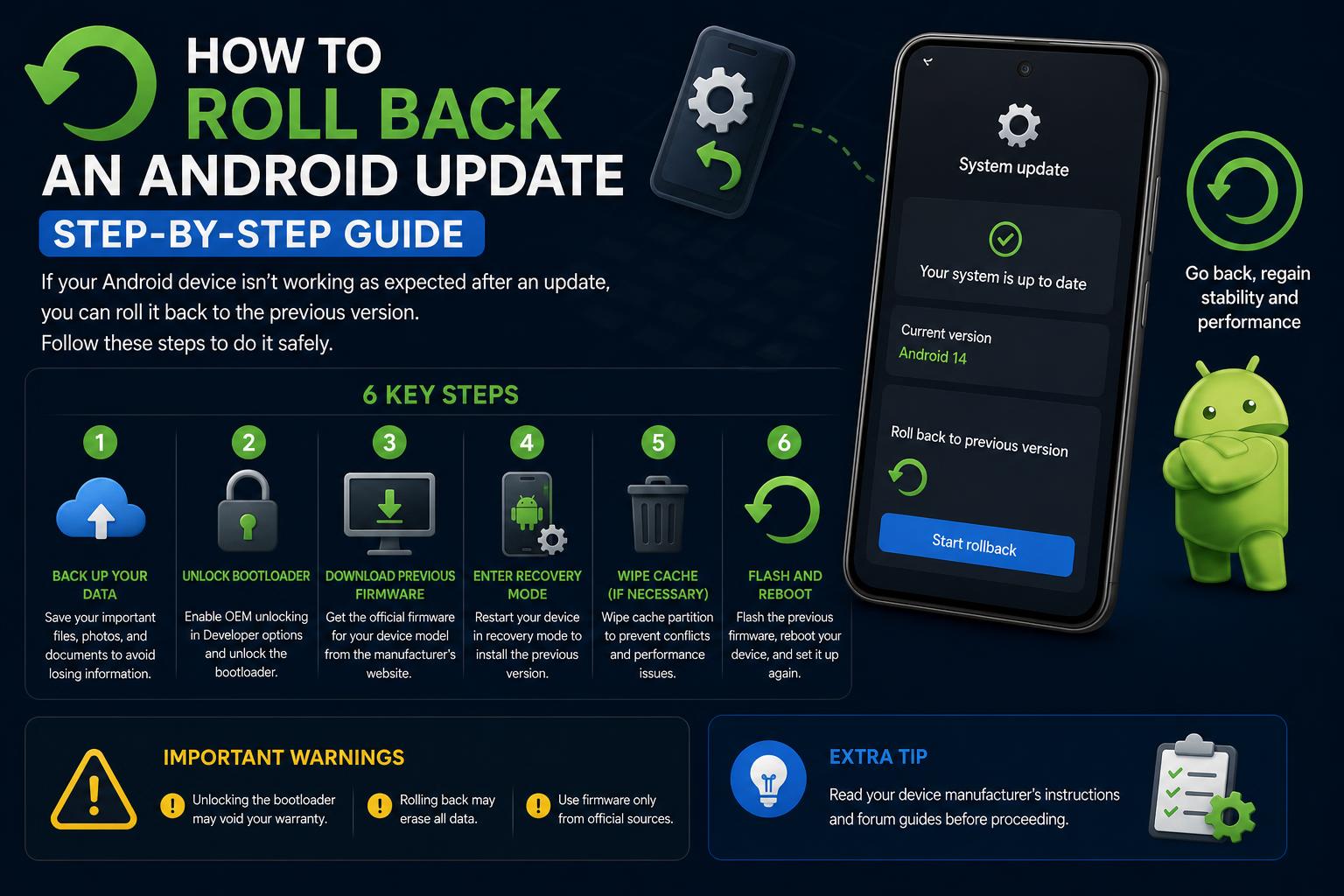
- Downgrading Android is possible, but it involves risks and can void warranties.
- Factory resets do not revert the system version; manual methods or official tools are needed.
- Backing up your data is crucial before attempting any rollback process.
It’s a common story: you update your Android device to the latest version, only to discover that your favorite app no longer works or your phone starts acting up. Maybe your texts aren’t sending, a crucial feature vanishes, or compatibility with important accessories breaks down. Whatever the reason, the urge to roll back that Android update is real—but the path isn’t as obvious as finding a menu option labeled ‘Undo Update.’
Rolling back or downgrading an Android update is a journey filled with both technical hurdles and risks. If you’re hoping for a simple, official ‘undo’ button, you’ll quickly realize Google, Samsung, and most device makers really want users to stick with the latest version. However, with the right information, some patience, and a bit of courage, it’s possible to return (in part or whole) to a previous Android version on many devices.
Why Would You Want to Roll Back an Android Update?
Updating a phone sounds positive—but not every user benefits from the latest version. Here are the most common reasons people seek to revert to an earlier Android version:
- Compatibility problems with crucial apps or device features.
- Performance issues like poorer battery life or slowdowns.
- Losing access to functions or settings you rely on.
- Bugs or instability introduced in the new update.
The posts we analyzed—from users on forums like Reddit and Android Central—often cite app compatibility and unexpected software bugs as core reasons to seek a downgrade.
Limitations and Realities of Android Downgrading
Downgrading an Android update isn’t officially supported by most phone makers. In fact, it’s deliberately difficult and may void your device warranty. Many users, after facing update-related problems, learn that most manufacturers and carriers only offer support for moving forward, not backward.
The method you’ll use depends heavily on your device type and manufacturer, and whether your phone bootloader can be unlocked. For some brands—like Google’s own Pixel phones—there are official tools and images. For others, you might need third-party solutions or even riskier procedures discussed in online communities.
Backup First: Essential Pre-Downgrade Steps
Rolling back to a previous Android version will almost always wipe your device. It is absolutely crucial that you back up your data before doing anything else. Here’s what you should safeguard:
- Photos, videos, and personal documents (use Google Photos or another cloud service).
- Contacts, SMS, and call logs (backup with Google or dedicated apps).
- App data (note: some data can’t be restored if the app doesn’t support backups).
Without a reliable backup, you risk losing everything during the downgrade process.
Factory Reset Myths—and What It Actually Does
One of the most common tips shared in online forums is to factory reset your phone as a way to undo an update. As highlighted in the Android Central discussion, some support agents even suggest this. But here’s the reality:
Performing a factory reset does NOT revert your Android version. A reset only wipes your personal data and apps, returning the phone to its default settings—but it keeps the current Android version installed.
This is a crucial misunderstanding, and users should be aware: factory resetting only helps if bugs are due to misbehaving apps, not because the OS update itself caused the issues.
Understanding the Update Process
Android updates are not like app updates—their changes overwrite the underlying system files. When you update, the old version is erased, and the new system files take their place. Unlike some desktop operating systems, there is no built-in way to roll back; manufacturers design it that way for both security and simplicity.
Requirements for Manual Downgrade
To roll back an Android update, you’ll typically need access to the correct firmware files for your exact device and a method to flash them (install them manually). Here’s what you’ll generally need:
- The original firmware or factory image for your specific model and region.
- A computer with the necessary drivers and software to communicate with your phone (often the Android SDK, Odin for Samsung, or manufacturer-specific tools).
- Ability to unlock the bootloader (not always possible, especially on carrier-locked devices).
- The technical know-how to enter recovery or fastboot mode.
Be aware: Downgrading can trip security flags, permanently disable certain features (like Samsung’s Knox), and irreversibly wipe your data.
Mastering Fastboot Commands for Android: The Ultimate Guide for Power Users, Developers, and IT Admins
Model-Specific Considerations—The Binary Number Problem
Some users, such as in the Reddit thread referenced, struggle with identifying the correct ‘binary’ or firmware number for their device. For instance, a user saw a cryptic identifier (‘M6375_HI434_03.562.01.57R’) that didn’t match official examples.
If you’re unsure about your specific firmware version or required files:
- Look up your device’s exact Android version and model number (Settings → About phone).
- Consult official device forums (like XDA Developers) or manufacturer support for clarification.
- Check your phone’s download or recovery mode screen for additional info.
Making a mistake here could render your device unbootable, so double and triple-check!
Generic Steps to Downgrade Android (With Important Warnings)
Here’s an outline if you’re determined to proceed, but remember that every device is different and these steps are only broad guidance:
- Backup all your data.
- Unlock your bootloader (search for official or community instructions for your make/model).
- Download the official firmware/factory image that matches your precise device variant and region.
- Install and set up any required software/drivers on your computer (Android SDK, Odin, or other tools depending on your device).
- Boot your device into fastboot/download/recovery mode.
- Connect your device and initiate the flash process (follow manufacturer-specific steps and warnings).
- Wait for the process to complete, then set up your phone again, restoring your data if possible.
If you get a warning at any step—STOP and research! Mistakes can permanently damage your device. Forums like XDA Developers are excellent resources for model-specific help.
Android Rooting Explained: The Complete Guide to Gaining Root Access, Benefits, Risks, and Legal Details
Can You Roll Back on Google Pixel Phones?
If you own a Google Pixel device, you’re in luck compared to many brands. Google publishes official factory images for almost all Pixel models. This means, provided your bootloader is unlockable (usually the case with Pixels bought from the Google Store), you can ‘flash’ an older version.
To do this, visit the Google Factory Images page, download the desired build, and follow Google’s flashing instructions. This process will erase all your data and, as with other brands, carries significant risk if not followed carefully.
If your device is from a carrier, bootloader unlocking may be disabled, making downgrading impossible without third-party workarounds.
Samsung, Sony, and Other Manufacturers—How It Differs
Samsung users often hear about ‘Odin’—their Windows-based flashing tool—but it’s still critical to use the exact firmware for your carrier, model, and region. Flashing the wrong file could brick your phone. Samsung’s security system (Knox) can be tripped by modifications, impacting features like Samsung Pay.
Sony and other manufacturers vary: some provide unlock tools, while others lock down their devices entirely. Communities like XDA Developers and official support forums are your best bet for step-by-step help.
Are There Any Safe Alternatives?
Sometimes, the best—and less risky—approach is to wait for the next bug fix update or contact the app developers to see if they plan to restore compatibility soon. If rolling back seems too complex or risky, consider these options first:
- Use your manufacturer’s feedback channel to report the issue.
- Check for unofficial APKs of older app versions (not recommended for security reasons, but may resolve app-specific issues).
- Install a custom ROM—advanced, but can give you more control, provided your device is supported by the community.
Risks and Considerations—Proceed with Caution
Even if you follow every instruction to the letter, downgrading comes with risks. Here’s what might happen:
- Voiding your warranty.
- Bricking your device (making it unusable).
- Losing security updates or new features permanently.
- Potential legal implications depending on your region and carrier agreement.
If in doubt, take your device to a professional repair shop or seek community guidance before attempting these advanced steps.
Finding yourself stuck with an unwanted Android update is admittedly frustrating. While not risk-free or always possible, rolling back is sometimes the only real solution for critical compatibility issues. With a thorough backup, careful research, and step-by-step execution, it may be doable even for many non-expert users. Just remember—if you’re ready to take the plunge, pay close attention to your exact device model and follow reliable guides. When in doubt, reach out to the large and active communities at official forums or XDA. Good luck, and may your device soon work just the way you want it!