
- Your Android version determines security, compatibility, and features
- Checking your version is quick via device settings or search bar
- Staying updated maintains safety and smooth app operation
Have you ever wondered which version of Android your device is running? Whether you’re new to Android or a veteran user, knowing your exact Android version is much more than a matter of curiosity. In fact, your operating system version influences everything from which apps you can install to the level of security your phone receives. While it might seem like just another technical detail, this information can actually be crucial for troubleshooting, cybersecurity, and even ensuring your phone’s performance remains optimal.
In this all-in-one guide, we’ll take you through every possible aspect you need to know about checking your Android version, why it matters more than ever, and how this single detail can have a big impact on device compatibility, app updates, and personal tech security. We’ll also address some common pitfalls, such as slight differences between manufacturers and how to update or what to do if your device is out of date. So let’s demystify this key piece of information once and for all.
The Fastest Way To Find Your Android Version
The majority of Android phones and tablets keep your current version information buried in the device settings. While there might be subtle differences depending on your device brand or software skin, the core process is strikingly similar on almost every Android device released in the last five years.
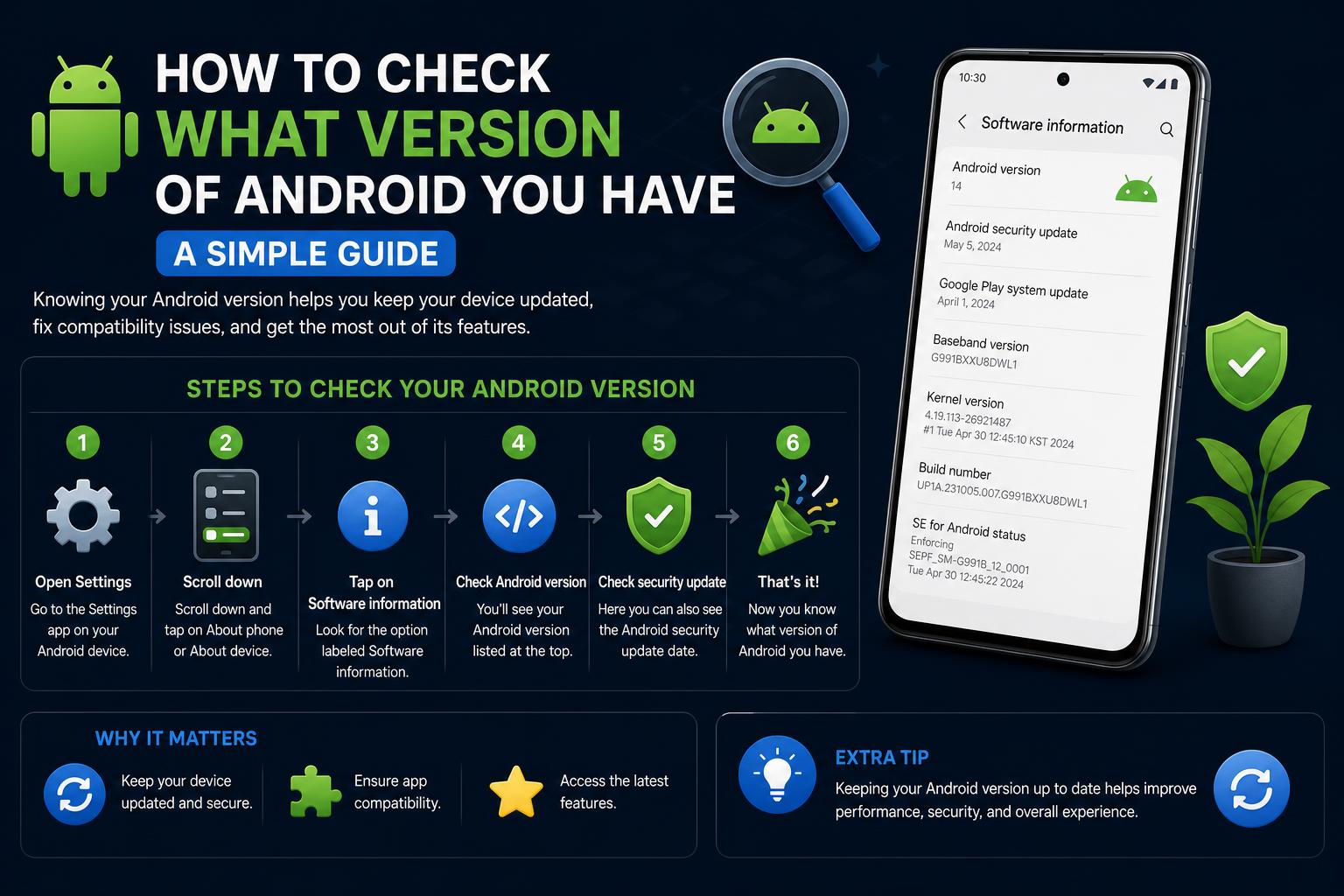
- Open your device’s Settings app (look for the gear icon, usually found on your home screen or in the app drawer).
- Scroll down to “About phone” or “About device.” On tablets, it may say “About tablet.” This section is typically near the bottom of your Settings menu.
- Look for “Android version” or “Software Information.” On most phones, the Android version is shown with a small number or label (such as 12, 13, or 14). You may need to tap “Software Information” to see more details, especially on Samsung devices.
- Optional: Tap the “Android version” for technical details about the build number, security patch level, and more.
If you have trouble finding it, use the search bar at the top of the Settings app and type “Android version”. On some devices—such as those from less common manufacturers—the field may be located in slightly different areas, but a quick search will lead you there.
Where to Find This on Samsung Devices
For those with Samsung Galaxy devices, the steps are almost identical, but you may encounter extra layers of information. Here’s the Samsung method:
- Launch the Settings app.
- Scroll and tap on Software Information.
- The field labeled Android version lists your phone’s current operating system. For extra details, the “Build Number” field is just below; tapping it seven times will reveal Developer Options.
This technique works across the entire Galaxy lineup: whether you’re rocking the latest Galaxy S or Z Flip, older Note devices, or even a midrange A series, this menu structure remains consistent.
Your Android version might also be associated with a codename. For example, Android 12 was known as “S,” Android 11 as “R,” and Android 10 as “Q.” Earlier versions had dessert-themed codenames—Android 9 was “Pie,” Android 8 “Oreo,” and so on—which are sometimes referenced in tech circles and may appear in system information, especially during updates.
Why It Matters: The Power of Your Android Version
Knowing your Android version isn’t just a nerdy detail. It dramatically affects what your device can do. Here’s why staying updated is vital:
- App Compatibility: Major apps (from banking to streaming to messaging) regularly bump their minimum requirements. If your Android version is too old, you might not be able to install or update certain apps.
- New Features: Each Android release introduces new features—anything from improved privacy controls and better system navigation to entirely new interfaces.
- Security Patches: This is perhaps the biggest factor. Every Android version (and monthly patch) brings fixes for the latest discovered vulnerabilities. Not updating leaves your device wide open to hackers and malware.
- Compliance for Work Devices: Many companies require devices to run a certain Android version to ensure compatibility and security, especially for Bring Your Own Device (BYOD) programs.
For IT professionals, staying aware of your fleet’s Android versions is a central security measure. Itarian and similar Mobile Device Management (MDM) tools exist specifically to help IT manage and enforce Android version policies across large organizations.
What Those Version Numbers Mean (With History)
Android’s naming scheme switched a couple of years ago—early versions had both numbers and dessert nicknames, while recent versions stick to numbers only. Here’s a quick reference for the modern era:
| Android Version | Name (up to Android 9) | Year Released |
|---|---|---|
| Android 14 | — | 2024 |
| Android 13 | — | 2022 |
| Android 12 | — | 2021 |
| Android 11 | — | 2020 |
| Android 10 | — | 2019 |
| Android 9 | Pie | 2018 |
| Android 8 | Oreo | 2017 |
| Android 7 | Nougat | 2016 |
Each version brings many behind-the-scenes improvements:
- Security and privacy enhancements (such as granular permissions or improved sandboxing)
- User interface changes (material design shifts, gesture navigation)
- Performance upgrades for better battery life and smoother operation
Updating Your Android Version: How & Why
Once you know which version you’re running, you might want to check if updates are available—especially if your current version is more than a year old.
How to Check for Updates Manually
- Open Settings, then scroll to System (or, on Samsung: Settings > Software Update).
- Tap “System update” or “Software update”. Here, you’ll see your device’s update status.
- Tap “Check for updates”. If an update is available, your phone will prompt you to download and install it. It’s a good idea to be connected to Wi-Fi and have your device charged above 75% before starting.
Some devices—including Google Pixel and certain Samsung models—download updates in the background and activate them on reboot; others may require approval before downloading. Most critical security patches are also installed automatically.
Why Some Devices Don’t Get New Versions
Older phones may not receive the latest Android releases. Hardware limitations and manufacturer support cycles (usually two to three years) are the usual causes. If your device stopped receiving updates, you’ll see “Your device is up to date” even if it’s an old Android version. At that point, it’s worth considering a hardware upgrade for enhanced features and security.
Troubleshooting: When Updates Go Wrong
Not every update goes smoothly. Here’s what to do if you encounter issues:
- Not Enough Space: Updates can be large. Free up storage by deleting unused apps, clearing cache, or moving files to the cloud.
- Update Failed or Interrupted: Let the system try again; it attempts to auto-redownload the update in the next few days. Persistent problems may require a manual download via the manufacturer’s support page.
- Some Devices Miss Security Updates: While core system updates may stop, some phones—especially those running Android One or later Pixel models—may still get Google Play security patches.
How to Interpret System Information: Beyond the Version Number
Besides the Android version, system menus often include:
- Build number
- Security patch level (when the last patch was applied)
- Google Play system update status
- Kernel version (for advanced troubleshooting)
For deeper tech info or troubleshooting, these details can help diagnose specific app issues or resolve support queries.
Advanced tip: Tapping the build number seven times in the Software Information menu will enable Developer Options, unlocking further controls for advanced users or developers.
Online Tools To Check Android Version
Some websites, such as whatismyandroidversion.com, offer a quick method to display your version, model, and resolution. However, these tools may fail if your browser is set to emulate another device or is in desktop mode. For best results, always check via device settings, as it’s the most reliable way.
BYOD, Enterprise Policies, and Security Risks
With more workplaces supporting BYOD (Bring Your Own Device), the diversity of Android versions in one office poses security risks. Here’s what organizations need to know:
- Minimum OS Requirements: Setting a baseline version limits exposure to known vulnerabilities.
- Update Fragmentation: Slow or inconsistent update rollouts increase the window of risk. Newer Android versions help standardize security posture.
- Patch Timelines Vary By Manufacturer: Google Pixel devices tend to receive updates first, with Samsung, OnePlus, and others following their own schedules. Itarian and similar tools help enforce compliance regardless of brand.
Security Best Practices For Any Version
Regardless of your version, certain tips keep you safer:
- Keep your device updated whenever possible—newer OS versions (such as 13 or 14) offer stronger protections.
- Enable automatic updates for your apps and Google Play security patches.
- Leverage Play Protect to scan for harmful apps.
- Avoid rooting your device: While rooting unlocks customization, it weakens built-in security and increases risk.
- Install reputable security apps or mobile security suites to layer additional protection on top of Google’s offerings.
Frequently Asked Questions About Android Version Checking
Why does knowing my Android version matter?
Security fixes are version-specific, and outdated devices are prime targets for malware and exploits. Compatibility with major apps often rides on your OS version too.
What if my phone can’t update anymore?
After a certain period (usually two to three years of support), manufacturers stop rolling out new versions for old devices. At this stage, it might be time to consider a replacement device to maintain security and compatibility standards.
Is it dangerous to use old Android versions?
Absolutely. Running anything older than Android 10 is not recommended due to numerous unpatched vulnerabilities.
Can I downgrade my Android version myself?
It is sometimes possible, but rarely advisable. Downgrading is risky, can cause data loss, and is unsupported by most manufacturers or carriers.
How do I view even more technical info (like Build Number or Kernel Version)?
Head to Settings > About phone > Software information. This area holds extra technical details—which can be handy for advanced troubleshooting or support chats.
Specific Tips and Real-World Scenarios
Sometimes, Android devices don’t show the latest menus or settings due to regional or manufacturer differences. If your phone’s About menu is missing options shown in online tutorials, use the search bar or browse under “System” and look for “Android Version” or “Software Information.” Devices from lesser-known brands may have slightly altered layouts, making it tricky for newcomers who just picked up their first smartphone.
For some, confusion sets in when a phone sells as a newer version but the installed system is old. (This happens with gray-market imports or lesser-known manufacturers.) Double-checking your Android version is a smart move, especially if your menus look different from what’s featured in online reviews or YouTube setup guides.
Useful Related Resources
- Google’s official Android help guide explains these steps in detail.
- Samsung’s dedicated support page is great for their devices.
- WhatIsMyAndroidVersion.com attempts to detect your version via browser (though results may vary).
- For enterprise device management, Itarian offers mobile security solutions and device policy enforcement.
Staying updated and knowing your device’s Android version remains the cornerstone of mobile security, smooth app functionality, and device longevity. The process is straightforward and takes less than a minute, whether you use your system settings, a shortcut search, or a guided support tool from your manufacturer. Either way, a few taps will arm you with the information you need for safer, smoother Android experiences—whether it’s for managing IT systems or simply staying confident with day-to-day smartphone use.