
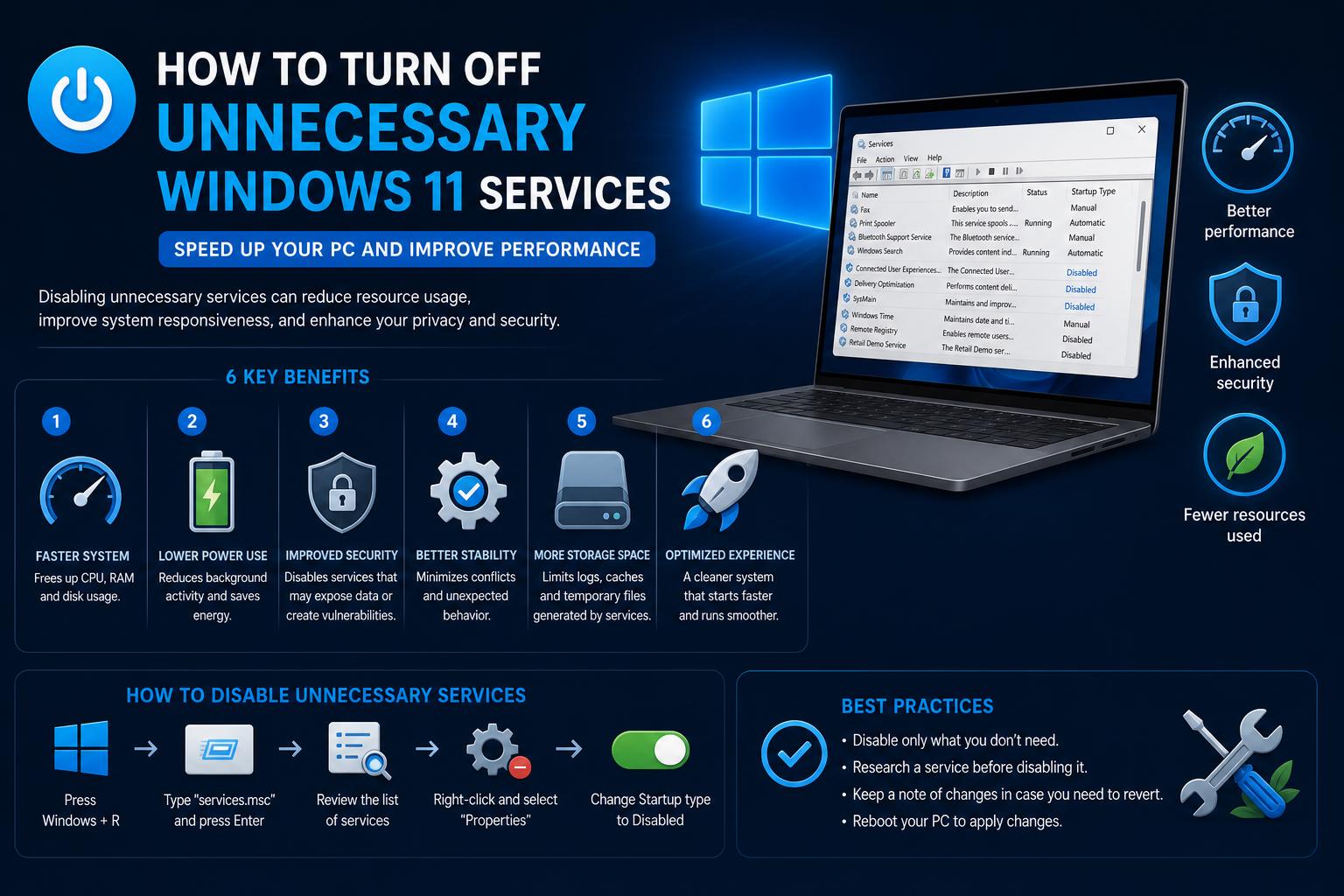
- Many default Windows 11 services operate in the background, consuming resources and sometimes affecting privacy and performance.
- Disabling unnecessary services like SysMain, Windows Search, and telemetry options can result in a more responsive, privacy-conscious system.
- Not all services should be disabled; carefully choosing which ones to turn off avoids breaking essential functionality.
- Optimizing services is particularly beneficial for users who want a dedicated gaming PC or simply a leaner, faster experience.
Windows 11 comes packed with features, but that modern convenience often means dozens of background services constantly running behind the scenes. For many users—whether you’re a gamer, work-from-home pro, or just a regular PC enthusiast—these hidden processes can mean wasted resources, sluggish performance, or even privacy headaches.
If you’ve ever wondered whether your PC could run smoother by trimming the digital fat—and you’re not the only one—this guide walks you through why and how to disable unnecessary Windows 11 services the right way. By the end, you’ll know exactly what’s safe to shut off (and how), so your computer feels less like it’s working against you and more like it’s finally in your control.
Why Does Windows 11 Have So Many Services?
The background services bundled in Windows 11 support both essential and auxiliary functions—everything from keeping your system time accurate to managing updates, security scanning, hardware compatibility, and even sending anonymous usage data to Microsoft. Most are well-intentioned, built for the average user’s convenience, but many keep humming away even if you never use their related features.
The problem: these services don’t always account for how you personally use your PC. Whether you never print, don’t sync files to your phone, or have a lightning-fast SSD that makes some legacy services redundant, your computer still spends memory and processing power supporting them. Over time, that adds up, affecting performance and, sometimes, privacy too.
Which Windows 11 Services Are Considered “Unnecessary”?
Not all services are created equal. Some—like Windows Update or core networking—are almost always required. But others, for many users, are prime candidates for removal or disabling:
- SysMain (Superfetch): Preloads frequently used apps into memory, but is mostly obsolete if your PC has an SSD.
- Windows Search: Constantly indexes files for instant search. Useful for some, but resource-hungry and replaceable with faster third-party tools.
- Connected User Experiences and Telemetry (DiagTrack): Sends analytic data to Microsoft, impacting privacy without reducing functionality when disabled.
- Update Delivery Optimization: Shares updates across devices on your network and even online, often consuming bandwidth without added benefit unless in a multi-device environment.
- Print Spooler: Manages print jobs. Completely unnecessary if you never print—or rarely do and prefer enabling only when needed.
- Mobile Hotspot Service, Windows Error Reporting, and others: These run in the background supporting features rarely used by most people.
What Are the Real-World Benefits of Disabling These Services?
Turning off unnecessary services offers more than just psychological satisfaction. Here are some benefits:
- Improved performance: Less RAM and CPU usage, especially during startup or heavy multitasking. Lower memory/CPU spikes and less background disk activity.
- Increased privacy: Disabling telemetry, error reporting, and data-collection services keeps your activity local and reduces the data Microsoft takes in.
- More predictable system behavior: Less unexplained disk usage, more consistent boot times and app launches.
- Reduced bandwidth consumption: Fewer Windows updates and diagnostic reports uploading or sharing data behind the scenes.
- Lower exposure to threats: Legacy services like Print Spooler have been exploited before. If you don’t need them, they just represent an extra attack surface.
- Longer battery life: Especially on laptops, fewer background services mean lower power consumption.
When Should You Leave a Service Enabled?
Disabling services isn’t a magic wand. If you’re not careful, you could lose important functionality. Always consider:
- Your hardware and typical usage: If your PC needs Bluetooth, network file sharing, or printer support, disabling these services will break those features.
- Critical system components: Leave anything related to updates, security (such as Windows Defender), or networking enabled unless you know exactly what it does.
- App compatibility: Some older or enterprise applications may require certain services that most people don’t use. Check the requirements before disabling things like the Program Compatibility Assistant.
The Most Common and Safe Services to Disable in Windows 11
Let’s break down the main services you might consider disabling, the reasons why, and the precautions to keep in mind.
1. SysMain (Superfetch)
Once important for speed on HDD drives, SysMain (formerly Superfetch) tries to speed up app launches by preloading software into memory based on your habits. But on a modern machine, especially with an SSD and plenty of RAM, this service is redundant. Instead of speeding things up, it can cause excessive RAM usage and disk activity, slowing down your PC, especially right after startup.
Disabling it is simple: press Windows + R, type services.msc, and find SysMain. Right-click it, select Properties, set Startup type to Disabled, and stop the service.
2. Windows Search
The built-in indexing service runs constantly, tracking file changes for fast searches. If you rarely use Windows’ native search features, or prefer faster alternatives like Everything or Listary, disabling Windows Search can save significant resources. Search won’t disappear, but it will take a bit longer without prior indexing.
To disable it, go to services.msc: find Windows Search, stop the process, and set its startup to Disabled.
3. Connected User Experiences and Telemetry (DiagTrack)
This telemetry service collects system data—from diagnostics to usage details—so Microsoft can “improve your experience.” Unless you’re troubleshooting or sending feedback, it limits your privacy and provides little benefit.
Stop it through services.msc (“Connected User Experiences and Telemetry”), and turn off data collection in Settings > Privacy & security > Diagnostics & feedback.
4. Update Delivery Optimization
This service lets your PC download and share Windows update files with other devices on your network or online. Unless you manage several machines at home, it rarely helps and can consume a lot of bandwidth even without updating them.
Disable it in Settings > Windows Update > Advanced options > Delivery Optimization by turning off Allow downloads from other PCs.
5. Print Spooler
Manages print jobs sent to local or networked printers. On systems with no printer or only occasional needs, it’s useless and a potential security risk (it has been targeted by malware before).
To stop it, go to services.msc: find Print Spooler, right-click it, and set it to Disabled. If you need to print in the future, you’ll just need to re-enable it.
6. Windows Mobile Hotspot Service
Lets your PC act as a Wi-Fi access point, sharing its connection with other devices. For most users, especially on laptops without a data plan, it isn’t necessary. Disabling it doesn’t affect those who don’t regularly use tethering.
7. Telemetry, Error Reporting, and Diagnostics
These services collect and send usage and crash data to Microsoft. While they help with bug fixing, they provide little benefit to the user and consume resources. Disabling them doesn’t affect basic PC use or updates.
8. Program Compatibility Assistant
Aims to help older software run on Windows 11, but rarely provides any benefit for up-to-date apps. If you don’t use legacy programs, disabling it is safe.
Other Notable Services You Might Consider Disabling
- Smart card services: For those who never use smart cards or work in environments that rely on that technology.
- Geolocation service: If you never share your location with apps.
- Retail Demo, Printer Device Configuration, PrintNotify, PrintScanBrokerService: Very specific services; generally safe to disable.
- Parental controls, payments, NFC/SE management, Remote Desktop: If you don’t use these features, you can disable them.
- Volume Shadow Copy, Windows Backup: Optional if you use external backup solutions.
- Cloud backup services, cameras, and shared accounts: Consider disabling if they’re not relevant to you.
Disabling Third-Party App Services
Many programs you install launch their own background services—most often for specific features like cloud storage, graphics drivers, or messaging apps. These don’t always show up in the Services window.
To identify them, open msconfig (press Win + R, type msconfig), go to the Services tab, and check Hide all Microsoft services. Then manually disable any you don’t recognize or don’t need. This will reduce your PC’s background load.
Doing It Right: How to Safely Turn Off Services
Disabling services shouldn’t be a guessing game. Here’s a list of recommendations to avoid problems:
- Back up your system (at least a restore point) before making major changes.
- Disable services one at a time. If something stops working, re-enable it and restart.
- Use the Services window (services.msc) for Windows services and msconfig for third-party program services.
- If you’re unsure about a service, search its name on Google or check Microsoft’s official documentation before disabling it.
- Be especially careful with critical system and security services (Windows Defender, networking, updates).
The Clean Boot Technique: Testing for Conflicts
Instead of disabling specific services, sometimes it’s better to identify what’s causing the problem. Performing a clean boot starts Windows with only essential services and drivers, ideal for troubleshooting.
- Open msconfig, go to the Services tab, check Hide all Microsoft services, and disable the rest.
- On the Startup tab, click Open Task Manager and disable all startup programs.
- Restart your PC. Only the minimum services will run, helping you spot conflicts or causes of poor performance.
Important Notes and Potential Risks
Most of the services mentioned can be safely disabled, but there’s a risk of losing important functionality you may need later. Don’t worry—although you can disable and re-enable from the same menu, keep in mind that major Windows updates could re-enable services you had previously stopped, so check your settings again after such updates.
If you manage a computer in a multi-user or work environment, it’s a good idea to check what other users need before making sweeping changes. In business environments, consult your IT department or check Microsoft’s official documentation.
Expert Tips and Useful Alternatives
- For fast file searching: Everything and Listary offer lightning-fast searches.
- For backups: Dedicated solutions like Macrium Reflect or Duplicati replace the built-in services.
- For improved privacy: Tools like O&O ShutUp10++ let you fine-tune telemetry and data collection with greater granularity.
- For drivers and hardware: Only disable services related to components you don’t use, to avoid compatibility issues or glitches.
After cleaning up your services, you’ll notice your PC feels snappier and that you have greater control over what’s running in the background. For most people, it’s a liberating step that transforms Windows 11 from an overloaded system into a lighter one, with better privacy, control, and everyday efficiency.