
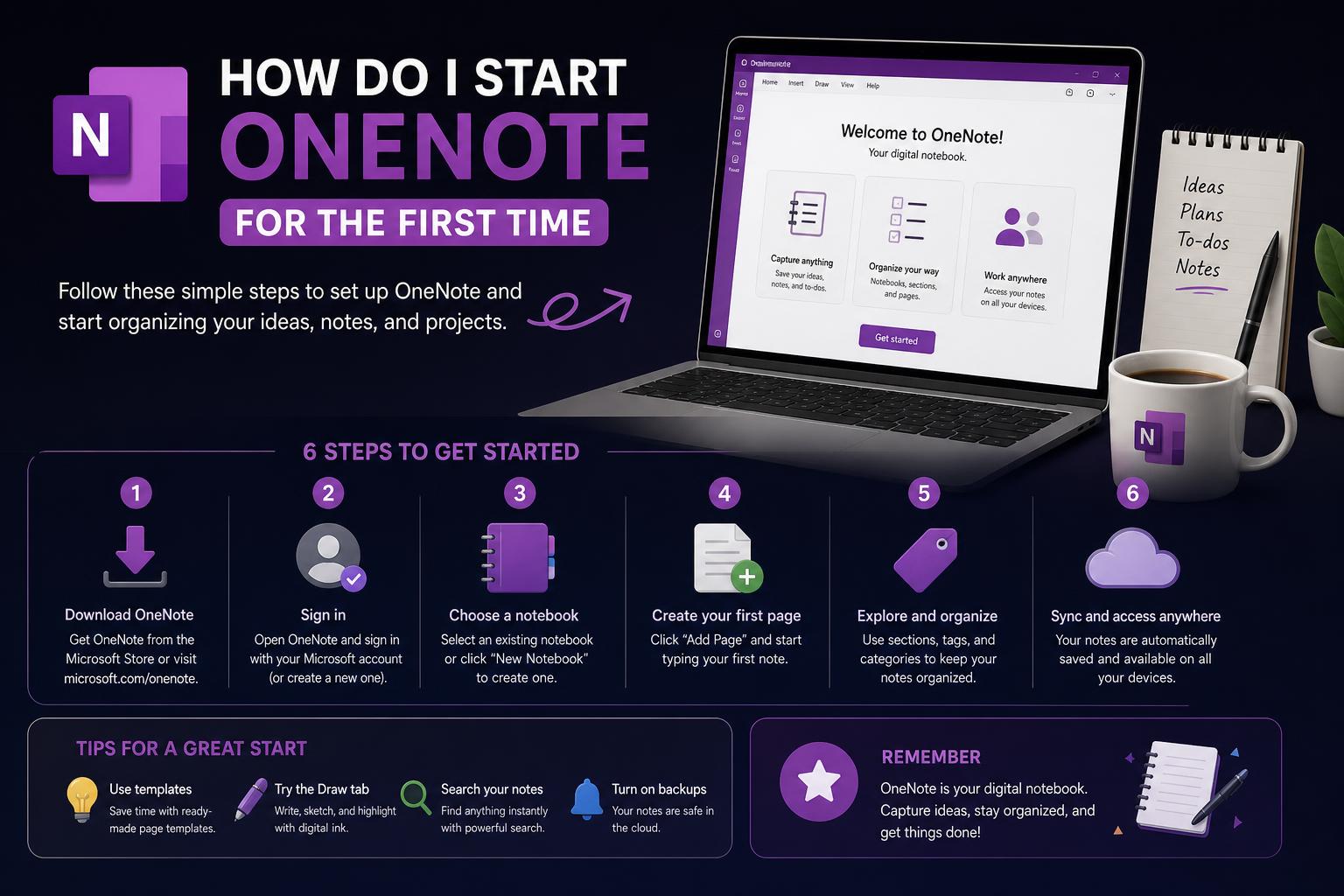
- OneNote provides cross-device consistency, advanced note organization, and powerful integrations with Microsoft tools.
- Customizing settings, using templates, and leveraging quick notes can dramatically boost productivity for beginners.
- Embedding content, sharing notebooks, and utilizing accessibility tools extends OneNote’s utility for academic, professional, and personal use.
If you’re just getting started with Microsoft OneNote and feeling a little overwhelmed, don’t worry—you’re not alone. OneNote is a remarkably versatile tool for organizing notes, ideas, meetings, and more, making it incredibly popular for students, professionals, and anyone seeking to streamline their thoughts. But like any robust platform, that first time can seem daunting. This article will walk you through every essential step, from first launch through advanced note-taking tricks—so you can unlock the full power of OneNote and transform your organizational game.
As you dive in, it helps to know that OneNote now features a modern, consistent interface across Windows, Mac, iOS, and Android. This puts you in control, no matter what device you prefer. We’ll explore key sections, customization options, top features for productivity, and handy tips for using OneNote in meetings, projects, and day-to-day life.
Getting Started: The First Launch Experience in OneNote
To begin, you’ll need to sign in using your Microsoft account. This is usually the same account you use for Outlook, Office applications, or your work or school credentials. Your notes sync securely across devices once you’re logged in, making them available anywhere.
- Open OneNote and, if prompted, enter your Microsoft email address.
- Choose either a personal account or a work/school account—whichever suits your needs.
- Once signed in, you’re greeted by a clean navigation interface on the left, displaying Notebooks, Sections, and Pages.
OneNote organizes everything in three main layers for effortless access. Understanding this organizational structure early sets the foundation for efficient note-taking:
- Notebook: Think of this as the overall binder—perfect for organizing by classes, projects, or clients. Navigate between notebooks by selecting Show Notebooks in the top left. Choose from existing, or use More Notebooks to add others.
- Section: Tabs within each notebook, great for major topics or categories. Create a new one by clicking + Section. You can right-click any section in the navigation pane to rename or reorder.
- Page: Each individual note or set of content lives here. Add pages with + Page.
Swapping between pages or sections requires just a click in the left-hand navigation.
Customizing Your OneNote: Settings and Options
Everyone’s workflow is unique, which is why OneNote offers extensive customization options. Getting your setup just right can make a dramatic difference:
- Click the Settings and More icon (three dots near your profile picture).
- Select Settings > Options to explore:
- Theme (Light, Dark, System default)
- Default font
- Page color and layout
- Sync options
- Go to View > Navigation Panes to control which panels are shown and arrange the workspace to your preferences.
Creating and Formatting Notes: Making Your Content Shine
OneNote makes it easy to keep your notes tidy, well-structured, and visually appealing. With a ribbon interface similar to other Office tools, the following are your power tools for formatting and content management:
- Use the Home tab for text formatting: bold, italic, bullet points, highlights, and headings.
- Check spelling and grammar under Review.
- Add tables, checkboxes, or tags to organize to-dos and key data efficiently.
- Insert images, files, or even audio and video recordings through the Insert tab.
- Select Draw to annotate notes, sketch diagrams, or highlight content using digital ink—especially useful on tablets.
Enriching Notes With Embedded Content
Going beyond text, OneNote can store a wide range of content types:
- Embed entire Excel spreadsheets for live data.
- Add attachments by dragging files directly or using the Insert menu.
- Include meeting details, with participants and times, straight from your Outlook calendar—find Meeting Details under Home or Insert depending on your OneNote version.
- Utilize the OneNote Clipper browser extension to capture web content instantly. Check out OneNote Clipper here.
Using Sections and Pages Effectively
Efficiently structuring notebooks, sections, and pages is key to finding your information quickly. Here’s how you can maximize efficiency:
- Right-click notebooks, sections, or pages to rename them reflectively (e.g., ‘Q1 Project Notes’ or ‘Research Ideas’).
- Drag and drop to reorder sections and pages—find a structure that matches how you think.
- Color code sections for quick visual reference.
- When searching for notes, use the integrated search bar at the top to scan across all notebooks, sections, and pages instantly.
Templates: Fast-Tracking Consistency and Productivity
OneNote includes robust templates to streamline note-taking. These are especially welcome for recurring tasks:
- Choose from templates like project outlines, to-do lists, and meeting agendas, which ensure consistency and professionalism.
- Apply templates to new pages to save setup time and maintain a familiar structure—particularly useful for academic or business documentation.
- Custom templates can be created, letting advanced users develop their own repeated layouts.
Quick Notes: Capturing Ideas on the Fly
Sometimes inspiration strikes when you least expect it. OneNote’s Quick Notes are your digital sticky notes, ready for those spontaneous thoughts:
- When OneNote is open, use the ‘Quick Note’ feature on the View tab to jot something down instantly.
- If the app isn’t running, hit Windows + N to launch a new note window. Type away—OneNote will store these in your QuickNotes section automatically.
- Format quick notes as needed; all standard formatting tools are available in the pop-up window.
Advanced Features: Drawing, History, Collaboration
Once you’ve covered the basics, there’s much more to explore through advanced productivity features:
- Draw Tab: Unleash creativity with sketches and handwritten notes, especially on touch screens.
- History Tab: Review changes, see who modified shared notes, and restore earlier versions. Perfect for group work.
- Review Tab: Check spelling, protect sections with passwords, and translate content using Microsoft Translator—a great tool for collaborative or international teams.
- Collaboration: Share notebooks with colleagues or classmates for real-time collaboration. Grant edit or view-only permissions to control access.
Everything You Can Do with Microsoft Loop: A Detailed Guide
Boosting Efficiency: Web Clipping and Integrated Tools
OneNote’s integration with your browser, other Microsoft apps, and third-party tools brings serious power. Here’s what you shouldn’t miss:
- Install OneNote Clipper to save entire web pages, articles, or bookmarks directly into your notebooks—access everywhere.
- Integrate with Outlook to send meeting notes to a section, keep track of follow-ups, and document action items effortlessly.
- Link Excel documents for dynamic tables and data visualization—one click keeps everything up to date.
Tips for Organizing Large Notebooks and Long-Term Projects
Staying organized is crucial, especially as your collection grows. Use these strategies to keep everything right where you need it:
- Consider multiple notebooks for different life areas: Work, Study, Personal, Projects.
- Archive completed sections or old projects to cut clutter. A simple drag-and-drop to an “Archive” notebook is all it takes.
- Leverage tags to flag urgent tasks, questions, or to-do items—search by tag to see everything at a glance.
Handy Keyboard Shortcuts for Power Users
Speed up your workflow with keyboard shortcuts:
- Ctrl + 1: Add a to-do checkbox.
- Ctrl + Alt + D: Docks OneNote to the desktop for multitasking.
- Ctrl + Shift + M: Open a small note window quickly.
- Windows + N: Launch a new Quick Note, even if OneNote is closed.
Check Microsoft’s official documentation for a complete list of keyboard shortcuts tailored to your device and platform.
Useful Scenarios: From Meetings to Project Management
Let’s see how these features come together in everyday situations:
- Academic Use: Students can create a notebook for each class, divide by chapters using sections, and take lecture-based notes on individual pages.
- Project Management: Teams can share a notebook. Use templates for recurring status meetings, tag items for follow-up, and embed related files or timelines right inside notes.
- Personal Productivity: Use OneNote for journaling, planning trips, tracking workouts, or managing family to-do lists. Templates and quick notes are invaluable for consistency and speed.
Security and Privacy Measures in OneNote
Protecting your data is important. OneNote gives you tools to manage privacy:
- Password-Protect Sections: Add passwords to sensitive notes—great for confidential work or personal content.
- Audit with History: For shared notebooks, see who made changes and when, and roll back if needed.
- Clear Permissions: Regularly review who has access to shared notebooks and adjust as necessary.
Accessibility and Multilingual Support
Microsoft has emphasized accessibility throughout OneNote’s design:
- Supports screen readers, high contrast, and keyboard navigation for those with disabilities.
- Automatic spellchecking and the built-in Immersive Reader help those with visual or learning challenges. Find out more about Microsoft Learning Tools.
- Translate notes into dozens of languages with built-in translation features, fostering collaboration in multilingual teams.
When to Seek Help: Community and Official Support
If you hit a snag, don’t panic. Microsoft’s official support site (Start Using OneNote – Microsoft Support) is your go-to resource, offering up-to-date guides, FAQ, and troubleshooting help. For deeper conversations or tips, visit forums and knowledge bases such as this OneNote beginner’s guide provided by CapTechU. While Reddit discussions exist, remember they often lack the organization and reliability of official or academic sources.
Starting with OneNote for the first time is an exciting step—one that can dramatically improve how you capture, organize, and share information. By adopting best practices from day one, exploring templates, using quick notes, and tweaking your workspace, you set yourself up for not only efficient note-taking but also long-term productivity. Whether you’re taking meeting minutes, working through class assignments, or managing personal projects, OneNote transforms the humble notebook into a powerful digital solution, tailored to the way you work and think. The more you explore OneNote’s layers of features, the more it rewards you with seamless organization and flexibility, making it a must-have in every productivity toolkit.