
- Chrome’s homepage, startup pages, New Tab page, restored session, and profile chooser are separate features.
- An unwanted page may be caused by a saved URL, an extension, a modified shortcut, a policy, or unwanted software.
- Android homepage settings do not necessarily control Chrome’s startup screen or session-restoration behavior.
- Persistent changes may require extension checks, a security scan, or a reset of Chrome’s settings.
Removing a home page from Google Chrome sounds straightforward, but the phrase can refer to several different features. You might want to stop a website from opening when Chrome launches, hide the house-shaped Home button, replace a custom homepage, remove a shortcut from the New Tab page, or prevent an unfamiliar site from returning after every restart. The correct solution depends on which part of Chrome is displaying the unwanted page.
Chrome treats its homepage, startup behavior, New Tab page, restored tabs, and profile selector as separate settings. Changing one of them will not necessarily affect the others, which explains why some attempted fixes appear to do nothing. Before changing anything, identify exactly when the page appears: when the browser starts, when you press Home, when you create a tab, or after Chrome restores an earlier session.
Homepage and startup page are not the same thing
In Chrome, the homepage is the destination opened by the Home button near the address bar. The startup page is what appears when you launch a fresh browser session. These can point to the same address, but they do not have to. Removing a custom homepage will not remove a website configured under the startup settings, and changing startup behavior will not automatically hide the Home button.
The New Tab page is another independent feature. It normally contains the Google search field, frequently visited sites or custom shortcuts, and any theme or background you have selected. If an extension has replaced it, however, it may resemble a conventional homepage. A page that appears whenever you press the plus button is usually related to the New Tab page or an extension rather than the homepage setting.
There is also a session-restoration option that reopens tabs from the previous browsing session. If an unwanted website was left open when Chrome closed, it can return at the next launch even though it is not listed as a fixed startup address. Repeatedly seeing a page does not, by itself, prove that the page has been saved as your homepage.
Remove a website that opens when Chrome starts
On a desktop or laptop, open Chrome, select the three-dot menu in the upper-right corner, and choose Settings. Open the section named On startup. You can also enter chrome://settings/onStartup in the address bar to reach the relevant screen directly.
If the selected option opens one or more specified addresses, Chrome will display a list of those pages. Find the site you no longer want, open the menu beside it, and select Remove. If you want to keep the entry but change its destination, choose the editing option and enter the replacement address. Removing an entry from this list prevents that particular saved website from being launched automatically.
You may instead select the option that launches Chrome with its standard New Tab page. This is the simplest configuration if you want a clean window whenever the browser starts. The New Tab screen can still contain your chosen shortcuts and visual theme, but it will not automatically load an external website. Selecting the standard tab option removes the need to maintain a list of startup URLs.
Another available choice restores the browsing session from where you stopped. This is convenient when you routinely return to the same work, but it can cause an unwanted site to reappear if that tab remained open. Close the troublesome tab before exiting Chrome, or switch to the standard New Tab startup behavior. Session restoration follows your previously open tabs rather than a fixed homepage list.
How to Remove Fake Virus Pop-Ups from Chrome: Complete Guide
If you actually want several trusted sites to open automatically, keep the specific-pages option and remove only the unwanted entry. Chrome lets you add a new address manually or use the pages that are currently open. Be careful with the latter choice because every open tab may be added. Review the complete startup list after using the current-pages feature so that temporary sites are not saved accidentally.
To control the Home button on a computer, open Settings and select Appearance. Locate the setting that displays the Home button. Turning it off removes the house icon from the toolbar entirely. Hiding this button does not delete browsing data and does not alter what Chrome opens at startup.
If you want to retain the button but remove its custom destination, leave it enabled and select the New Tab page as its target. Alternatively, enter a different trusted web address. The Home icon normally appears to the left of the address bar when enabled, although its exact position can vary slightly with interface updates. Choosing the New Tab page replaces the custom homepage without giving up quick access to Home.
If the option is disabled, marked as managed, or immediately changes back, the browser may be controlled by an organization, an extension, or a system policy. This is especially common on school and workplace devices. A managed Chrome installation may prevent the user from choosing or removing the homepage. In that situation, contact the administrator rather than trying to bypass the organization’s policy.
What to do when the unwanted page is a New Tab page
A custom website that appears only after opening a new tab is often being supplied by an extension. Visit chrome://extensions, inspect every installed item, and disable extensions that modify search, tabs, themes, shopping, coupons, or browser navigation. Test a new tab after disabling each suspicious extension, and remove the responsible item once identified.
Do not assume an extension is trustworthy just because its name sounds useful. Look for items you do not remember installing, vague descriptions, unexpected permissions, or extensions added around the time the page changed. Extensions with permission to replace the New Tab page can override the normal Chrome screen even when the homepage and startup settings are correct.
If you merely want to remove one tile from Chrome’s ordinary New Tab page, hover over or open the menu for that shortcut and choose the removal option. You can also customize the page to manage shortcuts, backgrounds, colors, and themes. Deleting a New Tab shortcut removes only that visible tile; it does not uninstall the associated website or erase its browsing history.
Stop the Chrome profile chooser from appearing at launch
Chrome can display a profile-selection window when a new browser session begins. This screen is not a homepage, even though it appears before any website. Open the profile menu in the upper-right area, choose the option for managing Chrome profiles, and find the control that shows the profile chooser on startup. Turning off that control allows Chrome to open the usual profile without presenting the profile screen every time.
Use care before deleting an entire profile. A profile may contain local bookmarks, history, passwords, extensions, and preferences, particularly if it has not been synchronized with a Google account. Disabling the startup selector is safer than deleting a profile when your only goal is to remove the extra launch screen.
Removing a homepage in Chrome for Android
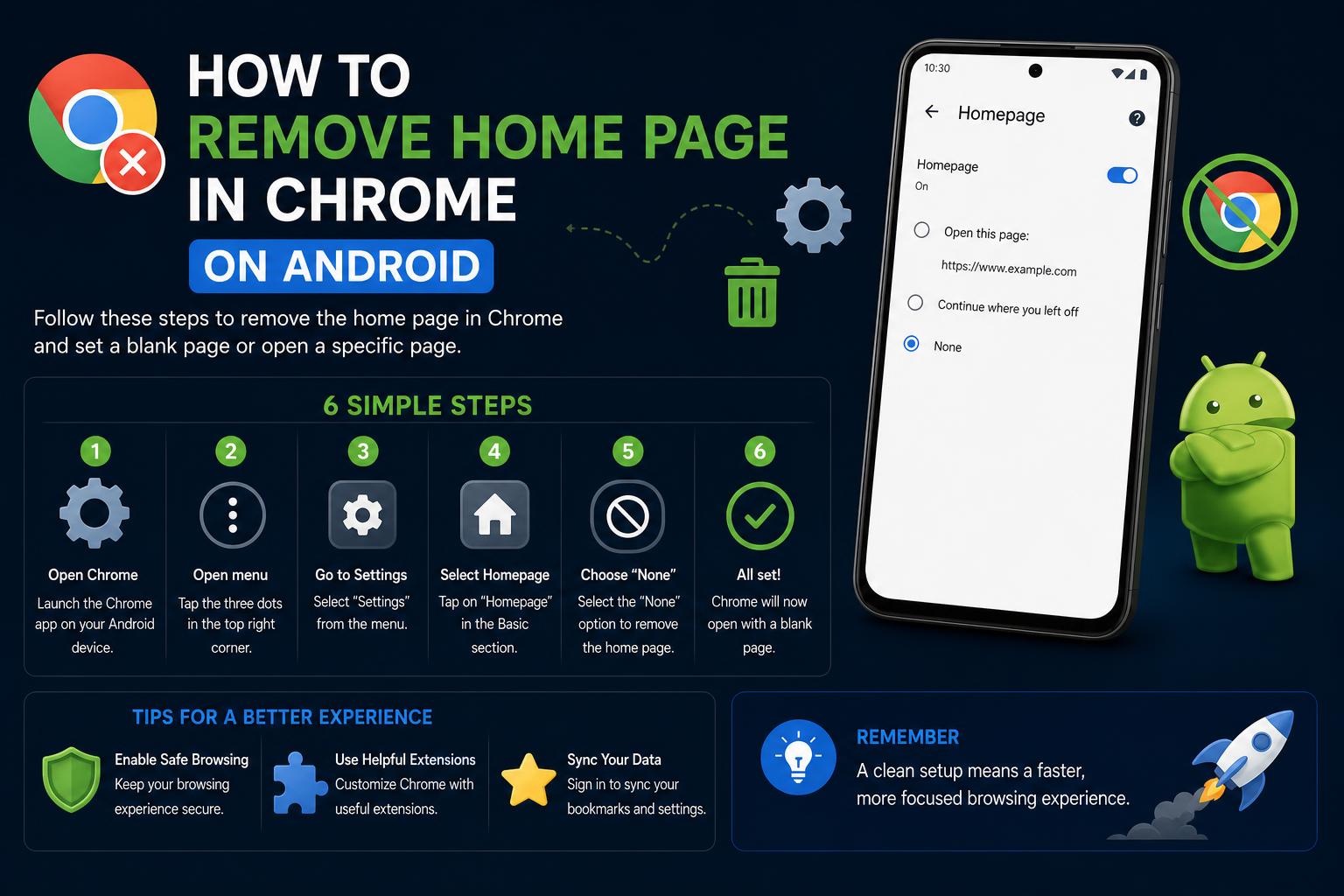
Chrome on Android does not provide the same complete On startup menu found in the desktop version. To change its Home button behavior, open the three-dot menu, enter Settings, and look for Homepage in the advanced settings. From there, you can disable the homepage feature or select a supported destination. This setting controls the Android Home control, but it may not determine whether Chrome resumes a tab or displays a startup surface after an update.
Some Android users find that Chrome begins showing a start screen instead of going directly to the last page they viewed. Disabling Homepage may not solve that behavior because the homepage switch and session startup experience are separate. The behavior can depend on the installed Chrome version, how the application was closed, and interface experiments enabled by Google. Android Chrome does not offer a universal desktop-style setting that guarantees the last tab will always appear immediately at every launch.
Start by updating Chrome through Google Play, closing unwanted tabs, and fully restarting the application. If a strange external site opens rather than Chrome’s normal start surface, review notification permissions, recently installed applications, and any browser-related utilities on the phone. An unknown website that launches persistently is more concerning than Chrome’s standard tab or start screen.
Avoid relying on experimental flags as a permanent fix. Options under chrome://flags can disappear, change names, or make the browser unstable after an update. If you experiment with them, record what you changed and use the reset control if problems develop. Stable settings are generally preferable for long-term browser configuration.
When a homepage keeps returning
If your homepage, startup pages, or search provider changed without your permission, unwanted software may be involved. Begin by checking installed extensions, removing anything unfamiliar, and restarting Chrome. Also inspect recently installed desktop programs, particularly download assistants, search tools, toolbars, free-media utilities, and software obtained from unofficial installers. A setting that repeatedly reappears usually indicates that another component is rewriting it.
On Windows, check the shortcut used to launch Chrome. Right-click it, open its properties, and inspect the Target field. The path should end with the Chrome executable, normally followed by no website address. If a URL appears after the executable path, remove only that appended URL while preserving the quoted program path. A modified shortcut can open a site at every launch even when Chrome’s internal startup list is clean.
You should also check whether Chrome reports that it is managed. Visit chrome://policy to view active browser policies. Legitimate policies are normal on company and school systems, but unexpected policies on a personal computer may have been installed by unwanted software. Do not delete registry or system-policy entries at random. Unknown management rules should be investigated alongside installed applications and security scans.
Run a full scan with the operating system’s trusted security tools and remove detected threats. On Windows, that can include the built-in security application; on other platforms, use reputable software from an official source. Avoid downloading a random “browser cleaner” advertised by the unwanted page itself. Removing the underlying program matters because editing Chrome alone may provide only a temporary fix.
Reset Chrome settings if ordinary changes do not work
Chrome includes a reset option for situations in which settings have become difficult to untangle. On a computer, open Settings, find Reset settings, and choose the option that restores settings to their original defaults. Confirm the request after reading the explanation shown by Chrome. A reset can restore startup behavior, the New Tab page, search preferences, pinned-tab behavior, and other browser defaults while disabling extensions.
A browser reset is not the same as deleting your entire profile. Bookmarks and saved passwords are generally retained, although temporary site data and some preferences can be affected. Extensions may remain installed but disabled, allowing you to re-enable only the ones you trust. Review the reset dialog on your installed version so you know precisely which local settings will change.
After resetting, launch Chrome again and test the exact action that previously triggered the unwanted page. Open a new tab, press Home if the button is visible, close and restart the browser, and check whether the site returns. Re-enable extensions one at a time rather than all at once. Testing each trigger separately reveals whether the cause was startup configuration, session restoration, the homepage, or an extension.
Chromebook users signed in with a work or school account may not be able to choose their homepage or startup pages. An administrator can enforce these values throughout the organization. The interface may identify the browser or device as managed, and some controls may be locked. When an organizational rule defines the page, only the administrator can make a lasting change.
On a personally owned Chromebook, check whether the active profile belongs to an organization before assuming there is malware. If the device is officially managed, contact the school or employer’s support team and explain which page is being forced. Do not powerwash or erase a managed Chromebook merely to change a policy-controlled homepage, since enrollment rules may restore the same configuration.
A quick way to identify the right setting
- If the page appears only after launching Chrome, inspect startup pages, restored tabs, the active shortcut, and profile startup behavior.
- If it appears after selecting the house icon, change the homepage destination or hide the Home button under Appearance.
- If it appears whenever you create a tab, inspect New Tab customization and extensions with permission to replace that page.
- If the setting changes back without permission, examine management policies, installed software, extensions, and device security.
Most unwanted Chrome pages can be removed once the correct feature is identified. The key is to treat the homepage, startup pages, restored sessions, New Tab content, profile chooser, and Android start experience as separate systems. Change the relevant setting first; if the page returns, investigate extensions, policies, shortcuts, and unwanted software before using Chrome’s reset option as a broader repair.