
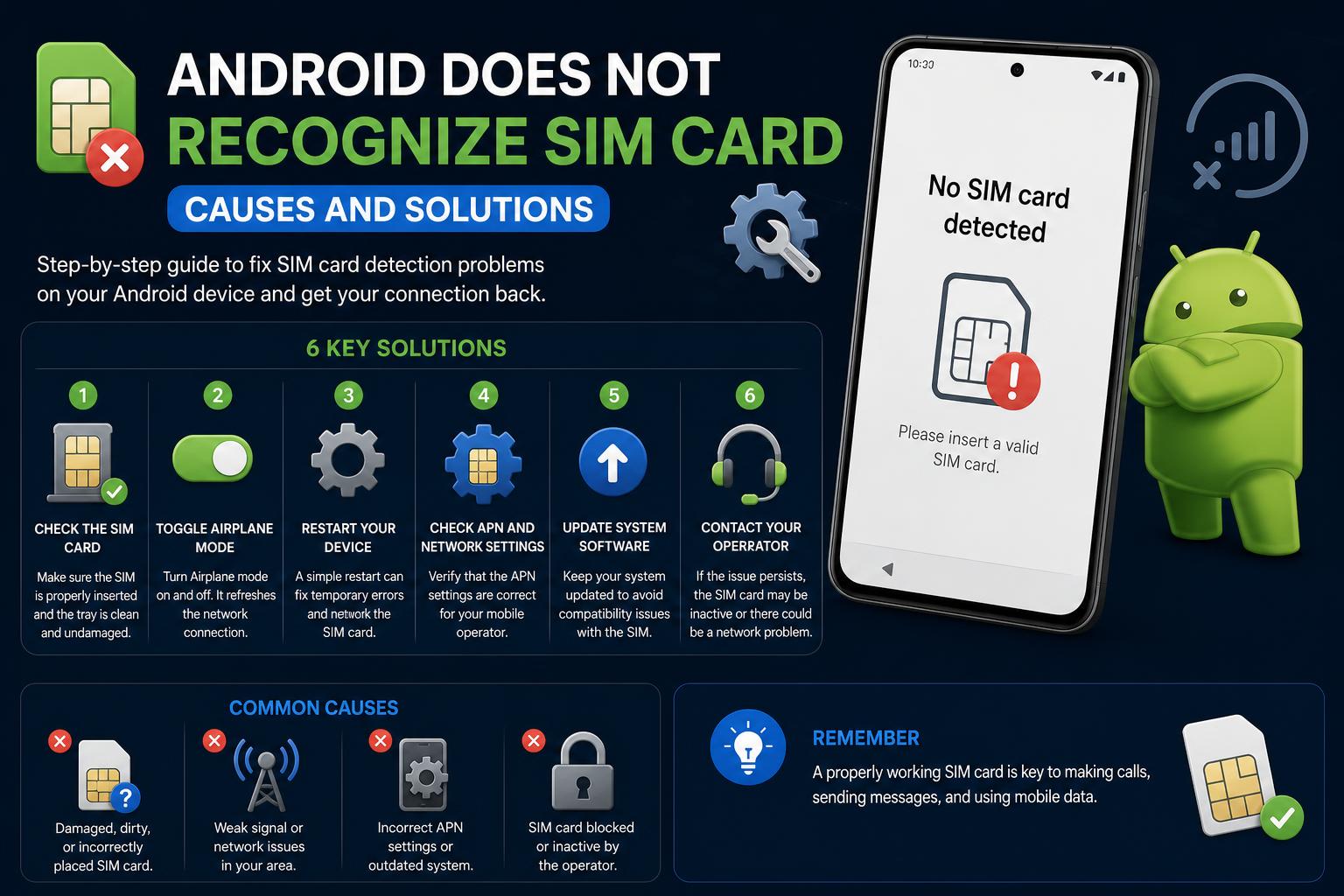
- SIM card errors often result from simple issues like dirt, misalignment, or software problems.
- Step-by-step troubleshooting—restarting, cleaning, and resetting—solves most detection problems.
- Device-specific guidance and careful handling help prevent future SIM-related headaches.
If your Android phone suddenly stops recognizing your SIM card, it can throw your whole day off. Maybe your device shows a gloomy “No SIM card detected” warning or simply refuses to connect to your mobile network. This is a frustrating problem that can pop up due to several causes — from simple dust on the SIM chip, to more involved hardware faults. Whether you rely on your phone for work, family connections, or daily browsing, having it lose cell service is never convenient.
Don’t stress just yet. There’s good news: most SIM card errors on Android devices are fixable, often within minutes, without needing a trip to a repair shop. We’ve sifted through the best advice from device manufacturers, repair experts, and real user stories from top-ranking web articles and forums to guide you through the proven steps to restore your phone’s connection. Let’s walk through what might be wrong with your SIM card setup and, more importantly, how to get your Android reliably back on the network.
Why Your Android Phone Might Not Recognize the SIM Card
Before jumping into solutions, understanding the root cause of the issue is crucial. Here are the most common reasons your device flashes that dreaded “No SIM card” message:
- SIM card not properly inserted: Even a slight misalignment can prevent your phone from detecting the card.
- Dust, dirt, or oxidation: Buildup on the SIM contact can interrupt the connection.
- Network or software settings error: Sometimes incorrect settings or software glitches can confuse your phone.
- Damaged SIM card or SIM tray: Physical imperfections, bent contacts, or even broken trays may cause the problem.
- Device hardware issues: In rare cases, the springs or pins inside the SIM slot may not function properly.
Your phone is trying to tell you something isn’t right—so let’s decode that message and fix it together.
How to Fix the “No SIM Card Detected” Error: Step-by-Step Solutions
The troubleshooting process works best when approached methodically, starting with the simplest possibilities before moving on to more advanced techniques.
1. Restart Your Device
It sounds basic, but restarting your phone resolves a surprising number of glitchy behavior related to SIM detection. Here’s how:
- For most Android devices, press and hold the Power button until the options menu appears. Select Restart.
- If you’re using a Samsung device, press and hold the Power and Volume Down buttons simultaneously, then tap Restart on the popup.
This reboot process can refresh your phone’s software and reset its communication with the SIM card, often correcting temporary outages or detection errors.
2. Turn Off the Phone and Eject the SIM Card
If a simple restart doesn’t help, turn your phone off completely. Remove the SIM card using the eject pin or a small paperclip. Inspect both the SIM card and the tray for visible dirt, dust, scratches, or damage.
- Carefully clean the SIM card by wiping it with a dry microfiber cloth. If any visible dirt or oxidation is present, gently use a cotton swab dabbed in a 50/50 mix of alcohol and water. Ensure the card is fully dry before reinserting.
- Examine the card for physical damage—cracks, severe scratches, or bent metal. If it’s damaged, contact your carrier to get a replacement SIM card.
- Check the SIM tray for warping or broken parts. A damaged tray can prevent solid contact with the phone’s connectors—if this happens, it may need to be repaired or replaced.
When reinserting the SIM card, check the alignment with the tray and use gentle pressure; forcing it can cause further problems. Once everything is in place, turn your device back on and check whether the issue is resolved.
3. Clean the SIM Chip Thoroughly
Sometimes, a deeper cleaning is needed. If you notice that the SIM’s metal contact looks dull or has developed oxidation (especially on silver-colored chips), following these steps can restore connectivity (as recommended in guides from users and specialized forums):
- Remove the SIM card and set it aside.
- Reset network settings in your device’s settings. Instructions for this are detailed in our network settings reset section.
- Optional and with caution: use the slowest setting on a Dremel tool with a wire brush head, or gently rub with dry steel wool to polish the SIM’s metal contact. Be very careful: the cards are delicate, and applying too much force can damage them.
- Once clean and shiny, let it air out (if you used wet agents), and carefully reinstall the SIM in your phone.
- Turn the phone on and check whether service has been restored.
This method has proven effective when other standard procedures failed, especially for certain SIM models more prone to oxidation or contact issues.
4. Check for Hardware Issues in the SIM Slot
Persistent errors are sometimes caused by a bent pin or spring in the SIM tray. Inspecting it may not be easy, but if you’ve recently slid the card in or felt resistance while inserting it, consider this:
- Use a flashlight to look inside the slot and check for misaligned pins or springs.
- If you notice that a pin or spring isn’t “bouncing back” as it should (as some users in forums have pointed out), you can gently lift it with a very fine needle. Proceed with extreme care; damaging the internal components could require professional repair.
After addressing any potential mechanical issues, reinsert the card, turn on the device, and check for service. This simple check can bring an apparently “dead” SIM reader back to life.
5. Reset Network Settings
If cleaning and reinserting the SIM doesn’t work, the problem may lie in network settings or internal conflicts. Resetting these settings is often helpful:
- Go to Settings on your Android.
- Select System (or General management on some Samsung models), and tap Reset options.
- Choose Reset Wi-Fi, mobile, and Bluetooth.
- Confirm and, if prompted, enter your PIN or password.
- Click Reset settings.
Note: Resetting these settings removes saved passwords and paired devices, but does not erase personal data or apps.
6. Update Your Device’s Software
Outdated software can be the cause of a persistent SIM error. Android updates often include bug fixes and compatibility improvements for SIM and network features. To check for updates:
- Open Settings and go to System (or Software update on some models).
- Tap Check for updates and, if one is available, install it.
Restart your device after updating to apply all the changes. For a detailed guide, you can check .
7. Test the SIM Card in Another Device
If you have access to another phone, try inserting your SIM card there. If it works, the problem is likely with your Android device, not the SIM. If it doesn’t work in another phone either, the card is most likely damaged and will need to be replaced by your carrier.
8. Contact Your Carrier or Repair Support
If you’ve followed all the steps and your Android still doesn’t recognize the SIM, it’s time to contact your service provider. They can:
- Test or replace your SIM if it’s faulty.
- Check for issues on your account or in the network registry from their platform.
- Guide you toward hardware repairs if necessary.
We also recommend checking specialized technical resources such as guides for performance and hardware issues in similar situations.
9. Factory Reset (Last Resort)
If nothing works, restoring your device to factory settings may solve the problem. Before doing so, make a full backup, since this process will erase all your data. Only do this after exhausting the other options:
- Open Settings, go to System, and select Reset options.
- Tap Erase all data (factory reset) and follow the instructions.
- Once finished, set up your phone again and test with the SIM.
Troubleshooting by Device Model: Tips for Samsung and Motorola Phones
Some Android manufacturers provide device-specific guidance:
- Samsung Galaxy offers an easy-to-follow official guide for cleaning and reinserting SIM cards on their devices, highlighting the importance of gently cleaning the card and tray before reassembling.
- Certain model-specific quirks (such as on the Motorola G Power 2023) indicate that some models with silver-colored contact chips are more prone to detection failures, especially after drops or exposure to water.
Following manufacturer-specific recommendations can speed up fixing issues that some generic procedures don’t easily catch.
Real-World Fixes and Lesser-Known Tricks
Many solutions don’t come only from technical articles; user experiences also offer less conventional fixes. For example, one user reported that a spring in the SIM tray had bent, preventing recognition, and the SIM worked again immediately as soon as it was adjusted. A thorough inspection and small mechanical adjustments can fix internal faults, but always with great care to avoid further damage.
Some tips, like applying tape over the chip or scraping it excessively, aren’t recommended, since they can void warranties or make the situation worse. The safest approach is to stick to proven cleaning and reinsertion methods.
How to Prevent Future SIM Card Detection Issues
Once you’ve restored the function, some preventive habits can help avoid future hassles:
- Avoid frequent insertion and removal of the SIM card unless necessary.
- Keep your phone dry and avoid exposing it to dust, water, or humidity.
- Handle SIMs and trays gently to prevent bending or scratching contacts.
- Regularly clean your device, especially around SIM ports, when you notice dust or buildup.
Prevention is often easier than cure when it comes to sensitive, delicate components like SIM cards and their trays.
Understanding Android Fastboot Mode: The Complete Guide to Device Recovery, Customization, and Enterprise Control