
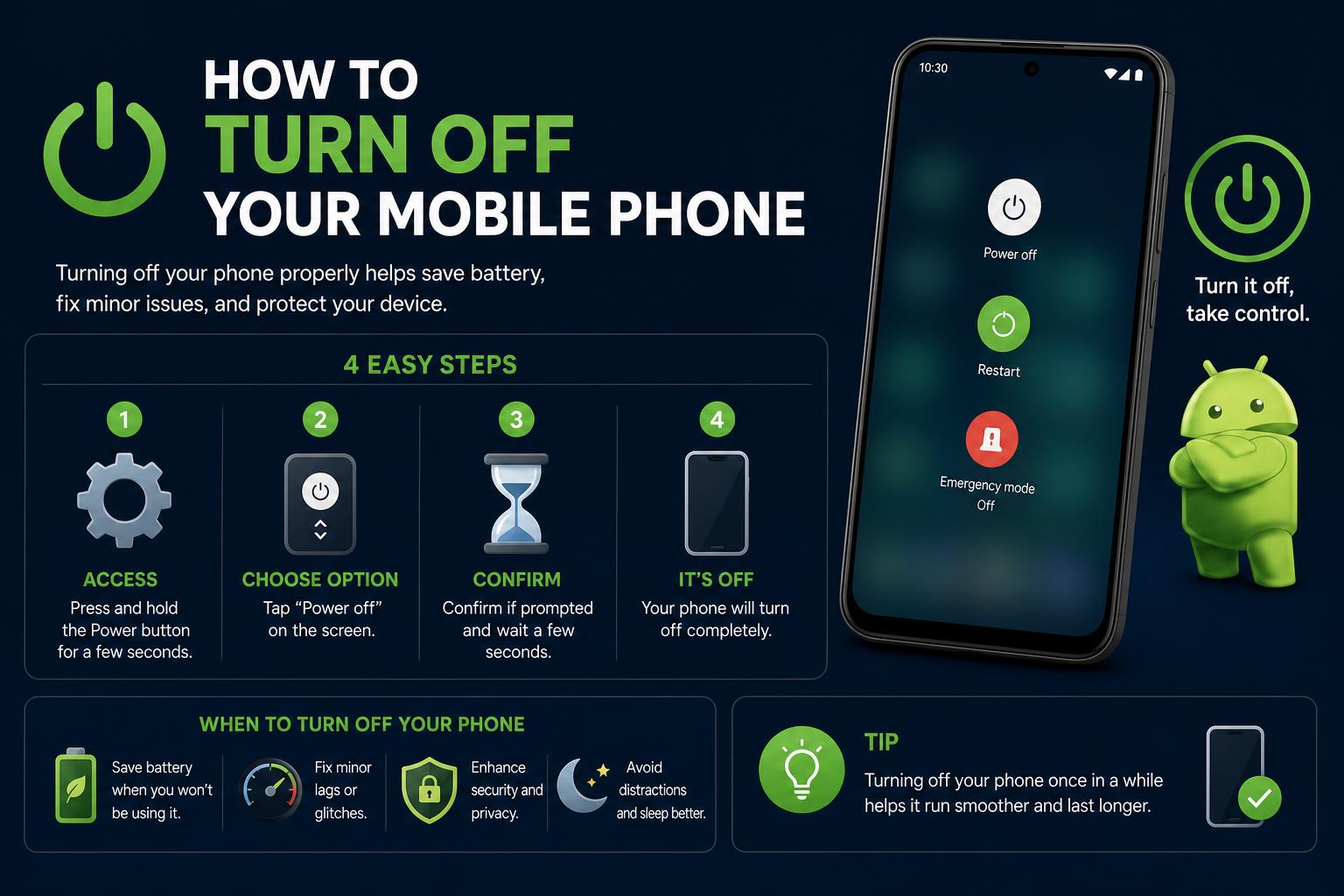
- Understanding the different shutdown methods across major phone brands empowers users to resolve both routine and emergency scenarios with confidence.
- Regularly powering off your phone is essential for sustaining battery health, optimizing device performance, and preventing software and network issues.
- Knowing alternative shutdown routes, like voice assistants or Quick Settings shortcuts, is critical for handling hardware failures or unresponsive screens.
Ever tried turning off your phone, only to get stuck in a maze of new button combinations or ignored by an unresponsive device? If you’ve recently picked up a new smartphone—or your current phone’s side button seems to suddenly love launching a voice assistant instead of powering off—trust me, you’re not alone! What should be a straightforward task is now a puzzle of hardware tricks, software shortcuts, and secret settings, all depending on your phone model and software updates.
In this complete guide, you’ll discover not only how to turn off your mobile (Android or iPhone), but also why regularly powering off is essential for your phone’s health, battery life, and reliable performance. We’ll break down button methods, software solutions, voice assistant tricks, and how to survive if your screen freezes or buttons fail. No jargon, just real-life answers—from quick tips for every major phone brand to dealing with zombie-mode freeze-ups and emergency situations.
Why Shutting Down Your Phone Still Matters
With phones constantly evolving, the simple act of shutting down is more important and complicated than ever. In simpler times, turning off a device just meant holding down a button for a few seconds. Today, shutdown procedures have a much bigger impact: battery health, software glitches, privacy, and troubleshooting all benefit from a full, regular shutdown. Background tasks and cached files can drain the phone’s power, slow down its performance, and even interfere with network connections.
Shutting down isn’t just for saving battery. It restarts core system processes, clears memory, and can resolve weird bugs or network drops you didn’t even know you had.
Basic Power Off Methods: Old vs. New
Let’s get straight to the practical stuff—how to turn off your phone using physical buttons, and why these methods keep changing.
Classic Button Press—the Way It Used to Be
For years, almost all phones—Android or iPhone—allowed you to power off by holding down the power button for a few seconds. The power menu would appear, you’d tap “Power Off,” and in a few seconds the screen would go black. Very simple!
But if you try this on many new phones, especially from the last three years, it might launch Bixby, Google Assistant, or do nothing at all.
Modern Combos (Android & iPhone): Button Combos to Remember
- On many Androids you now have to press and hold Power + Volume Up (sometimes Volume Down) for 2-3 seconds to show the power menu.
- iPhones (X/11/12/13/14/15/16): press and hold the side button + volume together for a few seconds until the slider appears; swipe to power off.
- For older iPhones (iPhone 6, 7, 8, original SE): just press and hold the side button (sometimes called Sleep/Wake or top button) until the slider appears, and swipe.
- Most Xiaomi/POCO devices and some OnePlus phones still let you press and hold the power button, but if not, add Volume Up or Down to the combination.
Brand-Specific Shutdown Methods
Manufacturers love to customize basic features, so here is a breakdown for the major brands.
Samsung (Galaxy Series)
- Recent models changed the “Power” button function to launch Bixby by default.
- To revert to normal power off:
- Go to Settings > Advanced features > Side key
- Change “Press and hold” to “Power off menu” instead of Bixby.
- Quick method: Press and hold Power + Volume Down or Power + Volume Up (varies by device) for about 2-3 seconds to access the power menu.
- Quick Settings shortcut: Swipe down twice from the top, tap the Power icon (top right), and select “Power off”. If it doesn’t appear, edit your shortcuts to add it.
- Use Bixby: “Hi Bixby, turn off my phone.” (Requires prior Bixby setup)
Google Pixel Devices
- By default: Press and hold the power button. But on some models, Google Assistant is assigned by default, so you might need to change this:
- Go to Settings > System > Gestures > Press & hold power button
- Disable the assistant or set it to show the power menu on hold.
- Combos: If nothing works, try Power + Volume Up to access the menu.
- Quick Settings: Swipe down twice, look for the power icon at the bottom—tap to power off.
OnePlus (OxygenOS)
- Newer models: Press and hold Power + Volume Up for the power menu. If you have the three-finger screenshot enabled, button timing matters.
- Check: Settings > Buttons & gestures to customize the side button behavior.
- Not all models have a Quick Settings shortcut; use the button combo instead.
Xiaomi, Redmi, POCO, and MIUI Devices
- Pressing and holding the power button for 3-5 seconds still generally works.
- Otherwise, try Power + Volume Up if nothing appears.
- For MIUI: Swipe down in Quick Settings, look for a power icon in the bottom left corner, or go to Settings > Additional settings.
Motorola
- Physical combos still usually work, or you can use the Accessibility Menu (enable in settings).
- Not all recent models have a Quick Settings shortcut to power off.
Quick Settings, Accessibility, and On-Screen Shortcuts
If the buttons fail or you are looking for touch solutions, these software options are a huge help:
- Swipe down twice from the top to access Quick Settings. Look for a power icon. If it’s not there, edit to add it.
- In Settings: for many Androids, go to Settings > System > Advanced > Reset options or, on Samsung, Settings > Device care > Advanced.
- Accessibility: turn on the Accessibility Menu in Settings. This usually provides a floating on-screen menu with a power off option.
Voice Assistants: Hands-Free Shutdown
Modern voice assistants can do more than send messages: they can also turn off your phone.
- Google Assistant: “Hey Google, turn off my phone” or “Hey Google, power off device.” (Requires initial setup and confirmation)
- Bixby: “Hi Bixby, turn off my phone.” (Make sure Bixby is set up and listening)
- Siri: On iPhones with iOS 15 and later, “Hey Siri, turn off my iPhone” or “Power off my iPhone.” Siri will ask before executing.
What If My Phone is Completely Frozen?
Phones freeze. And when this happens, tapping and swiping don’t work—not even the power menu appears.
The Forced Restart / Hard Reset
- Android: Press and hold Power + Volume Down for 10-15 seconds. The device may restart. To turn it off, when the logo appears, press and hold the power button to access the power menu.
- iPhone 8 and newer: Quickly press and release Volume Up, then Volume Down, and then press and hold the side button until the Apple logo appears. On 7/7 Plus: Press and hold Side + Volume Down. On older models, Home + top button.
If nothing works: Let the battery drain. It’s not ideal for the battery, but it’s an option if your device is completely unresponsive.
What to do if apps prevent shutdown
Certain apps can prevent your device from shutting down due to bugs or persistent background activity. Here is what to try:
- Enter Safe Mode: Press and hold “Power off” in the power menu until the safe mode option appears. This disables third-party apps, allowing the shutdown.
- Force close apps: go to Settings > Apps > [App] > Force stop. Then try to turn off the device again.
Turning Off Phones With Broken or Unresponsive Buttons
If the physical buttons don’t work—meaning, if you can’t press Power or Volume—it’s time to use on-screen or voice routes.
- Quick Settings: For most Androids (Android 14+), swipe down in Quick Settings, find a power or settings icon, tap it and select Power Off.
- Accessibility Menu: Enable in settings, it will give you a floating on-screen button that allows you to shut down without using physical buttons.
- For iPhones: Go to Settings > General > Shut Down; a slider appears to turn off the device.
- Voice Assistants: Use your voice to give the shutdown command.
Special Shutdown Scenarios: Emergency and Security
There are times when you might want to turn off your phone for privacy, security, or in specific emergency situations—but shutting down always has side effects.
| Scenario | Shut Down? | Best Alternative |
|---|---|---|
| Lost in the wilderness | No (keep in airplane mode and battery saver) | Enable airplane mode, battery saver |
| Domestic violence or risk | Maybe (balance safety and tracking) | Remove SIM or battery if possible |
| Natural disaster | No (keep in airplane mode to receive alerts) | Use power saving, airplane mode if you don’t need a signal |
| Medical emergency | No (important to share location) | Disable unnecessary features, stay visible |
| Theft or robbery | Yes (prevent tracking) | Use lockdown mode, remote wipe if recovered |
Remember: When the phone is off, it stops sending GPS signals and communication—a disadvantage if you need to be found.
Why Regularly Shutting Down Still Helps
It turns out that letting your phone “sleep” with a full shutdown is one of the easiest ways to keep it healthy.
Battery Health Benefits
- Shutting down stops constant charging cycles, allowing the battery to “rest.”
- Prevents background software from causing heat or sluggishness.
- Frees up RAM, temporary files, and processing apps, resolving bugs and slowdowns before they worsen.
How Often Should You Shut Down?
Aim to fully power off once a week for best results. Especially if your phone gets slow, the battery drains faster, or you notice connection issues. If you travel and leave the device inactive, turn it off and leave it charging at around 60% for long-term storage (avoid overcharging or deep discharging).
Differences Between Shutting Down and Restarting
- Restart or soft reset: Turns the device off and back on—ideal for applying updates and fixing temporary bugs, but less useful for deep-rooted issues.
- Full shutdown: Completely turns off the device—useful for battery preservation, deep reset, and keeping it in optimal condition.
Think of a restart as a quick nap, and a full shutdown as a restful night’s sleep for your phone.
Weekly Shutdown Routine
- Pick a time each week to turn off your phone for a few hours—for example, during your Sunday rest.
- It allows clearing temporary files, resetting RAM, and giving the system and battery a fresh weekly start.
Phone Replacement: When Shutting Down Is No Longer Enough
If your phone is unresponsive, even after forced restarts and shutdowns, it might be time to consider a new device. Phones that don’t respond to any method—even after trying all techniques—may need to be replaced. Always back up important data before attempting prolonged troubleshooting or replacement.
Some carriers offer affordable plans for new devices; a working phone can get you a cheaper “SIM-only” plan. Always check reliable providers and specialized support for personalized help.
Frequently Asked Questions
Will I lose data if I turn off my phone?
No, shutting down does not delete photos, messages, or apps. It just turns off the device until you turn it back on.
Can I turn off my phone if the screen is broken?
Generally yes. Physical button methods usually work even if the screen is cracked. If not, try voice assistants or on-screen options if you have them.
How long does it take to turn off?
About 5 to 10 seconds on most phones.
What is the fastest method in emergencies?
Pressing and holding Power + one of the volume buttons for 10-15 seconds on most modern devices—a sort of instant hardware shutdown.
What is the difference between locking and turning off?
Locking only turns off the screen (short press on Power). Shutting down stops notifications and calls until you turn it back on.
Power Button Customization and Troubleshooting
- Check if the side or power button can be customized (Samsung: side key settings, Google Pixel: gestures).
- Schedule weekly shutdowns to improve stability and battery health.
- Configure battery optimization for essential apps.
- Test alternative shutdown methods—before an emergency arises.
- Enable accessibility shortcuts if you rely on on-screen shutdown.
- Write down which method works on your exact model to have it handy for emergencies.
Protecting Your Phone’s Power Controls
Accidental damage or wear and tear can cause button failures. It’s advisable to use a case that protects your hardware. For example, Rokform makes durable cases with military-grade drop protection, safeguarding your power button and other controls from impact and dust. If you work in tough environments, ensuring your power functions always work is crucial.
Why Shutting Down Can Seem Harder Than It Should Be
Isn’t it a bit ridiculous that we need multi-page guides for something as simple as “turn it off and on”? You’re not imagining things: brand interfaces, voice assistants, and manufacturer “improvements” often make a basic function confusing, hidden, or inconsistent across models. But now, by mastering a few simple combos, on-screen shortcuts, and alternative tricks, you’re prepared for any phone—frozen, stubborn, or brand new.
Whether your phone is years old or cutting-edge, learning how to shut it down safely and completely—using buttons, voice, or software tools—not only fixes daily annoyances but also extends its lifespan and reliability. Make shutdowns part of your regular routine and prepare for emergencies by learning your device’s specific tricks. After all, a quick power cycle can mean the difference between endless frustration and a smooth, stable experience.