
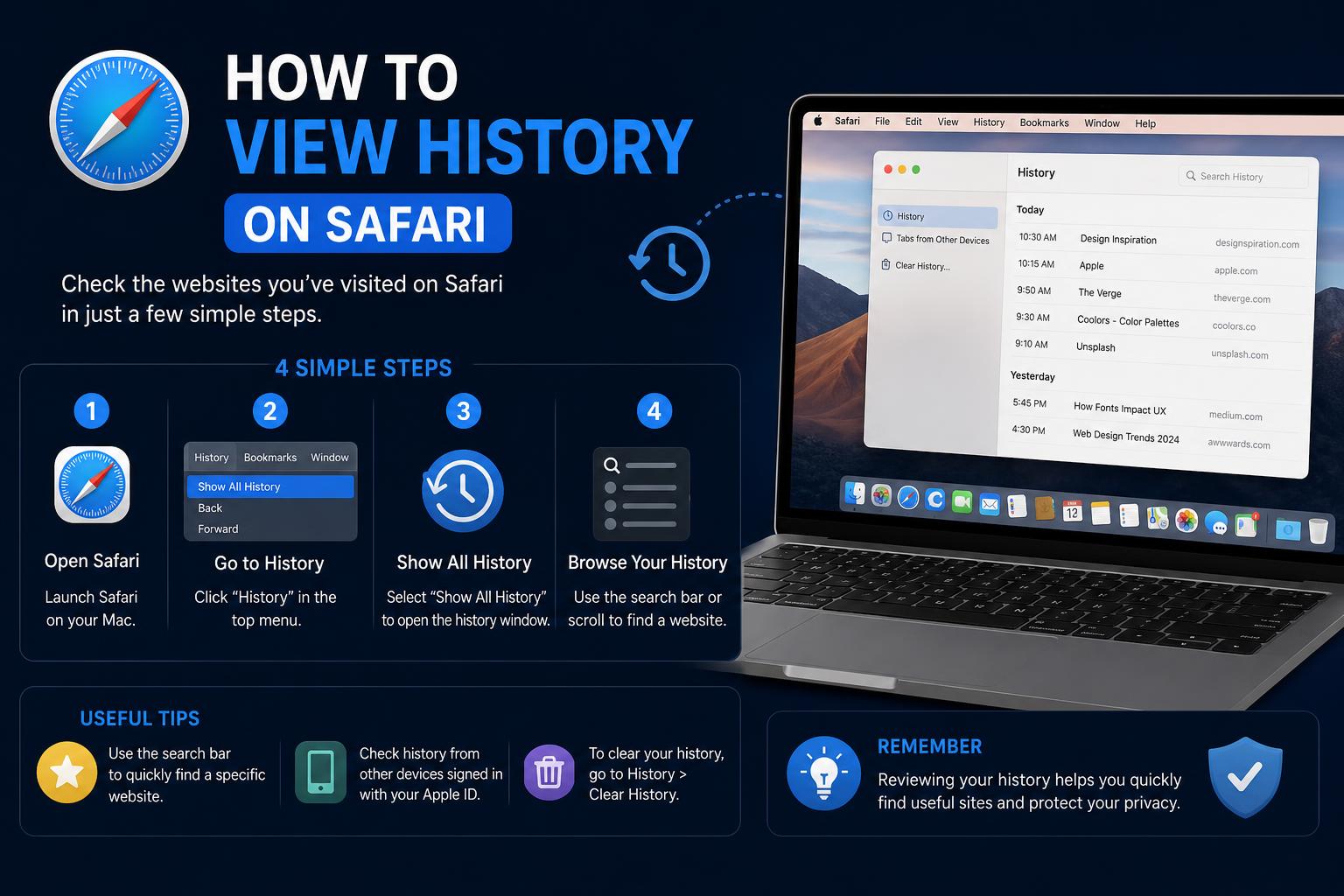
- Safari history syncs across devices with iCloud and offers powerful search tools.
- History visibility is influenced by privacy settings, browser layout, and manual deletions.
- Apple's interface changes, like compact/layout modes, can affect how history is accessed.
If you’ve ever frantically searched for a website you visited days ago using Safari, only to realize you have no clue where to find it, you’re definitely not alone. It’s a common scenario—maybe you needed information from an old page, closed the wrong tab, or just want to trace where your browser journey has taken you. The good news? Safari keeps track of almost everything you browse, but actually finding that digital breadcrumb trail on iPhone, iPad, or Mac can be trickier than expected.
This guide will show you how to view, search, and understand your Safari browsing history like a pro. Whether you’re using a phone, tablet, or desktop, you’ll discover how Safari organizes your history, how to search jets through weeks of past activity, and what to do if part—or all—of your history seems to have mysteriously disappeared.
What is Safari Browsing History and Where Is It Stored?
Each time you visit a new page in Safari, the browser quietly adds that URL to your browsing history. This data is saved locally on your device, allowing both quick reference and deeper research if you need to retrace your steps easily. If you also use iCloud and have Safari syncing enabled, your browsing history can span across all Apple devices associated with the same Apple ID—meaning your iPhone, iPad, and Mac may all show the same list of visited sites.
Why is this helpful? Imagine wanting to revisit an article you read at home while using your work Mac—if you’re signed into the same Apple account, you’ve got access to the same browsing record everywhere. But if iCloud syncing is turned off, or you’re using Private Browsing, history may vary from one device to another.
How to View Safari Browsing History on iPhone and iPad
On Apple’s mobile devices, Safari keeps your browsing history together with your Bookmarks and Reading List. While it’s a powerful feature, the steps to find it are not always obvious, especially after the latest iOS or iPadOS interface updates. Here’s how you can quickly view your previous visits:
Step-by-Step Guide
- Open Safari from your Home Screen, App Library, or Dock.
- Tap the Bookmarks icon. On most iPhones, this is the open book symbol at the bottom of the screen. On iPads, look to the top toolbar.
- If you’re using a more compact Safari layout or a minimized toolbar, you might need to tap the menu icon (three dots or ellipsis) to reveal the Bookmarks option.
- Select the History tab, usually represented by a clock icon. This displays a chronologically ordered list of your recent activity, grouped into sections like “Today,” “Yesterday,” and specific dates for deeper dives.
Want to find a specific page? Up top, you’ll spot a search bar. Type in a site name, keyword, or even just part of a title, and Safari instantly filters your history to match—no more endless scrolling!
Things to Note for iPhone and iPad
- Syncing — If your devices use the same Apple ID and have iCloud enabled, you can view the shared browsing history across all your devices. Otherwise, each device keeps a separate record.
- Private Browsing — Websites visited in this mode will not appear in your history, as Safari doesn’t save them for privacy reasons.
- Layout Matters — Depending on whether Safari is set to Top or Compact Tab Bar layouts, the way you access history may require an extra tap or slightly different navigation.
Accessing Safari History on Mac
When using Safari on a Mac, Apple surfaces history more prominently. The process to find and search your historical browsing activity is straightforward:
- Open Safari from the Dock, Launchpad, or Finder (in Applications).
- Click the History menu at the top of your screen. Instantly, you will see the last handful of sites you visited listed for quick reference.
- For a complete list, select Show All History. This opens a dedicated browser tab, displaying every website you’ve visited, organized by date. Expandable sections allow you to drill down to specific days or weeks.
Power Tip: For keyboard aficionados: simply hit Command (⌘) + Y. This immediately opens the full history tab, letting you scan or search your entire history in a flash.
Much like the mobile version, Spotlight-style search in the top-right corner will help you locate any site or topic in your browsing past. Safari’s macOS history search even digs into page titles and sometimes content, making it easier to uncover older pages you didn’t necessarily bookmark.
How Search Works in Safari History Across All Devices
Searching your history is much faster than browsing manually when you need to find older activity or less obvious sites:
- Use the search field at the top when viewing your history. This is true on iPhone, iPad, and Mac.
- You can enter full or partial domain names (like apple.com), page titles, or keywords you recall from the content.
- Results are displayed instantly and filtered as you type—so finding a months-old recipe, news article, or form is much easier.
Remember: Even if you mostly use one device, Safari will show you history from your other Apple devices, provided iCloud sync is enabled.
Troubleshooting: Why Safari History May Be Missing
It can be worrying if it looks like browsing records have vanished or the history list seems shorter than it should. Here are the main reasons Safari browsing history might not be visible:
| Potential Reason | Details |
|---|---|
| History was cleared manually | Someone used the ‘Clear History’ option either in Safari or device Settings. |
| Private Browsing used | Visits in Private windows are not logged or saved to your history. |
| History retention period | Safari automatically deletes history beyond its set time retention (which can range from one month to a year, adjustable in Settings). |
| iCloud syncing changes | If you disabled iCloud sync or changed Apple IDs, shared history from other devices may no longer appear. |
| Partial history deletion | Safari allows deleting history for the “last hour”, “today”, or larger ranges. Sometimes, only part of the history was cleared. |
If you’re missing browsing data that should be present, check whether Private Browsing is active or if family members cleared history unintentionally. In case the loss coincides with a recent Apple ID or iCloud change, re-enabling Safari in iCloud settings can restore cross-device history, but deleted records are gone for good unless you have backups.
Can Deleted Safari History Be Restored?
Safari does not offer a way to recover deleted history directly from within the browser. However, some solutions exist:
- If your Apple device is set up to back up via iCloud or Finder/iTunes (on Mac or PC), an older backup may still include previous Safari browsing history. Restore the whole device from backup to roll history back, but be aware this will revert all your device data to that point in time.
- Some third-party apps claim to retrieve lost history, but they require advanced permissions and are generally not recommended for privacy-sensitive users.
Syncing Safari History Across Multiple Devices
iCloud integration means your browsing activity can be mirrored across all your Apple devices. Here are steps to check or enable syncing:
- Go to Settings on your iPhone or iPad, tap your name for Apple ID settings, then select iCloud. Ensure Safari is toggled on.
- On Mac, open System Settings (or System Preferences on older macOS), click your Apple ID, and go to iCloud. Toggle Safari syncing to enable.
This allows you to view history from all signed-in devices—perfect for quickly picking up where you left off, no matter which device you’re on.
Understanding Limits: History Retention and Privacy
You may wonder: how long does Safari keep your browsing history? By default, Safari retains history for as long as you set in your preferences—up to a year, or just a month, depending on your settings. This applies individually to each device unless iCloud sync is active, in which case devices mirror each other’s records.
If privacy is your top concern, using Private Browsing ensures nothing from that session ends up in your logged history. On Mac, simply select File > New Private Window. On iPhone or iPad, tap the Tabs button, hit Private, then open a new Private Tab.
Furthermore, you can purge your browsing history either entirely or for chosen periods (last hour, day, or all time) via the History menu or Settings, both on desktop and mobile.
User Feedback and Community Tips
Across forums such as Apple Community and Reddit, many users echo similar challenges—especially after layout changes in new Safari updates. Switching between Top and Compact Tab Bar layouts can affect visibility and access to the history panel on mobile devices. Some suggest customizing tab bar preferences in Settings or Safari’s in-app controls for improved navigation. Others recommend bookmarking especially critical pages right away to avoid future headaches.
Tips to Optimize Safari History Usage
- Bookmark important or frequently visited pages to avoid scrolling through long history lists.
- Regularly clear outdated or sensitive records if privacy or speed is a top priority.
- Use the search function whenever you need to pinpoint a visit quickly; it’s far more efficient than scrolling manually.
Frequently Asked Questions
Does Safari History Take Up Device Storage?
Yes, but only a minimal amount. Browsing history consumes a tiny portion of local storage. If you clear it periodically, you might free up some space, but don’t expect dramatic storage gains.
Can I Access Safari History Without Opening Safari?
No, history must be accessed from within Safari—whether through the browser’s controls or, on Mac, sometimes via system-level search tools (like Spotlight), but always by referencing Safari’s tracked data. Some device management software or parental controls may also reference Safari browsing data, but for most users, opening the Safari app is the primary way to view history.
Knowing how to view, search, and manage your Safari browsing history empowers you to recover lost tabs, reference important information, and maintain privacy when needed. With syncing features, search tools, and clear history functions, Safari offers flexibility for every type of user. Whether you’re retracing research, managing digital clutter, or simply curious about your own browsing patterns, Safari’s history tools provide the clarity and accessibility you need—across all Apple devices, in just a few taps or clicks.