
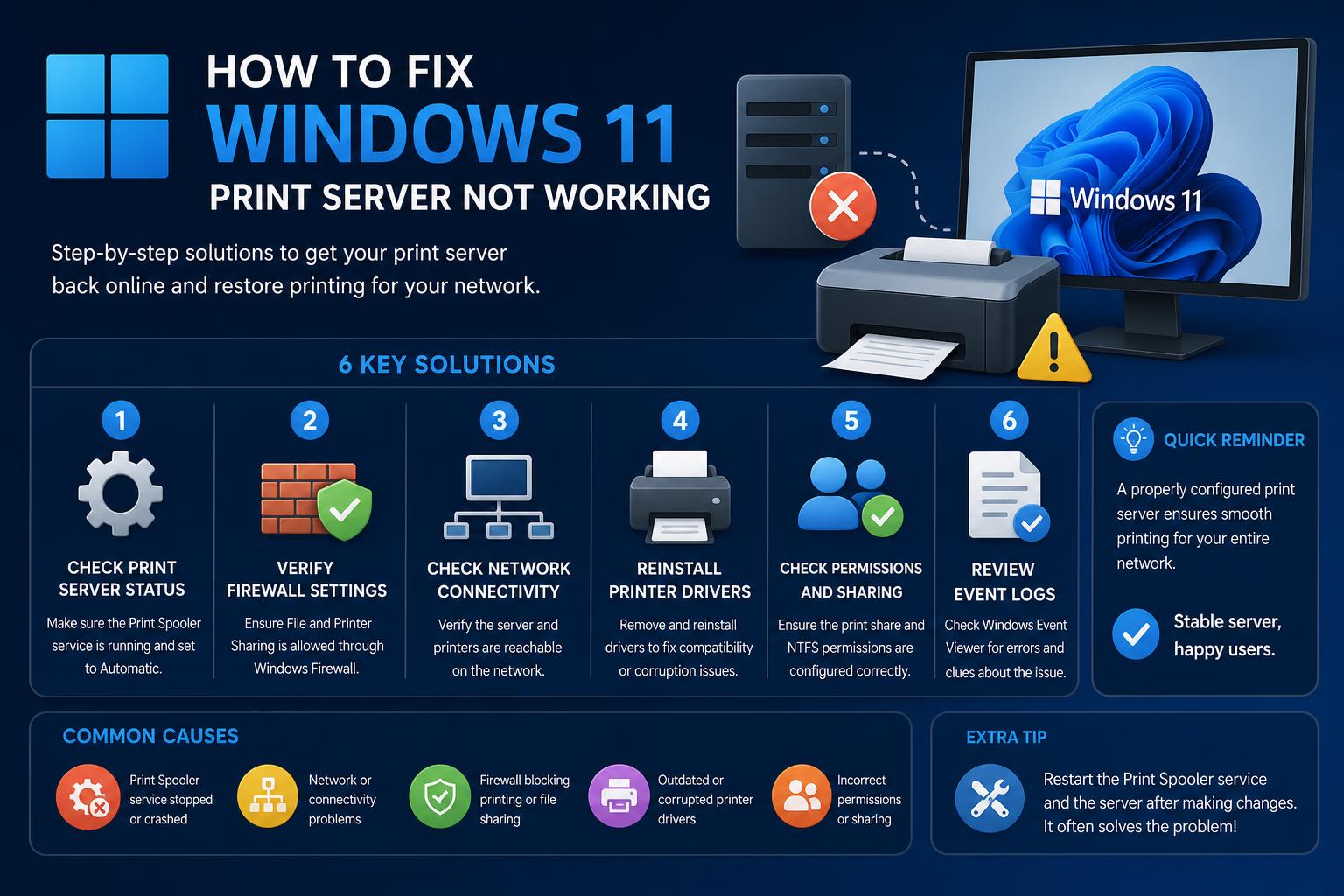
- Windows 11 introduced new security and protocol changes impacting print servers
- Print Management Console is crucial for monitoring, but may need manual installation
- Registry tweaks and updated drivers can resolve persistent network printer problems
- Consistent updates and permission management reduce print server downtime
Dealing with a print server that refuses to cooperate on Windows 11 can be maddening, especially when every workaround seems to hit a wall. Whether you’re a system admin running a complex network or a home user struggling to get shared printers up and running, print server hiccups can delay important work and cause plenty of frustration. With Windows 11 introducing new architectures and security settings, some previously straightforward solutions now require a bit more finesse, and what worked on Windows 10 may be less predictable on the latest platform.
This guide distills all the latest, most comprehensive advice from reputable sources, including official Microsoft documentation and hands-on technical forums, into one clear, detailed reference. We’ll break down common symptoms, root causes, quick checks, advanced technical solutions, and even those often-overlooked settings that can throw a wrench into network printing on Windows 11. By blending structured troubleshooting with a practical, conversational approach, our aim is to get your print environment smooth and reliable again, whether you’re a seasoned IT pro or a curious tech enthusiast.
Understanding Windows 11 Print Server Architectures
Before diving into solutions, it pays off to understand how print servers and networking operate in Windows 11, as well as what’s changed from prior OS versions. A print server acts as the central hub for managing how print jobs are shared and queued across clients. In Windows 11, Microsoft has emphasized increased security and stricter control over drivers, as well as changes in remote protocol handling. If you’re upgrading from Windows 10 or troubleshooting in a mixed-OS network, expect to encounter differences especially around permissions, protocol defaults, and driver management.
Key architectural areas to be aware of:
- Print Spooler Service: Orchestrates all print jobs on your system and is often a focal point for both errors and security updates.
- Driver Management: Windows 11 increases scrutiny on unsigned drivers and restricts what standard users can install.
- Protocols & Security: Protocol handling, especially for remote connections (RPC), has been tweaked, in part due to vulnerabilities like PrintNightmare.
- Feature Packaging: Many print management tools are now optional features, needing manual install on some editions.
Common Symptoms When Windows 11 Print Server Is Not Working
Issues range from small to catastrophic, but most share similar symptoms:
- Networked printers don’t appear or are unreachable for Windows 11 clients.
- Connecting to a shared printer throws errors like ‘specified network name no longer available.’
- Group Policy Objects (GPO) fail to auto-deploy printers to clients.
- Print queue stalls, jobs get stuck, or printers suddenly vanish from the network list.
Knowing which symptom you’re facing helps zero in on relevant solutions without wasting time on unrelated fixes.
Initial Quick Checks
Start with these fundamental steps to rule out basic—or overlooked—issues:
- Verify Physical Printer State: Ensure the device is powered, has paper, no errors or warning LEDs, and is connected to the network or host PC.
- Test Local Printing: Print a test page directly from the server or host system. If this fails, the issue is likely local, not network-related.
- Check Default Printer: Confirm the correct default printer is selected under Settings → Devices → Printers & scanners.
- Check Network Access: Confirm the print server is visible on the network. Try to access server shared folders or copy a file as a general connectivity test.
- Disk Space: Both the server and client should have ample disk space for spooling print jobs, especially important for larger documents.
Troubleshooting Printer Issues on Windows 11 Not Related to Network
Sometimes, it’s a local problem on the server or client that masquerades as a network or GPO error. Start with the following checks:
- Driver Corruption: Try printing from Notepad. If success here but not in other apps, the issue is likely with application integration, not the print system.
- Driver Updates: Microsoft supports driver downloads and updates via Windows Update or from your hardware vendor.
- Remove and Re-add Printer: Sometimes removing the problematic printer and setting it up again solves phantom port or unknown driver issues.
Network Printing and Print Server Connectivity Troubles
When network-based printers are unresponsive or missing, more advanced checks are needed.
1. Network Basics
- Connectivity: Double-check that both the print server and clients are on the same subnet or network segment.
- User Permissions: Confirm user rights and sharing permissions are appropriately set on the server for shared printer objects.
- SMB Protocols: Newer Windows 11 updates may disable legacy SMB v1, which older print servers might rely on for discovery—enable only if absolutely necessary due to security concerns.
2. Print Management Console: Your Centralized Tool
Windows Print Management lets admins oversee drivers, forms, ports, and printer shares in one spot. If you’re running Windows 11 Pro or Enterprise, you should have access to this feature (not present on Home editions).
- Opening Print Management:
- Use the Run window (Ctrl + R) and enter printmanagement.msc.
- Windows Search: Type the full printmanagement.msc filename.
- Command Line: Run from Command Prompt or PowerShell.
- MMC: Launch via ‘Add or Remove Snap-ins’ in Microsoft Management Console, and add Print Management as a snap-in for detailed control.
In Print Management, you can monitor print queues, pause/resume jobs, change permissions, review driver status, and edit port settings. This is the go-to dashboard for troubleshooting server-level and printer-specific issues, including group policy printer deployments.
Advanced Troubleshooting for Windows 11 Print Server Issues
More stubborn problems often relate to Windows updates, recent security hardening, or protocol-level changes:
1. RPC over Named Pipes Registry Tweak
A real-world solution recently crowd-sourced from sysadmin forums involves tweaking the registry to force RPC communication between Windows 11 clients and print servers to use Named Pipes instead of default fallbacks. This is especially effective if:
- Windows 11 clients can only add printers by IP, not via share name.
- Group Policy fails to populate printers automatically.
- You’re using Windows Server 2012R2 (or similar) as the print server, and Windows 10 clients work fine.
How to apply the fix: Run the following from an administrative Command Prompt on the client device:
reg add "HKEY_LOCAL_MACHINE\SOFTWARE\Policies\Microsoft\Windows NT\Printers\RPC" /v RpcUseNamedPipeProtocol /t REG_DWORD /d 1 /f
This can be rolled out broadly with a GPO (Group Policy Object) using Computer Configuration targeting affected devices.
Be sure to manually add the shared printer in Windows Control Panel by browsing to \\servername\printername and selecting it. In some cases, after a reboot and policy refresh, printers will also populate automatically via GPO.
For official documentation on RPC tweaking and ports, check the Microsoft RPC for Print guide.
2. Permissions and Security Model Changes
Following critical vulnerabilities like ‘PrintNightmare’, Microsoft limited the ability of non-admin users to install printer drivers via shared print servers for security reasons. Typical symptoms include being unable to install a network printer without admin credentials or failing to install unsigned drivers. To solve:
- Update both print server and client devices to the latest cumulative security updates.
- Ensure printer drivers are signed or pre-staged by an administrator on the server.
- Consult the KB5005010 advisory for deeper technical references.
3. Restarting Core Services and Cleaning Print Jobs
The print spooler service can become stuck, especially if print jobs are corrupted or the service has crashed after a failed update.
- Open the Services app (services.msc from Run menu), scroll to Print Spooler, right-click, and restart.
- To clear stuck jobs, delete contents of %windir%\System32\spool\PRINTERS after stopping the Print Spooler, then restart the service.
Doing this can resolve persistent issues in the print queue or in the general operation of the spooler.
Solving Driver Issues and Adding Missing Drivers
If Windows fails to list your printer or you have a downloadable driver package:
- Download the latest driver from the manufacturer’s website or Windows Update catalog.
- Extract the driver archive into an empty folder.
- If needed, use a command-line switch to extract files (e.g.,
-dfor some executables). - Open Settings → Devices → Printers & scanners → Print server properties (on the right).
- Check the Drivers tab. Use Add to launch the Add Printer Driver Wizard, select your architecture, and point to the driver files.
Refer to official Microsoft guidance for installing and updating device drivers if you run into snags.
Special Cases: USB & Smart Card Printing and Network Discovery
Emerging issues include USB-connected receipt or label printers, especially after installing recent security patches, and smart card (PIV)-authenticated printers failing after certain updates.
- These situations are often resolved through Known Issue Rollback (KIR) patches or by waiting for future updates. Check the official advisories for KB5005408 (smart cards) and KB5003690/KB5004760/KB5004945 (USB).
If physical printers are not detected despite network visibility, verify that the network location configuration is correct, and if working in larger organizations using Active Directory, ensure that the printer location and hierarchy are updated after moves, mergers, or IP reassignments.
What to Do When the Print Management Console Won’t Open?
The Print Management Console may not launch or appear in Windows 11 Home if it is not installed as an optional feature.
- In Settings, go to System → Optional features. If missing, click on View features, search for ‘print management’ and install it.
- Verify that
printmanagement.mscexists in%windir%\Windows\System32. If not, try a manual reinstallation or copy it from a PC with the same Windows version. - If errors persist, use the DISM tool:
dism /Online /get-capabilityinfo /capabilityname:Print.Management.Console~~~~0.0.1.0(to check status)dism /Online /add-Capability /CapabilityName:Print.Management.Console~~~~0.0.1.0(to install) - Still unresolved? Try uninstalling, restarting, and reinstalling. Alternatively, use
sfc /scannowfrom the command prompt with administrator privileges to repair system files.
It is important to verify your Windows edition and that recent updates have completed successfully; update failures or malware can corrupt system files and affect print management.
Best Practices and Additional Tips for Reliable Printing on Windows 11
- Standardize drivers across the network to reduce compatibility issues.
- Pre-approve or pre-install drivers on print servers to avoid permission requests or security prompts.
- Keep the system updated and regularly review the Microsoft documentation on known issues.
- Configure artificial subnets (Active Directory Sites and Services) to facilitate detection in large networks.
- In small networks, keep printer sharing simple, ensuring that users can easily find the necessary devices.
In persistent or complex cases where documentation and forums do not offer a solution, Microsoft recommends collecting structured data and following the instructions for Support Scripts (TSS), which streamlines escalation and technical support.
Getting your print server to run smoothly on Windows 11 can seem like a daunting task, but with up-to-date knowledge, registry tweaks, good driver management practices, and a solid network strategy, you can resolve connectivity and compatibility issues. The key is understanding the evolution of security measures and leveraging the available tools to ensure reliable printing across the network, no matter how many devices or critical printers operate in your environment.