
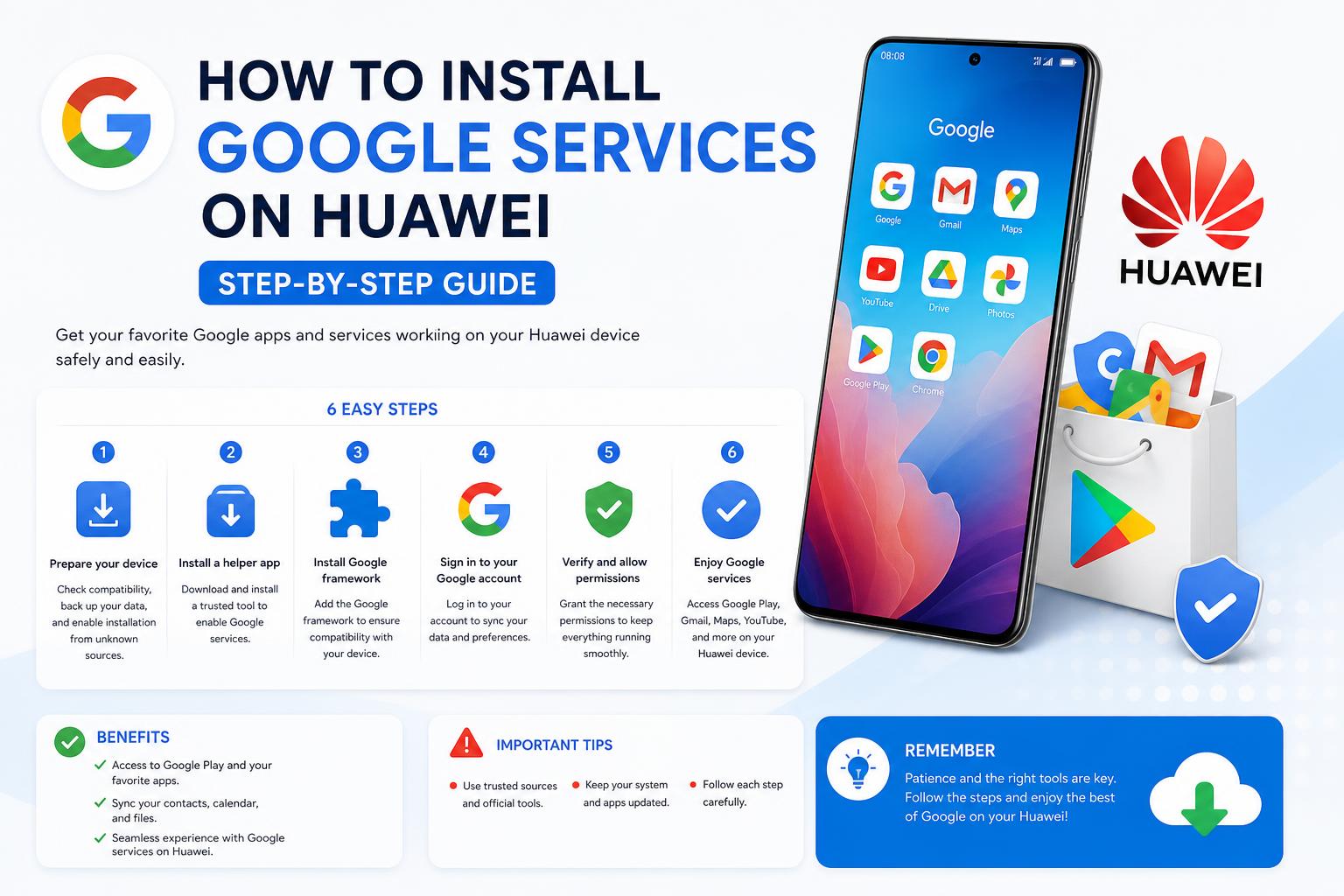
- Modern solutions like microG, GBox, and Aurora Store enable robust Google app access on Huawei.
- Most tools require no rooting, and work best on EMUI 14 and HarmonyOS 4 or above.
- Direct Google service installation via AppGallery is now possible for select HarmonyOS models.
For years, Huawei users have faced a significant challenge: accessing Google services and apps on their devices due to the global trade bans placed on the company. This absence has left many new Huawei phone and tablet owners wondering if it’s actually possible to use essential tools like Gmail, YouTube, Maps, or Play Store—and what’s required to get them running smoothly.
Over time, a growing set of workarounds, tools, and even official pathways have emerged to overcome these hurdles. Thanks to community-driven open source projects, continued pressure from international users, and updates to Huawei’s own software ecosystem, the options today are far greater, more seamless, and—while not always perfect—often deliver an experience remarkably close to a typical Android device.
Understanding the Huawei and Google Situation in 2025
Ever since May 2019, when US government restrictions came into effect, new Huawei devices lost native support for Google Mobile Services (GMS). Models released before this date could continue receiving security patches and some app updates but newer devices shipped without core Google apps and the Play Store. This situation stemmed from Huawei’s addition to the US Entity List, making it illegal for American companies to license products or services—like GMS—to Huawei.
As a result: phones like the Huawei Mate 30, P40, and all subsequent models initially lacked access to Google’s key ecosystem, pushing Huawei to launch and expand their own AppGallery and invest in HarmonyOS, their proprietary operating system. However, demand for Google apps remained high among global users, who rely on Gmail, Google Drive, and YouTube for everyday tasks and communication.
Today’s Solutions: What Works and What Doesn’t?
The landscape has changed dramatically in 2024-2025: There are now several legitimate methods for running Google apps on a Huawei device. Most methods require neither root access nor complicated system changes. Instead, they leverage official and community apps, alternate app stores, and—most recently—even direct installation options for the latest HarmonyOS builds.
- microG (Service and Companion): An open-source project that provides an alternative set of Google Mobile Services, allowing most apps to function almost natively—even supporting Google account logins and basic push notifications. Learn more about APKPure, a useful resource for APK management.
- GBox: A virtualized sandbox accessible in Huawei’s AppGallery, GBox emulates the Play Store environment inside a separate container, giving access to essential Google apps in a near-native state.
- Aurora Store: An open-source front-end for the Play Store, enabling direct download of official Play Store APKs. While it’s not an identical Play Store replacement, it provides access to almost all core Android apps.
- Direct GMS installation via AppGallery (for certain models): On the latest HarmonyOS (v4+) and select EMUI 14 builds, users can find Google services plugins directly in AppGallery, streamlining the process for supported devices.
It’s crucial to recognize that not every Google service or payment app is supported: For example, Google Wallet (formerly Pay) and Android Auto may not work due to deeper security requirements, and some banking apps may fail SafetyNet or device certification checks. But for the vast majority of productivity, social, and media apps, these solutions offer a high degree of compatibility.
Requirements and Compatibility: What Your Huawei Needs
The most successful and stable approaches generally require your device to be updated to at least EMUI 14 or HarmonyOS 4. These system versions include new API layers and architectural changes that improve compatibility with both microG and GBox, as well as enable more seamless integration with Google’s frameworks.
If you have an older device or are running an outdated version of EMUI or HarmonyOS:
- Check your device version: Go to Settings > System & updates > System information. If you’re on EMUI 13 or below, look for updates. Beta updates may also be available for recent devices.
- If your device is not eligible for the latest systems, you may try manual APK installations, but your mileage may vary, and some advanced features (like account sync and notifications) may not function properly.
Installing Google Apps with microG: The Modern, Legal, and Safe Route
microG is an open-source initiative supported by European institutions (notably in Germany) that replicates the services libraries required by most Google-reliant apps. It is trusted, audited, and designed not to breach Google’s legal terms nor compromise device security. It’s the primary way to unlock Google account sign-in, Play Services emulation, and push notification functionality for many apps—essential for a “Google feel.”
Step-by-Step: Installing microG and Setting up Google Account Access
- Open the AppGallery on your Huawei and search for microG Service. Install it.
- If prompted, also install microG Companion. Some phones download both automatically, while others require manual installation via AppGallery or the microG official site.
- After installation, go to Settings > Apps > microG Services and grant all requested permissions.
- Repeat for microG Companion, particularly location access: Set “Allow only while using the app.”
- Open microG Services and find the gear icon in the top right corner.
- Tap Google account and choose Add Account to enter your Google credentials.
That’s it! Your Google account will now be linked to system services, allowing official apps like Gmail, Maps, Drive, Calendar, and even Photos to sync and function like on any certified Android phone.
Using GBox: The Easiest Way to Emulate the Play Store
GBox offers another popular approach, especially for users who want the Play Store’s look and feel. GBox is available directly from AppGallery and emulates a “virtual phone” environment; it hosts Google’s core apps (Gmail, YouTube, Drive, etc.) and gives direct access to the Play Store catalog.
How GBox Works and Installing Apps with It
- Install GBox from AppGallery (simply search “GBox” and tap Install).
- When you open GBox, you’ll see a simplified Android-style home screen with icons for Google’s main apps.
- Tap any icon (e.g., Gmail or YouTube) and follow the on-screen login prompts. This step links your Google account inside GBox.
- Within GBox, you can search the Play Store catalog, download, and update Google apps as needed.
All activity takes place inside GBox’s sandboxed environment, so the Play Store isn’t installed directly on your phone system-wide. However, for everyday uses (mail, navigation, streaming, file access), GBox offers a seamless and low-hassle experience.
Alternative: Aurora Store for Downloading Google Apps Directly
Aurora Store is another trusted solution for accessing apps from the Google Play Store catalog. It’s an open-source front-end that connects to official Google servers and delivers genuine APKs—no unofficial mirrors or questionable sources.
How to Install and Set up Aurora Store
- Download the latest Aurora Store APK (for example, version 4.4.4) from its official website.
- Install it. If this is your first APK, enable “Install from unknown sources” in your device’s security settings.
- During setup, select Session Installer mode. Then, enable unverified links for play.google.com and market.android.com to allow full app access.
- Grant any additional permissions as requested.
Aurora Store is ideal for tech-savvy users who prefer a leaner setup, don’t want virtual environments, and don’t mind side-loading apps. It is important to note that apps with deeper GMS integration (such as those needing push notifications or Maps) may require microG be installed as well.
Direct GMS Installation via AppGallery: The Latest Breakthrough
Since HarmonyOS 4.0.0.162 and certain EMUI 14 releases, Huawei now allows direct installation of Google Mobile Services plugins from AppGallery. This eliminates much of the hassle of previous side-loading and third-party tools.
- Open AppGallery on your device.
- Search for “GMS” or “Google”: You’ll see various Google-related plugins and add-ons appear. Install the components you need (often labeled as “Google Services Framework” or similar).
- Add your Google account via device settings or from the installed plugin itself.
- Grant all requested notifications and permissions.
This method feels far more official and secure compared to sideloading, and is being gradually deployed to more Huawei models over time (beginning with Mate 60 Pro, Mate X5, and anticipated rollout to other lines).
What Works Well – And Where There Are Still Gaps
In real-world usage, most mainstream Google services work near perfectly using the methods above:
- Gmail: Full email access, account syncing, notifications, and attachments all work as expected.
- Google Maps: Accurate navigation, saved places, and live GPS using the official app.
- YouTube: Watch, subscribe, and manage playlists with seamless streaming.
- Drive, Photos, Translate, Docs, Sheets: Cloud backup, real-time collaboration, and AI-powered tools run normally.
- Most social media (Facebook, WhatsApp, Instagram, TikTok, Twitter/X), shopping (Amazon, Uber Eats, Glovo, Idealista, Zara), and music/video apps (Spotify, YouTube Music, Netflix, HBO, Prime Video) also install and operate normally.
What doesn’t work (yet) or may be inconsistent:
- Google Wallet / Pay: Mobile payments are not supported due to lack of official SafetyNet / device certification.
- Android Auto: Compatibility depends on device and car brand, with mixed results.
- Certain banking apps and games: Those that require device certification, advanced anti-tampering, or special DRM may not function normally.
The Role of AppGallery and Huawei Mobile Services (HMS)
Huawei has poured huge resources into its own AppGallery and HMS alternatives, ensuring basic app coverage for productivity, messaging, and even many gaming titles. Many major apps (including Microsoft Office, Netflix, and Amazon) have AppGallery versions, so always check for direct installation before resorting to third-party stores.
If you see “Install” next to a Google/HMS powered app in AppGallery, it’s an official build and safe to use. If it says “Get” or redirects you, it may try to open a virtualized container or link to third-party APKs—these versions may be less stable or lack updates, so proceed with caution.
Troubleshooting and Practical Tips
While installation is generally straightforward, occasional glitches are possible:
- If Google apps won’t sign in or sync, clear the cache and data for the affected app and for microG Services or GBox. Restart your phone and try again.
- If permissions are missing, revisit device settings for Location, Storage, and Contacts. These are critical for Gmail, Maps, Photos, and Drive to function fully.
- If Google account isn’t showing, try re-adding it via microG or check that the latest Services Framework Proxy is installed.
- If a new Huawei or Google update breaks compatibility, wait for the next release of microG, GBox, or Aurora Store—these communities are active and typically adapt quickly.
- Consider pausing automatic system updates if you rely heavily on Google services, so you can monitor online forums for user feedback following any major patch release.
Keeping Your Apps Secure and Up to Date
Security is crucial when dealing with unofficial workarounds. Always source apps and plugins directly from official or reputable sources:
- AppGallery for GBox, microG Service, and plugin downloads.
- for Services Framework Proxy updates.
- for the Aurora APK.
Set strong, unique passwords for your Google and Huawei accounts, and enable two-factor authentication (2FA) wherever possible. Regularly review app permissions, especially for sensitive apps that access email, navigation, or personal data.
Alternative Methods: Manual APK Installation, Chat Partner, and Googlefier
Not all users have access to the latest systems or AppGallery integrations. For older devices or unsupported deployments, alternative and more manual solutions exist:
- Manual APK sideloading: Download and install core Google Play Services APKs through trusted sites like ; be sure to match versions exactly to your device’s hardware. This approach is riskier, offers less automation, and may lack notification and account features.
- Chat Partner: A legacy third-party app that simulates a Google services environment, mostly used when direct installation fails or in older system versions. Use with caution and only download from highly reputable sites.
- Googlefier: Another community tool that automates some of the fiddly steps—especially useful for complex or stubborn setups.
Use any of these tools as a last resort, as they’re not as secure or reliable as microG, GBox, or direct AppGallery solutions.
Optimizing and Personalizing Your Google Experience
Once installed, most Google apps can be customized to your needs.
- Adjust privacy/personal info sharing in Google Account settings.
- Tweak app notifications (especially for Gmail and Calendar) to avoid missing urgent alerts.
- Review backup options: You may use Google Photos for pictures, Google Drive for files, and activate or deactivate automatic sync.
- Download extra apps via Play Store (in GBox or Aurora Store) to further expand device capabilities.
A Comprehensive Guide to the Best Alternatives to Android: Exploring the Mobile OS Landscape Beyond Google
Alternatives to Google Services: Do You Really Need Them?
For users concerned about privacy, security, or wanting to explore beyond Google, plenty of alternatives now exist, often pre-installed on Huawei’s latest models:
- Email: Microsoft Outlook, Yahoo Mail, ProtonMail.
- Cloud Storage: Dropbox, OneDrive, Huawei Drive/WPS Office.
- Browsing: Mozilla Firefox, Opera, Microsoft Edge.
- Maps: HERE WeGo, Petal Maps (Huawei’s own mapping solution).
AppGallery’s catalog is growing rapidly, and many global developers now publish direct AppGallery builds, too. Always search there first for your most-used apps before heading into sideloading territory.
Security Tips for Installing and Using Google Services on Huawei
Install only from official or well-known community sources (like microG.org or AuroraOSS); never use random download links.
- Always keep your device and critical apps updated with the latest security patches.
- Use unique, strong passwords and enable two-factor authentication where possible.
- Review permissions after every major update—both for Google apps and system-level settings.
- When testing new methods, back up your device’s important data beforehand—especially before process steps that could affect accounts or system files.
If you encounter unusual issues—unexpected logouts, suspicious notifications, or sudden inoperability—visit Huawei’s support pages or leading English-language forums for up-to-date solutions.
What You Lose (and Gain) with These Solutions
The upsides:
- No root or risky system modifications are needed for most current solutions.
- microG is transparent, well-documented, and has received support from reputable European sources.
- GBox brings a near-Google Play experience with minimal learning curve.
- Aurora Store provides native APKs for maximum app coverage.
The limitations:
- No direct Play Store system integration on EMUI/HarmonyOS: all access is via alternative methods/app containers.
- Push notifications, payment, and some background services may be limited or inconsistent (especially with high-security apps).
- Periodic breakage after major Huawei or Google updates; community fixes usually arrive soon after.
- No official support from Google or Huawei for these methods; this is all “at your own risk” territory.
Device Checks, Maintenance, and Staying Up to Date
After installation, always verify:
- Your Google account appears under Settings > Accounts.
- All permissions (especially Location, Storage, Contacts) are enabled for Gmail, Maps, Drive, and Photos.
- If using Aurora Store, “Session Installer” should be active and links for play.google.com/market.android.com unverified.
- In GBox, know that returning to the Play Store home is done by tapping the upper left arrow.
Before applying system updates, check user reports online (leading tech sites or forums) to see if key Google functionality remains intact. Delaying updates for a few days can prevent sudden surprises and service breakage.
The Ongoing Future: HarmonyOS NEXT and New Integrations
With continual development of HarmonyOS NEXT and more integration with global app stores, the experience on new Huawei devices is rapidly closing the gap with mainstream Android—increasingly, these workarounds will become simpler, better documented, and perhaps even officially supported.
Huawei remains focused on privacy, security, and providing robust alternatives to Google’s ecosystem, while actively responding to global demand for compatibility. The result is a unique blend: users enjoy the openness and innovation of the Huawei platform without giving up the tools, productivity, and creativity that Google’s ecosystem provides.
Whether you’re a dedicated Huawei fan, a technical explorer, or simply want everything working out-of-the-box, the options described above allow you to enjoy most of what Android has to offer—with surprisingly few trade-offs. With careful setup, patience for occasional bugs, and a bit of know-how, it’s entirely possible to wield a Huawei device that feels nearly indistinguishable from any Google-certified Android smartphone.
How to download Apps from the Play Store without a Google Account: The Ultimate Guide