
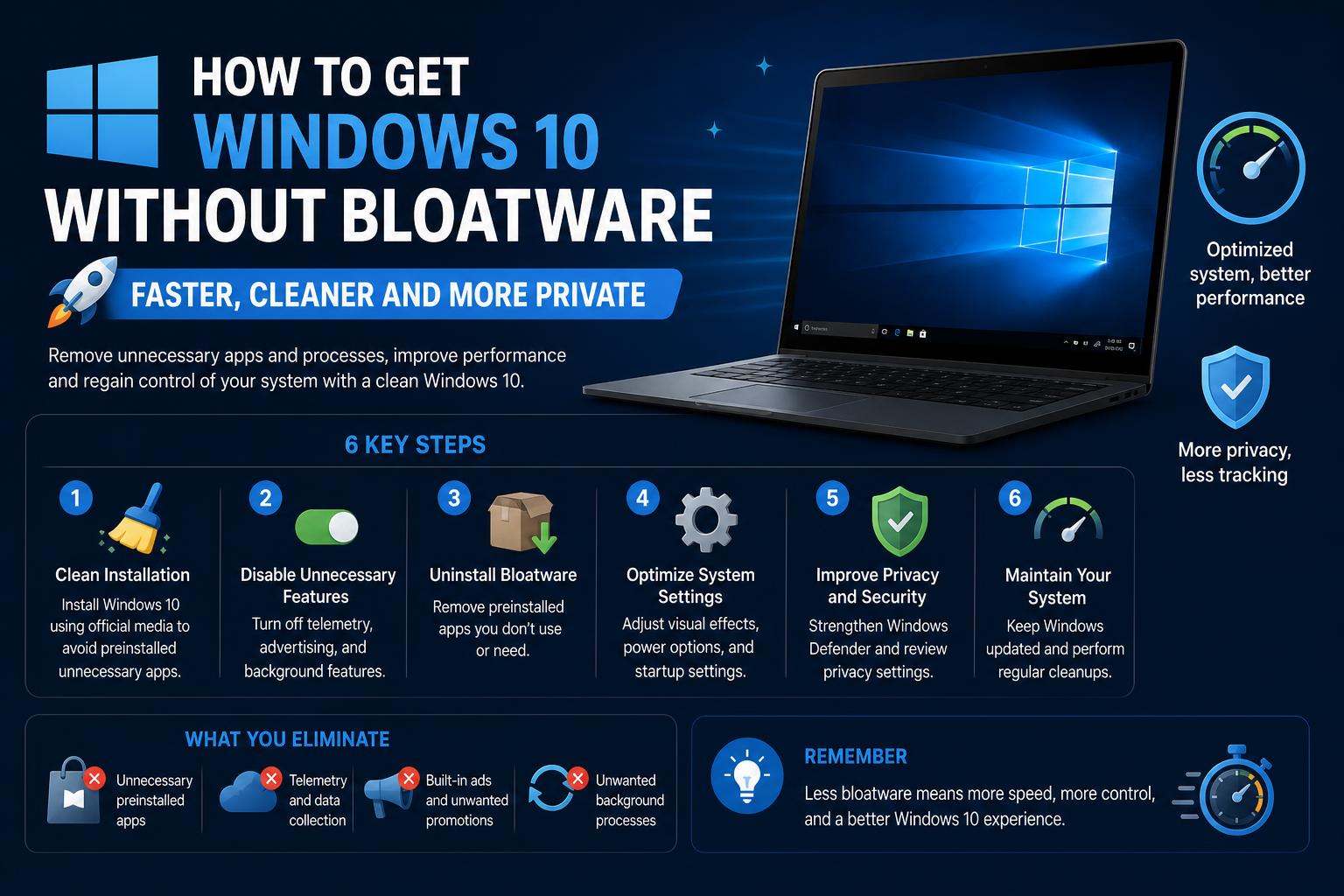
- Windows 10 'N' and Enterprise LTSC editions offer minimal pre-installed apps compared to standard versions
- Custom ISO creation tools like NTLite and scripts can strip unwanted software for a cleaner system
- 'Decrapifier' scripts and community tips help tailor installations to gaming, development, or business needs
For anyone who’s ever set up a brand-new Windows 10 PC, it’s no secret that Microsoft packs in quite a bit of what many call “bloatware” — apps and services you probably never asked for. Whether you’re a gamer, developer, or someone who values a streamlined system, a cluttered start menu and unnecessary background apps can be downright frustrating. But did you know you don’t have to settle for the default experience?
As users globally search for a genuinely clean installation, several effective solutions have emerged — from official Windows editions that cut down the extras, to hands-on customization with specialized tools and scripts. If you’re looking for the smoothest, lightest Windows 10 environment free from non-essential software, buckle up. This guide digs deep into your best options (with a few insider tips), all rooted in what real users and experts are recommending today.
What Exactly Is Windows 10 Bloatware?
Bloatware in Windows 10 refers to pre-installed applications, games, and promotional programs that come bundled with the operating system. These range from Xbox apps meant for gamers, to various UWP (Universal Windows Platform) apps like Groove Music, Movies & TV, and the Skype app. Most users never touch the majority of these, yet they populate your start menu, take up storage, and in some cases, can run background processes that impact performance — especially on older or mid-tier hardware.
Why Do Users Want Windows 10 Without Bloatware?
Performance is the number one reason people hunt for a bloat-free Windows 10. Particularly for those with older CPUs, limited RAM, or modest SSD/hard drive storage, every unnecessary background app adds up. Gamers and power users also report noticeable choppiness and lower FPS when Windows is cluttered with extras. Developers and professionals value every bit of system efficiency they can get, not to mention the cleaner aesthetic and security benefits that come from having fewer unused programs present.
Evaluating the Cleanest Windows 10 Editions
Among the best-kept secrets to a cleaner Windows experience are specific official Windows 10 editions that ship with significantly less unwanted software. Here’s what you need to know:
Windows 10 ‘N’ Editions
Microsoft created the “N” versions of Windows 10 as a response to European antitrust regulations, which banned mandatory inclusion of certain apps, notably Windows Media Player and related multimedia software. What you get is windows with fewer pre-installed apps, offering a visibly cleaner start menu and a little extra free disk space right out of the box.
- Available for Pro, Home, and Enterprise SKUs — look for ‘N’ after the edition name (e.g., Windows 10 Pro N).
- No Windows Media Player, Movies & TV, Groove Music, or Skype pre-installed.
- You can always download individual missing features later via the Microsoft Store, but they’re not forced on you.
- Typical storage savings are modest (~600MB), but the reduced system clutter is what wins most users over.
The main regional restriction is that Microsoft only licenses these editions officially in Europe. Still, advanced users can find workarounds (like using a VPN during installation), and for quick test installs or VMs, activation often isn’t necessary. If you’re seeking a straightforward way to reduce bloat while maintaining standard updates and security, the N edition is recommended.
Windows 10 Enterprise LTSC / LTSB
For those seeking the “gold standard” of minimal Windows installations, look at Windows 10 Enterprise LTSC (Long-Term Servicing Channel) or its predecessor, LTSB. These special editions are aimed at critical business environments where stability and security far outweigh the need for the latest consumer features.
- No Microsoft Store, Cortana, Xbox apps, or UWP consumer applications included at all.
- Fewer background services; only core Windows components and critical security updates are provided.
- Updates are delivered much less frequently, reducing disruptions and ensuring long-term stability.
- Legally, these editions are for businesses and institutions, but power users sometimes find workarounds to source them for personal use.
- Official evaluation ISOs are available for testing via Microsoft’s TechNet/Eval Center.
Many users worry about missing certain features or drivers — the reality is most gaming, development, and productivity software runs just fine on LTSC. If you want a Windows version as minimal as possible, this is as close as you’ll get.
Community & Tool-Based Approaches for Zero-Bloat Installs
If you already have a Windows 10 license or must stick to standard Home/Pro editions (the most common scenario), you’re not without options. Over the years, the community has developed various tools, scripts, and customization techniques to remove bloatware efficiently.
DIY Custom ISOs with NTLite
One standout method involves building a custom Windows 10 ISO using advanced tools like NTLite. This approach offers precise control over what gets included or removed during setup, ideal for power users who want a tailored environment.
Here’s a quick guide, inspired by popular projects such as Windows10Lite on GitHub:
- Download the official Windows 10 Media Creation Tool from Microsoft.
- Download and install .
- Extract the Windows ISO to a working folder.
- Import a pre-made XML/script (like Windows10Lite) to select features and apps to remove.
- Further customize via NTLite’s interface — removing Edge, OneDrive, Xbox, and other bloat.
- Let NTLite process your modifications and create a new, slimmed-down ISO — ready for installation or testing.
- Create a bootable USB with tools like Rufus.
Precaution: Removing certain components may affect system updates, security, or drivers. Be prepared to manually install drivers, choose a different browser (without Edge), and configure security settings after installation. Test your custom ISO in a VM before deploying to the main system to avoid issues.
Community Scripts: The ‘Decrapifier’ and Beyond
For those who prefer not to rebuild the ISO but want a cleaner system post-install, scripting solutions like the Windows 10 Decrapifier are popular. These scripts automate the removal of stock apps and can tighten privacy settings:
- Deletes default applications like Xbox and entertainment apps.
- Disables or removes background processes and data collection features.
- Allows customization on which features or apps are retained, approximating a minimal setup.
- Community solutions are frequently updated to adapt to new Windows updates and features.
Always review and verify scripts before execution, and ensure they are compatible with your Windows version to prevent issues. These tools are shared openly and supported by many community forums.
Provisioning Packages and PowerShell Customizations
For a more “official” approach, Microsoft offers tools like provisioning packages (via Windows Configuration Designer), enabling automated removal or disabling of pre-installed apps during setup. Advanced power users also leverage PowerShell commands to deprovision bloatware, although some applications might reappear after system updates unless more comprehensive methods are used.
Choosing the Best Method for Your Needs
The ideal “no bloatware” Windows 10 setup varies based on usage and risk preferences:
- Power users should consider LTSC/LTSB editions or custom ISO building for maximum control.
- Average users might opt for an ‘N’ edition or post-install decrapifying scripts to streamline their system.
- Gamers and professionals need to verify that essential software and hardware remain compatible after removal of components.
It is always important to review which features are being removed and consider whether any might have hidden value. For example, the Xbox Game Bar can offer useful screen recording for some users, even if they aren’t gamers. Make sure you understand what is being deleted to avoid removing features that could be useful in your day-to-day workflow.
What About Updates, Security, and Licensing?
There are important caveats, especially if you choose to build a custom ISO or use bloatware removal scripts:
- Custom installations may lose support for automatic updates — it’s essential to manage patches manually and use reliable sources.
- Without Windows Defender or SmartScreen, your PC would be vulnerable until you add a third-party antivirus or firewall.
- Make backups before making major changes and test in a controlled environment to avoid issues.
- Official licenses for LTSC/LTSB or ‘N’ editions may be subject to regional or institutional restrictions.
Community Experiences and Real-World Cases
Many users share their experiences on forums like Reddit or Spiceworks, highlighting different needs and outcomes:
- A gamer with an i5-2400 reported greater stability and better FPS after using cleaner versions and decluttering scripts.
- Business users recommend LTSC for its reliability and fewer apps tied to the Microsoft Store.
- Developers and IT testers value the flexibility that NTLite offers to create minimalist Windows images for quick testing.
The main takeaway is that there is no single perfect solution. However, modern tools and official editions allow any user, from beginners to advanced administrators, to achieve a clean and fast experience if they invest time in researching and experimenting.
Whether you are looking for total control or simply a PC that runs like day one, the quest for a bloatware-free Windows 10 is entirely feasible today. Thanks to lesser-known Microsoft editions, powerful tools like NTLite, and an active community maintaining updated scripts, it is now easier than ever to reclaim an agile system tailored to your gaming, development, or daily use needs.
Why is Windows 11 so slow? Complete guide to speed up your PC instantly