
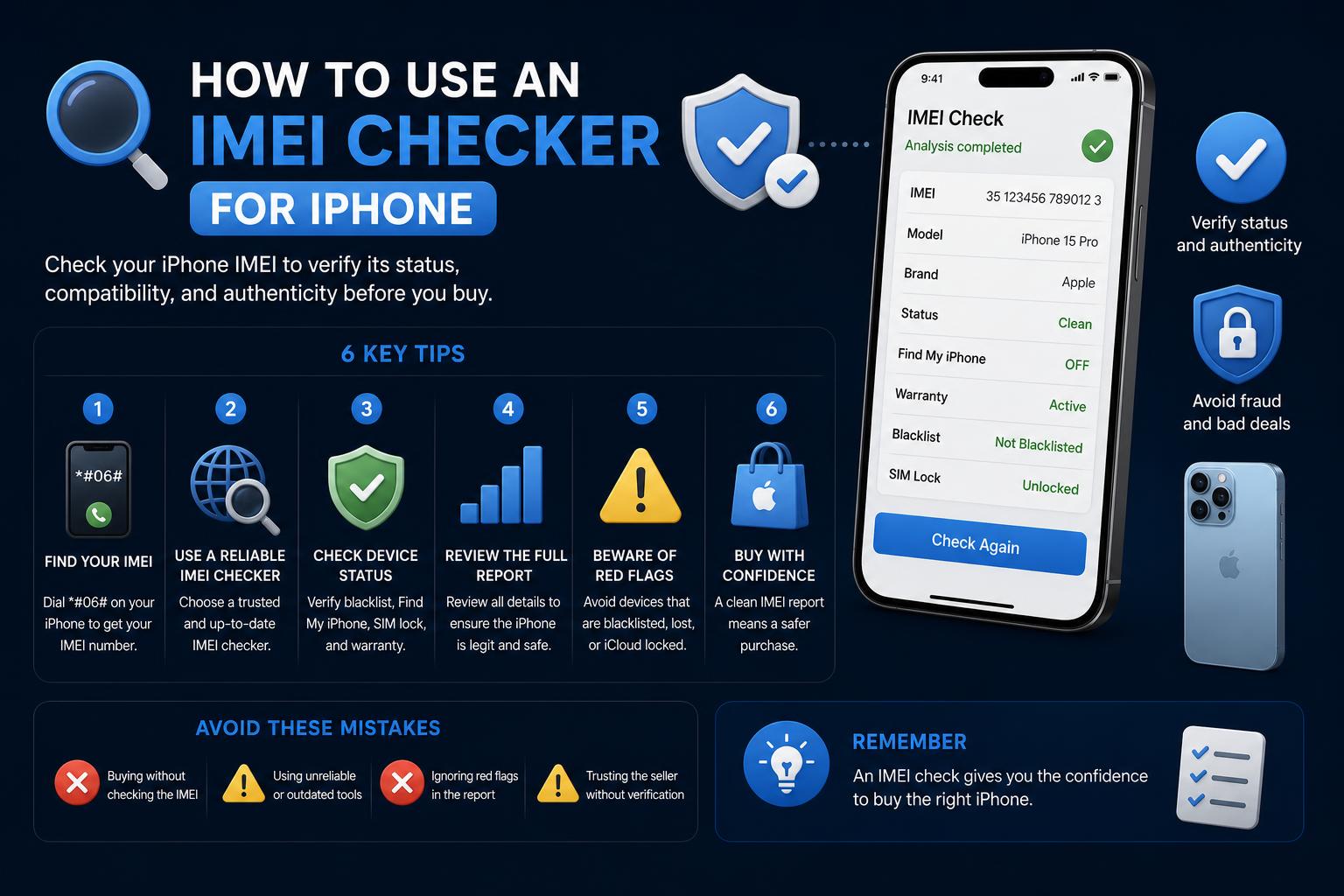
- IMEI checkers reveal crucial details about your iPhone’s authenticity, warranty, and blacklist status.
- Third-party and Apple official tools let buyers and sellers verify device history and status quickly for free.
- IMIE checks are essential for anyone buying, selling, or troubleshooting Apple devices to avoid fraud.
Ever wondered if your iPhone is exactly as described or whether it’s fully functional and original? Or maybe you’re thinking about buying a used Apple device and want to check if it’s really worth your money? This is where the IMEI checker for iPhone comes into play, providing critical insights into your device’s background and current status. Ensuring your iPhone has a clean history, isn’t locked, blacklisted, or tampered with can save you from lots of headaches. If you’re still a bit fuzzy on what an IMEI is and why these checks are important, you’re in the right place — sit tight, because we’re diving deep into everything you need to know about checking IMEI numbers on iPhones and other Apple products!
If you’re in the market for a used Apple product or just want to get all the essential details about your current device, knowing where and how to use an IMEI checker is a must. We’ll cover why checking your device matters, what kind of info you can uncover, the practical steps to find your IMEI, and how to perform checks on multiple platforms — all with your security and peace of mind in focus.
What is an IMEI Number and Why Is It Important?
Your iPhone comes with a unique International Mobile Equipment Identity (IMEI) number — think of it as the device’s fingerprint for network identification. This sequence of digits contains a lot of valuable information about your device, including its origin, model, warranty status, activation details, and critical security metrics, like Find My iPhone, carrier lock, and blacklist status. For anyone buying, selling, or simply ensuring the legitimacy of an iPhone, the IMEI is your starting point.
Where Can You Find the IMEI on Your iPhone or Apple Device?
Apple makes finding the IMEI relatively easy, and there are a handful of places you can look: these accessible options make it simple to retrieve the number.
- In the Settings menu: Open Settings > General > About. You’ll see the Serial Number and, if you scroll down, you’ll locate your IMEI/MEID, EID, and ICCID. Tap and hold the number to copy it for easy pasting anywhere you need it.
- On the device hardware: For older models (like iPhone 3G, 3GS, 4, 4S), the IMEI/MEID may be printed on the SIM tray or the back of the device. The original iPhone even has it engraved directly into the back casing.
- On the original packaging: If you still have your device’s box, you can find barcode labels with the serial number, EID, and IMEI/MEID.
- Via Mac/PC: Connect the iPhone to your computer and open Finder (MacOS Catalina or later) or iTunes (older Macs or Windows). Under your device’s info, you can find the serial number and IMEI/MEID details.
- Apple Account: Go to account.apple.com, sign in, and check under Devices for your IMEI and serial number.
Pro tip: If you have another iOS device signed in to your Apple account, you can even retrieve your iPhone’s IMEI through Settings by tapping your Apple ID at the top and reviewing registered devices!
The ultimate guide to fixing the Mobile Network Not Available Error
What Information Can You Get by Checking Your iPhone’s IMEI?
Using dedicated IMEI checker tools, you can unravel a ton of information about your iPhone or other Apple products. Below are some of the most valuable details revealed by these checks: the resulting report can expose information that is difficult to confirm visually.
- Model, Color, and Storage Capacity: Get a precise breakdown of your device’s official specs to verify if it matches the seller’s description.
- Warranty and Coverage: Check the manufacturer’s warranty status, repair eligibility, and whether your AppleCare is active.
- Activation Status: Unsure if your iPhone is genuinely new or previously used? The activation history helps paint the truth.
- Replacement or Refurbished Status: IMEI tools can alert you if a device was previously replaced by Apple or is listed as refurbished.
- Find My iPhone Status: A crucial security factor to ensure the previous owner no longer has access or tracking abilities.
- Carrier and SIM Lock: Confirm if your device is locked to a specific carrier or is unlocked and usable worldwide.
- Blacklist Status: Instantly see if the device is flagged as lost or stolen; a must before any secondhand purchase.
- Serial Number and Device History: Verify authenticity and spot potential tampering or modifications over the device’s lifespan.
The range and depth of data returned depends on the checker service you use, but even free comprehensive IMEI checkers now include most of these data points.
Best Free iPhone IMEI Checker Tools
A number of reputable online platforms and apps offer IMEI checking services, with varying levels of detail, speed, and additional features. Here’s a rundown of the most notable ones: comparing their features can help you choose the right option.
- IMEICheck.com: One of the easiest and most popular free lookup services, providing a detailed overview of an iPhone’s specs, model info, coverage, blacklist, SIM lock status, and more—all at no cost. Their platform is clean and straightforward, enabling you to copy and share IMEI check reports, perfect for individual buyers and sellers. You can choose to display your full IMEI or mask the last few digits for added privacy.
- Reincubate IMEI/SN Lookup: This solution lets you check Apple serial numbers and IMEI codes for all device types (not just iPhones), and is especially handy for users interested in MacBooks, AirPods, iPads, and more.
- Swappa IMEI Check: Renowned as a marketplace for used phones, Swappa’s tool is built to prevent fraud by confirming device legitimacy before allowing listings.
- iUnlocker: Offering both checking and unlocking services, this site reviews warranty info, Find My iPhone status, and device legitimacy. It’s friendly both for those verifying purchases and those seeking activation or carrier unlocking solutions for various Apple devices.
- IMEIPro.info: This site stands out by allowing users to generate a permanent link to the IMEI report, which sellers can share on platforms like eBay or Craigslist to boost buyer confidence. Privacy options include masking the last numbers of your IMEI.
- Apple Official Coverage Checker: Though not marketed as an IMEI checker, entering your serial number here lets you directly verify warranty and support coverage—straight from Apple!
Some platforms (e.g., Device IMEI Status Checker App for iOS) deliver a simplified experience on your iPhone or iPad. Just be aware that while some 3rd party apps may collect user data, it’s crucial to check privacy policies before sharing sensitive information.
Step-by-Step: How to Use an iPhone IMEI Checker
- Find Your IMEI: Use any of the methods above: Settings app, SIM tray, device packaging, Apple Account, or plugged into your Mac/PC.
- Choose a Reliable Checker: Visit one of the recommended platforms, depending on your goals (checking for purchase, selling, warranty, etc.).
- Enter Your IMEI: Paste your number into the provided search box. If you’re privacy-conscious, many services allow you to mask the last digits.
- Review the Report: Within seconds, you’ll see a comprehensive report detailing warranty, model, status, carrier, and more. Some tools even issue a shareable link for potential buyers.
Remember: Never trust sellers or listings that cannot provide a legitimate IMEI or refuse to cooperate with such checks.
Special Tips When Buying or Selling Used iPhones
- Always Verify Before Purchase: Ask the seller to provide the IMEI and run your own checks on multiple platforms. Validate the reported details against the device in-hand.
- Check Blacklist Status: A device listed as lost or stolen will often be blocked from all major networks. Never proceed with purchases on blacklisted phones, no matter the price.
- Ensure Find My iPhone is Disabled: If ‘Find My iPhone’ is active under the previous owner’s Apple ID, you could be locked out or tracked later on. Ask the seller to disable it before completing the deal.
- Leverage Shareable Reports for Selling: If you’re a seller, generate and share a secure, permanent link to your IMEI check report (hiding the last few digits, if you choose). This boosts credibility and helps close deals faster on platforms like eBay or Craigslist.
Beyond iPhones: IMEI Checking on iPad, Mac, and AirPods
Most online IMEI checker platforms, including and , extend their tools to a wider lineup of Apple products. This means you can check the serial number, IMEI, and hardware recognition for your iPad (especially Wi-Fi + Cellular models), certain MacBooks and iMacs, and even AirPods. The method is largely the same: find the serial number/IMEI, enter it on the checker, and review your device’s bona fides in seconds.
Unlocking and Activation Lock Solutions
Some services don’t just stop with IMEI checks—they offer unlocking solutions for network-limited or activation-locked devices. If you’ve bought a secondhand iPhone and it turns out to be carrier-locked, certain sites (like ) provide paid unlocking or Activation Lock removal services. These options are especially handy if you inadvertently end up with a locked gadget and need it unlocked for your preferred network or a different country.
However, always use trusted unlocking providers and beware of potential scams, since not every online unlocking offer is legitimate.
Data Privacy and Security Concerns
With so many third-party services, you’ll want to be cautious when inputting your IMEI or serial number. Double-check the privacy statements of any website or app, especially those that request registration or further personal data. Use well-reviewed, reputable sites to minimize the risk of misuse. Apple’s official tools are generally the safest, but many established independent platforms also maintain strong privacy policies.
Who Should Use iPhone IMEI Checkers?
These tools aren’t just for tech geeks! If you’re buying, selling, or troubleshooting an iPhone, iPad, or other Apple gadget, running an IMEI check is an essential step for:
- Secondhand buyers seeking peace of mind
- Sellers looking to boost confidence and speed up transactions
- Parents handing down old devices to children or friends
- Anyone who suspects their device may have security or hardware issues
- Mac, iPad, and AirPod owners wishing to confirm authenticity and repair eligibility
Professional refurbishers and tech repair shops also leverage these checks before re-issuing pre-owned Apple devices.
Finding the IMEI or serial number on your iPhone or Apple device unlocks a powerful gateway to essential information about your gadget. With so many free and convenient tools available—from to —there’s no excuse for skipping this step before buying, selling, or servicing your Apple device. Always reference your IMEI, confirm the activation, warranty, and blacklist status, and use privacy-smart platforms before sharing your data. A quick check now can prevent massive headaches later, ensuring your next iPhone or Apple product is secure, reliable, and exactly what you paid for.