
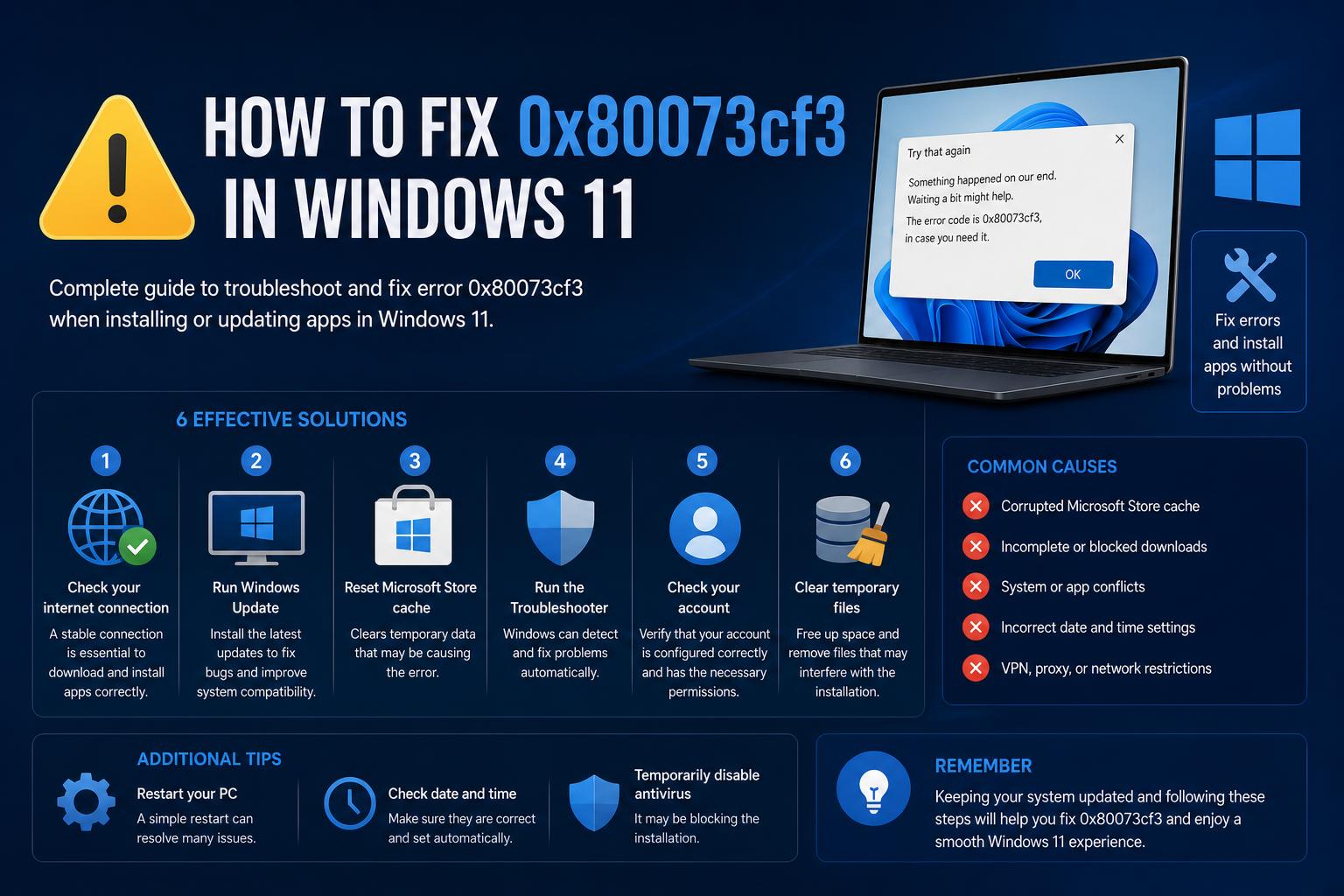
- Error 0x80073CF3 usually means an app or update conflict in Microsoft Store on Windows 11.
- Troubleshooting includes clearing app cache, resetting/reinstalling the Store, DNS changes, and in-place upgrades.
- Thorough checks for app dependencies and storage space are vital for resolving persistent issues.
Getting stuck with Microsoft Store error 0x80073CF3 on Windows 11 can stop you in your tracks just when you want to install or update your favorite apps. If you’ve tried the obvious solutions with no luck, this error is definitely far too common among Microsoft Store users these days.
We’ll analyze the real causes of the 0x80073CF3 code and, most importantly, walk step by step through all the proven solutions so your Windows Store (and your apps) work properly again. We’ll cover everything from system settings to full recoveries, so you don’t have to search through multiple forums.
What Does Error 0x80073CF3 Mean in Windows 11?
Error 0x80073CF3 appears when Windows 11 cannot install or update apps from the Microsoft Store, usually because of conflicts, corrupted packages, or missing dependencies. This error typically shows messages like “Update failed,” affecting everything from basic tools like Windows Clock to games and productivity apps.
The main triggers include:
- App installation conflicts caused by leftover files or previous installations
- Corrupted or incomplete packages or dependencies
- Network or DNS problems affecting downloads
- Insufficient disk space or storage-related errors
- Third-party antivirus interference
- Corrupted Microsoft Store cache or settings
- Damaged user accounts or damaged system files
Symptoms & Contexts: When Does 0x80073CF3 Strike?
Users run into this error when trying to download Messenger or Pinterest, update basic apps like Windows Clock, or during installation steps through the company portal. It’s also reported on clean Windows 11 installations, including beta versions or systems upgrading from Windows 10.
Sometimes the error may seem to fix itself, but in reality it requires a specific solution to be resolved.
Step-by-Step Troubleshooting: How to Solve Error 0x80073CF3
This guide walks you through every practical, expert-recommended step. Each method targets the root causes identified by both the community and Microsoft support.
1. Clear the Microsoft Store Cache
Corrupted cache files can block new downloads or updates. The easiest way to clear them is by using the ‘wsreset’ command.
- Press Win + R to open the Run box.
- Type wsreset.exe and press Enter.
- The Store will restart after a few moments — try your download again.
If the error persists, don’t panic — we’ll keep going through more solutions.
2. Run the Windows Store Apps Troubleshooter
Windows includes a built-in troubleshooter for Store-specific problems that can detect and fix common failures automatically.
- Open Control Panel from the Start menu or the Run box.
- Go to Troubleshooting (if it doesn’t appear, switch the view to Large icons).
- Click View all on the left.
- Select Windows Store Apps and follow the instructions.
Apply any suggested fixes before continuing.
3. Reset the Microsoft Store App
Sometimes the Store app itself needs a full reset, especially if wsreset doesn’t work.
- Go to Settings > Apps > Installed apps.
- Find Microsoft Store, click the three-dot menu, and select Advanced options.
- Click Reset and confirm.
This procedure clears the app’s settings without affecting your installed apps, forcing it to start from scratch.
4. Re-register or Reinstall the Store Using PowerShell
If the reset didn’t help, you may need to re-register or completely reinstall the Store.
- Right-click the Start button and select Windows PowerShell (Admin) or Terminal (Admin).
- Copy and paste this command and press Enter:
Get-AppxPackage -allusers *WindowsStore* | Foreach {Add-AppxPackage -DisableDevelopmentMode -Register "$($_.InstallLocation)\AppXManifest.xml"}
- Restart your PC and open the Microsoft Store again.
This restores the Store in case of missing or damaged files.
5. Repair App Dependencies or Gaming Services
Games from the Store, especially Xbox or Game Pass titles, often need a support service called Gaming Services. If the problem appears with games, try this:
- Go to Settings > Apps > Gaming Services (if present) > Advanced options > Repair.
- If it doesn’t appear, download Gaming Services from the Microsoft Store and install it.
This step is essential for errors related to games and the Store.
6. Check for App Conflicts and Hidden Remnants
This error may indicate that a previous version of the app (or remnants of it) still remains on the system, even if you believe it’s uninstalled.
- Press Win + R and type %appdata%, then press Enter.
- Look for folders related to the app in question and delete them.
- Also check %localappdata% for leftover files and delete them.
- For Store apps, check Packages > Microsoft.WindowsStore_8wekyb3d8bbwe > LocalCache and clear its contents.
Removing old remnants can resolve conflicts in updates and installations.
7. Change DNS Settings
Regional network or DNS problems can prevent apps from downloading correctly. Try switching your DNS to Google’s fast public servers:
- Go to Settings > Network & internet > Advanced network settings > More network adapter options.
- Right-click your active network (Wi-Fi or Ethernet) and select Properties.
- Double-click Internet Protocol Version 4 (TCP/IPv4).
- Choose Use the following DNS server addresses and enter:
- Preferred DNS: 8.8.8.8
- Alternate DNS: 8.8.4.4
- Click OK and try downloading from the Store again.
This method can bypass regional blocks or problems with your internet provider, resolving persistent errors.
8. Temporarily Disable Antivirus Software
Third-party antivirus software can automatically block downloads or installations. If you use one, briefly disable it from its system tray icon and try again.
For Windows Defender, you can disable it temporarily from Settings > Privacy & security > Windows Security > Virus & threat protection.
9. Perform a Clean Boot to Eliminate Software Conflicts
Programs that start with the system can interfere with the Store’s operation, especially if you have unusual utilities or corporate software.
- Press Win + R and type msconfig, then press Enter.
- On the Services tab, check “Hide all Microsoft services” and click Disable all.
- Go to the Startup tab > Open Task Manager and disable non-essential startup apps.
- Restart and test the Store again.
10. Free Up Storage Space for Large App Installs
A lack of free space can trigger 0x80073CF3 errors, especially with games or large apps.
- Uninstall unnecessary programs or large files.
- Delete temporary files with Disk Cleanup or from Settings > System > Storage.
- Empty the Recycle Bin.
Once you’ve freed up space, try installing the problematic app again.
11. Update or Reinstall Problematic Apps
If an app, such as Windows Clock or Messenger, won’t update, try these common methods:
- Completely uninstall the app from the Start menu or Settings > Apps.
- Sign out of the Microsoft Store, search for the app, and reinstall it from scratch.
- Sign back in — this can resolve update blocks.
12. Remove Partial or Corrupted Packages with PowerShell
If Messenger or another partially installed app can’t be updated or installed, you can forcibly remove it with PowerShell:
Get-AppxPackage *AppNameHere* | Remove-AppxPackage
Replace AppNameHere with the app’s internal name, such as Messenger. Restart and try again from the Store.
13. In-Place Upgrade (Repair Install) as a Last Resort
If nothing works, a repair upgrade keeps your files and apps but replaces damaged Windows components.
- Download the Windows 11 Media Creation Tool (or the corresponding ISO file).
- Launch it and select ‘Upgrade this PC now’, or mount the ISO and run setup.exe.
- When prompted, choose Keep files and apps.
- Follow the on-screen instructions to complete the repair.
This process usually fixes deep problems in the Store and the system without data loss, although it’s always advisable to back up before major operations.
Organizational Deployments (IT/Company Portal)
For deployments with Intune, Company Portal, or IT-managed tools, review these points:
- Make sure the architecture is correctly targeted (x64, x86, ARM) on the device.
- Verify that all of the app’s dependencies are specified and deployed before the main installation.
- Check that the device has no active partial or previous installations — if it does, remove earlier versions completely.
- Check the AppXDeployment-Server event logs for specific error details.
Work with your IT team to verify dependencies and versions in custom or corporate apps.
Extreme Cases: Recovery Options
In extreme cases where corruption is severe, a clean reinstall may be necessary:
- Back up important files.
- Download a Windows recovery image or ISO.
- Create a bootable USB drive (minimum 16GB; FAT32 for Surface devices).
- Boot from the USB and follow the instructions for a clean Windows 11 installation.
This method erases all files, so only use it as a last resort after exhausting the previous options.
Error 0x80073CF3 when trying to install apps on Windows 11 can be frustrating. However, if you follow these solutions methodically, starting by resetting the cache and checking for app conflicts, and only escalating to deeper repairs if necessary, you have a high chance of resolving it. Whether you’re an advanced user or someone who just wants to install Messenger, Pinterest, or Windows Clock, every technique here is based on real troubleshooting scenarios reported by users and professionals. For more details and updates, always consult official sources such as Microsoft Store or Microsoft Learn. Best of luck, and may you enjoy a fully functional Windows 11 again!
Complete Guide: Installing Microsoft Store on Windows 11 IoT & LTSC Editions