
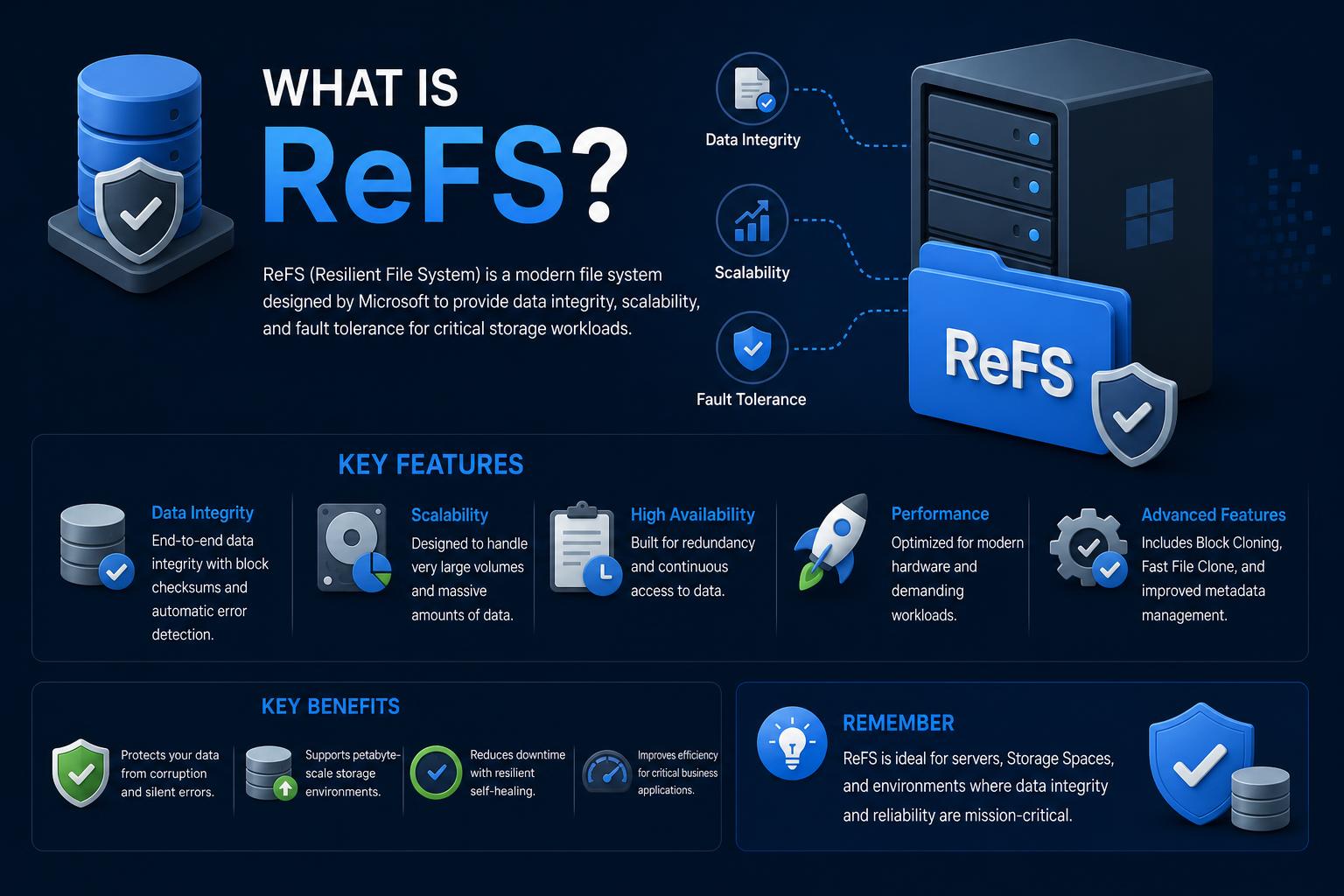
- ReFS offers robust self-healing capabilities, automatic error correction, and massive scalability compared to NTFS.
- Ideal for virtualization, backup repositories, and high-availability environments, especially when paired with Storage Spaces Direct.
- Not all NTFS features are present—ReFS is best for data volumes, not for system or boot drives, and lacks some legacy compatibility.
Data is the backbone of modern business and personal computing—safeguarding, managing, and scaling it efficiently has become more critical than ever. If you’ve ever had a drive fail, wrestled with corrupted files, or tried to juggle terabytes (or even petabytes) of information, you’ve probably wondered if there’s a smarter, more resilient way to handle digital storage. Microsoft’s Resilient File System (ReFS) aims to be just that: a robust evolution over decades-old NTFS, built for both performance and peace of mind.
Whether you’re a systems admin, virtualization enthusiast, developer handling massive data, or just a curious power user, the world of file systems has changed dramatically in the last decade. In this no-stone-unturned article, let’s pull back the curtain on ReFS: what it is, how it’s different from good old NTFS, when to use it (or not), and what you should know to protect your most valuable asset—your data—in today’s world. We’ll break down features, compare deployment options, and cover real-world scenarios, all in an accessible, jargon-busting style.
What is the Resilient File System (ReFS)?
ReFS stands for Resilient File System, a proprietary file system introduced by Microsoft as part of Windows Server 2012 and still evolving in current Windows Server and select Enterprise editions. The main goal? Provide enhanced data integrity, reliability, and scalability that outpaces legacy file systems for today’s high-capacity and mission-critical scenarios.
Unlike NTFS, which was built in the 1990s for disks measured in gigabytes, ReFS is engineered to support massive volumes and files, potentially reaching exabyte scale. Its architecture places a strong emphasis on self-healing, automatic repair, and protection against silent data corruption.
ReFS in a Nutshell: Core Philosophy and Background
Why did Microsoft make ReFS in the first place? Storage needs have exploded since the era of floppy drives and spinning platters. Enterprise databases, backup repositories, virtualization platforms (especially Hyper-V), and multi-terabyte drives are now common—even for small and midsized businesses. NTFS, while reliable and feature-rich, started showing its age with growing data sets and modern workload demands.
ReFS was created as a response to modern storage realities: automatic error correction, no-nonsense scalability, and high-availability data protection with minimal admin overhead. Microsoft built it to be self-repairing, removing the need for lengthy offline disk checks. The file system can detect and fix errors as they happen, not just when you notice a failure days or weeks later.
Timeline at a glance:
- Introduced in Windows Server 2012 (as code name “Protogon”).
- Supported in Windows 8.1/10 (Enterprise, Pro for Workstations), but not in Home editions.
- In recent years, strongly integrated with Storage Spaces and Hyper-V platforms.
- ReFS continues to evolve, adding file-level snapshots, encryption, and (in testing) even bootability in upcoming Insider editions.
Key Features and Benefits of ReFS
- Data integrity first: Uses checksums for both metadata and optionally for file data, enabling proactive error detection and repair.
- Self-healing and resilience: Pairs naturally with Storage Spaces (mirroring/parity), so corrupted files can be automatically replaced with healthy copies, often avoiding downtime completely.
- Massive scalability: Designed for exabyte-scale volumes and millions of files—no more panicking when single files or folders are huge.
- Performance tuned: Especially for virtualization and backup use cases, with block cloning and Copy-on-Write (COW) tech for fast merging, checkpointing, and zeroing out files.
- Modern error correction: An online scrubbing process (“scrubber”) continually scans and tunes the file system, catching silent corruption before you even notice.
- Simplified disk management: With copy-on-write and metadata improvements, admins no longer need to run classic tools like CHKDSK for healthy ReFS volumes.
ReFS vs. NTFS: A Head-to-Head Comparison
Let’s be honest: NTFS isn’t going away overnight. It’s still the backbone of Windows for most users, thanks to its maturity and compatibility. But ReFS is carving a niche—here’s how they stack up on the crucial features.
Scalability
- NTFS: Supports up to 256 TB file and volume sizes (fine for laptops, but limiting in enterprise/data center).
- ReFS: Handles up to 35 PB (petabytes) for files and volumes in Windows Server; in theory, the design can scale to exabytes (a trillion gigabytes) depending on cluster size.
Data Integrity and Protection
- NTFS: Uses journaling for metadata. Errors often require manual repair (CHKDSK), especially on large volumes.
- ReFS: Applies checksums to both metadata and, optionally, file data itself; integrates with Storage Spaces for instant self-healing if alternate data copies exist. Online error correction and scrubbing is automatic.
Performance and Virtualization
- ReFS’s spotlight: Mirror-accelerated parity, block cloning, and sparseness give it a leg up—especially for Hyper-V, VHD(X) file management, and synthetic backup operations (where you need to merge or duplicate large volumes quickly).
- NTFS: Still strong for general workloads, but lacks innovations around COW and instant block management.
Feature Set and Compatibility
- NTFS: Supports time-tested features: per-file compression, file/folder encryption (EFS), disk quotas, short (8.3 DOS-style) filenames, and can be used to boot the OS.
- ReFS: Lacks support for 8.3 file names, file-level encryption (though recent versions are adding this), and cannot be used as a boot/system volume (yet—future releases may change this). No built-in file compression, and legacy app compatibility is less robust—some apps will not install or run correctly on ReFS-only drives. However, volume-level encryption via BitLocker is supported.
Summary Table: Feature Availability
| Feature | ReFS | NTFS |
|---|---|---|
| Checksums – Metadata | Yes | Yes |
| Checksums – File Data | Optional | No |
| Self-Healing | Yes (with Storage Spaces) | No (requires manual repair) |
| File System Encryption | No (File-level, but BitLocker for volume) | Yes |
| Bootable OS Support | No | Yes |
| File-level Compression | No | Yes |
| Maximum Volume/File Size | 35 PB | 256 TB |
| Data Deduplication | Yes (Windows Server 2019+) | Yes |
| Short Names (8.3) | No | Yes |
| Disk Quotas | No | Yes |
| Hard Links | Yes (recent versions) | Yes |
How ReFS Handles Data Integrity: Under the Hood
ReFS isn’t just about big numbers—it’s about minimizing headaches and downtime. Here’s how:
- Checksums everywhere: Both the file system’s metadata and file data (when enabled) are protected with cryptographic hashes. If what’s read from disk doesn’t match expectations, ReFS knows instantly if there’s corrupt data.
- Integrity Streams & Self-Healing: ReFS stores “digital fingerprints” in separate integrity streams, letting it fix (not just detect) corrupted data—especially if the system is set up with mirroring/parity through Storage Spaces. If a block is bad, the alternate copy is instantly substituted, keeping your volume online and your data safe.
- Online Scrubber: Think of this as your storage’s personal health monitor. The ReFS scrubber periodically traverses data and metadata, checking checksums in the background and triggering repair before any “silent” corruption can spread.
- Automatic deletion (salvage): If healthy copies aren’t available, ReFS may remove only the corrupted data/file, not the whole disk or volume—minimizing collateral damage.
Performance Features: Designed for Modern Workloads
It’s not all about resilience; speed and efficiency matter too.
- Block Cloning: ReFS can duplicate references to data blocks instantly (great for VM operations, checkpoints, and backups), slashing the time and IO typically needed.
- Sparse Valid Data Length (VDL): Creating fixed-size VHDs in Hyper-V used to take minutes—now it’s seconds with ReFS, thanks to efficient zeroing of unused blocks.
- Tiered Storage: With Storage Spaces Direct, ReFS lets you set “hot” data on SSDs for speed and archives on HDDs for capacity, automagically moving data in real-time based on usage.
- Copy-on-Write Everywhere: Rather than overwriting data (risking crash-consistency issues), ReFS allocates new blocks for edits. This reduces fragmentation and eliminates some classic data risks.
Deployment Scenarios: Where ReFS Really Shines
If you’re thinking of a home PC, ReFS might be overkill right now. For most people, NTFS works just fine. But when the stakes get higher, ReFS comes into its own:
Virtualization / Hyper-V Hosts
Backbone of Storage Spaces Direct clusters: For large-scale, high-availability clusters running virtual machines, the performance and robustness of ReFS make it the clear winner. Features like block cloning and instant file operations are crucial for VHDx (virtual disk) management.
Backup and Disaster Recovery Platforms
Modern backup solutions love ReFS because synthetic backups (building new backups by referencing old data blocks) are much faster, and recovery point operations don’t drag down production systems. Many vendors (incl. Veeam, Nakivo) recommend ReFS for repositories.
File Servers and Large Data Pools
When you need to store, analyze, or archive massive volumes of data, ReFS’s scale is hard to beat. Its automatic error correction and scrubber reduce long-term “bit rot” risk—great for archival and big data applications.
Storage Spaces & Parity/Mirror Volumes
With Storage Spaces Direct, ReFS unlocks additional functionality—like mirror-accelerated parity—for fast, reliable storage using SSDs + HDDs in wild combinations.
When to “Hold Off” with ReFS
- Boot/System Volumes: At present, you cannot natively boot Windows from a ReFS volume outside Insider builds or specialized scenarios.
- Standard Desktops: Some admin tools and legacy apps expect NTFS—they may refuse to install or misbehave on ReFS-only disks.
- File Compression / EFS: If you rely on NTFS’s file-level encryption or compression, ReFS won’t currently replace these features (volume-level BitLocker is fine, though).
- Short 8.3 Filenames: Certain enterprise or legacy software might expect DOS-style file names—ReFS does not support these.
How to Set Up ReFS: Step-by-Step Configuration
Setting up ReFS is a breeze on the right edition of Windows. Here’s how it’s typically configured (your version may vary):
- On supported Windows Server or Windows 10 Enterprise/Pro for Workstations, open Server Manager (or Disk Management / PowerShell).
- Create a Storage Pool with the drives you want to use (can be SSDs, HDDs, or both, in any combo).
- Add a Virtual Disk to that pool—here, you’ll select Simple/Mirrored/Parity depending on desired redundancy. Set the file system to ReFS.
- Initialize and format the disk. Assign a drive letter or mount point as you would with NTFS.
- Optionally, enable Data Deduplication (Server 2019+), configure access control lists (NTFS-style permissions are supported), and set features like cluster size or striping for advanced scenarios.
- The volume is now ready for high-performance, resilient storage duties!
Post-Configuration Tips and Best Practices
- Always keep full backups—self-healing isn’t foolproof! No file system, no matter how advanced, is a replacement for regular, offsite backups in case of hardware failure or malware.
- Choose redundancy wisely: If your data is crucial, always choose mirrored or parity spaces, not “Simple” (RAID-0 style) setups.
- Monitor resource usage: While ReFS is fast, very large arrays consume more RAM and CPU than NTFS, especially with deduplication.
- Use NTFS for apps and boot drives for now—most installer packages and Windows features expect NTFS as the baseline.
- Keep up with updates: ReFS is actively developed—new features (like file-level snapshots, encryption, or even compression) are being tested in Insider builds and may land soon in mainstream releases. Always check compatibility before upgrading.
Feature Evolution & ReFS Versioning
Like most things Microsoft, what you get with ReFS depends on the Windows version you’re running. Over time, Microsoft has added and improved features in newer ReFS releases. Here are some quick “version notes”:
- Original 1.1–2.0 (Server 2012/2016): The basics—integrity, scalable volumes, copy-on-write, but missing some NTFS features and hard links.
- ReFS 3.2+ (Server 1709, Win10 Enterprise/Pro for Workstations): Data deduplication supported, improved block cloning and VDL, better Hyper-V performance.
- 3.5+: Hard link support added for fresh-formatted volumes.
- 3.7–3.14 (Server 2022/2025, Win11+): File-level snapshots, encryption, and even LZ4/ZSTD compression in preview/beta builds, better backup tools, and potentially OS boot support.
Heads up: Without proper management, Windows may auto-upgrade ReFS volumes, making them unreadable on earlier OS versions. Always check documentation before sharing disks between different server or desktop versions.
Limitations and Known Challenges
Nothing’s perfect, and ReFS does have a few gotchas admins should respect:
- No in-place upgrade from NTFS: You must back up and restore data to reformat as ReFS.
- Some legacy features missing: Transactions, object IDs, 8.3 file names, and in-place shrinking aren’t supported.
- Not suited for removable media: ReFS doesn’t work on USB sticks or bootable thumb drives.
- Poor app compatibility for direct installation: Many apps and MS Store services won’t play ball with ReFS for installs (though file storage/maps generally work fine).
- Deduplication and other features may require PowerShell and server SKUs: Don’t expect every “checkbox” to show up in the GUI.
- Mirroring/Parity require certified hardware: Always use supported hardware in critical deployments for true resiliency.
- Resource consumption: Very large ReFS arrays, especially when thin-provisioned, can chew through available memory and CPU at a higher rate than NTFS.
Security and Advanced Functionality
BitLocker encryption is available at the volume level for ReFS—this is ‘whole-storage’ encryption and provides robust protection for lost drives or at-rest data compliance.
File-level encryption (EFS) has only been supported in recent builds (as of Windows Server 2025 and Windows 11, v3.14+), and might not be universally available yet.
Advanced features such as file-level snapshots and post-process compression are being rolled into Server 2022 and “Insider” builds, with more improvements likely as ReFS matures further.
Use Cases: Real-World Deployments
Who should use ReFS?
- IT admins managing large virtualization farms or enterprise-scale file storage—especially with Hyper-V, VHDX, or SQL workloads.
- Backup and disaster recovery configuration where rapid synthetic backup and restore performance plus reliable, silent data integrity checks are essential.
- Organizations embracing Storage Spaces Direct (S2D) to build high-availability, software-defined storage without expensive proprietary hardware.
- Big data analysts, scientific computing environments, or media post-production studios where extreme file system and volume scalability is required and data loss is not an option.
- Those needing to scale to billions of files or exabyte-level volumes without sweating legacy file system “ceilings.”
When to stick with NTFS?
- Boot/system drives on servers, desktops, or laptops (at least for now).
- When per-file encryption or compression is a core requirement and you need 8.3 file name compatibility.
- Legacy app compatibility—if older software, or oddly-specific workflows, expect NTFS features, stick with the tried-and-true until application vendors (or Microsoft) catch up.
- File servers for mixed environments with Mac/Linux/older Windows clients may see better compatibility with NTFS as of 2024.
ReFS for Managed Service Providers (MSPs) and Backup Vendors
The emergence of ReFS has driven rapid innovation in the backup/disaster recovery landscape. Managed Service Providers (MSPs) have historically struggled to ensure data integrity on huge, multi-tenant volumes. ReFS simplifies this with its built-in protection, background maintenance, and volume repair logic—especially when paired with NSP tools optimized for ReFS or using solutions that support image-based and virtual disk exports directly from ReFS.
Vendors like ConnectWise and Axcient now offer software that supports full imaging, virtualization, and iSCSI exports directly for ReFS, helping MSPs deliver robust, all-in-one BCDR (Business Continuity and Disaster Recovery) platforms while eliminating “solution sprawl.” This makes protecting Windows Server environments easier and more future-proof, especially as ReFS adoption grows across mid-market and enterprise clients.
NAS (Network Attached Storage) devices and public cloud solutions are increasingly being tied into these systems, letting organizations standardize protection across on-premises and cloud environments for even greater business continuity.
Industry Comparisons: ReFS vs Other Modern File Systems
How does ReFS stack up against the likes of ZFS, Btrfs, or Apple File System (APFS)?
- ZFS (Solaris, FreeBSD, Linux): The gold standard for snapshotting, granular data protection, and advanced integrity verification—famous for its resource-hungry deduplication (RAM needed).
- Btrfs (Linux): Open-source, with features like COW, snapshots, checksums, and compression; more suited to advanced Linux environments, but shares much of ReFS’s philosophy.
- APFS (macOS/iOS): Modern COW, snapshots, and space sharing for Apple devices, but lacks some of the endurance and enterprise-grade features of ReFS or ZFS.
ReFS, ZFS, and Btrfs share a philosophy of integrating data protection, self-healing, and background error correction. However, only ReFS is natively supported and deeply integrated into the Windows Server stack with limited learning curve for Windows shops.
Monitoring and Maintenance of ReFS Volumes
ReFS volumes generally require less intervention than NTFS, but they’re not “set and forget.”
- Schedule regular checks: Use PowerShell, Server Manager, or dedicated BCDR tools to monitor the integrity status of your volumes.
- Watch for upgrades: Since Windows auto-upgrades ReFS versions, document your environment before moving volumes between OS versions.
- Resource monitoring is critical: ReFS’s intensive error correction and background operations can consume more RAM and CPU during peak load or on enormous arrays. Plan capacity accordingly.
- Always keep a robust backup strategy outside the volume: Whether using cloud backups, snapshots, or offline storage, redundancy is your final line of defense against disaster.
Getting Started: Practical Implementation Tips
Want to try ReFS in your own environment?
- Make sure you’re running a supported OS: Windows Server 2016 or later, or Windows 10 Pro for Workstations/Enterprise for volume creation.
- Test in a lab environment before production rollouts. Try deploying VMs, backup workloads, or large file shares to ReFS and validate app compatibility.
- Experiment with Storage Spaces for redundancy and S2D for real resilience.
- Review the Microsoft Learn docs for latest feature updates and hardware prerequisites.
ReFS is Microsoft’s answer to today’s explosion in data storage demands, offering unparalleled resilience, automatic self-healing, and big-league scalability. Designed with modern workloads in mind, it’s positioned as the default for virtualization, backup, and large-scale storage where data integrity and reduced downtime are essential. While it’s not a one-size-fits-all replacement for NTFS, it excels for enterprise environments, mission-critical workloads, and administrators ready to leverage Windows’ most modern file system technologies.
As Microsoft continues to enhance ReFS—potentially adding file-level snapshots, transparent compression, and even on-the-fly encryption—the gap with legacy file systems will continue to widen. If data integrity, scalability, and performance are at the top of your list, ReFS is definitely a technology worth getting comfortable with. Assess your specific needs and keep a close eye on evolving support to take full advantage of what ReFS now offers and promises for the future.