
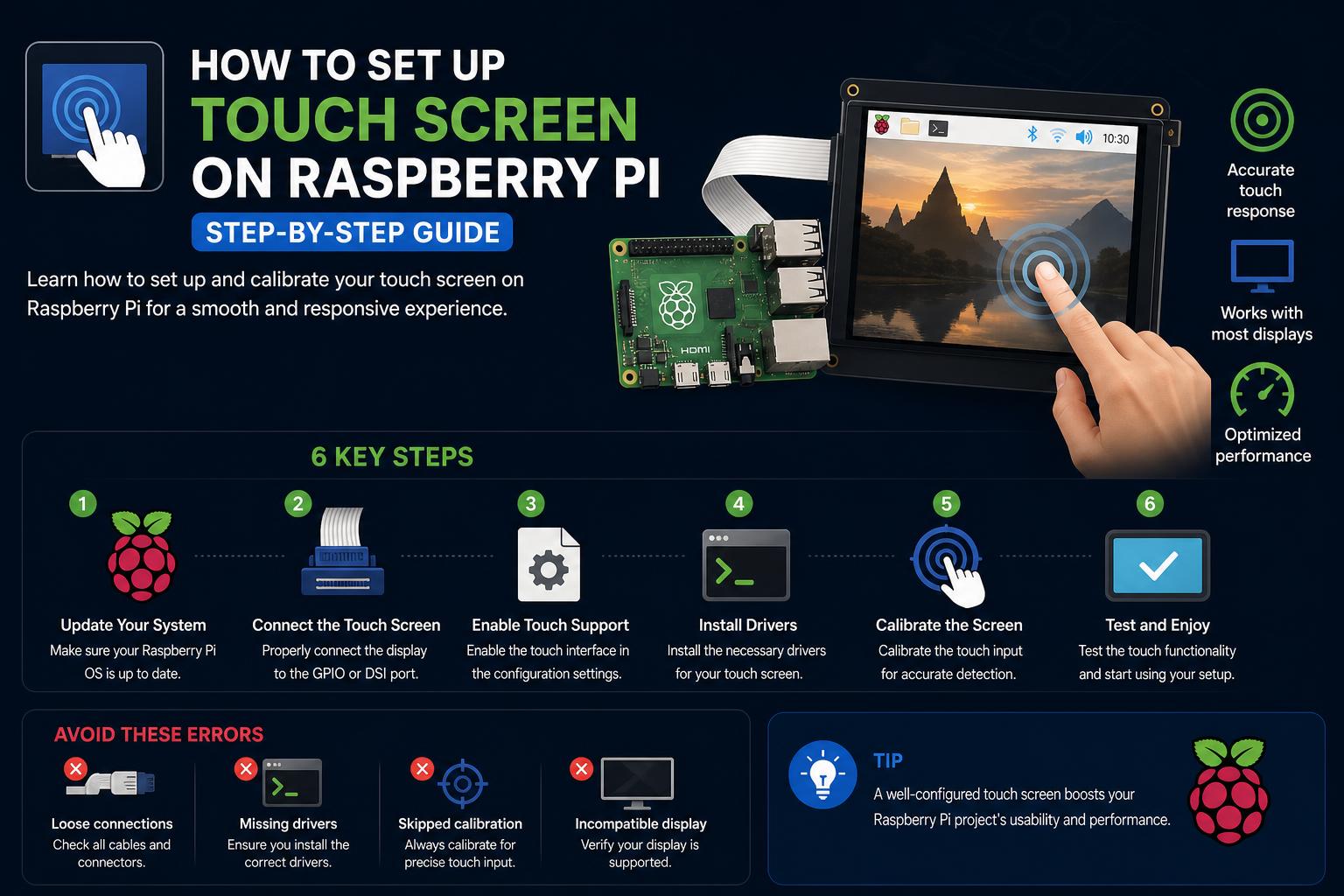
- Comprehensive display and touch configuration for Pi 3, 4, and common touch panels
- Essential calibration, orientation, and usability enhancements for seamless interaction
- Advanced tips and troubleshooting from both official docs and real community usage
Setting up a touchscreen on your Raspberry Pi can transform any standard project into a highly interactive experience, opening up diverse possibilities from handheld consoles and digital dashboards to portable media players and smart home controls. Yet, while the idea sounds simple, getting a touchscreen to function seamlessly—display and touch included—can catch even seasoned tinkerers off guard due to compatibility or configuration quirks.
In this detailed guide, you’ll find a step-by-step breakdown of not just how to connect and configure displays, but also critical insights on tweaking screen resolution, calibrating touch input, rotating display and touch layers to match mounting angles, and even installing useful extras like virtual keyboards and gesture utilities. Whether you’re working with the classic Raspberry Pi 3 or leveraging the power of the Pi 4, you’ll gain real know-how to tackle every aspect of setting up your touchscreen environment.
Understanding Touch Screen Compatibility
Before making any hardware choices, it’s vital to confirm your touchscreen is compatible with your chosen Raspberry Pi board. The Raspberry Pi Foundation provides official display accessories that guarantee good integration, but there are plenty of third-party displays, from 3.5-inch mini-screens to large 10.1-inch panels, often based on standard drivers like XPT2046 or FT5406.
- Official Raspberry Pi Touch Displays: These usually require minimal setup. Visit the Raspberry Pi Documentation for detailed support.
- 3rd Party/Generic Touch Screens: May require manual driver installation or configuration tweaks. Always check that the screen supports the Pi model and its interface (commonly HDMI, DSI, or GPIO for touch).
Connecting the Touch Screen Hardware
Physical connection varies with the display model and size. Here’s a broad overview:
- Official 7-inch Raspberry Pi Display: Connects via DSI cable and two jumper wires for the touchscreen interface. No external power required if using Pi 3 or 4 with good power supply.
- HDMI Touch Screens: Require both HDMI (for video) and USB (for touch functionality). Some models may also need external power.
- 3.5-inch GPIO Shields: Attach directly to GPIO pins. These often require driver installation for proper functionality.
Configuring Screen Resolution and Display Output
By default, the Raspberry Pi will try to auto-detect the optimal resolution for its connected display. However, generic HDMI touchscreens and some official screens may not always be recognized perfectly—especially on Pi 3 and earlier models. Correct resolution is crucial for clear visuals and precise touch mapping.
Customizing Resolution on Raspberry Pi 3 and Lower
- Access the Boot Configuration File:
Open your Pi’s terminal and enter:sudo nano /boot/config.txt - Add a Custom Resolution Mode:
Just below#hdmi_force_hotplug=1, add:hdmi_cvt=width height framerate aspect margins interlace rb
Replace width, height, and framerate with your display specs.
Common aspect values: 1 = 4:3, 3 = 16:9, etc. (see SunFounder docs for full table.) - Set HDMI Group and Mode:
Ensure the following are visible and not commented out:hdmi_group=2(DMT standard)hdmi_mode=87(for custom mode)hdmi_drive=2 - Save and Reboot:
After editing, save the file and reboot:sudo reboot
Adjusting Resolution on Raspberry Pi 4
- Click the Raspberry Pi icon (top left), navigate to Preferences → Screen Configuration.
- Go to Configure → Screens → HDMI-1 → Resolution and pick the desired mode.
- Click the confirmation (tick) icon to apply changes.
Easy Setup for Popular Touch Panel Models (Like XPT2046)
Displays such as the 3.5-inch XPT2046 require both display and touch drivers. Many generic GPIO-based screens also fall into this category.
- Plug in the display shield to the GPIO header.
- Obtain the latest Raspbian OS and update it:
sudo apt update && sudo apt upgrade - Install drivers as per the manufacturer’s guide. Many vendors provide an install script—review the instructions carefully.
- If touch is offset or non-functional, calibrate using xinput_calibrator or edit configuration files as detailed later.
Setting Up a Virtual Keyboard
Touch screens typically lack any physical keyboard, making on-screen typing a necessity for tasks like Wi-Fi passwords, programming, or editing files. The default and most user-friendly solution is Onboard, GNOME’s virtual keyboard.
- Open a terminal and install Onboard:
sudo apt install onboard - Launch Onboard via Raspberry Pi icon → Accessories → Onboard.
- For better usability, open Preferences → Onboard Settings and adjust the following:
- General: Enable Automatically display when editing text and Auto-show when editing text. This will prompt a reboot—finish settings first and reboot after.
- Window: Select Dock to screen edge for easier access.
- Layout: Choose Small for compact displays.
- Theme: DarkRoom offers a visually clear interface.
After rebooting, Onboard can be manually started from Accessories → Onboard whenever required.
Bringing Up the Right-Click Context Menu
Many touch displays support only basic tap input by default. To access features that require a right-click (such as the context menu), gesture utilities like Touchégg let you use gestures like double-tapping to perform a right-click.
- Install Touchégg:
For 32-bit or 64-bit OS, the package name may differ. In most Raspberry Pi OS versions:sudo apt install touchegg - Reboot your Pi so the service loads.
- Now, double-tapping on the screen (or using other gestures as configured) will trigger right-click behavior.
Rotating the Screen and Calibrating Touch Orientation
Depending on how your touchscreen is mounted, you may need to rotate both the visual display and touch input so they properly align. This is especially common when using vertical setups, kiosks, or mirrored dashboards.
Rotating Screen Output (Display Layer)
- From the Desktop:
Go to Raspberry Pi icon → Preferences → Screen Configuration.
Then Configure → Screens → HDMI-1 → Orientation and select the desired angle (normal, left, right, inverted). Confirm and apply changes. - Via Terminal (Persistent Setting):
Edit the autostart file or useraspi-configfor legacy models. Add the required orientation command to execute on startup.
Rotating Touch Input (Touch Layer)
If your screen looks rotated but touch is offset or inverted, adjust the CalibrationMatrix:
- Open the touch configuration file:
sudo nano /usr/share/X11/xorg.conf.d/40-libinput.conf - Locate the touchscreen input section.
- Add or edit the
Option "CalibrationMatrix"based on desired rotation.
Here are common presets:
| Angle | CalibrationMatrix |
| 0° | 1 0 0 0 1 0 0 0 1 |
| 90° | 0 1 0 -1 0 1 0 0 1 |
| 180° | -1 0 1 0 -1 1 0 0 1 |
| 270° | 0 -1 1 1 0 0 0 0 1 |
After saving, reboot the Pi for changes to take effect.
Calibration and Fine Tuning
Some third-party displays may show touch offsets even after basic configuration. For precise calibration, especially on resistive panels (like XPT2046 or similar), use xinput_calibrator:
- Install calibration tool:
sudo apt install xinput-calibrator - Run the calibrator and follow on-screen instructions.
- Apply suggested calibration settings to corresponding configuration files.
Common Troubleshooting Tips
- No Display Output: Double-check cable connections, power, and that the correct HDMI/DSI port is used. Test with a known-good screen.
- Touch Doesn’t Work: Confirm the USB or GPIO connection is secure and the driver is properly installed.
- Resolution Not Correct: Force custom mode via
/boot/config.txtas per instructions above. - Laggy Touch/Slow Response: Try reducing screen resolution or disabling background services that may occupy CPU.
- Touch Input Mapped Incorrectly After Rotation: Revisit
CalibrationMatrixand adjust as needed.
Adding Extra Features for a Smoother Touch Experience
- Gesture Navigation: Touchégg supports advanced gestures beyond right-click for multitasking and extra controls.
- Alternative Keyboards: Onboard is versatile, but options like Matchbox Keyboard can be lighter for resource-limited builds.
- Auto On-Screen Keyboard on Login: Add the keyboard to autostart scripts so it launches at each boot.
Community Insights and Frequently Raised Issues
The official Raspberry Pi forums feature countless threads on display troubleshooting—many revolve around OS updates breaking touch support, mismatched drivers, or odd resolution scaling.
- Always base initial setup on the latest official Raspberry Pi OS and drivers for best support.
- When using third-party images or custom OSs (like RetroPie or specialized dashboards), extra driver tweaks may be needed.
- Active forum participation can yield rapid solutions due to the wide user base and enthusiast contributions.
Useful Resources and Further Reading
- Complete official display documentation from Raspberry Pi: Raspberry Pi Display Docs
- Touchscreen-specific setup guides (SunFounder 7-inch): SunFounder Guide
- Detailed community-based experience on setup and calibration issues: Raspberry Pi Forum
Leveraging the clarity of official documentation, actionable insights from community forums, and the structured approach outlined here, configuring any touchscreen for your Raspberry Pi becomes an approachable—and rewarding—DIY upgrade. Con la estrategia correcta, podrás disfrutar de una interfaz táctil totalmente funcional y personalizada para potenciar tus proyectos.