
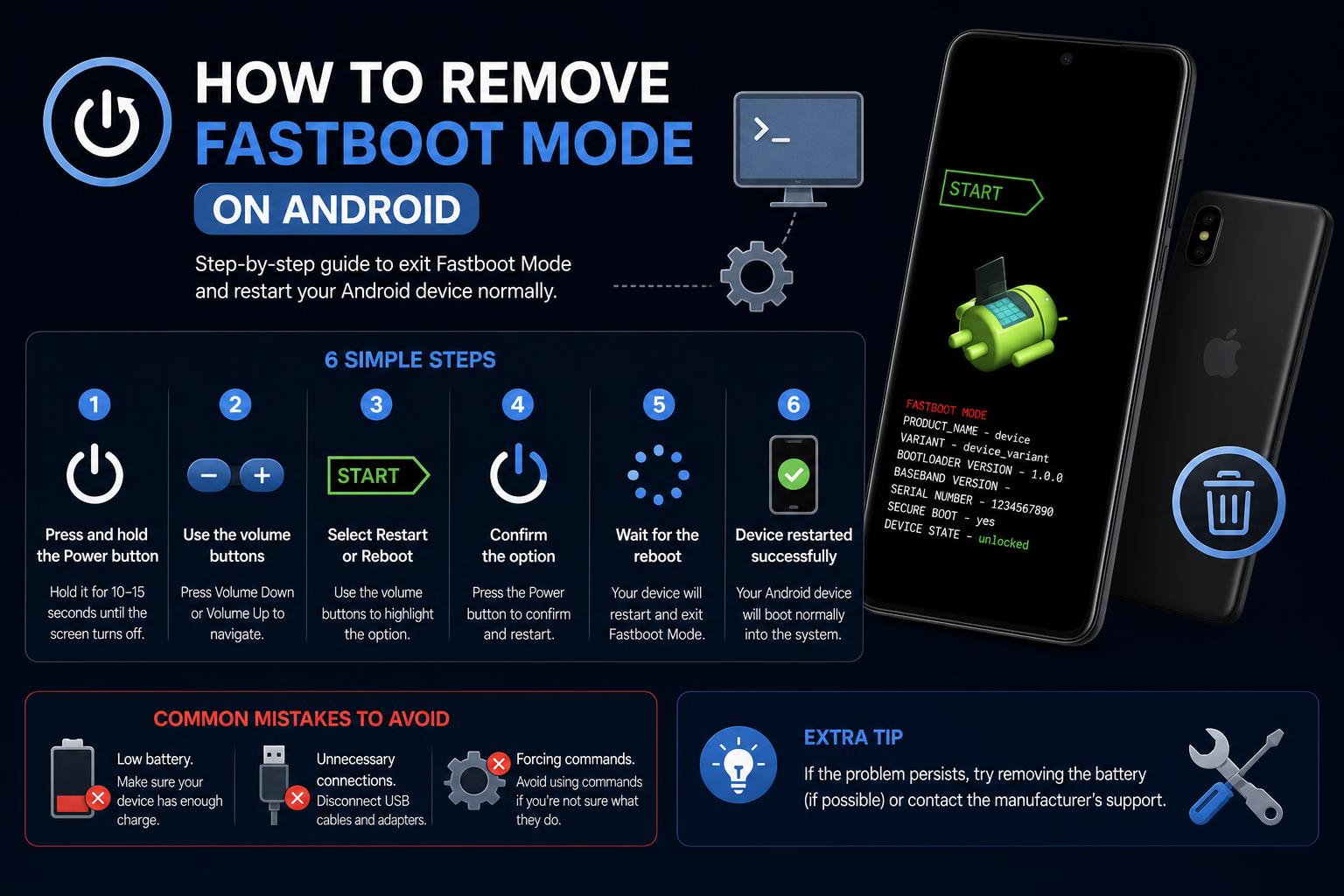
- Fastboot mode enables low-level control and troubleshooting of Android devices when usual boot fails.
- Exiting Fastboot mode is often simple, but issues like stuck buttons or firmware problems can complicate things.
- Sticking to official methods and recovery tools helps users avoid data loss and more severe device problems.
Suddenly seeing your Android device stuck on a screen showing ‘FASTBOOT’ can be stressful—especially if you don’t remember doing anything to trigger this mode! Maybe you tried rebooting, maybe you pressed a strange button combo, or maybe a software error kicked things off. Whatever the cause, the good news is: you’re not alone, plenty of users run into this, and getting out of Fastboot mode is usually possible with a few practical solutions.
Whether you’re a casual phone owner, a seasoned tinkerer, or part of an IT team, understanding Fastboot mode can help you avoid panic and fix your device in minutes rather than hours. In this comprehensive guide, we’ll demystify what Fastboot mode is, show you why devices get stuck in it, and, most importantly, provide clear, step-by-step solutions to remove Fastboot mode from any Android smartphone or tablet—including tips tailored specifically for popular brands like Xiaomi, Google Pixel, Samsung, and more.
What Is Fastboot Mode on Android Devices?
Fastboot mode is a special diagnostic protocol built into nearly all Android devices. This mode allows you to communicate directly with a device’s hardware and core software before the main Android operating system even loads. It was originally created for developers and manufacturers for advanced maintenance, flashing firmware, and recovering from severe software issues.
When in Fastboot mode, your phone typically displays a minimalist screen—sometimes black or white—with device details and the unmistakable ‘FASTBOOT’ label (or on Xiaomi phones, a friendly rabbit mascot). Regular Android functions are inaccessible: you won’t receive calls or notifications, and tapping the screen does nothing.
Why Do Phones Enter Fastboot Mode?
There are multiple scenarios where a device might boot into Fastboot, including:
- User-initiated hardware button combinations—often Power + Volume Down, or Power + Volume Up on some models
- Software updates or failed firmware flashing
- Glitches caused by rogue apps or system corruption
- Physical faults, such as a stuck volume button on the side of the phone
- Intentional entry for maintenance or custom ROM installation
Unintentional entry is surprisingly common. Many users report entering Fastboot just by restarting their phone and accidentally pressing extra buttons, or following device freezes and crashes. If your phone keeps returning to Fastboot mode after a restart, the most likely culprits are a stuck button, buggy firmware, or a failed system update.
What Can You Do in Fastboot Mode?
Fastboot mode unlocks extensive low-level control—tools that are mostly invisible to everyday users but invaluable for advanced troubleshooting, repairs, and customization. Some of these actions include:
- Flashing system or boot images (reinstalling the operating system, updating firmware)
- Unlocking or re-locking the bootloader for rooting or enhanced device security
- Wiping specific partitions to reset or fix the device without complete data loss
- Installing custom recoveries like TWRP for deeper backup and restore work
- Manual firmware and ROM updates, especially when over-the-air (OTA) upgrades fail
It’s a toolkit mostly for developers, IT professionals, and experienced hobbyists. However, knowing how to exit Fastboot is just as crucial for regular users to avoid losing access to their phones.
Typical Ways Devices Enter Fastboot
If you’re puzzled as to how your phone ended up in Fastboot, here’s a quick recap of the most common ways:
- From a powered-off state, holding down Power + Volume Down for about 8-10 seconds triggers Fastboot on most Androids.
- Some brands (like some Samsung models) may use Power + Volume Up, or a three-button combo (Volume Up + Volume Down + Power).
- On a connected computer with ADB enabled, running
adb reboot bootloaderputs the device into Fastboot remotely.
If you’re unsure about your device’s button combination, check your manufacturer’s support page or guide first.
How to Remove or Exit Fastboot Mode: Core Methods
This is what you’ve probably come here for! Exiting Fastboot mode is usually straightforward—sometimes as simple as a long press on a button. Try the following, in order:
- Hold the Power button alone for 10-20 seconds (sometimes up to 30 seconds). Most Android devices will force a soft reset, powering down and restarting into normal mode.
- If that doesn’t work, try holding Power + Volume Up simultaneously for the same duration. Certain devices—especially some Xiaomi, Google Pixel, and older Motorola phones—need this combo to escape Fastboot.
- For phones still unresponsive, release all buttons, wait one minute, and try again (to eliminate possible button ‘stickiness’).
- If you’re comfortable using a computer, connect your device and run
fastboot rebootin your command line or terminal (after making sure Android Platform Tools are installed). This should trigger an immediate reboot if Fastboot is active.
Most cases resolve after one of these steps. However, if the device remains in Fastboot mode or won’t turn on, keep reading for more advanced solutions.
Special Considerations for Xiaomi Fastboot Mode
Xiaomi phones, including popular Redmi and Poco lines, have their own distinct Fastboot visuals and quirks. You’ll typically see a cartoon rabbit mechanic working on an Android robot, signaling Fastboot mode. The usual causes are the same as with other brands, but Xiaomi’s software is particularly prone to entering Fastboot after system updates or failed flashes.
What If Your Phone Is Permanently Stuck in Fastboot Mode?
Some devices can be truly ‘stuck’, refusing to boot properly even after multiple attempts with the buttons. This usually indicates:
- A failed firmware update or flash midway through the process (power was lost during flashing or the file is corrupt)
- A hardware fault in the physical buttons (especially Volume Down, which constantly triggers Fastboot on restart)
- Damage to the bootloader or partitions caused by advanced modifications or system failures
Here are the recommended actions:
- Physically inspect all of the device’s buttons. Make sure they aren’t stuck or pressed down—especially after drops or exposure to moisture.
- Leave the phone unplugged and let it rest for a while. Some models, including Xiaomi, restart on their own after a cool-down period.
- If the usual methods fail, connect the phone to a computer and use official recovery tools (such as Xiaomi Mi Flash Tool, Samsung Odin, or Google’s official image restoration). Always check the before proceeding.
- As a last resort, visit an authorized service center. If there is hardware or bootloader damage, technicians may be able to restore the device without data loss. Avoiding unofficial repairs helps prevent permanent damage or voiding the warranty.
Avoid using third-party tools or unverified online solutions unless you are very experienced. Many of these methods can be unreliable and put your data or security at risk.
Common Myths and Misconceptions About Fastboot Mode
Let’s clear up a few ideas that tend to cause unnecessary worry:
- Fastboot mode does not automatically erase your data, but certain actions, such as wiping partitions or flashing firmware, can.
- It doesn’t mean your device is permanently damaged. Most users recover within minutes if they follow the right steps.
- A device getting stuck in Fastboot repeatedly doesn’t always indicate a software problem. A stuck button or a worn-out battery can also be simple causes.
If you follow the official guides and are patient, you’ll be able to keep your data and avoid bigger problems.
When to Use Fastboot and When to Avoid It
Fastboot is an essential tool for advanced Android tasks, but it can be risky if you don’t know exactly what you’re modifying. Use it when:
- You need to recover a bricked phone (one that won’t boot, not even to recovery)
- You’re flashing official firmware to fix major failures
- The manufacturer’s official support instructions recommend it
Avoid using Fastboot for minor tweaks or if you’re unsure about your device’s state. Unauthorized flashing or bootloader unlocking can void the warranty or put your data at risk.
Pro Tips to Prevent Fastboot Problems in the Future
After recovering your phone, preventing future Fastboot issues is essential. Here are some recommendations:
- Don’t force shutdowns with random button combinations unless strictly necessary. Use the operating system’s normal “Restart” or “Power off” options—especially on recent Android versions.
- Watch out for sticky or damaged buttons, especially the volume button. If your phone is old or has taken some knocks, consider a professional cleaning.
- Install system updates only with sufficient battery and a stable internet connection. Interruptions during the update can corrupt the firmware and cause Fastboot loops.
- If you experiment with custom ROMs or unofficial firmware, back up your data and only use trusted files.
What to Do When You See Fastboot on Google Pixel, Samsung, OnePlus, or Other Brands
The major Android brands maintain similar Fastboot protocols. Here are some brand-specific tips:
- Google Pixel: Hold down the power button; if that doesn’t work, try Power + Volume Up. If it persists, restore the factory image from Google’s support page or contact their support team.
- Samsung: Prefers ‘Download Mode’, but Fastboot may appear on some models. Use Odin or Samsung Smart Switch for repairs, and consult the official guides.
- OnePlus and others: Usual Power + Volume combinations. For advanced recovery, use the official OnePlus recovery software.
The complete guide to ADB and Fastboot: Unleash Android’s Full Power