
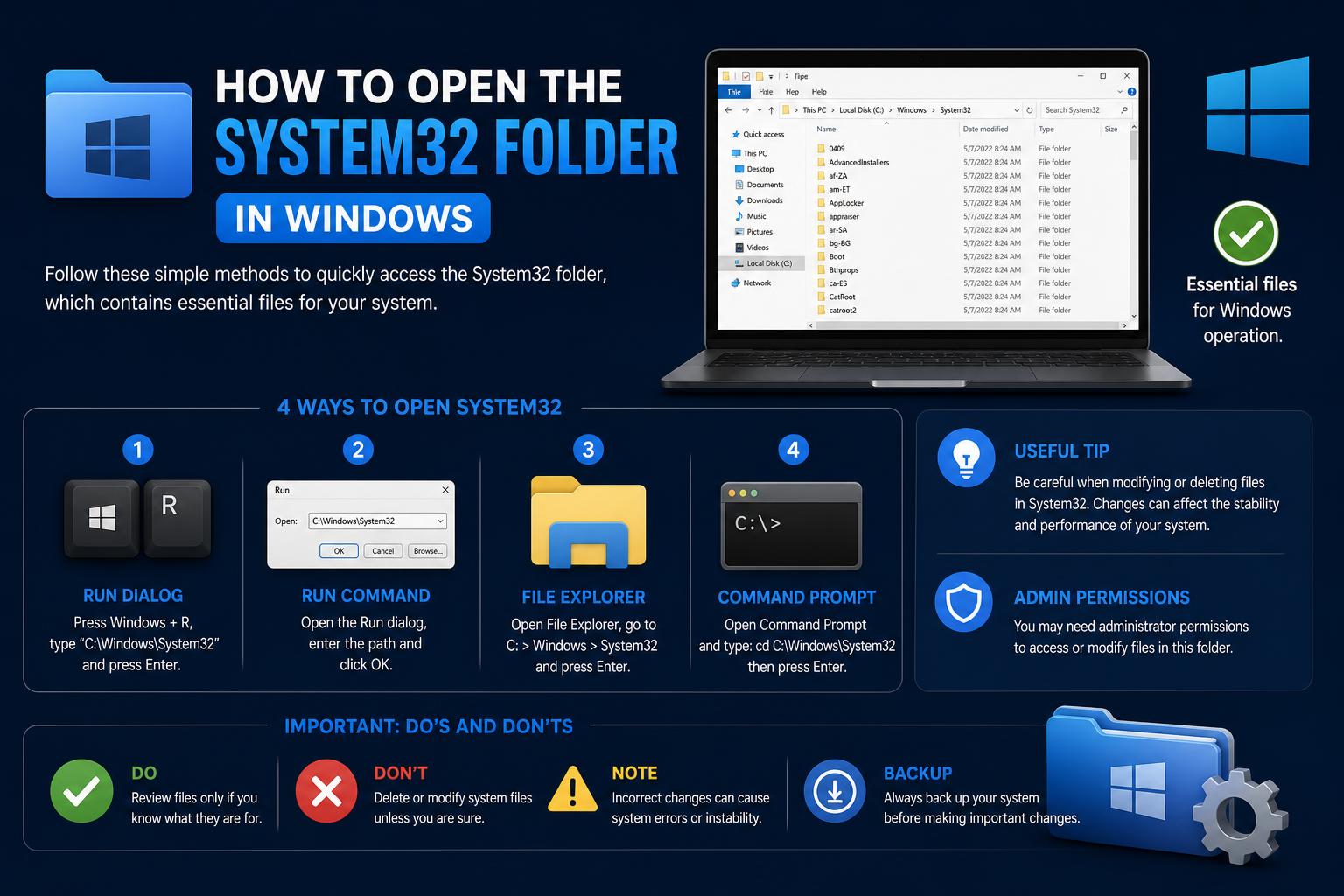
- System32 is a fundamental Windows folder containing vital system files required for booting and operations.
- Accessing System32 can be done easily via File Explorer or the Run dialog, but modifications are restricted for your system's safety.
- Misconceptions about System32 abound; deleting or altering its contents can irreparably damage Windows.
- Repair tools like SFC and DISM should be your go-to methods for fixing any System32-related issues.
If you’ve ever been curious, confused, or even a bit intimidated by the mention of “System32” when using Windows, you’re not alone. The mysterious System32 folder is the punchline to online pranks, the root of countless tech support questions, and the target of some seriously dangerous myths. Oddly enough, this folder is actually one of the most important—if not the most important—parts of your entire operating system.
In this article, we’ll demystify the System32 directory: what it is, what it contains, how to open it (safely!), why you should resist the temptation of certain pranks… and how to troubleshoot problems if this folder gives you headaches. Whether you’re a casual user who got an alarming warning, an IT enthusiast looking for a solid technical breakdown, or you’re simply stuck on that old “delete System32” joke, you’re in the right place.
What Exactly Is the System32 Folder?
System32 isn’t just another ordinary folder. It’s the main directory within every modern version of Windows, from Windows 2000 through Windows 11. You’ll find it at this location:
- C:\Windows\System32
This folder houses Windows’ most critical executables (EXE), dynamic-link libraries (DLL), drivers (SYS), configuration files, and even language resources. Think of it as the “engine room” of your entire operating system. Without it, Windows can’t boot, doesn’t know how to communicate with your hardware, and can’t even launch the most basic utilities.
In short: if something happens to this folder, Windows stops working!
Why Is It Called “System32,” Even on 64-Bit Windows?
This is where new users (and, honestly, many experienced IT folks) get confused: on 64-bit versions of Windows, the “System32” folder still exists. But shouldn’t it be called System64? Actually, the name is historical and exists to maintain compatibility.
- System32 always refers to the system folder that legacy (older) software expects to find.
- When 64-bit versions of Windows arrived, Microsoft kept the name “System32” so older software wouldn’t break.
- On 64-bit Windows, System32 contains the 64-bit binaries.
- On the other hand, SysWOW64 (which stands for “Windows-on-Windows 64”) stores 32-bit components. So, to avoid breaking old software, Windows uses a file redirector that silently points 32-bit programs to SysWOW64 whenever they request System32.
It’s a bit confusing, but it’s all about keeping your apps running smoothly.
What’s Inside the System32 Folder?
Brace yourself for an information overload: there are thousands of files here, but these are the main highlights:
- Executables (EXE): These are core Windows programs. For example, Command Prompt (cmd.exe), Task Manager (taskmgr.exe), Notepad (notepad.exe), and many other system applications.
- Dynamic-link libraries (DLL): These are shared blocks of code that applications and Windows constantly use. There are hundreds of DLLs supporting everything from graphics rendering to network connections.
- Device drivers (SYS): These help Windows communicate with hardware (graphics cards, mouse, keyboard, monitors, etc.). They’re stored in the Drivers subfolder, for example, C:\Windows\System32\Drivers.
- Control Panel applets (CPL): These open individual sections of the classic Control Panel.
- Registry and configuration files: The system’s registry hive, logs, and language resources are found here.
- Critical boot components: Bootmgr, winload.exe, and other files you shouldn’t touch, used for booting or recovering the system.
Many of these files are strictly protected by Windows Resource Protection. This means that even as an administrator, you can’t easily delete or alter files—it’s a safeguard against accidental or malicious damage.
How Can You Open the System32 Folder?
If you just need to take a look inside, it’s very simple:
- Using File Explorer: Open a new window, navigate to your system drive (usually C:), then go to “Windows” and open the “System32” folder.
- Using the Run box: Press Windows + R, type %windir%\System32, and press Enter. This shortcut always takes you to the actual location of System32, no matter which drive or subfolder Windows is installed on.
If you search within Windows, just type “System32” in the Start menu and the recommended folder will likely show up.
Note: Access to the folder is allowed for viewing only, but modifying or deleting files is blocked for your protection.
Could System32 Be Missing? Is It a Virus?
No, System32 is not malware—despite some online jokes claiming otherwise! However, malware and viruses can sometimes hide inside the System32 folder, disguising themselves as legitimate files.
To check:
- Run a full Windows Security (Defender) scan, or use a trusted antivirus. The default antivirus protection in Windows 10 and 11 is usually enough for most people.
- Never delete files just because you suspect them; always use security software to assess and manage infected files.
If the System32 folder appears “missing,” it’s almost always due to a permissions or display issue, never an actual deletion. Windows locks this folder down so tightly that deleting it by accident is practically impossible.
Common Myths and Online Pranks About System32
There’s a well-known hoax that recommends deleting the System32 folder as a way to “speed up” your PC or “fix” errors. Please resist the urge to laugh along or, worse, try it.
- If you delete System32, your Windows installation will break, usually irreversibly.
- Your computer will experience feature failures, missing programs, and will eventually refuse to boot—all because of missing critical files.
- Reinstalling Windows will be the only solution if System32 is destroyed.
Deleting System32 isn’t just a harmless joke: Windows will start failing in various areas, showing a black screen and leading to endless repair attempts. Don’t do it as a joke, and avoid following advice from online pranks—no matter how convincing they sound.
When Do You Need to Manipulate System32?
For most users, there’s no need to touch System32 at all. Regular users won’t need to go into this folder for everyday tasks—except out of curiosity. If a legitimate guide from Microsoft or your IT department recommends checking or replacing a file, follow those instructions carefully and always with a backup and a restore point ready.
Trying to edit, move, or replace files here—without advanced knowledge or justified reasons—will almost always end badly.
What to Do If System32 Gets Corrupted?
If you experience failures like system tools not opening, DLL errors, or instability, the problem could be in System32. But before you worry, Windows has built-in tools to fix these issues. Here’s how to try it:
Run System File Checker (SFC)
- Open Command Prompt as administrator (right-click Start > Windows Terminal (Admin), or search for “cmd,” then right-click and select “Run as administrator”).
- Enter the following command:
sfc /scannow - SFC will automatically check and repair protected system files that are damaged or missing.
If SFC Can’t Fix Everything: Use DISM
- Still in Command Prompt (as administrator), run:
DISM /Online /Cleanup-Image /RestoreHealth - This process fixes issues in the system image that SFC can’t resolve.
- When it’s done, run
sfc /scannowagain to make sure all system files are restored.
Don’t try to “fix” System32 by copying or downloading random files from the internet—this is never recommended!
If You Can’t See System32: Is It Hidden, Gone, or Has It Moved?
If you think the System32 folder has disappeared or you can’t find it in File Explorer, try these steps:
- Check the view settings in your file explorer. In Windows Explorer, select View > Show > Hidden items. System32 should be visible unless it’s being hidden by advanced policies or third-party programs.
- If antivirus software or repair tools can see System32 but you can’t, it’s probably a permissions or display issue, not that the folder has actually vanished.
- If your computer is running normally, System32 still exists. Don’t try to force changes.
If the folder really is missing from every view, your Windows installation is severely damaged and you’ll likely need to reinstall.
Key Tips for System32 Safety
- Never delete, modify, or “clean up” the System32 folder to free up disk space. If you need space, use built-in tools like Storage Sense or uninstall unnecessary apps.
- Always use official repair utilities (SFC, DISM) instead of trying to manually replace files.
- Keep real-time antivirus protection active to prevent malware from getting into protected folders.
- Don’t pay attention to memes or dangerous online advice about System32. These can cause irreversible data loss.
- Only go into System32 if guided by reliable official sources, and always with great care.
Frequently Asked Questions
Is the System32 folder a virus?
Not at all. It’s a vital part of Windows. However, malware can sometimes disguise itself with names similar to legitimate files inside System32. To catch these, rely on your antivirus—not on your gut feeling.
How can I quickly open System32?
The fastest way: press Windows + R, type %windir%\System32, and press Enter.
I also see SysWOW64. When do I use which one?
Windows handles which folder to use automatically. On 64-bit Windows, 64-bit applications use System32, while 32-bit ones are redirected to SysWOW64. Unless you’re a developer, you rarely need to manually interact with either.
How can I tell if my system is 32-bit or 64-bit?
Go to Settings → System → About and look for “System type.” You can also check the official Microsoft support page.
How do I safely repair System32 manually?
Unless you’re following advanced instructions from Microsoft or a trusted source, your best bet is to use automated tools. They’re your safest, cleanest option for a repair.
After all this explanation of Windows’ “engine,” you might feel curious to take a look. Go ahead, but don’t modify anything unless you know exactly what you’re doing or are following a detailed official guide from . For almost everyone, System32 is a place best left alone, for the complex and sometimes peculiar reasons behind why it exists. Understanding what it does, how it works, and why you shouldn’t alter it puts you one step ahead of the average user.
How to efficiently restart the Print Spooler Service in Windows 10: Complete Guide