
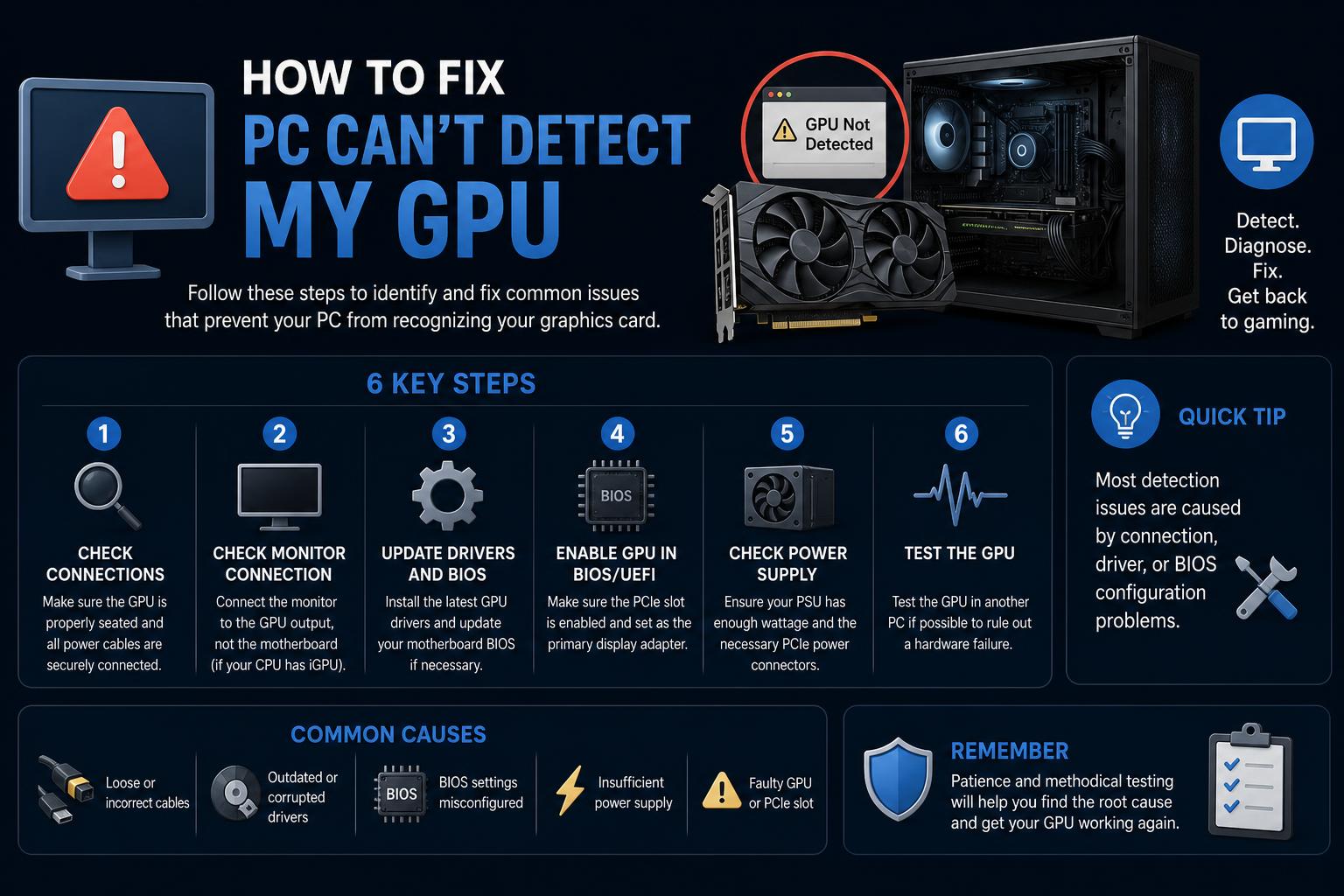
- Driver, connection, or hardware issues are the root causes for undetected GPUs in Windows PCs.
- Advanced troubleshooting covers driver reinstalls, hardware diagnostics, BIOS updates, and system repairs.
- Tools like Device Manager, Task Manager, and BIOS assist in both identifying and fixing detection problems.
If you’ve ever powered on your computer only to be greeted by a blank screen or found that your new or existing graphics card isn’t showing up in Windows, you know how frustrating that sinking feeling can be. Troubles with GPU detection are surprisingly common, especially after hardware swaps, system reinstalls, or unexpected crashes. Whether you’re setting up a gaming rig, upgrading to a more powerful card, or just want to squeeze extra performance out of your PC, understanding the right way to diagnose these issues is crucial.
This guide pulls together the most effective solutions, tips, and expert insights from trusted sources like Microsoft Answers, Tom’s Hardware, and the detailed tutorials from the Avast team. We’ll help you sort out whether the problem is a simple driver glitch, a deeper BIOS issue, or even a subtle hardware fault, so you can get back to smooth gameplay, editing, or day-to-day PC use.
Understanding How Windows Detects Your GPU
Your computer’s graphics processing unit (GPU) is either part of the CPU (integrated) or a separate dedicated card (discrete). Windows lists GPUs under Device Manager ➔ Display adapters. Here, you might see entries labeled Intel (integrated), NVIDIA, or AMD (dedicated). If nothing relevant appears—or worse, you only see a placeholder—the operating system likely can’t recognize your graphics hardware due to a driver, connection, or hardware failure.
Identifying If Your GPU Is Detected (and What Kind It Is)
Let’s break down the direct ways to check if Windows is seeing your card:
- Device Manager: Type “Device Manager” in the Windows search bar, and check under Display adapters. If your card is listed here, click for its properties to see status and driver details.
- Task Manager: Hit Ctrl + Shift + Esc or right-click the taskbar ➔ Task Manager. Go to the Performance tab and look under GPU 0, GPU 1, etc. This offers live utilization, model info, and sometimes temperature readings for modern cards.
- System Information: Open the Start menu, type “System Information,” press Enter, then expand Components ➔ Display for driver versions, card data, device IDs, and memory stats.
- DirectX Diagnostic Tool: Search for “dxdiag” and launch. Under the Display tab(s), you’ll see the GPU’s full name, manufacturer details, and driver info. Great for quick troubleshooting.
- NVIDIA & AMD Control Panels: For dedicated GPUs, right-click the desktop and choose either NVIDIA Control Panel or AMD Radeon Software. Here, you can drill down into specs, drivers, and advanced hardware data.
If your card isn’t showing in any of these locations, or your system boots with a “no signal” display, it’s time to dig deeper.
Common Reasons Your PC Can’t Detect the GPU
- Outdated, missing, or corrupt graphics drivers
- Improper or incomplete seating of the card in the PCIe slot
- Faulty PCIe slot, motherboard firmware/BIOS incompatibilities
- Power supply issues—insufficient wattage or loose cables
- Conflicting drivers left over from prior cards (e.g., switching from NVIDIA to AMD)
- Defective GPU (rare, but possible)
- Windows or BIOS not configured to use the discrete GPU (common on systems with integrated graphics as default)
Step-by-Step Troubleshooting: Get Your GPU Detected Again
1. Check the Physical Connection
Before anything, power down your PC, unplug it, and open the case. Make sure your graphics card is seated all the way into the PCIe slot. Some cards require a click from the locking tab at the end. Verify that all required power cables (6-pin, 8-pin, or a combination) are connected from the power supply, and that the power supply itself is up to the wattage your GPU needs.
If you recently swapped the card or moved your PC, cables can loosen and cause intermittent issues.
2. BIOS/UEFI Essentials
Reboot your computer and repeatedly tap the key to enter BIOS/UEFI (commonly Del, F2, F11, or F12 depending on your motherboard). Once inside:
- Look for Advanced Settings ➔ PCIe Configuration. Check if your slot lists as “occupied” or “detected.” If it doesn’t, the motherboard itself isn’t seeing the card!
- Change display settings to prefer the PCIe or discrete GPU instead of integrated graphics. This can force the system to initialize the right hardware at boot.
- Update the BIOS/UEFI firmware to the latest version found at your motherboard (or PC manufacturer) support site. Outdated firmware can cause compatibility issues with newer GPUs.
3. Display & Driver Basics in Windows
Once you’re sure the card is getting power and seen by BIOS, boot into Windows—if possible. Here’s what to do next:
- Uninstall old graphics drivers using Display Driver Uninstaller (DDU on its official site). This is especially important when switching brands or after a major crash.
- Reboot into Safe Mode (hold Shift while clicking Restart, or use the Safe Mode boot guide). Clean install the latest drivers from your card manufacturer: NVIDIA, AMD, or Intel.
- Don’t rely solely on Windows Update for display drivers. Manufacturers’ tools often provide newer, more stable versions.
- In Device Manager, right-click your card (if present) and try “Update driver,” “Roll back driver,” or “Uninstall device” then reboot. Sometimes a simple refresh restores proper detection.
- If using multiple monitors or adapters, swap cables or try a different display output (HDMI, DisplayPort, DVI) to rule out monitor issues.
If still undetected, try shifting the card to another PCIe slot. Faulty slots—especially on older or budget boards—can cause mysterious errors.
4. Deep System and Hardware Checks
- Run chipset, network, sound, USB, BIOS, and other driver updates from your PC/motherboard manufacturer support page. New system drivers, especially chipset or storage drivers, often resolve bus conflict issues affecting GPU detection.
- Test the RAM/memory (using Memtest86). Memory issues can result in failed hardware enumeration at boot.
- Run hard drive or SSD diagnostics using manufacturer tools or Seatools. In some cases, failing drives can cause blurry system instability or registry errors.
- Try a different graphics card in the same slot (borrow from a friend or use an older model). If the replacement works, your original card is likely faulty.
- On HP and Dell PCs, tap ESC (HP) or F12 (Dell) during startup to launch built-in diagnostics covering PCI and video components.
5. Fixing Windows-Level Errors
Sometimes, your Windows installation itself is to blame—corruption, improper setup, or misconfigured accounts. Here’s what advanced users (and Microsoft MVP moderators) recommend:
- Use the thorough Microsoft Windows optimization checklist to disable startup apps, scan for malware, check for system file corruption, and test with a new local admin account.
- If you’ve tried everything and the card still won’t show—even after driver/BIOS cycling—perform a Windows Repair Install (also called an in-place upgrade). This keeps your files and apps, while refreshing the core OS and drivers that underlie GPU detection.
Detecting and Identifying External GPUs (eGPU)
If you connect a GPU via Thunderbolt or another form of PCIe expansion (e.g., for laptops), it may show separately in Windows, sometimes with more complex “location paths” in Device Manager. Reference segments including “Thunderbolt” or “PCIe bridge” to see if your new device is listed. eGPUs generally have longer, nested PCI connection paths compared to integrated or onboard cards.
Troubleshooting by Brand: NVIDIA vs. AMD vs. Intel
- NVIDIA: Open the NVIDIA Control Panel and click “System Information.” If your card’s not there, reinstall drivers. For “RTX” branded cards, verify that ray tracing/dedicated features appear.
- AMD: Open AMD Radeon Software, click the gear icon, select “System” then “More Details.” Lack of hardware info inside this panel almost always means Windows isn’t seeing your AMD GPU at all—double-check in BIOS and Device Manager.
- Intel: Generally only relevant for integrated solutions. If your dedicated card is missing but Intel appears, your system might be defaulting to integrated graphics—change BIOS settings or fully reseat your GPU.
Essential Driver and Utility Tools To Know
- Display Driver Uninstaller (DDU): The gold standard for fully cleaning out old, broken, or conflicting graphics drivers. Always use this before switching GPU brands or after major crashes. Official guide and download at WagnardSoft.
- Manufacturer Update Utilities: Use NVIDIA GeForce Experience, AMD Autodetect Utility, and Intel Driver & Support Assistant, to get the freshest drivers.
- Windows Update: Sometimes offers fixes for rare hardware conflicts, but don’t depend on it alone for GPU drivers.
Glossary: Key GPU Terms to Know
- GPU (Graphics Processing Unit): The chip handling calculations for images, video, and gaming.
- Graphics Card: The full device, including the GPU, memory (VRAM), and onboard outputs.
- VRAM: Video memory used for textures, frame data, and asset storage.
- Clock Speed: The frequency the GPU runs at—higher is generally (but not always) better.
- CUDA Cores: NVIDIA’s parallel processors for heavy rendering tasks.
- DLSS: NVIDIA’s deep-learning super-sampling, for boosting game frame rates with AI upscaling.
- Ray Tracing: Technique for ultra-realistic lighting, available on modern NVIDIA RTX cards.
- TDP (Thermal Design Power): Expected heat output for cooling and power supply planning.
When To Suspect a Dead GPU or Hardware Failure
Not every situation has a happy ending. If your PC’s fans spin, lights come on, but nothing detects—even after BIOS, slot, cable, and driver checks—it’s possible your graphics card is dead. Confirm by testing it in another PC, or testing another (known working) card in your machine.
If both fail, your PSU or motherboard may be at fault.
Look for signs like artifacts, extreme overheating, no video at all, or a card never visible under any OS or hardware configuration. This, coupled with ongoing detection failures, are strong indicators the GPU needs warranty service or replacement.
Maintaining and Monitoring Your Graphics Card
Keeping drivers up to date is crucial not just for detection, but for performance and stability. Use automated tools like Avast Driver Updater to periodically scan for outdated or missing drivers beyond just the GPU—network, audio, chipsets all play a role. Regular updates smooth out bugs, patch security holes, and ensure optimal compatibility with new games and applications.
Diagnosing a missing GPU can feel overwhelming, but methodically checking hardware connections, system settings, BIOS options, and drivers covers nearly every scenario found in real-world troubleshooting. Most cases are solved with a mix of proper installation, driver cleanup, and a careful review of device settings and system updates. With persistence and these comprehensive steps, you’ll have your graphics card up and running (or know exactly what to replace) in no time.