
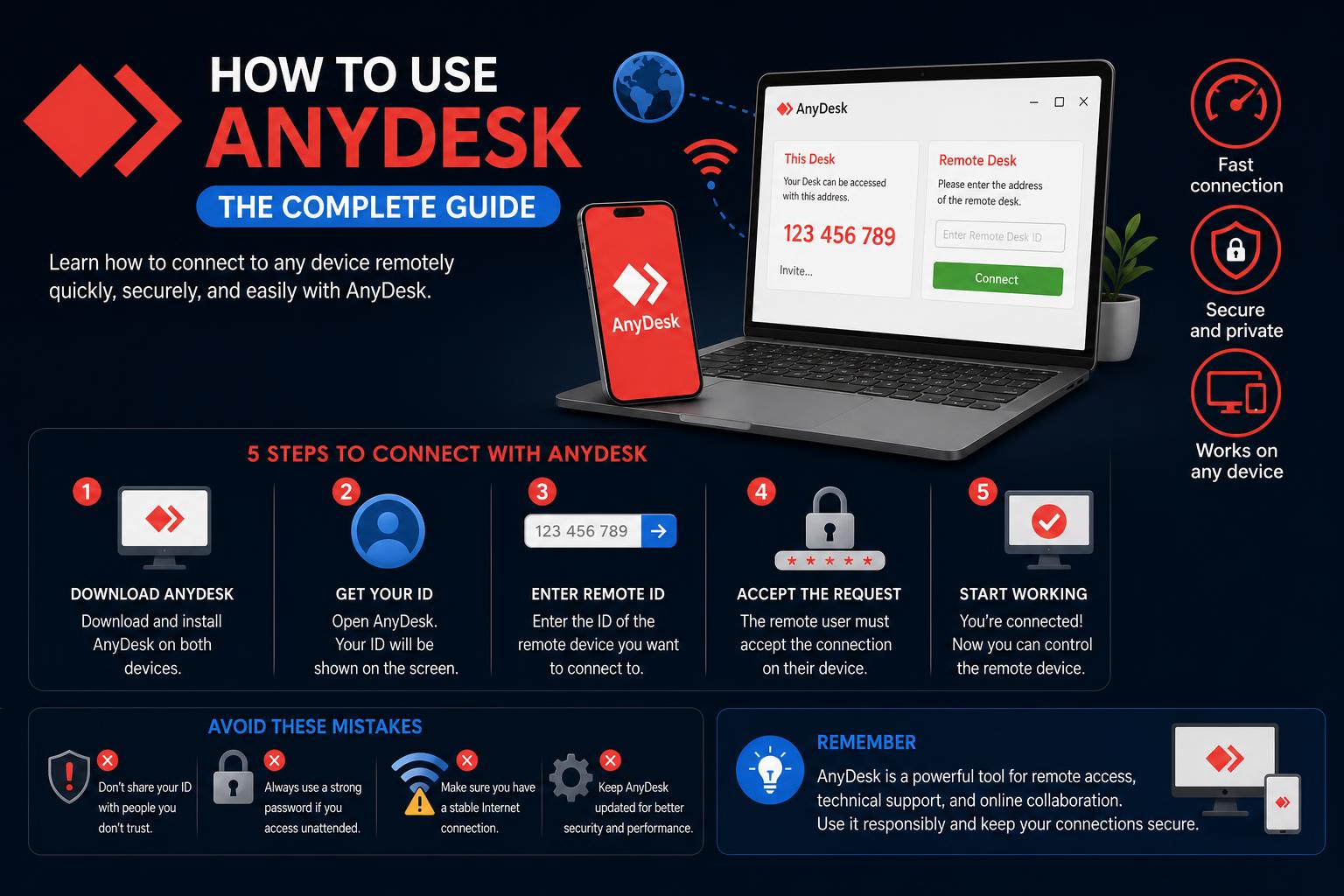
- AnyDesk offers seamless remote access across multiple operating systems, supporting Windows, macOS, Linux, Android, iOS, Raspberry Pi, and ChromeOS.
- Advanced features such as Unattended Access, privacy controls, and centralized management make it ideal for both individuals and organizations.
- Security best practices, including strong passwords and privacy modes, are essential for maintaining protected remote sessions.
Remote desktop access software is a must-have tool in today’s digital age, whether you’re working from home, providing IT support, or simply helping a friend with computer issues. Among the many options available, AnyDesk has carved out a strong reputation for being easy to use, lightweight, and reliable across a variety of devices and operating systems. But how do you set it up, what features should you know about, and how can you get the most out of it? This article will walk you through every step of using AnyDesk effectively—from installation to advanced configurations—so you can make the most of this powerful remote access tool.
Many guides and videos only skim the surface, but this in-depth tutorial will show you not just the basics but also advanced tips and platform compatibility information. By the end, you’ll feel confident installing, configuring, and optimizing AnyDesk for your specific needs, whether you’re a home user or an IT professional managing multiple endpoints.
What is AnyDesk?
AnyDesk is a remote desktop application that allows users to access and control devices remotely. Its primary appeal lies in its simplicity, speed, and broad compatibility. Whether you’re on Windows, macOS, Linux, Android, iOS, Raspberry Pi, or ChromeOS, AnyDesk makes it possible to connect across almost any device.
Key Features at a Glance
- Quick installation: Get up and running with minimal setup on nearly any device.
- Unattended Access: Securely connect to devices even when no one is present at the remote end.
- Cross-platform support: Windows, macOS, Linux, iOS, Android, Raspberry Pi, and ChromeOS are all supported.
- Lightweight performance: Small download size and low system impact mean you won’t slow down your devices.
Step 1: Downloading and Installing AnyDesk
First things first: you’ll need to download AnyDesk on both the device you want to control (the remote device) and the device you’re connecting from (the local device). This applies no matter which platform you’re using.
- Go to the official AnyDesk download page.
- Choose the version that matches your operating system: Windows, macOS, Linux, Android, iOS, Raspberry Pi, or ChromeOS.
- Follow the on-screen setup instructions for your chosen operating system. Typically, you just need to download the installer and execute it, but you can also run AnyDesk in portable mode for quick or one-time use (note: some advanced features, like Unattended Access, require a full installation).
- If you’re managing multiple devices, repeat the installation process on each device you plan to access.
Pro tip: While AnyDesk can run as a portable app, installing it fully is recommended if you want persistent features, such as configuring Unattended Access or launching at startup.
Step 2: Licensing – Registering Your License
After installation, you can use the free version of AnyDesk for personal purposes. For business or professional use, purchasing and registering a license unlocks the full range of features.
- Purchase a suitable license via the AnyDesk official store.
- Once you have your license, open the AnyDesk application (the ‘Client’) and log in using your AnyDesk account credentials, or enter your License Key manually in the designated section.
- Licenses are tied to your account—once registered, you’ll see that advanced features are now available on your client device.
Registering your license is crucial for organizations, as it enables integration with user management, role assignment, custom branding, and centralized control options.
Step 3: Setting Up Unattended Access
If you want to control a remote device even when no one is present on the other end, Unattended Access is your friend. It allows you to securely connect using a pre-set password instead of waiting for someone to accept your connection request.
- On the remote device, launch AnyDesk and open the Settings menu.
- Navigate to Access, and in the Unattended Access section, click on Set Password.
- Enter a strong, unique password, then confirm and apply your changes.
Now, you can connect from your local device by entering this password during the connection process, eliminating the need for anyone to manually accept the session on the other end. This is especially helpful for IT support, managing servers, or accessing your home computer while travelling.
Step 4: Connecting to a Remote Device
Time to establish your first remote session! Here’s what you need to do:
- Locate the AnyDesk ID or Alias on the device you want to connect with. This unique code—or optionally a custom alias—identifies each installation of AnyDesk. You’ll see it prominently displayed on the main screen when you open AnyDesk on the remote device.
- On your device (the local device), simply enter the AnyDesk ID or Alias in the ‘Remote Address’ field and press Enter.
- Depending on your previous configuration, you’ll be prompted to either:
- Enter the Unattended Access password (if you set this up previously), or
- Wait for the remote user to manually accept the session (for ad-hoc connections where someone is physically present).
- When authorized, the connection will establish, and the remote desktop will display on your screen. You can now control the device, transfer files, troubleshoot, or collaborate as if you were physically present.
Each session is encrypted for security, so you don’t need to worry about unwanted eavesdropping or interference.
Step 5: Managing and Ending Remote Sessions
You’re in control throughout the session. At any time, the session can be ended from either the local (controller) device or the remote (controlled) device. Simply close the session window or select the end option in the application interface. If you have an AnyDesk account, you can also terminate active sessions from your online dashboard at my.anydesk.com.
Additional Security: Privacy Mode & More
For users handling sensitive information or requiring additional discretion, Privacy Mode can be enabled. This feature blacks out the screen of the remote device while you’re accessing it, ensuring no one can physically observe what you’re doing during the session.
Explore the Settings for further security tweaks, such as limiting incoming connections, specifying allowed devices, and customizing permissions for each session.
Platform Compatibility: Connect From Anywhere
One of AnyDesk’s biggest strengths is its cross-platform accessibility. It doesn’t matter if you’re on a Windows PC at work, a MacBook at home, a Linux server in the cloud, or even a Raspberry Pi running as a kiosk. AnyDesk supports a remarkably broad spectrum of device types and operating systems.
| From / To | Windows | macOS | Linux | Raspberry Pi | Android | iOS | ChromeOS |
|---|---|---|---|---|---|---|---|
| Windows | ✅ | ✅ | ✅ | ✅ | ✅ | ✅ | ✅ |
| macOS | ✅ | ✅ | ✅ | ✅ | ✅ | ✅ | ✅ |
| Linux | ✅ | ✅ | ✅ | ✅ | ✅ | ✅ | ✅ |
| Raspberry Pi | ✅ | ✅ | ✅ | ✅ | ✅ | ✅ | ✅ |
| Android | ✅ | ✅ | ✅ | ✅ | ✅ | ✅ | ✅ |
| iOS | ✅ | ✅ | ✅ | ✅ | ✅ | ✅ | ✅ |
| ChromeOS | ✅ | ✅ | ✅ | ✅ | ✅ | ✅ | ✅ |
Note: Some platform features may have caveats. For instance, to control iOS/iPadOS devices, a paid outgoing client is required, and tvOS limits connections to outgoing only. ChromeOS currently supports outgoing sessions only.
Advanced Configuration for IT Professionals
For those managing larger teams or needing more granular control, AnyDesk offers a range of advanced deployment features:
- User and Role Management: Define organizational structure, assign access levels, and set permissions for different team members through centralized tools.
- Single Sign-On (SSO): Integrate with your identity provider to streamline access and boost security for your entire workforce.
- Custom Client Creation: Build bespoke AnyDesk clients tailored to your organization, pre-configured with specific aliases, branding, permissions, and settings.
- Automated Deployment: Use group policy objects or MSI packages for large-scale rollouts, ensuring consistent configuration across multiple devices without manual intervention.
These features make AnyDesk a favorite among IT support teams who need to manage entire fleets of devices, offer remote troubleshooting, or monitor usage centrally.
Tips for Smooth Remote Sessions
Maximize your experience with AnyDesk using practical best practices:
- Use strong, unique passwords for Unattended Access on every device to minimize security risks.
- Leverage Privacy Mode in offices or shared spaces to keep your activities confidential.
- Create custom Aliases for important devices so you don’t have to memorize random IDs.
- Keep AnyDesk updated for the latest features and security patches.
Common Scenarios and Troubleshooting
Sometimes things don’t go perfectly, especially with networked applications. Here are fixes for common hiccups:
- Failed Connections: Double check both devices are online, AnyDesk is running, and firewalls (on both sides) aren’t blocking the application.
- Authorization Issues: Ensure you’re entering the correct password for Unattended Access, or that someone is available to accept the session promptly if using manual acceptance.
- Display Problems: If your session is laggy, try adjusting the quality settings or switching between balanced and speed modes. Lower resolutions improve performance over slow connections.
- Clipboard and File Transfer: Make sure clipboard and file transfer permissions are enabled if you need to copy files or text between devices.
Key FAQs About AnyDesk
- Is installation mandatory? No, you can run AnyDesk in portable mode. However, full installation unlocks additional features such as Unattended Access and startup integration.
- Can I use AnyDesk for free? Personal use is free; business users should obtain a license for commercial features and support.
- What platforms can connect to each other? AnyDesk is designed for universal compatibility across major operating systems, as shown in the table above.
With this comprehensive guide, you now have all the know-how to set up, connect, and manage remote sessions confidently and securely using AnyDesk. From single users to IT admins, the blend of simplicity and advanced controls makes AnyDesk an outstanding choice for remote desktop needs. Start with the basics, explore the settings, and you’ll soon see why so many users, teams, and businesses rely on this tool for day-to-day productivity and support.