
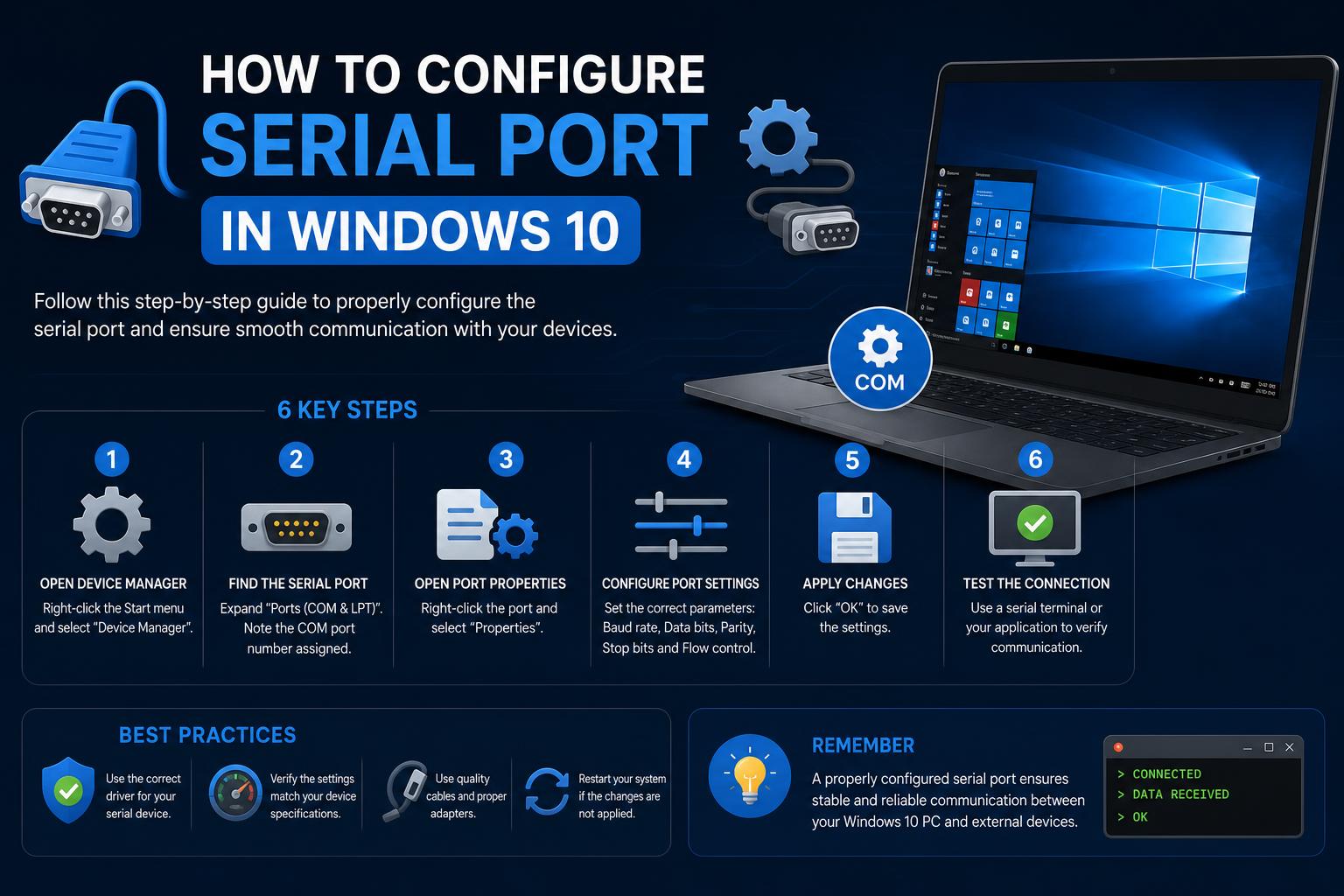
- COM ports in Windows 10 remain crucial for industrial and hobbyist applications.
- Device Manager enables manual configuration and troubleshooting of serial devices.
- Advanced integration using WSL1 and Linux tools expands workflow flexibility.
If you’ve ever found yourself scratching your head over serial port settings on Windows 10, you’re not alone. Serial ports aren’t as visible as they once were, but for countless professionals—from embedded systems developers to industrial engineers and IT admins—they remain an essential component of daily workflows. Navigating Windows 10’s hardware management tools, virtual serial ports, and even the quirks of WSL1 integration can be overwhelming, especially for those who haven’t delved into the world of COM ports before.
Whether you’re troubleshooting hardware conflicts, configuring specialized equipment, or just trying to get your device talking properly to your computer, understanding how to access, configure, and manage serial ports in Windows 10 is an invaluable skill. In this article, we’ll walk you step-by-step through everything from the basics of COM ports, accessing advanced settings, setting up new serial interfaces—including modern PCIe expansion cards and software-defined virtual ports—to powerful workflows with Windows Subsystem for Linux and practical tips to avoid common pitfalls. Let’s get your devices communicating your way, with as little hassle and as much clarity as possible!
Understanding Serial (COM) Ports in Windows 10
Despite the dominance of USB and wireless devices, serial ports—they’re often labeled as “COM” ports in Windows—still play a vital role in many industries. Serial (or communication) ports provide a standard way for your PC to exchange data with peripherals like modems, barcode scanners, and a variety of industrial and laboratory equipment.
In Windows 10, COM ports are managed via Device Manager, and each port is assigned a unique identifier (COM1, COM2, etc.) to ensure devices don’t clash with each other. Even devices connecting via USB may appear as virtual COM ports, thanks to USB-to-serial adapters and drivers.
Common Reasons to Configure Serial Ports
Knowing how to change or configure serial ports isn’t just for troubleshooting. Here are some typical scenarios where adjusting COM port settings is essential:
- Resolving device malfunctions due to port conflicts or automatic reassignment after a reboot.
- Assigning a stable port number (your barcode reader always shows up as COM4) to ensure compatibility with specialized software.
- Changing communication parameters—like bit rate, parity, and handshake settings—for hardware that requires them.
- Adding more COM ports for multi-device environments, such as laboratory setups, point of sale systems, or industrial machines.
How to Access Device Manager in Windows 10
Device Manager is your main interface for managing hardware and configuring COM ports in Windows 10. If you’re not already familiar with it, here’s the easiest way to access it:
- Press Windows + X on your keyboard, or right-click the Start button.
- Select Device Manager from the pop-up menu.
Device Manager is the hub for troubleshooting, configuring, and viewing all your computer’s hardware—including serial ports.
Finding and Identifying Your Serial or USB-to-Serial Device
Once inside Device Manager, you’ll need to locate the device you want to work with. Serial ports are found under the ‘Ports (COM & LPT)’ section.
- Expand the Ports (COM & LPT) drop-down list.
- Look for entries like “USB Serial Port (COM3)” or “Communications Port (COM1)”—these indicate active serial ports.
If you have a USB-to-serial adapter plugged in, it will appear here—sometimes as a named device, sometimes just as “USB Serial Port” with a designated COM number.
Changing the COM Port Number in Windows 10
There are times when software or external devices expect—or require—a particular COM port number. If your device is being assigned to the “wrong” number, here’s how you can manually change it:
- Right-click on the relevant device in the Ports (COM & LPT) section.
- Select Properties.
- Navigate to the Port Settings tab.
- Click the Advanced button.
- Find the “COM Port Number” dropdown menu and select a new, unused COM port (e.g., COM5).
- Confirm by clicking OK on all open dialogs.
This process instructs Windows to treat the current device as if it were plugged into a specific COM port, which can resolve conflicts or make automation scripts more reliable.
Common Issues and Troubleshooting
Why Can’t I See the ‘Port Settings’ Tab?
Sometimes, the ‘Port Settings’ tab doesn’t appear, especially with certain drivers or multi-function USB-to-serial adapters. Here are some possible reasons and tips:
- The device driver might not fully support advanced COM settings. Try updating the driver through Device Manager or downloading the latest version from the manufacturer’s site.
- Some multi-purpose or virtual devices may restrict port configuration via Device Manager. If so, look for a dedicated configuration utility provided by the vendor.
What If My COM Port Disappears After Reboot?
Certain devices, especially when moved between USB ports or after Windows updates, can change their assigned COM port automatically. If you always want a device on the same port:
- Reassign the port as described above, and try to keep the device in the same physical USB port.
- Some power users automate this with startup scripts or PowerShell—for advanced users, this approach is discussed in Reddit’s r/sysadmin community, although it requires scripting experience.
Adding More Serial Ports to Your PC or Laptop
If your computer lacks physical serial (RS232) ports, or you need more than what’s built in, there are multiple ways to expand:
Using Expansion Cards (PCI, PCIe, ISA)
Desktop PCs with free expansion slots can add physical serial ports via PCI, PCIe, or older ISA cards.
- Multiport serial cards are available—from single-port add-ins to cards offering 4, 8, or even more serial port connectors.
- Make sure to acquire a card designed specifically for the available slot (PCI, PCIe, or ISA) on your motherboard.
- If you lack free brackets for external connectors, look for cards that include breakout cables (as seen with products like 4 Port RS232 PCI Express Serial Cards) which route pins to external ports via a bundled cable.
Using USB-to-Serial Adapters
USB adapters provide a much easier way to equip laptops or modern desktops with serial ports.
- Install the latest drivers provided by the adapter manufacturer for the best compatibility.
- Each plugged-in adapter creates its own virtual COM port in Device Manager.
Virtual Serial Ports
If your workflow involves software that communicates over serial ports but does not require actual hardware devices, third-party tools can create virtual COM ports. This is particularly useful for testing or for software development.
Using Serial Ports with Windows Subsystem for Linux (WSL1)
If you prefer Linux command-line tools for serial communication, Windows Subsystem for Linux (WSL1) offers some powerful advantages. For example, you can use applications like Minicom (a terminal program popular on Linux) to interface directly with serial devices on your PC.
Key points to keep in mind:
- Only WSL1 (not WSL2) can talk directly to Windows serial ports. You can check which version your distro is using with
wsl --list -v, and switch as needed withwsl --set-version DISTRONAME 1. - Install Minicom by running
sudo apt updateandsudo apt install minicomin your WSL terminal. - Serial devices map as
/dev/ttyS*in WSL1. For example, Windows’ COM4 lists as/dev/ttyS4. - Configure Minicom with
minicom -sto set your device and baud rate (e.g., 9600 for many Arduino boards). - If you see ‘Permission denied,’ add your user to the ‘dialout’ group with
sudo gpasswd --add $USER dialoutand then restart your WSL terminal.
Experienced users can further enhance workflows by adding shortcuts or menu items to Windows Terminal, launching directly into Minicom or other command-line serial tools. More details are available in this excellent walkthrough by Scott Hanselman.
Frequently Asked Questions (FAQs) about COM Port Configuration
Here’s a quick-hit guide to a few questions frequently raised by IT professionals and hobbyists alike, drawing on real forum posts and expert blogs:
- What’s the default COM port in Windows 10? There’s no universal answer—it depends on which devices and drivers are installed first. Most PCs allocate COM1 or COM3 by default, but these can change as you add or remove hardware.
- Can two devices share the same COM port? Not natively—each device requires a unique port assignment to avoid conflicts.
- How can I identify which hardware owns a specific COM port? Just expand ‘Ports (COM & LPT)’ in Device Manager to see which device is mapped to which port.
- What if my device isn’t listed under Ports? Make sure it’s physically connected and powered on, and ensure drivers are installed correctly. Sometimes, unplugging and replugging the device, or reinstalling drivers, can make it visible again.
- Is it safe to change COM port numbers? Yes, as long as you don’t assign the same number to two devices simultaneously, it’s a risk-free operation.
Advanced Tips and Advice from the Community
Real-world scenarios uncovered by communities like Reddit and Microsoft’s user forums reveal a few advanced issues. For example, if a device switches ports after every reboot, scripting or automation may be necessary. Some adapters restrict access to port configuration tabs depending on the driver in use—updating, or using an official utility, often solves the problem.
Don’t overlook the role of drivers in stable communication: always use the most up-to-date drivers for your USB-to-serial adapters, downloaded directly from the manufacturer’s website for best results.
Getting the Most from Your Serial Ports in Windows 10
Configuring, troubleshooting, and expanding serial ports in Windows 10 isn’t just about fixing problems—it’s about unlocking the flexibility and power to use your computer the way you need for your equipment and your workflow. Whether you’re building a test bench, communicating with microcontrollers, working in industrial automation, or simply running legacy equipment, a confident grasp of serial port management will ensure your setup stays reliable, flexible, and ready for anything.
Learning to navigate Device Manager, understand port assignments and settings, and leverage tools like Minicom or tailor your hardware setup means a lot less frustration—and for many, a lot more productivity. Tackle COM port issues with confidence, and you’ll find even the most stubborn legacy hardware can become a reliable part of your modern setup.