
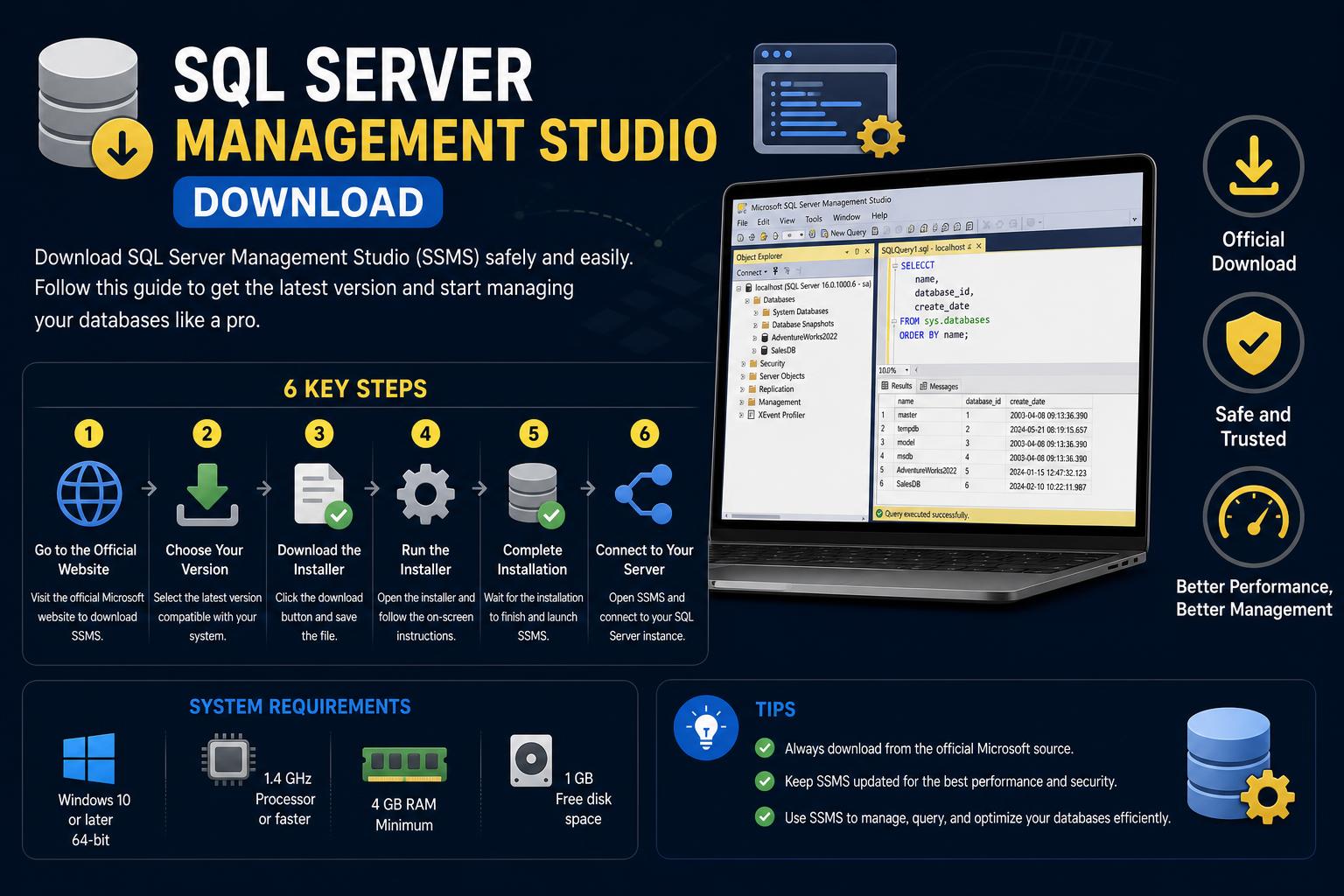
- SSMS provides an all-in-one solution for managing local and cloud-based SQL databases.
- The latest installation process is Visual Studio Installer-based, offering customization and ease of updates.
- Multiple versions of SSMS can coexist, supporting versatile SQL Server environments.
Looking for the most reliable way to download and set up SQL Server Management Studio (SSMS) on your system? You’re not alone! Many database administrators, developers, and IT professionals seek the optimal process for installing and using SSMS, Microsoft’s flagship tool for SQL Server management. Understanding the tool’s features, compatibility, and installation steps is crucial for anyone looking to harness the full power of modern SQL databases.
Whether you’re completely new to the SQL Server world or an experienced user in need of the latest updates, this article provides a thorough, easy-to-follow guide. We’ll cover everything from what makes SSMS indispensable, to the ins and outs of its latest versions, right down to tips for troubleshooting a tricky installation. Our goal is to save you time while ensuring you don’t miss any important step or feature.
What is SQL Server Management Studio (SSMS)?
SQL Server Management Studio (SSMS) is an all-in-one environment developed by Microsoft designed for managing, configuring, and developing your SQL Server infrastructure. It offers a straightforward graphical interface that empowers users to access nearly every aspect of SQL Server.
Key features include the ability to manage databases, execute and debug scripts, monitor performance, and deploy data-tier applications. SSMS also supports T-SQL, MDX, DMX, and XML editors, delivering extensive versatility for database professionals.
It’s worth noting that SSMS is now a completely standalone product. This means you don’t need to be tied to a particular SQL Server edition or go through cumbersome licensing procedures. You can freely download, install, and update SSMS for your projects.
Main Uses and Benefits of SSMS
SSMS is much more than a management console. It includes a set of productivity tools and editors that make the daily lives of SQL Server administrators and developers significantly easier, including:
- Intuitive GUI: Manage and configure SQL Server instances with just a few clicks.
- Script Editing: Create, modify, and debug T-SQL scripts directly within SSMS using an advanced editor.
- Monitoring & Troubleshooting: Integrated tools to monitor server health, performance, and troubleshoot potential issues.
- Deployment: Simplify data-tier application deployments for application development teams.
Thanks to its robust feature set, SSMS stands out for anyone who needs a reliable way to interact with SQL databases, both locally and in the cloud.
Which Platforms Does SSMS Support?
The latest versions of SSMS are designed to work seamlessly with a wide range of Microsoft SQL technologies, including:
- All supported releases of SQL Server from 2014 onward
- Azure SQL Database
- Azure SQL Managed Instance
- Azure Synapse Analytics
- Microsoft Fabric SQL endpoints and databases
- Analytics Platform System (PDW)
If you’re running any SQL Server version prior to 2014, refer to the official release history for compatible SSMS versions.
SSMS Versions: What You Should Know
SQL Server Management Studio is updated regularly to support new features and keep up with evolving SQL Server releases. The tool is not tied to a specific SQL Server version and can be installed independently or side-by-side with previous SSMS releases. For example, you may have SSMS 18 alongside SSMS 17 or 16 if you’re working in mixed environments. This flexibility is a significant advantage for users running different SQL Server environments simultaneously.
For the full history and details on past versions, you can check the highly-maintained version list at SQL Server Builds. The blog is continuously updated and serves as a useful resource for keeping track of recent changes.
How to Download SQL Server Management Studio
If you’ve ever tried searching for SSMS downloads, you might have noticed that there’s no longer a traditional standalone MSI installer for the latest versions. Since SSMS 22, Microsoft has streamlined the process to align with their modern installation policies.
- Navigate to the official Microsoft download page: The right place to start is always the official Microsoft documentation: where you’ll find links to the latest SSMS installer.
- Download the SSMS Installer Stub: The current standard is a stub called
vs_SSMS.exe. This file doesn’t actually contain the full installer—instead, when run, it will launch the Visual Studio Installer which is now used to manage SSMS installation and updates.
Step-by-Step Installation Guide for SSMS 22
Setting up SSMS is straightforward, but there are several steps to ensure success and smooth performance.
Step 1: Prepare Your Computer
- System Requirements: Confirm your system meets the minimum requirements for SSMS 22. Up-to-date Windows OS is a must.
- Administrator Permissions: The user carrying out the installation should have administrator rights.
- Apply Windows Updates: Make sure your system is patched with the latest security and compatibility updates.
- Restart Your Computer: A quick reboot can prevent conflicts with pending updates or installs.
- Free Up Disk Space: Remove unnecessary files and old applications from your main drive—you can use Windows Disk Cleanup.
Step 2: Choose the Version to Install
Usually, users install the latest version available, but if you need a previous release for compatibility reasons, visit the release history in the official documentation. Download the appropriate stub installer for the version you need.
Step 3: Run the Installer Stub
- Locate vs_SSMS.exe in your Downloads folder.
- Right-click and select ‘Run as administrator’.
- If prompted by User Account Control, approve the changes, agreeing to the Microsoft Privacy Statement and License Terms.
This opens up the Visual Studio Installer, which will guide you through the SSMS installation. You can also use the installer to install other Visual Studio products if desired.
Step 4: Select Workloads (Optional)
The Visual Studio Installer allows you to choose specific workloads for your installation:
- For most users, picking the defaults is sufficient. However, if you require specialized features, like Hybrid and Migration workloads for upgrading and migrating data, select them here.
- Review each workload summary in the installer to decide which are most relevant to your needs.
Step 5: Choose Individual Components (Optional)
Beyond workloads, you can dig into the Individual components tab for more granular control. Pick and choose extra tools and services you might need—adding them is just a checkbox away.
Step 6: Install Language Packs (Optional)
- By default, SSMS will try to match your system’s language. Want SSMS in another language? Simply use the Language packs tab during installation and follow the prompts.
- Alternatively, you can set the installer’s language via the command line using:
vs_SSMS.exe --locale en-US - Many language locales are supported, including
en-us,es-es,fr-fr,de-de, and more.
Step 7: Set Installation Location (Optional)
You have some control over where SSMS installs:
- On the first install, specify a different drive for either SSMS itself or the download cache.
- Once installed, changing drive locations requires an uninstall/reinstall.
- If SSMS or Visual Studio is already on your system, the paths for shared components will be locked to ensure consistency across products.
Step 8: Account Sign-In (Optional)
It’s not mandatory, but signing into your Microsoft account adds value—you get settings sync, access to additional cloud resources, and easier license management for other products.
Updating and Maintaining SSMS
Keeping SSMS up to date is now simpler than ever thanks to the integration with Visual Studio Installer. To check for updates or add/remove features, just relaunch the installer and follow the prompts. This approach avoids the mess of juggling multiple standalone updaters or having to chase patch files on different Microsoft pages.
Offline and Enterprise Deployment of SSMS
If you’re rolling out SSMS across a network or dealing with computers that are rarely or never connected to the internet, the Visual Studio Installer allows you to create an offline layout. This setup is especially useful for enterprise environments—details for this process can be found in the official installation documentation.
Troubleshooting and Additional Support
Sometimes, installations run into hiccups. If you encounter errors or failures, Microsoft provides a . You’ll also find support from the SSMS Developer Community, which maintains an updated list of common issues and provides a platform for feedback and tips. Filter issues by Tooling under the Groups category to find solutions efficiently.
Useful Tips for a Smooth SSMS Experience
- Run Side-by-Side: Installing multiple SSMS versions can be beneficial for maintaining legacy systems.
- Unattended and Command-Line Install: Automate and customize installations for larger environments.
- Review Release Notes: Always check the latest updates for new features and compatibility improvements.