
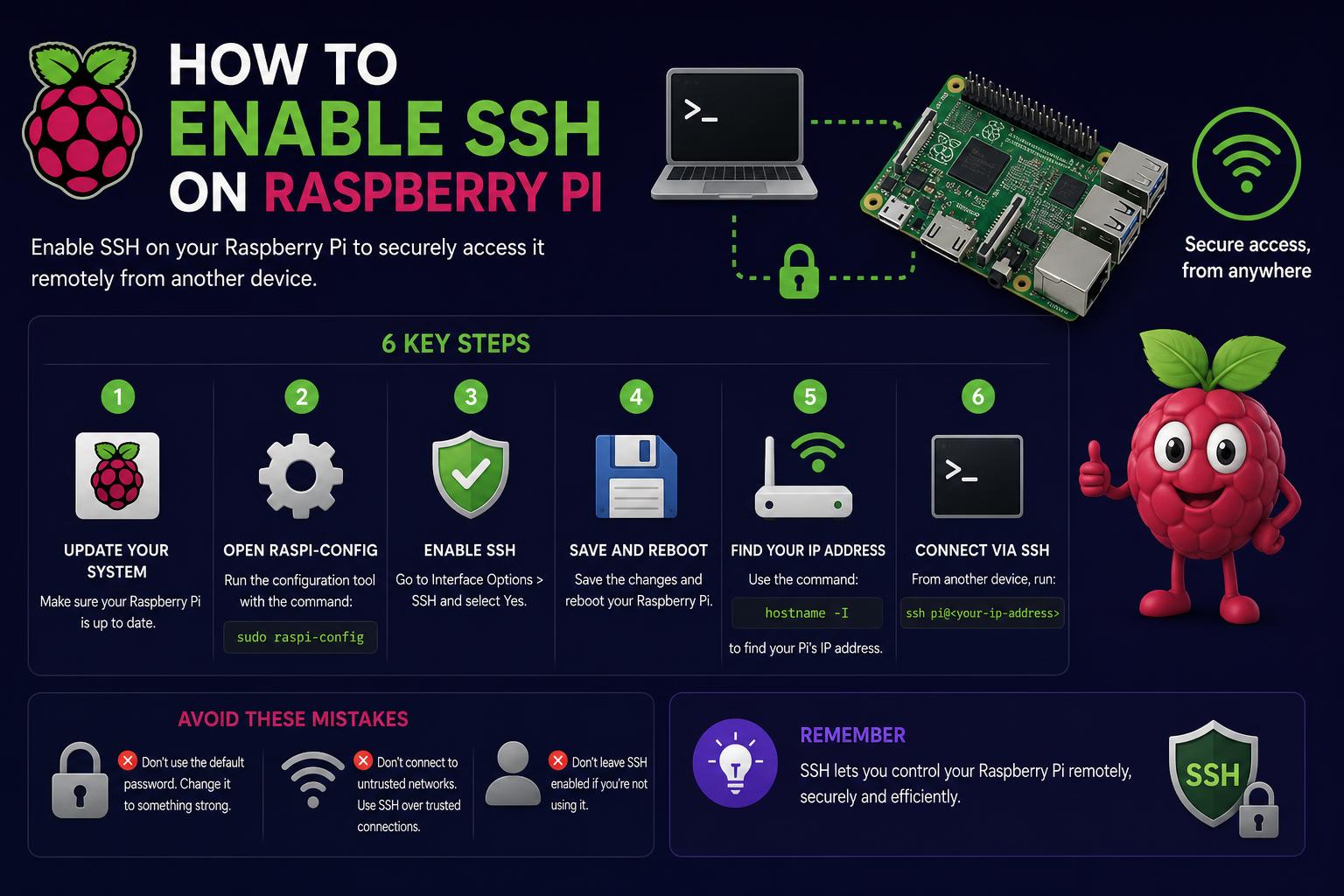
- SSH allows secure, remote command-line access to your Raspberry Pi from any device.
- You can enable SSH via the desktop, terminal, or headless setup before first boot.
- Passwordless SSH increases convenience and security for frequent connections.
Setting up a Raspberry Pi for the first time can be both exciting and slightly overwhelming, especially for those who want to get the most out of their tiny computer without always connecting peripherals like a monitor, keyboard, or mouse. One of the best features for remote management is SSH (Secure Shell), which lets you control your Raspberry Pi from another device—no need for a direct screen or keyboard. It’s a game changer for developers, educators, and hobbyists alike.
If you’ve been wondering how to enable SSH on your Raspberry Pi and really make it your own, you’re in the right place. This article will walk you through every step, from understanding what SSH is, enabling it in various ways, making the first connection, fixing common issues, and even securing your connections with advanced tips like passwordless SSH. Let’s unlock that Pi and put it to work, wherever you are!
What is SSH and Why Use It with Raspberry Pi?
SSH, or Secure Shell, is a protocol that allows you to securely access and control the command line of another computer from your own device over a network. Rather than needing a screen and keyboard directly attached to the Raspberry Pi, SSH gives you the power to manage your Pi, execute commands, transfer files, and update your system remotely. This means you can run a headless Raspberry Pi — one without a monitor or keyboard — perfect for setting up media centers, smart home hubs, or learning programming in a truly modern way.
SSH is usually pre-installed on Linux, macOS, and most newer Windows systems. For those using mobile devices, plenty of SSH apps are available too, making it flexible for all kinds of workflows. If you’re looking for a graphical interface rather than command line, you might consider something like VNC, but for most admin tasks, SSH is the gold standard.
How to Enable SSH on a Raspberry Pi
SSH is disabled on fresh Raspberry Pi OS installations for security reasons. However, enabling it is straightforward, with multiple options to suit your setup:
Using the Desktop Environment
- Go to the Raspberry Pi menu in the upper-left corner.
- Select Preferences > Raspberry Pi Configuration.
- Navigate to the Interfaces tab.
- Find SSH and click the Enable radio button.
- Click OK to apply the changes. SSH is now active.
This graphical route is ideal if you already have access to the Raspberry Pi’s desktop.
Enabling SSH via the Terminal
- Open a terminal window.
- Type
sudo raspi-configand hit Enter. - With the arrow keys, choose Interfacing Options.
- Select SSH and choose Yes when prompted.
- Press OK to finish and Finish to exit the tool.
This command-line approach is great even if all you have is terminal access to your Raspberry Pi.
Setting up SSH on Headless Installations (First Boot)
If you’re running your Raspberry Pi without any peripherals (“headless”) from first boot, it’s possible (and common) to activate SSH even before you boot up. Here’s how:
- Insert your microSD card into your computer after installing Raspberry Pi OS.
- Navigate to the boot partition (it will just show up as “boot”).
- In the root of the boot directory, create a new, empty file named ssh (no file extension, no contents needed).
- On Windows: Open Notepad, save the file as
ssh. - On Mac or Linux: Use
touch sshin the terminal.
- On Windows: Open Notepad, save the file as
- Safely eject the microSD card, insert it into your Raspberry Pi, and power on. SSH will be enabled automatically on first boot.
How to Connect to Your Raspberry Pi Using SSH
Once SSH is enabled, your next step is to connect from your computer (host device) to the Raspberry Pi. Here’s how:
Find Your Raspberry Pi’s IP Address or Hostname
- To get the IP address, open a terminal on your Raspberry Pi or connect a monitor and run:
hostname -Iorifconfig. - The hostname, by default, is
raspberrypi. On most networks, you can useraspberrypi.local. Para ampliar tus conocimientos sobre cómo funciona SSH, puedes consultar la guía en qué es SSH y cómo funciona.
Connecting from a Linux or Mac Host
- Open your terminal.
- Type:
ssh [email protected]or use the Pi’s IP:ssh [email protected] - Accept the connection if it’s the first time (you’ll be prompted about security), and enter your Raspberry Pi password (default is ‘raspberry’ unless changed).
Connecting from Windows
Recent versions of Windows 10 and 11 come with an SSH client built-in, but you can also use third-party applications like PuTTY.
- Using Windows SSH client:
- Open Command Prompt or PowerShell.
- Type:
ssh [email protected]orssh pi@IP_ADDRESS
- With PuTTY:
- Go to , download and install PuTTY.
- Open PuTTY. In the Host Name (or IP address) field, enter raspberrypi.local or the actual IP.
- Set Port to 22 (default), and Connection type to SSH.
- Click Open, and when prompted, enter your username (‘pi’) and password.
SSH from Mobile Devices
SSH isn’t just for computers! Apps like Termius (available for iOS and Android) make it simple to connect to your Pi on the go. Most mobile SSH clients will ask the same details: username, IP/hostname, and password.
Running Single Remote Commands
Once SSH is set up, you’re not just limited to opening a terminal session—you can execute one-off commands directly from your host. For example,ssh [email protected] 'sudo shutdown -h now'
will remotely shut down your Raspberry Pi.
Troubleshooting SSH Not Working on Raspberry Pi
Sometimes, SSH just won’t cooperate, especially after a fresh install. Here’s what you should check if you can’t connect:
- SSH daemon not running: Make sure SSH is truly enabled. You can run
sudo systemctl status sshon the Pi to confirm it’s active. - Network issues: Ensure your host computer is on the same local network as the Raspberry Pi.
- Wrong IP or hostname: Confirm the IP with
hostname -I. If your network does not support mDNS,raspberrypi.localmight not work. - Firewall settings: Double-check any firewalls or network controls that could be blocking port 22 (SSH).
- SD card file system corruption: Sometimes, the card itself may have an issue, so try recreating the boot file or re-imaging the OS if necessary.
- Default “pi” user is disabled: Newer versions of Raspberry Pi OS require you to set up a user on first boot. Confirm your username if it was changed from the default.
If you’re still running into trouble, the Raspberry Pi Stack Exchange and official forums are valuable resources.
How to Enable SSH on the Host Computer
- Linux and macOS: SSH is pre-installed. Just pop open Terminal and you’re ready.
- Windows 10/11 (October 2018 Update or newer):
- Go to Settings > Apps > Apps & features > Optional Features.
- Scroll or search for OpenSSH Client.
- If not installed, select Add a feature and install OpenSSH Client.
- Other Windows versions: Download an SSH client like PuTTY ().
If you’re connecting from a phone or tablet, look for SSH clients in the App Store or Google Play — apps like Termius, JuiceSSH, or iTerminal are solid choices.
Para profundizar en el conocimiento sobre cómo funciona SSH, puedes consultar la guía en .
Setting Up Passwordless SSH on Raspberry Pi
If you frequently access your Raspberry Pi or want to automate remote commands without entering a password every time, setting up passwordless SSH will save you a lot of hassle. Here’s how it’s done:
- Generate an SSH Key Pair on the host computer:
- Open a terminal window on your main computer.
- Type
ssh-keygenand press Enter. Accept the defaults (just hit Enter twice to save in the default location and use an empty passphrase, or set a passphrase for more security). - Your keys (private and public) are now in
~/.ssh— specifically,id_rsa(private) andid_rsa.pub(public).
- Copy the Public Key to the Raspberry Pi:
- Run:
ssh-copy-id [email protected]or use your Pi’s IP address. - Authenticate with the Pi password one more time—that’s the last time you’ll need it for this host.
- Run:
- Verify Passwordless Login:
- Try
ssh [email protected]again and you should connect without a password prompt.
- Try
This method increases convenience and, when properly protected with secure keys, can even improve your Raspberry Pi’s security posture.
Enhancing Security with SSH
While SSH makes remote connections easy, it’s important to consider security best practices:
- Change the default password: Never leave the default password unchanged. Use
passwdto set a strong one. - Consider using SSH keys only: By disabling password authentication entirely (
PasswordAuthentication noin/etc/ssh/sshd_config), you force all users to log in with SSH keys. - Limit connections: Only allow SSH from trusted devices or networks with your router or a firewall.
- Keep your system updated: Regularly run
sudo apt update && sudo apt upgradeto make sure you’re patched against vulnerabilities.
Using SSH for Remote File Transfers
SSH isn’t just for command line access—you can also transfer files securely. A couple of popular tools are:
- SCP:
scp localfile [email protected]:/home/pi/ - Rsync:
rsync -avz localfile [email protected]:/home/pi/
These methods leverage SSH’s encryption to keep transfers private and safe.
Additional Tips and Tricks
- Automate routines: Write scripts on your main machine and use SSH to run them remotely.
- Explore advanced SSH options: Tunnel other network traffic through SSH to secure web browsing or other applications.
- Monitor your device: Check connected users with
worwho. See logs withjournalctl -u ssh.
Mastering SSH on your Raspberry Pi unlocks a whole world of remote possibilities—whether you’re building smart home projects, learning to code, running a web server, or just tinkering for fun. With just a few setup steps, you’ll have precise, secure, and convenient control of your Pi from anywhere in your network or, with proper configuration, even from afar. Start with the basics here, graduate to automations and key-based security, and enjoy the flexibility only SSH can provide for your Raspberry Pi adventure.
SSH: what it is, how it works, and everything you need to know