
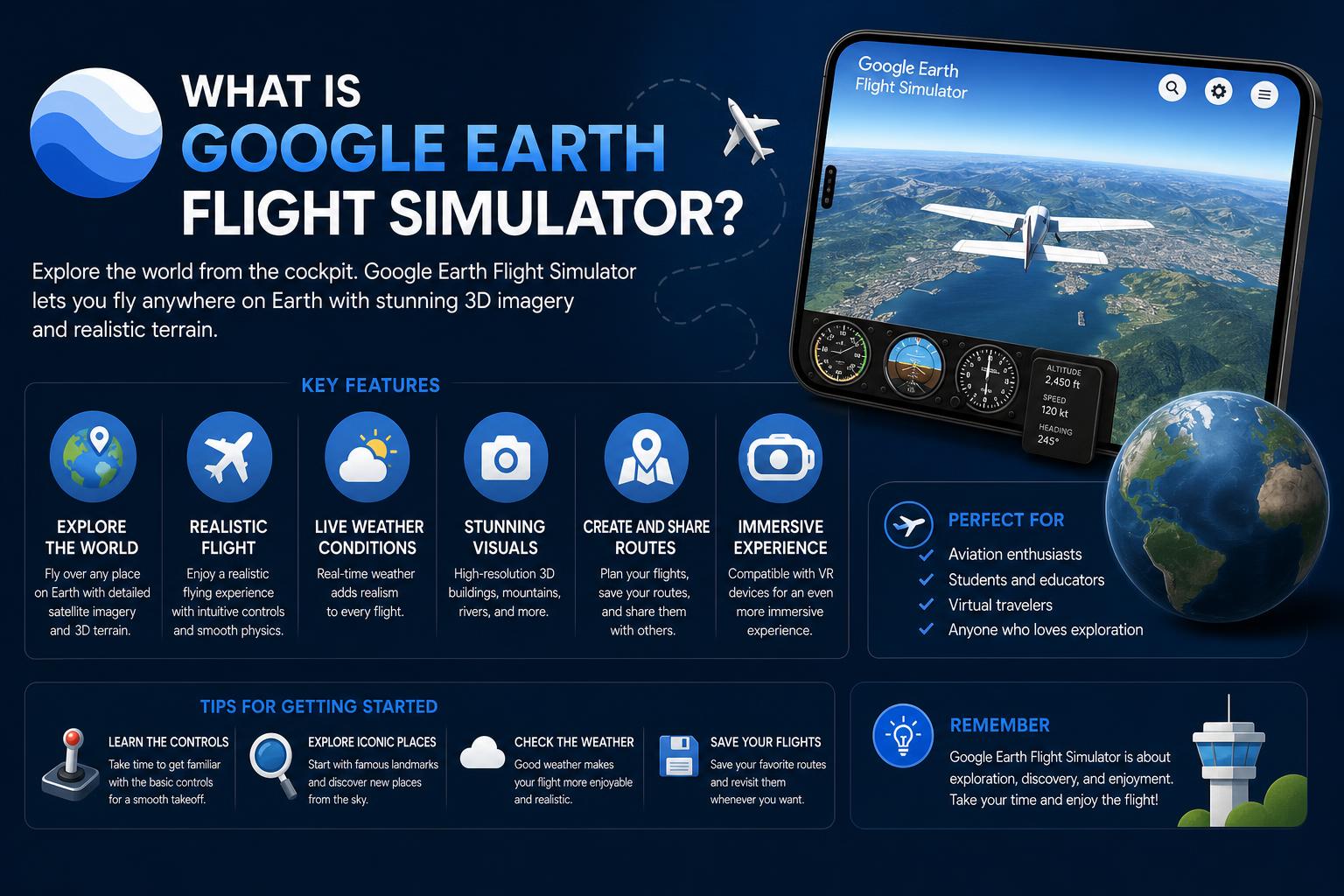
- Google Earth Flight Simulator is free and works on desktop and web.
- Anyone can experience piloting real-world routes and landmarks virtually.
- Simple keyboard and joystick controls make flying accessible and educational.
Google Earth Flight Simulator is one of those hidden gems you might not expect to find in a mapping tool. While many people use Google Earth to explore cities, search for landmarks or browse through satellite imagery, there’s a whole other dimension that lets you climb into the virtual cockpit of an aircraft and soar over the world’s most iconic places — all from the comfort of your computer.
This in-depth guide will walk you through everything you need to know about the Google Earth Flight Simulator, from getting it up and running, to understanding its controls and features, and even a bit about the educational and fun opportunities it provides. Whether you’re a flight simulation enthusiast, a teacher looking for a cool tool for class, or simply curious about what virtual piloting feels like, you’ll find actionable insights and all the essential details right here.
What is the Google Earth Flight Simulator?
The Google Earth Flight Simulator is a built-in feature of Google Earth that allows users to take control of a virtual airplane and explore the entire planet from the air. Originally introduced back in 2007 as a little-known feature in the desktop application, it has grown into a beloved experiment that blends real-world geographic data with the thrill of virtual flight. It’s a free tool and doesn’t require any additional downloads if you already have Google Earth installed.
What sets Google Earth’s simulator apart from many dedicated flight simulation titles is its integration with the massive, detailed world map database. This means you can fly over your hometown, visit distant countries, or skim above famous landmarks — all while using controls that mimic real aviation mechanics in a simple yet engaging way.
Where Can You Find and Use the Flight Simulator?
As of recent updates, Google Earth Flight Simulator is available in both the desktop app and the web browser version. For years, it was exclusive to the desktop software on Windows, Mac, and Linux, but new features on the web version have brought this virtual adventure to even more users. So, whether you’re using an installed app or just browsing online, you can experience virtual flight without any hassle.
While you do get the most robust experience on the desktop app, the browser-based version is quickly catching up in functionality. Both versions offer an easy way to launch the simulator and start flying. If you want to check out these features for yourself, you can visit the official Google Earth developer documentation and the Google Earth web platform for experimental updates.
Flight Simulator Requirements: What Do You Need?
You don’t need a top-of-the-line gaming computer to enjoy Google Earth Flight Simulator. The basic requirements are simple:
- Google Earth installed on your Mac, Windows, or Linux machine, or access to the Google Earth website via a modern web browser.
- A keyboard and mouse are all you need to fly, but you can also use a joystick for a more immersive and precise experience.
No additional software or purchases are necessary. The feature is completely free for all users and is just a few clicks away inside your Google Earth application or browser session.
How to Launch the Flight Simulator
Getting started with the flight simulator is straightforward and can be done in a couple of different ways depending on your device and platform. Here’s a step-by-step on how to launch the Flight Simulator in Google Earth:
- From the Menu: Open the Google Earth app or web interface, click on the ‘Tools’ menu, and you’ll find an option labeled ‘Enter Flight Simulator’. Select it to launch instantly.
- Keyboard Shortcut – Windows: Press Ctrl + Alt + A to bring up the flight simulator mode.
- Keyboard Shortcut – Mac: Press ⌘ + Option + A to launch the simulator instantly.
After starting the simulator, you’ll be prompted to select your plane and starting location. You can fly from any spot on the planet — just enter your preferred coordinates or select a city or airport.
The Basic Controls: How to Fly Your Plane
Once you’re inside the simulator, the first thing you’ll notice is the head-up display (HUD). This overlay provides vital information about your speed, altitude, and direction — much like a real cockpit. Flying itself requires just a handful of controls, all mapped to your keyboard and optionally to a joystick if you have one attached.
- Throttle Up: Press Page Up to increase your airplane’s power.
- Throttle Down: Press Page Down to decrease engine power.
- Pitch (Nose Up/Down): Use the Arrow Down to lift the nose (take off, climb) and Arrow Up to lower the nose (descend).
- Roll (Left/Right): The Left and Right Arrow keys tilt the plane’s wings for turns.
- Rudder (Turn Left/Right): Use the Comma ( , ) and Period ( . ) keys for fine adjustments.
- Landing Gear (F-16 only): Press G to raise or lower the landing gear.
- Brakes: Hit B to brake upon landing.
- Help Overlay: While flying, press Ctrl + H (Windows/Linux) to display additional control references.
If you use a joystick, the primary flight controls such as throttle, pitch, and roll are mapped automatically. This allows for more nuanced maneuvers, but everything can easily be done with keyboard shortcuts as well.
Choosing Your Aircraft and Location
Once you launch the simulator, you get to pick between two types of aircraft: the SR22 propeller plane, which is great for beginners and leisurely sightseeing, and the F-16, a much faster jet that offers a real challenge. Both provide unique flight experiences and are suitable for different levels of expertise. The simulator also lets you choose a starting location anywhere on the globe, either from major airports or by entering coordinates for a truly customized flight path.
Piloting Tips: Takeoff, Flight, and Landing Explained
Learning the really basic mechanics is helpful for a smooth ride. Here’s a brief overview compiled from the best teaching resources and simulation walkthroughs available:
Taking Off
- Start engines and throttle up: Increase your throttle with Page Up and get the plane rolling down the runway.
- Maintain runway alignment: Use the rudder controls (, and .) to stay centered.
- Build up speed: Watch your airspeed indicator — you’ll need at least 70 knots for the SR22.
- Lift-off: Pull back gently using the Down Arrow once you have enough speed.
- Stabilize and adjust: Reduce throttle slightly using Page Down after you are airborne, and if you’re in the F-16, retract gears with G.
Basic Flight Maneuvers
-
- To turn: Use the left and right arrow keys and combine with slight rudder input for coordinated maneuvers.
To climb or descend:
- Arrow down for climbing and arrow up for gradual decent.
- For speed adjustments: Page Up increases, Page Down decreases throttle.
- To look around: Use your mouse for view adjustments, giving a sense of looking out of the cockpit.
Landing the Plane
- Reduce speed on approach: Use Page Down to drop throttle as you near your landing strip.
- Align with the runway: Steer with the arrow keys for an accurate approach.
- Lower landing gear (F-16): Press G before final descent.
- Descend gently: Approach the runway by gently pressing Arrow Up for a gradual sink.
- Touch down and stop: Throttle to zero and press B to brake after wheels hit the ground.
[relacionado url=”https://www.ikkaro.net/what-is-simulink/”]
How to Exit the Simulator
Exiting the flight simulator is as straightforward as launching it. Either click Exit flight simulator in the upper right corner of your screen, or use the same keyboard shortcut you used to start (Ctrl + Alt + A on Windows or ⌘ + Option + A on Mac). This will return you to the main Google Earth interface and let you get back to your explorations on the ground.
Learning with Google Earth Flight Simulator
One of the coolest things about this tool is its potential in education — especially for learning about aviation, geography, and basic navigation principles. Schools and educational organizations like the Bedford STEM Innovation Lab have integrated the simulator into middle school STEM curricula. Students can experience:
- Basic aerodynamics concepts, such as lift, drag, and thrust, by experimenting with controls.
- Geographic navigation skills, as they create flight plans and fly over real-world locations.
- Landmark exploration challenges, like finding the Eiffel Tower or surveying the Grand Canyon from the air.
Activity plans often involve pre-flight briefings, hands-on simulator usage, recording flight experiences in logs, and even planning coordinated flights on platforms like Google Maps before taking off in the simulator itself. Assessment is often based on students’ ability to successfully take off, maneuver, and land — bringing a practical, interactive edge to traditional lessons.
Browser Version: Fly the World Online
Recent updates from Google make it clear that they’re gradually rolling out features, including the Flight Simulator mode, to the browser version of Google Earth. This means you can skip downloading software and instead just go to the official , click the Explore Earth button, use the search bar to load your chosen location, and then find the flight simulator option under the Tools tab.
This accessibility opens up virtual piloting to almost anyone with a web browser. The experience is constantly evolving, with new data layers, smoother controls, and enhanced user interfaces as Google continues to update the platform.
Gameplay Tips and Challenges
While Google Earth Flight Simulator isn’t a professional-grade flight sim like Microsoft Flight Simulator or X-Plane, it can be quite challenging — especially as you become more ambitious in your flights! Here are some tips from experienced users:
- Start slow: The SR22 is much easier for beginners.
- Use short flights to master basic controls before attempting longer journeys or high-speed maneuvers in the F-16.
- Always keep an eye on the HUD for your speed and altitude to avoid losing control.
- If you crash, the simulator lets you try again with no penalty — it’s all about experimentation and practice.
- Use the Help overlay (Ctrl + H) to see controls if you get lost mid-flight.
The controls aren’t always visible on screen, so be sure to reference the official keyboard mapping on Google Earth’s when you need a refresher.
Why Use Google Earth’s Flight Simulator?
So, what makes this simulator worth exploring? For one, it allows you to see our world from a pilot’s perspective. You can experiment with different aircraft, visit remote islands, buzz over major cities, and get a sense of scale that’s hard to match anywhere else. The whole thing is built for accessibility — you don’t need fancy equipment or prior aviation knowledge, just a willingness to explore and learn.
Many users find themselves drawn back to the simulator not just for the flying itself, but as a creative way to experience geography and ignite curiosity about aviation. Teachers love the cross-curricular applications, learners get a taste of virtual exploration, and hobbyists enjoy the opportunity to fly anywhere on Earth. It’s also a brilliant springboard for introducing young learners to concepts of flight physics, navigation, and mapping technology all in one go.
As Google is actively updating both the desktop and web experiences, Flight Simulator is getting better and more accessible for users everywhere.
For anyone interested in aviation, mapping, education, or just looking for a fun distraction, Google Earth’s Flight Simulator is a wonderful way to take command of the skies without ever leaving your desk. With realistic controls, real-world geographies, and constant updates from Google, the experience continues to get richer and more rewarding. Try it out on your favorite device, challenge yourself to land on some tricky runways, and see the world from a completely new angle!