
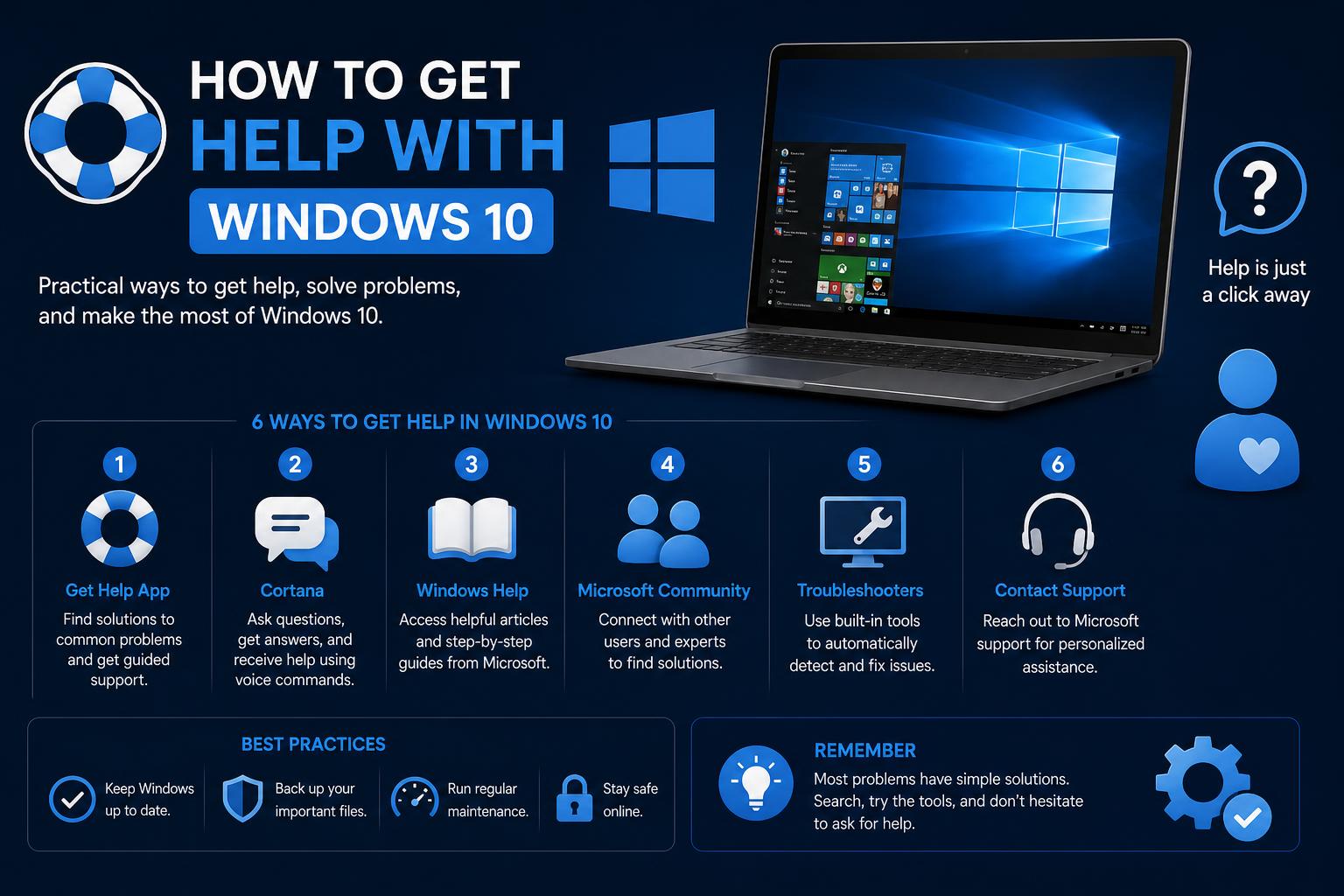
- Understand all methods to get help with Windows 10 and which resources are still available.
- Learn about Extended Security Updates (ESU) and your upgrade options after Windows 10 support ends.
- Discover common issues users face post-support and real solutions from official and community sources.
Navigating Windows 10 support can seem daunting, especially since its official end of support. Whether you’re still enjoying your current setup or facing technical headaches, finding reliable guidance isn’t always straightforward. Fortunately, multiple resources—both official and community-based—continue to offer valuable assistance for Windows 10 users.
This article will walk you through the best steps to get help with Windows 10, covering official Microsoft resources, essential troubleshooting methods, upgrade paths, and practical advice for continuity and security. Whether you’re curious about post-support risks or need solutions to ongoing issues, you’ll find the answers right here, explained in a conversational and friendly tone.
Understanding Your Windows 10 Support Options
If you find yourself stuck with a stubborn Windows 10 issue, knowing where to ask for help can save you endless frustration. With the recent end of mainstream support (October 14, 2025), you might wonder if any useful resources are still around. The good news: Microsoft remains committed to supporting users through various tools, advice, and migration solutions, but you’ll want to be aware of how support has changed and what avenues are now available.
Official Channels: Microsoft Support and Help Tools
Microsoft’s official support platform remains the go-to destination for addressing a range of Windows 10 concerns. The Microsoft Support site offers categorized sections for common problems, how-to articles, and troubleshooting guides. You can search for answers directly, narrow your scope by problem type or device, and engage with chat support for select queries—though availability is more limited after support has officially ended.
Using the Windows 10 ‘Get Help’ App
The Get Help app is an underrated, native tool that connects you with Microsoft resources and guidance right from your desktop. This app centralizes help options, offering tutorials, FAQs, links to community forums, and in some cases, direct chat with Microsoft agents. Even if your system is at end-of-life, you can still use the app to access general information or get redirected to current support paths.
- Click the Start menu.
- Type “get help” in the search bar.
- Select the app from the results. From there, you can access support topics, raise issues, or be guided to the appropriate web resource.
Additionally, you can find the Get Help link within Windows settings. Go to Settings > System > Troubleshoot > Other troubleshooters to access integrated assistants for specific components (network, printing, update issues, etc.).
Web Search and Taskbar Assistance
Don’t underestimate the Windows 10 search box on your taskbar. It not only helps you discover files, apps, and settings—it also fetches solutions from the web. Type your question or keyword (like “update problems” or “printer not detected”) and let Windows suggest support articles or how-to guides. This quick search ties directly into Microsoft’s own resources as well as wider web results for broader context.
Post-End-of-Support: What It Means for You
As of October 14, 2025, Windows 10 no longer receives security and feature updates from Microsoft by default. Devices still run as normal, but they’re more exposed to software vulnerabilities and may lose compatibility with newer applications. Here’s what officially changed:
- No technical support for troubleshooting specific problems.
- No security updates or bug fixes—which increases risk from emerging threats.
- No new features or enhancements for system performance or compatibility.
Running without updates can expose your system to security threats and compatibility issues, especially when dealing with sensitive data or business applications.
Extended Security Updates: Is There a Lifeline?
For users who need more time, Microsoft is providing an Extended Security Updates (ESU) program. If your devices aren’t ready for Windows 11 (or a new computer is just not in the cards right now), ESU allows you to continue receiving critical security patches through October 12, 2027—though technical support and feature updates remain unavailable.
- Eligibility: Consumer and some business users can sign up for ESU via a Microsoft account—for further details and enrollment, visit the Windows 10 End of Support page.
- What you get: Patches for critical vulnerabilities only; no new features or general updates.
- When to use ESU: If upgrading your existing PC isn’t possible yet, but you need to buy time for data migration, hardware acquisition, or compatibility checks.
Plan your upgrade pathway carefully, even if you rely on extended security for now.
Upgrade Paths: Moving to Windows 11 or Alternative Solutions
The biggest question for many users is: What’s next after Windows 10? Microsoft’s push is clear—upgrade to Windows 11 if your hardware supports it, or consider purchasing a new device when practical. Here’s how to decide your path:
1. Checking Your System for Windows 11 Compatibility
- Open the PC Health Check Tool (available on the Microsoft official site).
- Let the tool analyze your current PC and report eligibility for Windows 11.
- If compatible, follow on-screen instructions to perform a free upgrade (for eligible devices running Windows 10 version 22H2 with the required hardware: TPM 2.0, Secure Boot, and CPU requirements).
Enabling TPM or Secure Boot in your BIOS can improve compatibility, so consult your motherboard or manufacturer’s support channels if these settings are missing.
2. Buying or Upgrading Your PC
If your current device doesn’t qualify—or you prefer starting fresh—Microsoft’s Surface line and other Windows 11-compatible systems offer reliable options. A new device ensures continued updates, performance, and access to future features.
3. Exploring Alternative Scenarios
- Virtualization solutions let you run Windows 11 in a virtual machine on older hardware, depending on your specs.
- Cloud PC options like Windows 365 provide secure, remote Windows 11 environments accessible from nearly any device. Check out Windows 365 for availability and pricing.
For those keeping Windows 10, exploring ESU and enhancing your security remains essential. Next, we cover how to maintain system resilience after support ends.
Keeping Windows 10 Secure after End of Support
Even without new updates, there are practical steps to enhance your system’s security:
- Keep Microsoft Defender Antivirus active and updated. While vulnerabilities won’t be patched, Defender’s definitions can still help against common threats. More info can be found at this guide.
- Enable Controlled Folder Access and Exploit Protection via Windows Security settings. These features help defend against ransomware and exploits, adding layers of protection.
- Consider a reputable third-party antivirus program for additional security.
- Stay vigilant: Avoid suspicious downloads, links, and untrusted sources, as unsupported systems are prime targets for hackers.
Running Troubleshooters and Fixing Common Problems
The built-in Troubleshooters are still accessible in Windows 10. They can often resolve issues without third-party tools, especially for printing, connectivity, and device recognition. Navigate to Settings > Update & Security > Troubleshoot > Additional troubleshooters to tackle these problems directly.
Pro Tip: For persistent glitches, running SFC /scannow from the Command Prompt can repair corrupted system files, as highlighted in community discussions.
Comprehensive Guide to Fix Windows 10 Stop Code Errors and Blue Screen Issues
Dealing with Office and Microsoft 365 Apps Post-Support
The end of Windows 10 support affects Microsoft Office and Microsoft 365 applications as well. Support for Microsoft 365 Apps on Windows 10 ends along with the OS—October 14, 2025— but Microsoft will continue providing security updates for Microsoft 365 Apps on Windows 10 until October 10, 2028. This grace period offers some relief but isn’t permanent.
- Office 2016 and 2019: Support ends on October 14, 2025, across all platforms.
- Office 2021 and Office 2024 (including LTSC versions): These continue to function but won’t receive support or updates after support for Windows 10 ends.
To prevent issues, consider upgrading to Windows 11 or switching to a supported Microsoft 365 subscription when acquiring a new device.
User Community and Third-Party Support
Sometimes, the best advice comes from other users facing similar problems. Communities like Microsoft Q&A, Reddit, and tech forums remain valuable sources for troubleshooting tips, workarounds, and mutual support. For instance, if you’re experiencing common errors like mail failures or device recognition issues, you can find tested solutions already shared by other users.
On Reddit, one user successfully resolved a persistent problem using SFC /scannow in Command Prompt—highlighting community-driven problem-solving’s power even after official support diminishes. If you participate, provide plenty of detail about your problem to receive more accurate assistance.
Device Lifecycle: Recycling, Trade-In, and Transitioning
Eventually, most users will need to move to a supported system. Don’t just toss your old PC—explore trade-in programs and recycling options offered by Microsoft and hardware partners. Check the for links. Trading in or recycling responsibly can earn you extra cash or ensure proper disposal. Remember to securely wipe your old drive to protect your privacy.
Data Migration and Backup
If you’re worried about transferring files, apps, and settings, Windows Backup simplifies the process—saving your data, photos, app configurations, and login details thus easing migration to Windows 11 or another supported OS. You can also consult guides on Windows product keys for activation tips or check compatibility options on dual-boot scenarios.
Quick FAQ: Common Concerns Post-Support
- Will my PC stop working after support ends? No—the device continues functioning; however, exposure to security risks and compatibility challenges increases. Be sure to back up your data and practice caution online. More details at this resource.
- Will upgrading to Windows 11 cost me extra? The upgrade is free for eligible Windows 10 devices, though internet charges may apply. New devices will entail additional costs.
- How will my existing applications be affected? Most apps keep working, but updates or features may cease if they rely on support services that end with Windows 10.
- Can I still get technical help? Official support ends, but forums, community Q&A, and the Get Help app can guide you toward remaining resources and user advice.
Although Windows 10’s support life cycle concludes, users are not abandoned. Employing proactive security measures, utilizing community support, and planning for upgrades help maintain a safe and productive environment. Tools like the Get Help app, Extended Security Updates, and readiness for migration to Windows 11 form a comprehensive approach to staying secure and up-to-date.