
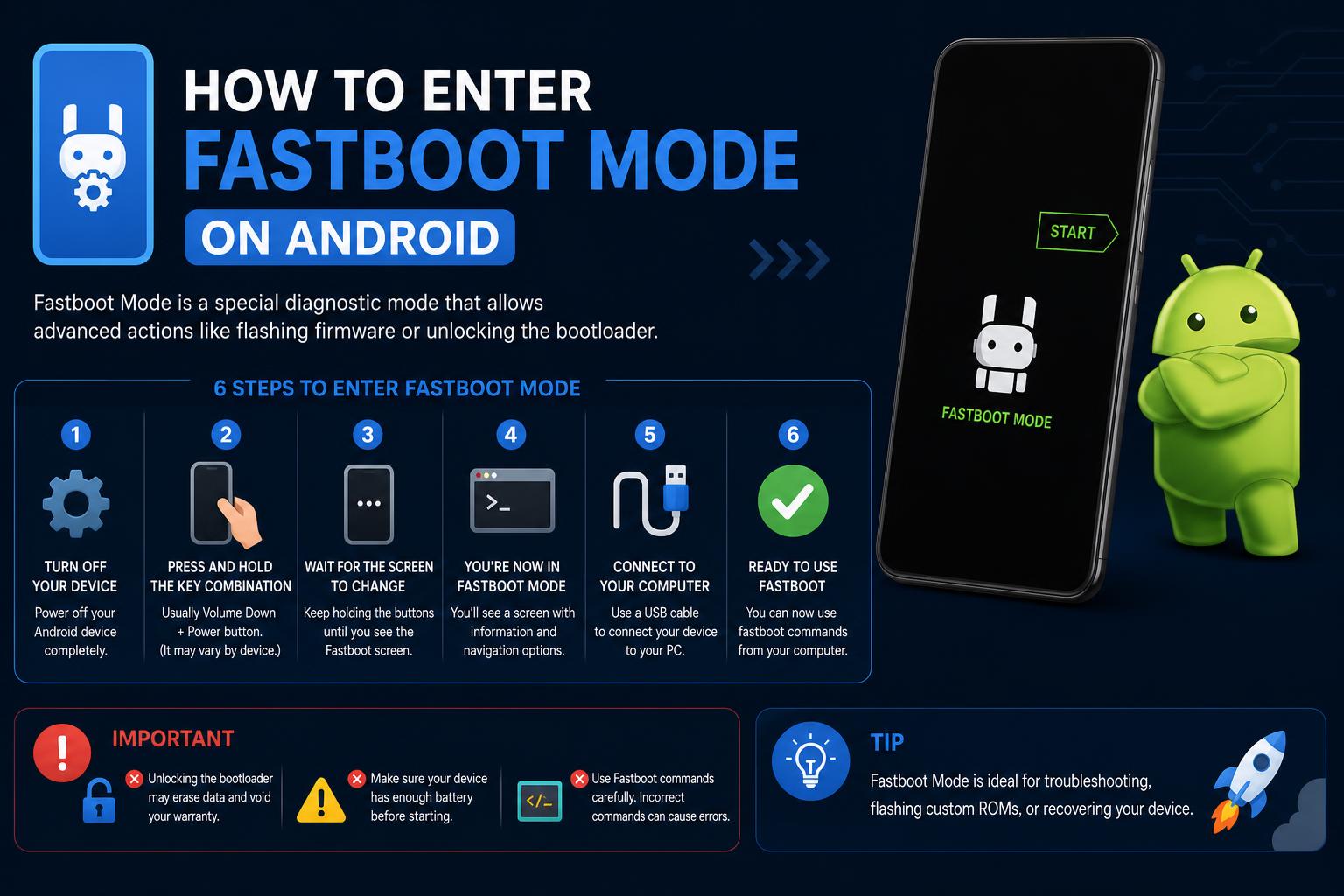
- Fastboot mode unlocks deep device-level access for repairs, updates, and recovery beyond standard Android settings.
- Hardware button combinations and ADB commands are the two main methods to enter Fastboot mode, but steps can vary by manufacturer.
- Using Fastboot safely provides control for flashing, unlocking bootloaders, and system diagnostics, but caution is required as commands can lead to data loss.
Android users sometimes find themselves needing to perform advanced repairs, flash new firmware, or bring a seemingly ‘bricked’ phone back to life. For any of those situations, understanding how to enter Fastboot mode is absolutely crucial. From manufacturers like Google and Xiaomi to IT enterprise managers and custom ROM enthusiasts, Fastboot mode offers a unique gateway for low-level interventions that typical Android menus simply don’t provide.
If the phrase ‘Fastboot’ has appeared on your device—or if you want to know how to get there on purpose—the good news is, you’re in the right place. This definitive tutorial explains what Fastboot is, outlines every method for entering it safely, and unpacks best practices to ensure you never get stuck or lose your data unintentionally. Whether you’re a power user, IT admin, or complete beginner, let’s break it all down in a clear, approachable way.
What Is Fastboot Mode? Why Does It Matter?
Fastboot mode is a specialized diagnostic environment that sits outside of your phone’s normal Android operating system. It’s accessed at a very low level, even before Android boots up, and allows you to communicate directly with your device’s bootloader. In Fastboot mode, you can:
- Unlock or re-lock the bootloader for rooting or advanced customization
- Flash system, recovery, or boot images—perfect for fixing corrupt software or installing custom ROMs
- Erase, format, or update device partitions without full system access
- Restore a device that won’t boot (‘unbricking’)
- Run diagnostic commands for troubleshooting hardware and software issues
Fastboot is available on the majority of Android devices—including phones, tablets, rugged work scanners, and more—but not all manufacturers implement it the same way. Some, like Samsung, use a proprietary alternative called Odin mode, but for Pixel, Xiaomi, Motorola, OnePlus and many others, Fastboot is the standard tool.
Why Should You Care About Fastboot?
For both enterprises and hobbyists, Fastboot mode provides capabilities far beyond what the regular user interface allows. Businesses use it to deploy customized Android installations company-wide, IT teams fix devices stuck in loops or crashes, and enthusiasts flash custom ROMs, unlock bootloaders, optimize performance, or simply remove unwanted pre-installed apps.
Essentially, Fastboot is your ‘last-resort toolkit’ for solving deep system issues, or pushing devices to their full potential. It’s a key tool for anyone who values control, flexibility, and the ability to recover devices from virtually any state.
Fastboot vs. Recovery Mode: What’s the Difference?
It’s common to confuse Fastboot mode with Recovery Mode—both are special boot environments, but they serve different functions. Recovery Mode is a limited system menu for basic maintenance (factory reset, clearing cache, flashing signed updates), but Fastboot enables deeper changes like unlocking bootloaders, flashing unsigned or custom images, and manual partition management.
While Recovery is for basic recovery actions, Fastboot is the power-user’s environment for advanced system modification.
What Can You Actually Do in Fastboot Mode?
Once you’ve entered Fastboot mode, your PC and Android device can communicate over USB using the Fastboot protocol. Here’s what experienced users, developers, and IT teams use it for:
- Erase data or partitions: Reset or troubleshoot without wiping everything by targeting just ‘userdata’, ‘cache’, or ‘system’.
- Unbrick devices: Restore devices that won’t boot or are ‘soft-bricked’.
- Flash system images: Install or repair OS and core system files (system.img, boot.img, vendor.img).
- Upgrade firmware manually: Essential for bypassing failed over-the-air (OTA) updates.
- Unlock or re-lock bootloaders: Gives full control for ROM swapping; restores security as needed.
- Install custom recoveries: Add powerful tools like TWRP for advanced backup or maintenance.
- Fix boot loops or endless reboots: A lifeline for stubborn devices stuck at startup.
- Run manufacturer diagnostics: Troubleshoot hardware directly with special commands (varies by brand).
- Bulk flash configurations: Roll out customized Android builds at scale for business fleets.
But use it carefully—a single incorrect command can erase your data or brick your device!
How to Enter Fastboot Mode: All the Methods Explained
There are two primary ways to enter Fastboot mode. Choosing one depends on whether your device still boots to Android and if you’ve enabled USB Debugging in advance.
Method 1: Using Hardware Button Combinations
This is the most universal (and often necessary) approach, especially when a device won’t boot normally. Here’s how to trigger Fastboot mode by hand:
- Completely power off your device. Hold the Power button and select “Power off,” or just hold it down until the screen goes black.
- Press and hold the correct button combination.
For most brands, use Power + Volume Down. On others, it can be Power + Volume Up or even all three (Power + Volume Down + Volume Up). - Keep holding the buttons for several seconds. Don’t release until the Fastboot screen appears—you’ll see the Android robot, a bunny mascot (on Xiaomi devices), or the word “FASTBOOT.” That’s your confirmation.
Manufacturer-specific key combos:
- Google Pixel, HTC, Motorola, Xiaomi: Power + Volume Down
- Sony: Power + Volume Up
- Google Nexus: Power + Volume Down + Volume Up
If your device doesn’t respond, consult the official support page for your brand or see if a slightly different button mix is needed. Some models (like Samsung) require a completely different process called Odin mode.
Method 2: Entering Fastboot Mode Using ADB from a Computer
If your phone still turns on and you’ve already enabled USB Debugging in Developer Options, you can enter Fastboot with a single command.
- Connect your device to your computer using a USB cable.
- Open Command Prompt (Windows) or Terminal (macOS/Linux) on your computer.
- Type the following command and press Enter:
adb reboot bootloader
Your phone will instantly restart and boot directly to Fastboot mode.
Tip: If your device doesn’t appear in ADB, check that USB Debugging is enabled, the drivers are installed, and your cable/port is working.
How to Exit Fastboot Mode Safely
If you’ve entered Fastboot mode by mistake, exiting it is simple for most devices:
- Press and hold the Power button for 10–20 seconds. Most phones will reboot into Android automatically.
- On some models, use Power + Volume Up together if a single button doesn’t work.
If you’re connected to a PC and have the Fastboot tools ready, you can also run:
fastboot reboot
If the device is unresponsive and won’t reboot, check for hardware faults—or consult your manufacturer’s dedicated recovery tools as a next step.
What If My Device Gets Stuck in Fastboot Mode?
It’s not uncommon, especially after system crashes, failed flashes, or accidental button presses. Here are proven steps for escape:
- Try holding Power (and, if necessary, Volume Up) for 10–20 seconds. Many phones will forcibly power cycle.
- Use the PC Fastboot tool:
fastboot reboot - If that doesn’t work:
- Consult OEM recovery software (for example, Xiaomi Mi Flash Tool or official manufacturer services).
- Be cautious about using unofficial third-party recovery tools: Unless you are an advanced user, these can result in permanent data loss or security risks. Official methods are always preferred.
Unlocking and Relocking the Bootloader in Fastboot Mode
Unlocking the bootloader is a prerequisite for flashing custom ROMs or making in-depth system changes. Here’s how:
- Backup any important personal files. Unlocking the bootloader wipes all user data from the device, including apps, settings, photos, and content.
- Boot into Fastboot mode using the steps above.
- Connect your phone to your computer with a USB cable.
- Use the appropriate Fastboot command:
- For Google Pixel and newer devices (2015+):
fastboot flashing unlock - For older models (pre-2015):
fastboot oem unlock - Some Pixel 2 XL units:
fastboot flashing unlock_criticalmay be needed for critical partition unlocks.
- For Google Pixel and newer devices (2015+):
- Confirm the unlock operation on your device screen when prompted. This step is essential to avoid accidental unlocking or data wipes.
To re-lock the bootloader (important for device resale or restoring security):
- For newer devices:
fastboot flashing lock - For older devices:
fastboot oem lock
Warning: Relocking the bootloader will usually also wipe your data again!
Flashing Android Devices with Fastboot Mode
Flashing a device involves installing a full or partial system image, which can resolve deep issues or update/replace the entire operating system.
-
- Place your device in Fastboot Mode.
- Run the Flash command from your computer:
fastboot flashall -w
- The -w option wipes user data—recommended when flashing a fresh build.
Pixel and Nexus factory images are available for download directly from Google’s Factory Images resource. Motorola and Xiaomi provide their own dedicated flashing tools and firmware repositories.
Heads up: Always ensure the image you are flashing matches your device model. A mismatch can brick the device permanently!
Frequently Asked Questions About Fastboot Mode
Do I need USB debugging enabled for Fastboot?
No—Fastboot mode does not require USB debugging to be activated. This is a common misconception. As long as you can boot into Fastboot (either via hardware buttons or ADB if enabled), you’re set. However, USB debugging is still required for ADB-based entry to Fastboot and for most regular Android maintenance tasks.
Does every Android phone support Fastboot?
Most but not all Android devices include Fastboot. Some manufacturers like Samsung have alternatives (Odin mode), and not all brands implement the standard Fastboot protocol. Always check your model’s support documentation for confirmation.
Is it safe to use Fastboot mode?
Fastboot itself is safe; improper commands are risky. As long as you carefully follow instructions and know what you’re flashing or wiping, Fastboot operations are designed to be used by both power users and professionals. Just double-check your commands to avoid any accidental data loss!
Extra Business & Power User Tips
Why do IT teams and businesses love Fastboot?
- Install updates and patches manually, even for unsupported legacy devices
- Push feature-rich custom ROMs for performance, better battery, and extra security
- Completely remove bloatware and optimize user experience from the ground up
- Bulk configure hundreds of devices with standard OS images in a fraction of the time
For everyday users: Even if you never flash a custom ROM, knowing how to enter and exit Fastboot mode is fantastic insurance in case things ever go sideways during regular Android use or updates.
Manufacturer Recovery Tools & Cautions
Each manufacturer has their own OEM recovery solutions that can get you out of Fastboot mode or fix serious software problems:
- Xiaomi: Mi Flash Tool
- OnePlus, Motorola, Google: Provide their own guides and official system images
- Samsung: Use Odin, not Fastboot
Avoid unofficial third-party recovery tools unless absolutely necessary. These carry risks of data loss, privacy leaks, and even bricking your device. Always proceed with caution!
Mastering Fastboot mode opens doors for rescues, recovery, and complete device control. Knowing when and how to enter, exit, or troubleshoot with Fastboot ensures you’re never powerless in the face of software mishaps or when you want to customize Android more deeply than the average user. With this knowledge, you’re ready for anything from a simple reboot fix to a full system flash—no more mystery screens or panic the next time Fastboot appears!