
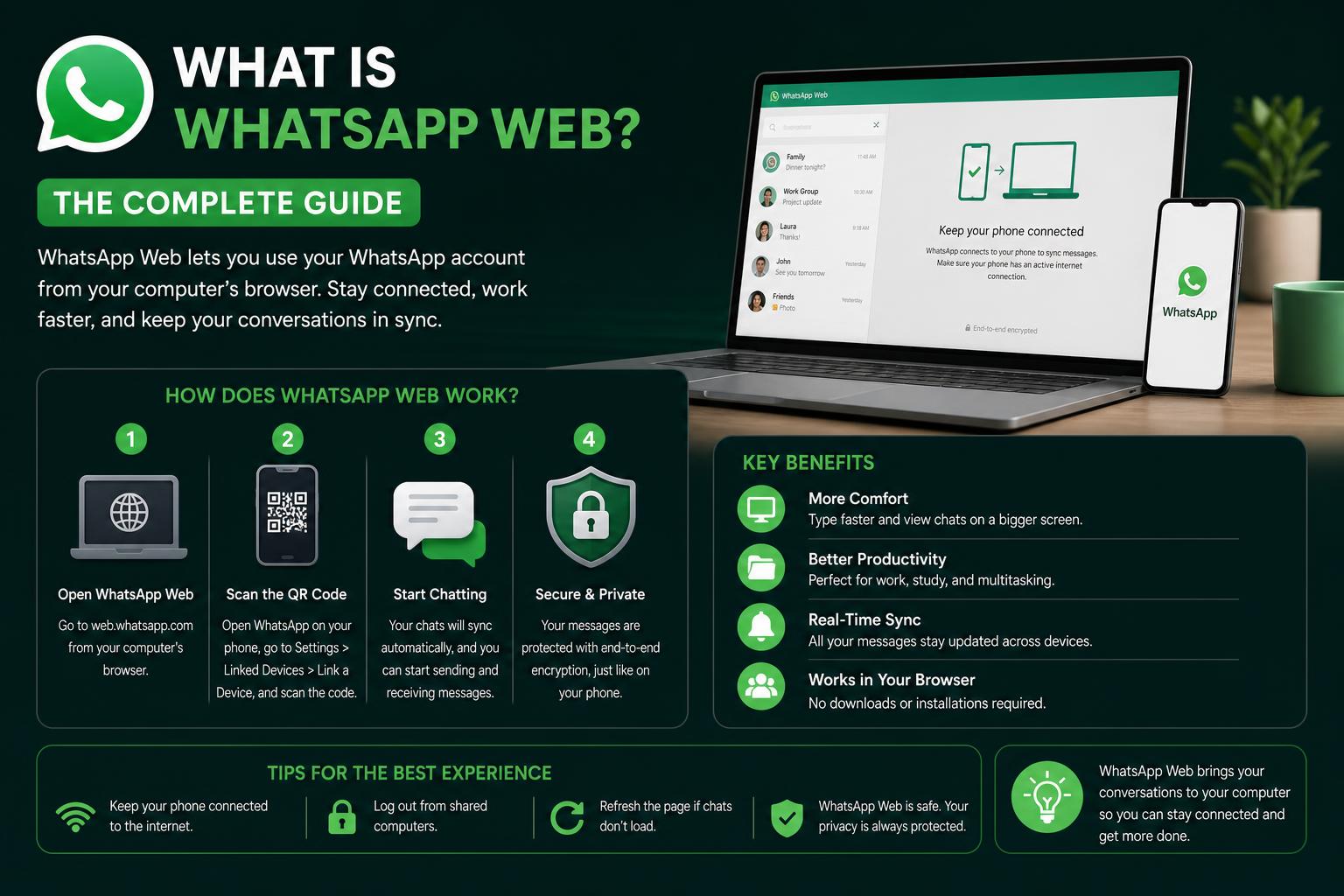
- WhatsApp Web syncs your phone’s chats to a browser for seamless desktop messaging, file sharing, and improved productivity.
- End-to-end encryption and privacy tools safeguard conversations, but business features and integrations are limited compared to team-focused alternatives like Chanty or Slack.
- Knowing how to set up, use, and safely log out of WhatsApp Web prevents privacy risks and maximizes efficiency—while advanced users and organizations can explore feature-rich solutions for larger teams.
WhatsApp Web has quietly become an essential digital companion for millions worldwide, bridging the gap between mobile and desktop messaging. If you’re accustomed to switching between your phone and computer all day, finding a seamless method to keep your conversations and files in sync can feel like a dream come true. Unlike traditional apps, WhatsApp Web reflects your mobile chats directly in your browser—empowering you to multitask, boost productivity, and stay connected on a bigger screen with minimal effort.
But what exactly is WhatsApp Web, how does it function behind the scenes, and why are so many individuals and small businesses now relying on it? In this comprehensive guide, we’ll take you through every detail you need to know, from setup instructions and core features to deeper discussions of security, business tools, and advanced alternatives for teams craving more than just messages.
Unpacking WhatsApp Web: What It Is and Why It Matters
WhatsApp Web is a browser-based extension of the popular WhatsApp messaging platform. Instead of using only your mobile device, you can access your existing WhatsApp chats, files, and contacts from almost any computer, simply by connecting your phone and scanning a QR code. Whether you are deep into work, buried under homework, or simply browsing the web, WhatsApp Web gives you the flexibility to manage conversations without picking up your phone every few minutes.
First launched in early 2015, WhatsApp Web was an answer to a growing demand for cross-device messaging. The business world was already filled with team chat tools like Slack and Microsoft Teams, but WhatsApp wanted to deliver its own experience with convenience and familiarity, targeting both everyday users and small business owners. Today, with an active user base surpassing three billion and counting, WhatsApp Web is baked into daily workflows for millions worldwide.
Why People Rely on WhatsApp Web
Why has WhatsApp Web become such a staple for productivity and connectivity? There are several big draws:
- Larger screens and real keyboards: Typing long messages or handling multiple conversations is simply easier—and faster—on a desktop or laptop.
- Hassle-free file sharing: Drag PDFs, images, or spreadsheets directly into chats, making collaboration or customer service smooth and efficient.
- Synchronized experience: Every message, sticker, and file is instantly mirrored between your browsers and mobile device, so you can switch between them effortlessly.
- No app installation required: If you have a web browser, you’re good to go—no need to download additional programs or extensions.
This cross-platform synergy is especially valuable for multitaskers, remote workers, and businesses managing high volumes of communication.
Step-By-Step: How to Set Up WhatsApp Web
Getting WhatsApp Web operational is about as painless as it gets. Here’s the direct approach:
- Open a supported web browser and go to web.whatsapp.com.
- Fire up WhatsApp on your mobile device.
- Tap the menu (usually three dots or ‘Settings’), then select ‘Linked Devices’ and hit ‘Link a Device’.
- Scan the QR code that appears on your browser screen with your phone’s camera.
- Voilà: Your chats and media load in seconds—you can now send, receive, and organize messages right from your desktop or laptop.
It’s worth noting: For WhatsApp Web to work, your phone must remain connected to the internet, at least for the initial sync and, in most cases, during your session. Multi-device support now lets you link up to four computers or tablets, minimizing the old requirement that your phone stays online at all times—but a periodic connection is still beneficial for syncing recent activity.
How to Retrieve Deleted WhatsApp Messages: The Complete Guide
The Day-to-Day Experience: What Makes WhatsApp Web Click
The web version of WhatsApp closely mirrors the mobile experience, but there are unique perks and a few differences worth highlighting.
- Reminders and notifications: Desktop notifications ensure urgent updates won’t be missed, even if your phone is in another room or on silent.
- Navigation and layout: The interface is streamlined and user-friendly, making chat transitions and media previews a breeze for first-time users.
- Keyboard shortcuts and right-clicks: Power users can leverage shortcuts and contextual menus to quickly archive, star, or mute conversations.
For busy professionals, students, and digital nomads, this tight integration leads to a smoother workflow and fewer interruptions throughout the day.
Major Features and Functionalities: What You Can Do with WhatsApp Web
WhatsApp Web isn’t just a simple chat mirror—it brings a full suite of features that rival (and occasionally surpass) the mobile app itself. Here’s a detailed look at what you get:
- Text messaging: Fire off messages individually or chat in groups, now with the comfort and speed of a laptop or desktop keyboard.
- Voice notes: Record and send short voice messages directly from your browser—perfect for when you want your tone to come through.
- Community support: WhatsApp’s new Communities feature, available on Web, lets you gather multiple groups under one roof for topic-based discussions and efficient organization.
- Group chat management: Create, rename, archive, or exit group chats with a few clicks, keeping your social or project circles perfectly sorted.
- Multi-device connection: Add up to four devices to your WhatsApp account, minimizing phone dependency. Even if your phone is temporarily offline, existing chats stay accessible for a while.
- Status and story updates: Catch up with friends’ or colleagues’ latest updates just like you would on mobile, directly in your browser.
- Offline message delivery: If your Internet is interrupted, messages will queue and send as soon as your devices reconnect, ensuring nothing is lost.
- Starring and archiving: Highlight key messages to return to later, or archive inactive chats for a cleaner interface without losing their content.
- Notifications and privacy: Manage message previews, unread badges, visibility settings, and read receipts—a full range of privacy controls is at your fingertips.
- Custom backgrounds and display themes: Whether it’s dark mode for late-night efficiency or a playful wallpaper, there are options to personalize your chat environment.
- Media and document sharing: Send documents, videos, images, contacts, and voice clips using drag-and-drop or the attach icon. Professionally, this streamlines proposals, contracts, and creative assets.
- Switch between multiple accounts: Seamlessly hop between personal and work profiles, a must-have for users juggling side gigs, projects, or freelance clients.
- Business features: WhatsApp Business Web offers business profiles, automated quick replies, label management, and catalog sharing—ideal for entrepreneurs and digital storefronts.
Thanks to these comprehensive features, WhatsApp Web is a powerful tool for personal, academic, and small-scale business communications.
Why Use WhatsApp Web? Exploring the Biggest Benefits
- Faster Typing and Less Fatigue: If you’re typing long proposals, customer service replies, or even daily banter, the shift from a touch screen to a real keyboard can boost your output dramatically. It’s a lifesaver for anyone buried in messages or managing multiple group chats.
- Effortless File Transfers: Professionals such as graphic designers, sales teams, or educators often prefer WhatsApp Web simply for the ability to drag-and-drop files into chats. Think lesson plans, invoices, product mockups—all can be shared in seconds.
- Continuous Multitasking: Keep WhatsApp open in a browser tab or separate window, easily toggling roles between work, personal, and project communications.
- Session Portability: Start a message on your laptop, finish it on your mobile, or pick up a chat from another device entirely—the transition is seamless thanks to synced conversations.
- Zero Cost: There’s no download charge or subscription fee, making WhatsApp Web a budget-friendly alternative to pricier collaboration tools.
- No App Installation: Access your messages from any browser—no need for IT admin approval, company laptop installs, or extra downloads. Just log in and get started.
For countless users and small teams around the world, these advantages make WhatsApp Web a go-to for both efficiency and convenience.
Limitations and Drawbacks: What Are the Downsides?
Despite its versatility, WhatsApp Web isn’t perfect. Several key limits might affect your workflow or security choices.
- Phone Connection Dependency: Your phone remains the anchor for authentication and syncing, except in multi-device mode—and even then, it must occasionally connect to maintain links. If your mobile device drops offline for an extended period, Web access will eventually time out.
- No Native Calls on Browser: Voice and video calls can only be made through the desktop WhatsApp app, not directly in browser mode. For full telephony, you’ll need to install the dedicated desktop program.
- Profile Edits: Updates to your profile name, picture, or status often require the mobile app. The web interface limits personalization and quick changes.
- Business Functionality Gaps: For advanced workflows (task tracking, workflow automation, CRM integration), WhatsApp Web falls short compared to modern workplace solutions—especially for larger organizations.
- Security Handling for Shared Computers: If you forget to log out or leave the ‘keep me signed in’ box ticked on a public or family computer, someone else could access your private messages. Always use the log-out option after sensitive sessions.
Understanding these limitations upfront can help users plan smarter and mitigate potential disruptions.
Security and Privacy on WhatsApp Web: How Safe are Your Conversations?
Security is a core concern for anyone handling private or business data over WhatsApp Web. Here are the most important points:
- End-to-End Encryption: Both the mobile app and Web platform use strong end-to-end encryption, built on the Signal Protocol, to keep your messages, calls, and media private. Not even WhatsApp or Meta employees can read your chats.
- Session Risks and Logout Habits: Staying logged in on unsecured devices poses a privacy risk. Always remember to click the three dots menu and select “Log out” after each session, or manage connected browsers with “Linked Devices” from your phone for remote log-out control.
- Backup and Compliance: WhatsApp traffic flows through Meta’s servers, and while messages are encrypted during transit, backups (like cloud storage on Google Drive or iCloud) may not remain encrypted. Plus, WhatsApp lacks compliance certifications such as HIPAA or GDPR for highly regulated environments, making it potentially unsuitable for financial, legal, or healthcare firms.
- Privacy Customization: Users have control over read receipts, profile visibility, and message previews, allowing each person to fine-tune their comfort level without sacrificing usability.
While everyday communication remains secure, businesses with sensitive compliance needs may want to consider other platforms—especially if regulatory protection is vital.
Diving into WhatsApp Business Web: Specialized Tools for Entrepreneurs
For entrepreneurs and small businesses, WhatsApp Business Web adds extra managerial capabilities on top of the regular features. Here’s what sets it apart:
- Business Profiles: Populate your chat header with company info, locations, web URLs, and interactive catalogs—so prospects can browse products or services while chatting.
- Quick Replies and Automation: Pre-write answers to FAQs or send greeting messages automatically, streamlining customer support during, or even outside, working hours.
- Labeling: Organize customer conversations by status, urgency, or sales stage, keeping your workflow structured and efficient.
- Payments and Catalogs: In select regions, receive payments and share product/service catalogs directly within the messaging interface, reducing friction for sales.
- Interactive Messages: Buttons, lists, and responsive menus simplify navigation for your clients and help automate routine queries.
These tools make WhatsApp Business Web a cost-effective solution for customer care, sales follow-ups, and order management in small or digital-first teams.
Where WhatsApp Web Struggles for Businesses and Advanced Teams
Despite its feature-rich design, WhatsApp Web lacks the depth and flexibility needed by growing teams or organizations with complex needs. The most notable gaps include:
- Project and Task Management: You can’t assign or track tasks, set deadlines, or collaborate via Kanban boards like you can in full-featured project tools.
- User Roles and Permissions: No fine-grained control over who can see or edit conversations, which can be crucial for departments or teams dealing with sensitive projects or divided responsibilities.
- Integration Capabilities: WhatsApp Web offers limited system integrations. It doesn’t natively sync with most CRMs, calendar apps, or productivity tools the way services like Slack and Microsoft Teams do.
- Message Organization: Chats can feel messy and chaotic as professional discussions mix with casual messages, leading to information loss and task confusion.
If coordinated teamwork, security compliance, or automation is fundamental to your business, WhatsApp Web may not measure up—and that’s where its competitors come in.
Popular Alternatives for Team Messaging and Collaboration
If you need advanced controls, project workflows, or security certifications, here are some top alternatives to WhatsApp Web—each with their unique focus and strengths.
Chanty
Chanty is designed as an all-in-one collaboration suite for teams and businesses. It offers channels and threads for structured discussions, built-in task management with Kanban boards, video meetings, and tight integration with productivity tools like Google Drive, Trello, and Asana. Organizations looking to manage both communication and task tracking in one place find Chanty’s blend of chat, project tools, and security (including GDPR and HIPAA compliance) particularly compelling. Affordable pricing and multi-tier scalability make it suitable for startups and enterprises alike.
Slack
Slack is the gold standard for workplace communication, offering channel-focused messaging, threads, advanced notification controls, and powerful integrations with over 2,500 business apps. Features like voice/video calling, screen sharing, custom bots, and enterprise-grade admin controls give larger organizations deep collaborative capabilities. Slack’s flexibility, granular organization, and advanced search are ideal for teams managing multiple projects or departments—but can overwhelm newcomers, and casual personal communication is less intuitive compared to WhatsApp Web.
Microsoft Teams
Tightly integrated with the Microsoft 365 ecosystem, Microsoft Teams merges chat, file sharing, video conferencing, and project collaboration into a single hub. Deep links with Outlook, Word, SharePoint, and company calendars create an environment where project spaces, channels, and task lists promote structured teamwork. Enterprise compliance, security, and advanced admin controls make Teams a clear winner for mid-size and large organizations—but its workspace can feel unwieldy for solo workers or smaller teams.
Threema Work
For industries where privacy is paramount, Threema Work provides end-to-end encrypted messaging, voice calls, and file sharing without requiring a phone number or personal data exposure. Compliant with GDPR, it serves regulated industries, while its group chat, polls, and lean interface offer enough for daily business use without frills. However, Threema Work has a paid-only model, fewer integrations, and a smaller user base, so company-wide adoption may require onboarding effort.
Signal
Open-source and privacy-first, Signal emphasizes secure messaging and minimal data collection. All chats and calls are end-to-end encrypted by default, with no ads or commercial data use. Simplicity and transparency attract journalists, consultants, and sensitive projects, although business features (tasking, payments, integrations) are limited compared to more comprehensive tools.
Telegram
Telegram uses a cloud-based approach, supporting huge groups, broadcast channels, and large file sharing—unlike WhatsApp, it doesn’t require your phone to remain online after setup. Developers can automate teams with bots and create workflows, but not all messages are end-to-end encrypted by default, and its business features are less structured.
Viber
Viber brings verified business profiles, product catalogs, promotional messaging, and chatbots into one familiar chat interface. It’s a user-friendly option for service-based businesses or sales teams, though larger teams may miss project management or extensive productivity integrations. The desktop app also requires constant phone connectivity for many actions, so some WhatsApp Web limitations persist.
Essential User Tips: Safety, Privacy, and Everyday Best Practices
Maximize your WhatsApp Web experience with these key safety and productivity guidelines:
- Secure Sessions: Always manually log out from public or shared computers—don’t rely on the ‘keep me signed in’ checkbox, as an unattended browser can expose chats to unauthorized users.
- Monitor Linked Devices: Use the ‘Linked Devices’ section on your phone to review and manage all browsers and computers currently connected to your WhatsApp account.
- Stay Up to Date: Stick to recent versions of Chrome, Firefox, Safari, or Edge for best compatibility, speed, and security. WhatsApp Web performs best on browsers updated within the last two years.
- Leverage Web App Notifications: Enable desktop notifications so you never miss an urgent ping, even if the browser tab is minimized.
- Optimize File Management: Download transferred files promptly and clean up old, unnecessary documents to keep your chat environment tidy.
- Balance Devices: Utilize up to four linked devices to limit dependence on any single computer or mobile device, ensuring redundancy in case of tech hiccups.
Common FAQs About WhatsApp Web
- Is WhatsApp Web secure?
Absolutely. WhatsApp Web employs end-to-end encryption, meaning that only you and your recipient(s) ever see your messages, even while transmitted across Meta servers. - Can WhatsApp Web work without my phone connected?
Partial multi-device support means your conversations remain accessible on linked computers, but WhatsApp Web still requires occasional sync with your mobile device. - Does WhatsApp Web support all browsers?
Yes, it works smoothly on Chrome, Firefox, Safari, Edge, and Opera. For best results, stay current with browser updates. - Can I make calls directly from WhatsApp Web?
Not in the browser-based version. Voice and video calls require the dedicated WhatsApp Desktop app. - How can I log out or end a session quickly?
Click the three-dot menu next to your avatar or visit ‘Linked Devices’ in your mobile settings to control browser sessions remotely.
Making the Most of WhatsApp Web in Your Daily Routine
If convenience, flexibility, and direct integration into your daily browsing are priorities, WhatsApp Web remains one of the best solutions for personal and small business messaging today. As digital life blurs the lines between work, study, and social engagement, tools like WhatsApp Web allow you to move seamlessly from phone to computer, always keeping your conversations close and accessible—at home, in the office, or on the move.
For teams demanding advanced workflow management, business tool integrations, and strict compliance, specialized alternatives such as Chanty, Slack, or Microsoft Teams may offer a better fit. For personal security or confidential topics, Signal and Threema Work stand out. But for millions of users seeking a straightforward, feature-packed, and cost-free solution, WhatsApp Web hits a near-perfect balance of usability and reach.