
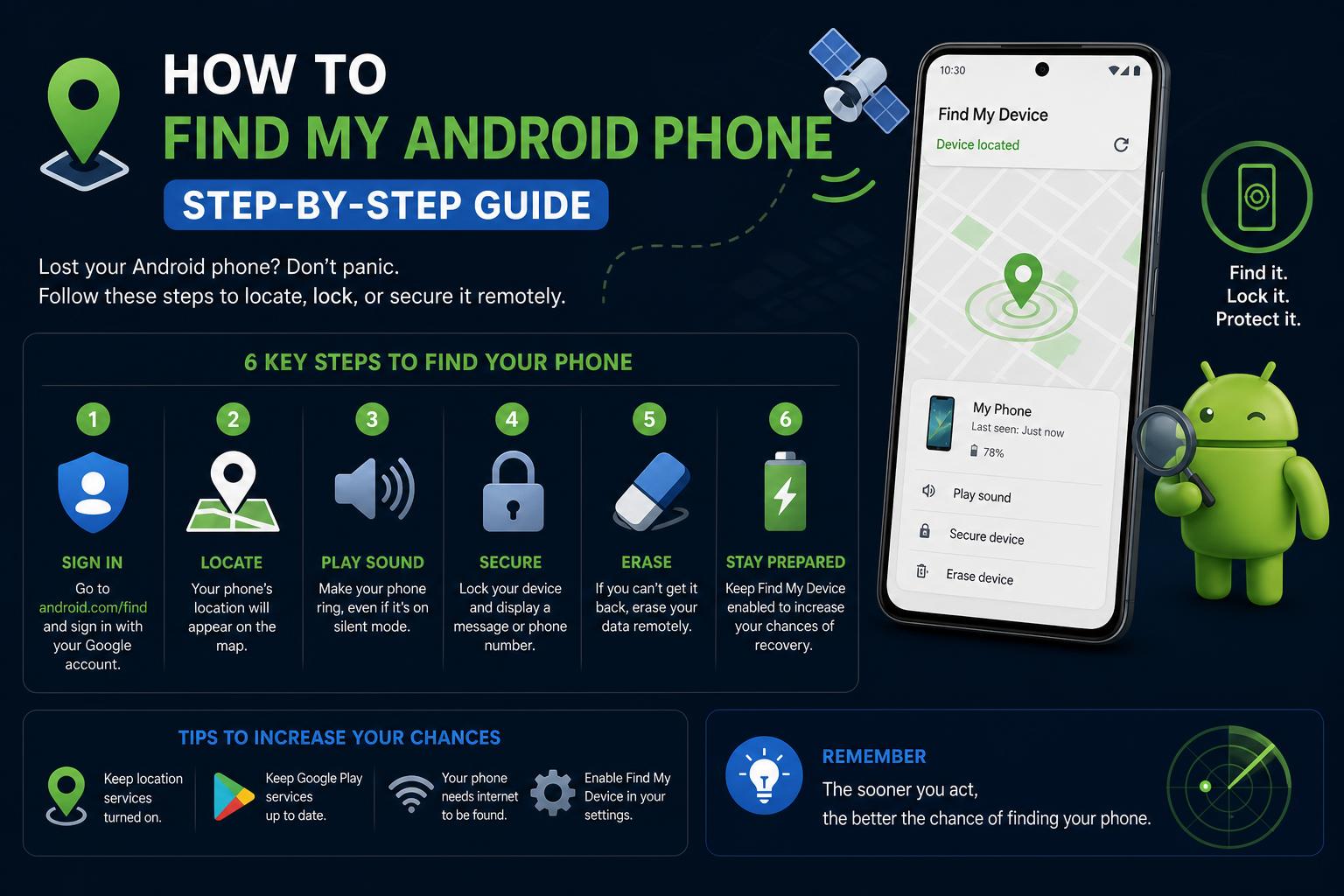
- Google's integrated Find My Device offers real-time tracking, locking, and data erasure for lost Android phones.
- Find Hub and Google Maps Timeline provide advanced tracking and retracing features for connected devices.
- Mobile carriers and third-party apps can offer additional support if official tools are unavailable or insufficient.
If you’ve ever panicked after realizing your Android phone has disappeared, you’re far from alone. Most of us keep a treasure trove of important contacts, photos, and data on our smartphones, and the sinking feeling after losing it can be overwhelming. The good news is that modern Android devices, thanks to close integration with Google services and a wide variety of handy apps, offer powerful tools to help you locate, secure, and even recover your lost or stolen phone. Even if you think you’ve tried everything, there might be new tricks or features you haven’t explored yet.
Having a clear, step-by-step plan is essential in these stressful moments. This guide will break down every reliable method, app, and trick to track a lost Android phone, lock or erase it remotely if needed, and understand all your options before giving up hope. Whether you’ve simply misplaced your phone at home or suspect it’s been stolen, the strategies below cover official Google tools, dedicated apps, mapping features, and even seeking help from your carrier.
Find My Device: Google’s Built-in Solution
Google’s Find My Device (official info) is the go-to service for most Android users. This feature is deeply embedded in almost every Android device and provides intuitive controls to locate, lock, or erase your phone remotely. Provided your device is connected to a Google account and has location/access permissions set up, Find My Device is your fastest lifeline in an emergency.
- Visit the Find My Device website at https://www.google.com/android/find from any internet-connected browser.
- Sign in with the same Google Account used on your missing device.
- You’ll instantly see a map showing your phone’s last known or current location, along with battery status and even Wi-Fi network details if available.
- From this dashboard, you can choose to ring the phone at full volume (even if it’s on silent), lock it with a custom message, or erase all data if your privacy is at risk.
Using Find My Device is typically the simplest and most reliable first step. Be aware, however, that your device must be switched on, connected to the internet, and have location services active for live tracking to work. If these conditions aren’t met, Find My Device will still show the device’s most recent online location.
Find Hub and Tracking Multiple Devices
If you own several Android devices, Find Hub (see Android Learn Find Hub) is a central platform to help monitor and manage all your phones, tablets, and even tracker tags. Once you’ve linked your devices to your Google account, you can use Find Hub to see the location of each device on a map, send audio alerts, or flash lights on your lost item.
- Access Find Hub on any account-connected device, whether that’s your tablet, laptop, or wearable.
- If you don’t have a second device, you can use any browser to log into the Find Your Phone page with your account credentials.
- You can manage multiple connected devices and tracker tags simultaneously.
- Find Hub supports map views, audio pings, and light flashes, making it easy to spot your phone even if it’s lost nearby.
Find Hub also integrates helpful support content for troubleshooting issues like setting up devices, managing access, data protection, and recovering lost login information. If you encounter any issues, their detailed help pages are there to offer guidance.
Using Google Maps Timeline for Past Locations
Google Maps Timeline is a lesser-known but incredibly valuable feature if you can’t find your phone’s live location. By accessing your timeline, you can view all the places your device has recently visited, including addresses and timestamps, provided that location history was enabled prior to the loss.
- Open Google Maps Timeline from your computer or another device and sign in with your Google account.
- Review the list of places your phone was detected, complete with detailed time stamps for each location.
- This tool can help you retrace your steps if you misplaced your phone while out and about.
Keep in mind: Google Maps Timeline will only be useful if your phone had location services and history switched on before it was lost. If you’re concerned about sharing or managing your location data, you can review Google’s documentation to adjust your preferences or delete old records at any time.
Contacting Your Mobile Service Provider
If the above options haven’t helped—especially if your phone has run out of battery, is offline, or you couldn’t enable any tracking features—your carrier or network operator may be able to help. Contacting your provider can sometimes yield results, as they may use your phone’s unique IMEI number to track it or block service.
- Call customer support for your mobile service provider as soon as possible.
- Give them your phone’s IMEI number (you can usually find this on the box or in old device info emails, and sometimes through your Google account’s device list).
- Depending on company policy and privacy laws, your provider might attempt to locate, suspend, or block the phone to safeguard your data from thieves.
- If you believe your phone is stolen, request an immediate suspension of service and, if available, remote data blocking.
Be aware, though, that tracking through the carrier is typically a last resort, reserved for special circumstances or legal investigations. Most carriers can only help after appropriate verification or police intervention.
Third-Party Phone Finder Apps for Enhanced Features
Some users want more specialized tools than Google’s built-in tracking, especially for added peace of mind. There are many third-party apps, such as Find My Phone Android: Tracker, offering additional options not provided by default Android services. Here’s what you can expect:
- Remote device locking using a secure code (often customizable, defaulting to something like “1234”).
- Buzzing your phone at maximum volume even when it’s in silent mode—a lifesaver if you lost it at home or office.
- Saving your phone’s location, IMEI, and trusted contacts to help with later recovery.
- Sending alarms or code triggers via SMS or email, allowing limited control even without active internet.
- Very low battery usage as the app runs quietly in the background, ready to respond only if the phone is lost.
- Options to lock and reset the device password remotely, safeguarding your info if stolen.
How these apps work: First, activate the app and set it as a Device Administrator so it has permission to lock and ring your device remotely. If you ever need to uninstall, you must deactivate it as a device administrator first (usually via your phone’s settings: Security > Device Administrators). Pay close attention to privacy implications, and only install reputable apps from Google Play or other trusted platforms.
Android Community Help and Support Resources
Google’s Android Community (help forum) offers peer-driven advice and official troubleshooting for unique problems when locating your phone. While the answers you get might vary in depth and quality, crowdsourcing assistance can sometimes turn up odd solutions that official documentation misses. Be sure to search existing threads or start a new topic for community support if you’re stuck.
Critical Preparations: Before Your Phone Goes Missing
While these tools are incredibly helpful after losing your phone, there are steps you should always take in advance to maximize your chances of quick recovery:
- Keep Google account active and updated on all your devices.
- Enable Find My Device and confirm it has all the required permissions (location, device access, etc).
- Turn on Location History for Google Maps to use your timeline later if needed.
- Install a reputable phone tracker app for extra peace of mind.
- Set your lock screen to show useful contact or reward info in case a good Samaritan finds your phone.
- Periodically note your phone’s IMEI number—store it separately from your device.
Being proactive can significantly reduce panic and response time if your device does end up lost or stolen.
Recovering a Stolen or Lost Android: Special Cases
When a device is stolen, there are often additional worries—such as securing your accounts, protecting private data, or retrieving device backups. Be sure to:
- Immediately change passwords for sensitive accounts (email, banking, cloud storage) in case someone gains access.
- Consider erasing your device remotely if you believe recovery is highly unlikely or your information is at risk.
- Report the loss to local authorities and provide your device’s serial and IMEI numbers for any police reports.
- Monitor your Google and other major accounts for any suspicious login attempts post-loss.
Finding a lost Android phone is far less stressful with today’s powerful tracking solutions. By taking advantage of Google’s built-in Find My Device, setting up multi-device monitoring via Find Hub, utilizing Google Maps Timeline for retracing movements, and, if necessary, contacting your provider or using specialized third-party apps, you greatly improve the odds of a successful recovery. Regularly preparing your devices and accounts with these tools—alongside some preventative steps—means you can act quickly, limit risks, and stay calm, knowing you have every possible recovery avenue at your disposal.